%20-%20120%20x%2044.svg)
Managing client contacts - such as emergency contacts, parents, guardians, or next of kin - is an important part of maintaining accurate client records.
With the New Contact field, practices can collect this information directly through Zanda online forms. Clients can enter contact details themselves when completing intake or update forms, and the information is automatically added to the Contacts section of the client profile when the form is submitted.
This removes the need for staff to manually add contact records and helps ensure contact details are collected consistently from the start.
In this article, you’ll learn how the New Contact field works and how to add it to your forms to collect and manage client contact information more efficiently.
In this article:
- What is the “New Contact” field?
- Where can the New Contact field be used?
- How to add the New Contact linked field to a form
- Choosing which contact details to collect
- Additional contact fields
- Allowing clients to add multiple contacts
- Making the contact field required
- What clients will see
- Field types used in the form
- What happens when the form is submitted?
- How linked contacts are matched and updated via online forms
- How the New Contact field appears when printing forms
- Related Articles
What is the “New Contact” field?
The New Contact field is a type of a Linked Profile Field in an online form template which allows you to collect and automatically create contact records for a client directly from an online form.
This field can be used to gather details such as:
-
Emergency contacts
-
Parents or guardians
-
Next of kin
-
Secondary contacts
-
Any other person associated with the client
The New Contact field is available as a Linked Profile Field, which means the information collected from the online form is saved directly to the client’s profile in Zanda.
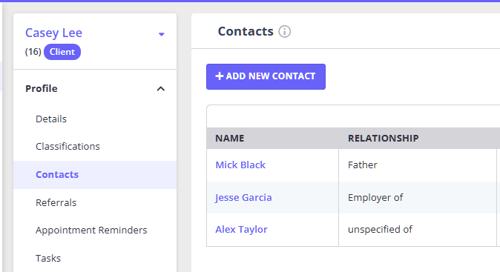
When a client submits a form containing this field, each completed contact block is automatically added to the Contacts section of their client profile.
💡 Pro Tip: Using forms to collect contact information helps ensure details are accurate and reduces manual data entry for your team.
Where can the New Contact field be used?
You can add the New Contact field to any client form template in Tools > Form Designer.
It works in:
-
Form Designer preview (Data Entry mode)
-
Client forms in a Zanda account
-
Client Portal forms
-
Printed forms
This allows contact information to be collected consistently across both digital and printed workflows.
How to add the New Contact linked field to a form
To add the New Contact field to a form:
-
Go to Tools > Form Designer
-
Open an existing client form template, or create a new one.
-
In the form template, click Add Field.
-
Select Linked Profile Fields.
-
Choose New Contact.
Once added, a configuration panel appears where you can customise how the contact information is collected.
You can also rename the field label to match the type of contact you want to collect, for example:
-
Emergency Contact
-
Parent / Guardian
-
Next of Kin
-
Secondary Contact
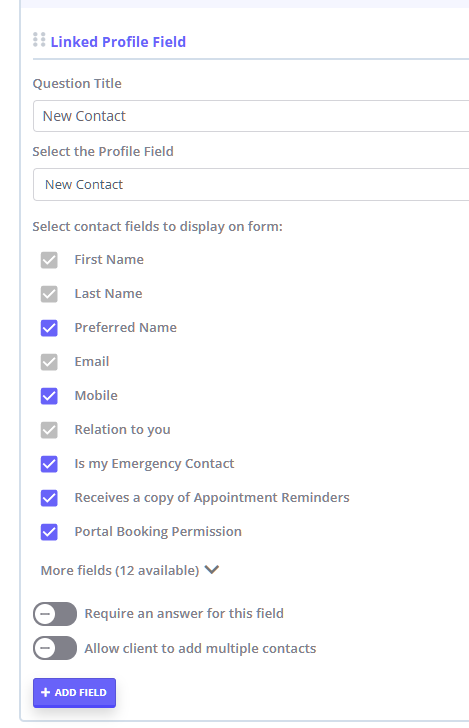
Choosing which contact details to collect
When configuring the New Contact field, you can choose which contact details appear on the form.
The configuration panel contains a list of available fields.
Core contact details
Some fields are included by default.
Always included
These fields are required to create a valid contact record and cannot be removed:
-
First Name
-
Last Name
-
Email
-
Relation to you
Optional fields
You can enable or disable additional fields such as:
-
Preferred Name
-
Mobile Number
-
Is my Emergency Contact
-
Receives a copy of Appointment Reminders
-
Portal Booking Permission
Additional contact fields
Under the main contact fields list, click More fields to access additional options.
These fields allow you to collect more detailed information about each contact when needed.
Available fields include:
-
Disclosure Level
-
Address
-
Suburb
-
City
-
State
-
Country (drop-down selector)
-
Postcode
-
Date of Birth
-
Sex
-
Gender Identity
-
Pronouns
-
Salutation
Allowing clients to add multiple contacts
The Allow client to add multiple contacts toggle controls whether clients can enter more than one contact.
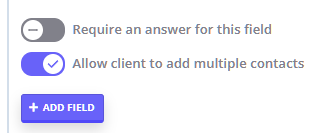
When enabled
-
The form initially shows one contact block.
-
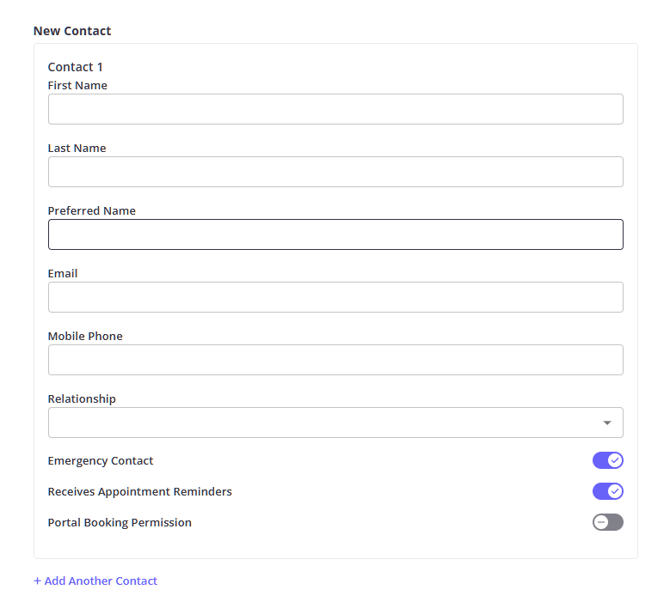
Clients can click + Add Another Contact to add more contacts.
-
Each additional contact block contains the same fields you configured.
-
Extra contact blocks can be removed using Remove Contact.
When disabled
Only one contact can be entered on the form.
Each completed contact block becomes a separate contact record on the client profile after submission.
💡 Pro Tip: Allowing multiple contacts is useful when collecting both emergency contacts and guardians in the same intake form.
 💡
💡 Making the contact field required
You can require clients to provide contact details by enabling the Require an answer for this field toggle.
When this option is enabled:
Clients must complete the key contact details before submitting the form.
Required fields include:
-
First Name
-
Last Name
-
Email
-
Relation to you
These required fields ensure the system can create a valid contact record.
What clients will see
When completing a form that includes the New Contact field, clients will see a contact section labelled with the name you configured (for example Contacts).
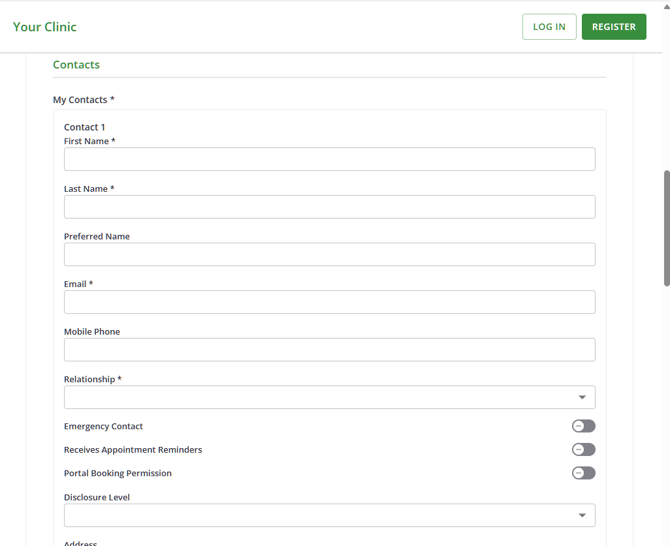
The form will display:
-
Only the contact fields you selected in the Form Designer
-
The same field order defined in the template
-
Contact blocks styled consistently with other form fields
If multiple contacts are enabled:
-
Clients can click + Add Another Contact
-
Each new contact block appears below the previous one
-
Extra blocks can be removed using Remove Contact
Field types used in the form
Some fields appear as specific input types:
-
Relation to you – dropdown populated with the relationship options defined in your account settings
-
Country – dropdown list
-
Other fields – text, email, date, or checkbox inputs consistent with existing form fields
What happens when the form is submitted?
When a form containing the New Contact field is submitted through the Client Portal or Clinic App:
For each completed contact block:
-
A Contact-type profile is created.
-
The contact details are saved to the client profile.
Stored details may include:
-
First Name
-
Last Name
-
Preferred Name
-
Email
-
Mobile Number
-
Relationship to the client
-
Address or other optional details
-
Toggles such as:
-
Emergency Contact
-
Receives Appointment Reminders
-
Portal Booking Permission
-
All created contacts appear in the Contacts section of the client’s profile.
⚠️ Note: A contact record will only be created if First Name is provided, as this is required to create a valid contact profile.
Submitting a form will not delete existing contacts if contact blocks are later removed and the form is submitted again.
How linked contacts are matched and updated via online forms
When a client submits an online form that includes a linked contact section, the system automatically checks whether that contact already exists on their profile.
Here’s how the system decides whether to update an existing contact or create a new one:
1. Finding a Match
When the form is submitted, the system looks through the client’s existing contacts (if any) in the following order:
-
Existing Form Link
If the client is updating a form they previously saved with a contact, it will automatically match to that same contact. -
Email Address
If the submitted email address exactly matches an existing contact, it is treated as a match.
Note: Email is prioritised. Even if the name entered is different, a matching email will still link to the existing contact. -
First & Last Name
If no email match is found (or no email is provided), the system checks for an exact match on both first and last name.
2. Updating an Existing Contact
If a match is found using any of the rules above:
-
The existing contact is updated with the new information from the form
-
Any fields included in the form (such as phone number, address, or name) will replace the previously saved details
-
Relationship settings (like Emergency Contact or Portal Booking Permission) are also updated based on the latest submission
3. Creating a New Contact
If no match is found:
-
A new contact is created using the submitted details
-
This contact is automatically linked to the client’s profile
Why this matters
This process helps keep contact details accurate and up to date, while avoiding duplicate records—so client profiles stay clean and easy to manage.
How the New Contact field appears when printing forms
When a form containing the New Contact field is printed:
-
Each contact appears as its own clearly structured block
-
The printed section label matches the field name used in the template
-
Only the fields selected in the form designer are printed
If multiple contacts were provided:
Each contact appears as a separate section in the printed form.
This ensures printed forms match the information entered online.
Related Articles