%20-%20120%20x%2044.svg)
If multiple users in your account need to upload their signatures for email or letter templates, you can use a merge field to incorporate these signatures into communications. This article provides the necessary steps.
In this article:
- Instructions for Users on Uploading Signatures
- Add the user signature merge field to communication templates
- Create an email or letter with your signature
- Frequently Asked Questions
- Related Articles
Instructions for Users on Uploading Signatures
Here is how you and other users of your account can upload signatures to your own user profiles:
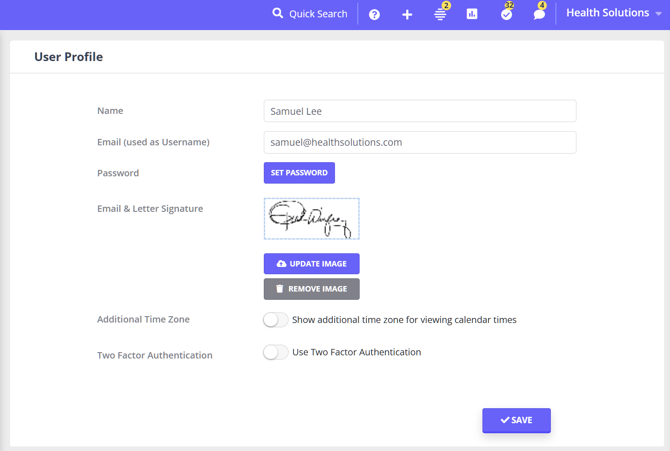
1. When logged in, click the account business name in the top right-hand corner to open the User Menu and select 'User Profile'.
2. On this page, you can either drag and drop or click 'browse file' to find and select an image to be used as your email and letter signature
❗Note: It must be a jpeg, jpg, png, or webp file type, with a maximum size of 500KB.
3. Once you've dropped or selected an image, you can choose to set the width of the image in pixels and zoom in or out. Click 'Apply' when you're happy with the size.
4. Once uploaded, you'll see your signature in your user profile settings.
- Your signature won't be editable by any other users in the account.
- It can only be edited while logged in under your username on this profile page.
- You have the option to update or remove your image.
Adding the user signature merge field to communication templates
To have users' signatures merged into emails and letters you'll need to add {UserSignature} merge field to the communications template:
- Navigate to Tools → Communication → Templates
- Either add a new template ("New Template") or click on an existing template name to edit it.
Note💡
This merge field can only be used for email or letter template types. It will not work for SMS templates.
- Click on 'Available Merge Fields' (below the message content section).
- Search for the merge field 'User Signature'.
- Hover next to the merge field code and select 'Copy'.
- Close the merge fields window.
- Paste the merge field code into the template in the position you'd like the users merge field to be shown
- Click 'Save'.
Note💡
This merge field can only be used for email or letter template types. It will not work for SMS templates.
Create an email or letter with your signature
You've uploaded your signature to your user profile and set up an email or letter template with the user signature merge field, now you're ready to reap the benefits and have your signature automatically merged into the email or letter you create!
Here's how it works.
- When you create an email or a letter for a client using a template that contains the {UserSignature} merge field, the system will automatically merge your signature image for you.
- The merging will not occur for any automatic communication that the system creates, such as appointment reminders, or client portal notifications. You must be logged in and create the communication yourself for the merging to occur.
- If you don't have a signature uploaded, the merge field will be blank.
Frequently Asked Questions
❓ Can I add my signature to a one-off letter without using a template?
No, not by pasting {UserSignature} directly into a manually typed letter. The best way is to start the letter from a letter template that already contains the {UserSignature} merge field, then edit the letter content before you save, print, export, or send it.
To set this up:
- Upload your signature image to your User Profile.
- Go to Tools > Communication > Templates.
- Create or edit a Letter template.
- Add the {UserSignature} merge field where you want your signature to appear.
- Save the template.
- When creating the letter from the client profile, select that letter template first, then adjust the letter text for the one-off situation.
Merge fields are designed to populate from templates in Tools > Communication > Templates.
Related Articles
- Creating and Managing Email, SMS and Letter Templates - Learn how to create letter templates and add merge fields.
- Available Merge Fields for Communication Templates - Review the merge fields available for communication templates.