%20-%20120%20x%2044.svg)
Products are the tangible items you sell to your clients in your health practice. You can add a product to your Zanda account to invoice it to your clients. A medicine for removing acne, a video course on assertiveness training, and an ebook on effective dieting, are all examples of products you can add to your Zanda account.
In this article:
Adding a New Product
-
Navigate to User Menu > Account Settings > Billing > Products.
-
Click the +Add Product button.
-
Type in the details of the product you’d like to add to the form.
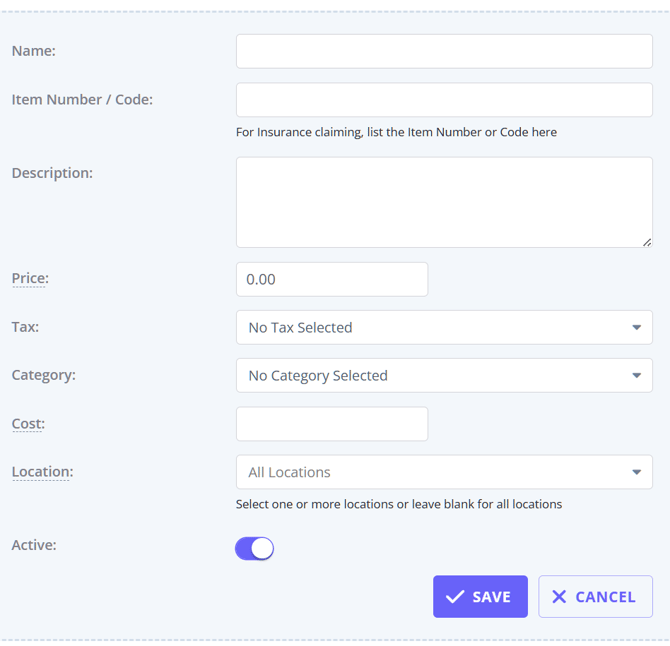
- Name: What’s your product called? Type in its name here. And make sure all your products have a different name so it’s easier to find one when adding it to an invoice.
- Item Number/Code: Add in a unique code for your product.
- Description: What purpose does this product serve? Add the answer to this question in this field.
- Price: How much are you charging for this product, including tax and profit margin? Enter the total price here. (This is the amount clients will see in their invoice).
- Tax: Would you like to add a tax to this product? Or this is product tax-exempt/tax-free?
- Category: Have you created different categories to sort your products? If so, choose a category to add this product in.
- Cost: this is an optional field you can use to record your business's cost of providing a product. Cost is not visible to clients and other payees.
- Location: Product will only be available to select for appointments and invoices at the selected locations in your Zanda account.
- Active: If you want to start selling this product, toggle the active switch on. If not, turn it off. You can activate it later when you’re ready to sell it.
4. Click Save after you’ve completed the form.
Your new product will show up in the Product List on the User Menu > Account Settings > Billing > Products page.
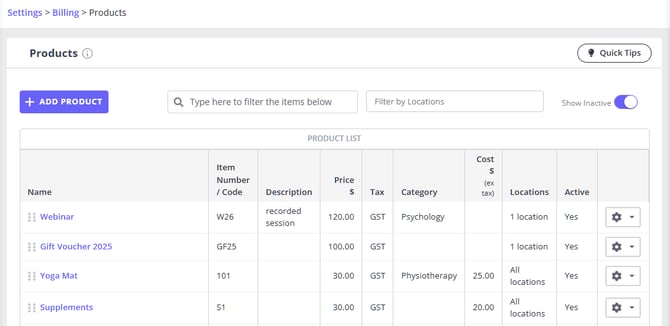
The Product List includes the following information:
- Product Name
- Item Number/Code
- Description
- Tax
- Category
- Cost $ (ex. tax)
- Price $
- Location (where made available)
- Active (Yes/No)
- Action (Edit/Activate)
How to Search the Products List for Existing Products
When you go to User Menu > Account Settings > Billing > Products you will see the full list of your active product templates.
If you need to quickly find a specific product or a group of products, use the provided filters.
1. The search bar with the prompt "Type here to filter the items below" specifically checks the text in these three columns in the Product List, so you can look up your products based on their
- Name (e.g., "Webinar")
- Item Number / Code (e.g., "W26")
- Description (e.g., "recorded session")
2. The second available filter allows you to search products by Locations.
3. You can also turn on the Show Inactive switch to see all inactive products templates.
Editing a Product’s Details
-
Navigate to User Menu > Account Settings > Billing > Products
-
Click on the name of the product whose details you want to edit or click the gear icon and select Edit.
-
Edit the form with any new detail you want.
-
Click Save after you’re done editing the form. This will save any changes you’ve made to the product’s details.
Deactivating and Reactivating a Product
-
Navigate to User Menu > Account Settings > Billing > Products in the left-hand menu of your dashboard.
-
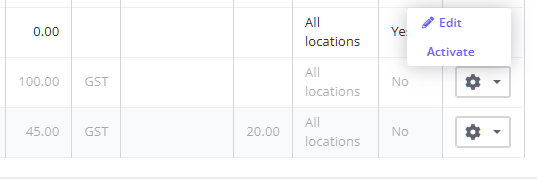
Click on the gear icon on the extreme right of the product you want to deactivate.
-
Click the Deactivate button and then click OK to confirm.
-
This will remove it from the products page - and you won’t be able to add it to an invoice or an appointment detail.
If you’d like to reactivate the product(s) you’ve deactivated:
-
Toggle the Show Inactive switch on. This will show you all the products you’ve deactivated.
-
Click on the gear icon on the extreme right of the product you want to reactivate.
-
Click the Activate button.
-
This will put the product back into the products page - and you’ll be able to add it to client invoices and appointment details again.
Frequently Asked Questions
❓ Can I save a discount on a product, such as a travel product?
No. Product records store the product name, item number or code, description, price, tax, category, cost, location, and active status. To discount a product for a client, add the product to an invoice or appointment and apply the discount on the invoice item, or set an ongoing client discount from the client's Billing > Billing Setup page. Ongoing client discounts apply automatically to new invoices.
❓ Will editing a product price update future invoices?
No. Editing a product updates the product template for future use, but it does not prompt you to update existing future-dated invoices. If you need a different product amount on an existing future invoice, open the invoice or appointment and update the product line there.
❓ Can I track stock levels or inventory quantities for my products?
No. Products in Zanda are for setting up the items you sell and adding them to invoices and appointments. Zanda does not track stock on hand, remaining units, or reorder points, and it will not reduce a count when you sell a product. You can still see how many units of a product you have sold over a period: run a Sales report to view the quantity sold per product. If you need live stock-on-hand figures, keep those in a separate system.