%20-%20120%20x%2044.svg)
This feature allows you to require a client to pass a simple authentication check before they can access an online form. It helps prevent access to a form in situations such as a link being accidentally sent to the wrong client.
Authentication is configured per form template — each template controls whether the forms generated from it require authentication. A separate, practice-wide setting in Communication Options controls which method clients use to authenticate: their date of birth, or their email or mobile number. A related setting, Form Pre-population, can automatically fill a form with information already stored in the client's profile.
In this article:
- Form Authentication (set per template)
- Form Pre-population
- How Clients Authenticate
- Allowing Contacts to Authenticate for Clients Forms
- Frequently Asked Questions
Form Authentication (set per template)
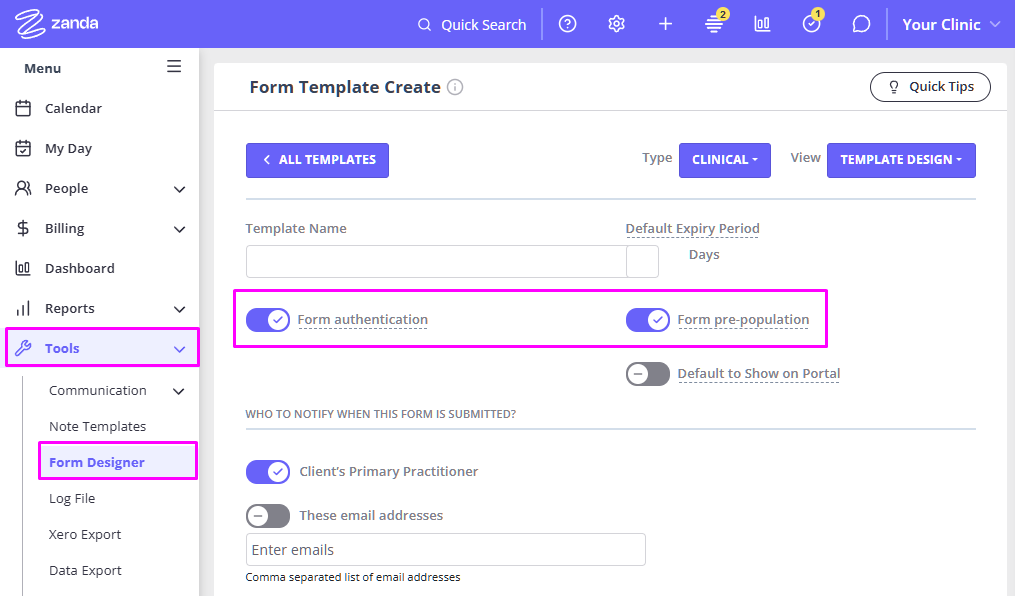
Authentication is set on the form template in Tools > Form Designer. When you create or edit a form template, you'll find these options directly beneath the Form Name field:
- Form Authentication
- Form Pre-population
Turn Form Authentication on to require clients to verify their identity before they can view and complete forms generated from that template. Authentication is enabled by default on all new form templates. To change it, open the template (via Tools > Form Designer), toggle Form Authentication, and save.
Tooltip: When enabled, clients must verify their identity before viewing the form. Authentication is required for form pre-population.
Notes💡
- You may wish to inform clients that they will be required to authenticate before getting access to an online form. We recommend that you include such instructions in your communication templates that you use to send online form links.
You can find and edit your communication templates on Tools > Communication > Templates page. -
Want to check if form authentication is working correctly?
-
Go to a Client Profile > Records > Forms.
-
Find or create a form draft, click Go to Portal Link in the form header bar.
-
Paste the client’s authentication details from their profile.
This ensures the form access is secured and linked to the correct client.
-
Form Pre-population
Form Pre-population automatically fills supported form fields using information already stored in the client's profile (see Linked Profile Fields for which fields can be linked). This saves clients from re-entering details you already hold.
- Pre-population is only available when Form Authentication is enabled on the template. If authentication is turned off, the Form Pre-population toggle is unavailable (greyed out).
- If you turn authentication off on a template that previously had pre-population enabled, pre-population is automatically disabled when you save the template. Any forms generated from that template after the change will no longer be pre-populated.
Tooltip: Automatically fill linked profile fields using existing client profile data. This option is only available when authentication is enabled.
For a field to pre-populate, the client must have completed authentication before opening the form, and the field must be linked to client profile data in the template.
How Clients Authenticate
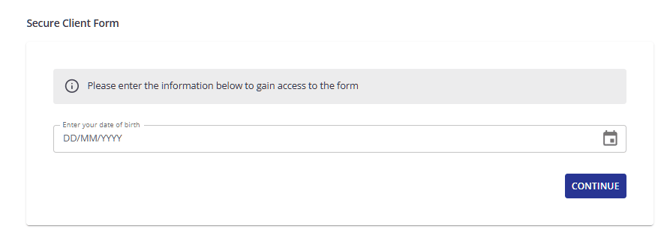
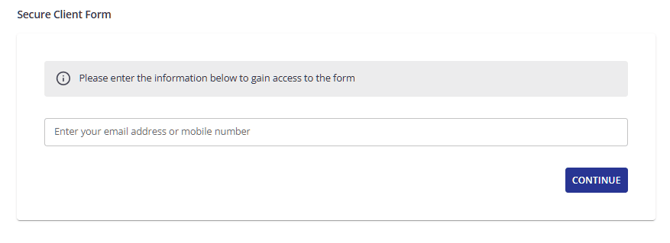
Once a form requires authentication, the client verifies their identity before they can open it. When they click the online form link you sent them, they see a pop-up asking for a detail that matches their client profile. Which detail they are asked for depends on your practice-wide method and what is stored on the profile:
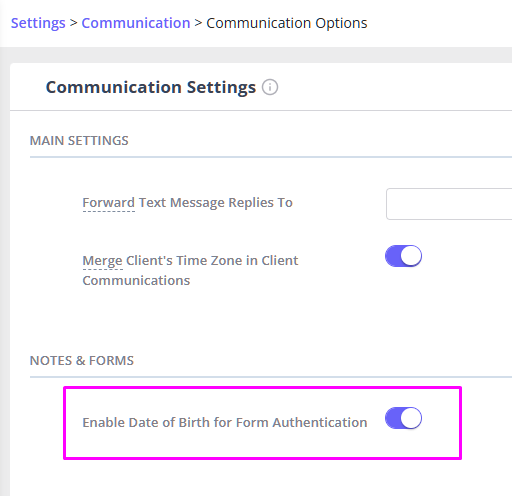
- Date of birth. To enable this global account setting, go to User Menu > Account Settings > Communication > Communication Options > Notes & Forms: turn on the Enable Date of Birth for Form Authentication switch and save. When your practice uses date of birth as the authentication method and the client has a date of birth on their profile, the client is prompted with a date picker labelled Enter your date of birth. The date picker follows your region's format — for example, DD/MM/YYYY for Australian accounts. When the date entered matches the date of birth already stored on the profile, access is granted. Zanda checks against the date of birth already held on the profile; the client is never asked to supply a new one.
- Email or mobile number. When date of birth is not the active method, or the client has no date of birth on their profile, the client instead enters the email address or mobile number stored on their profile. This fallback is automatic — there is nothing to configure per client.
After the client enters the matching detail and clicks Continue, the system verifies it and grants access to the online form.
Authentication by DOB:
Authentication by email or mobile number:
Allowing Contacts to Authenticate for Clients Forms
In some treatment cases, persons who are involved in clients' care, support, administration, or decision-making need to have access to clients' online forms and be able to fill in some information. In such cases, Zanda users are able to allow contacts to authenticate with their own contact details and gain access to clients forms. Here's how this is set up:
- Go to the Client profile.
- Open the Contacts section and select the relevant contact.
- In the contact settings, locate the toggle:
- Form Authentication: Can authenticate forms for [Client] with own details
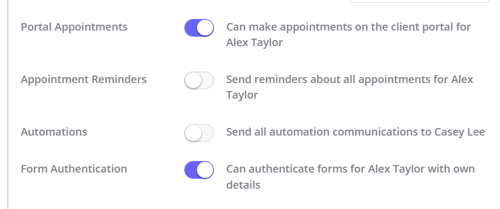
- Form Authentication: Can authenticate forms for [Client] with own details
- Turn the toggle on and Save the contact.
That contact can now authenticate relevant forms for this client using:
- Their date of birth, when your practice uses date of birth as the authentication method and the contact and their connected client have a date of birth on their record, or
- Their email (preferred), or
- Their mobile phone number if no email is stored
When the setting is enabled, it
- Applies to client online forms that require authentication.
- The form will accept the clients DOB, email address/mobile number or contacts DOB, email address/mobile number for authentication to grant access.
Where does the information a contact enters get saved?
When a contact completes an online form on a client's behalf, everything they enter is saved to the client's profile—the profile the form was created in—not to the contact's own record. On a standard intake form, this means linked profile fields (such as demographic details) update the client's profile automatically, just as they would if the client had completed the form themselves. Allowing a contact to authenticate only controls who can open and fill in the form; it does not change which profile the completed form and its data are attached to.
Troubleshooting:
If a contact receives an "email address is invalid" error when trying to authenticate and complete an online form, work through the following checks:
Step 1 — Verify Form Authentication is enabled for the contact
-
Open the client's profile
-
Navigate to the Contacts ta
-
Select the relevant contact
-
Confirm the Form Authentication toggle is turned on — it should display: "Can authenticate forms for [Client] with own details"
Step 2 — Confirm the contact has an email address saved
-
On the client's / contact's record, check that an email address is present
-
The form validates against this email — if it is blank or incorrect, the contact will receive an invalid email error
Step 3 — Check for typos or formatting issues
-
Ensure the email saved on the contact profile exactly matches what the contact is entering on the form (no extra spaces, correct domain)
If all of the above are correct and the error persists, contact Zanda Support with the client name and contact details for further investigation.
Frequently Asked Questions
Why is the Pre-population toggle greyed out?
This is expected. Pre-population requires Form Authentication to be enabled. Turn on Form Authentication first, and the Form Pre-population option becomes available.
Why isn't a client being asked to authenticate?
Check the form template used to generate the form. If Form Authentication is disabled on that template, clients can access the form without verifying their identity. If authentication is required, enable it on the template and generate or send a new form.
Why aren't fields being pre-populated?
Verify all of the following:
- Form Authentication is enabled on the template.
- The client successfully completed authentication before opening the form.
- The form fields are linked to client profile data within the template.
If any of these conditions are not met, pre-population will not occur.
Why is a client asked for their date of birth instead of email or mobile?
Your practice has date of birth set as the form authentication method, and the client has a date of birth on their profile, so Zanda asks them to confirm it. If a client has no date of birth on their profile, Zanda automatically falls back to the email address or mobile number on their profile instead. The client is only ever asked to confirm the date of birth already stored on their profile — they are never asked to provide a new one.
What happens if a client enters details that don't match?
Zanda lets the client know the details are incorrect and invites them to try again. After three unsuccessful attempts on the same form, Zanda pauses further attempts for five minutes; the client can then try again. This short cooldown helps keep form access secure. If a client is stuck, confirm that the email address, mobile number, or date of birth on their profile matches exactly what they are entering.