%20-%20120%20x%2044.svg)
In this article, you will learn how to archive, and delete your client profiles. It should also be noted that Contacts, Referrers, and Third parties can be archived, deleted, or restored in the same way as clients can.
In this article:
- How To Archive A Client
- How To Unarchive A Client
- How To Flag A Client Profile For Deletion Within 48 Hours
- How To Restore A Client Profile Marked for Deletion
- How To Archive/ Delete Multiple Clients (Bulk Update)
- Frequently Asked Questions
- Related Articles
Archiving A Client
If you choose to archive a client profile, the profile will be hidden from appearing in your account when using the search function. Archived (hidden) profiles can be unarchived at any time. When unarchived, the profile will become visible again in searches. Please note that even if you archive a client profile, the client's financial data, appointment information, clinical notes, forms, and uploaded files will continue to be stored and remain accessible. Archived clients will not receive appointment reminders or automation communication for any future appointments.
Automatic monthly statements are managed from the client's Billing > Billing setup settings, so turn off statement generation or statement emailing there if you do not want statements created or emailed for the archived client.
To archive (hide) a client profile, please follow these steps:
1. Go to the client profile you want to archive. Use the search bar on top of Zanda to search for the client.
2. On the client’s profile page, click on Admin > Manage to go to the Admin Settings page.
3. Here, simply click on the ARCHIVE button to archive the client.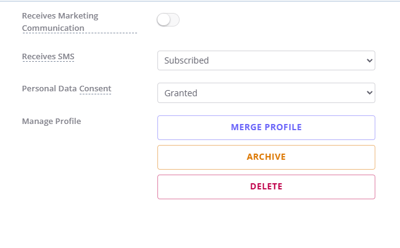
4. Click OK, when the confirmation box appears.
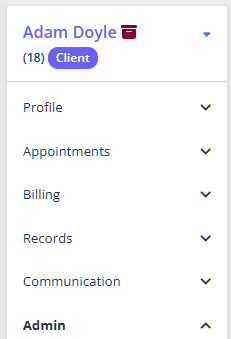
That’s it. You’ve successfully archived a client profile. When a client profile is archived, a special icon will be displayed next to their profile name
How To Unarchive Clients
If a client profile is not appearing/has disappeared in your account, it is likely because it has been archived. Here's how you can unarchive a client profile:
1. Navigate to PEOPLE > Clients and click Advanced Search.
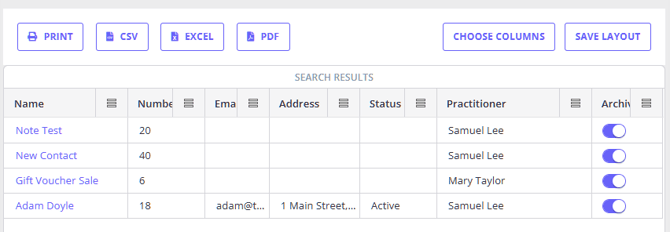
2. Scroll down until you see the setting called Archived. Set it to Archived Clients Only. Type in the name of the client if you remember. If you want, add other filters as well.
3. Once done, click on the Show Filtered List button on the bottom-right corner of your screen to open the list of archived clients. Turn off the 'ARCHIVED' switch to unarchive the client.
4. Alternatively, on the client’s profile page, click on Admin > Manage to go to the Admin Settings page.
5. Click on the UNARCHIVE button at the bottom-right corner of the page. 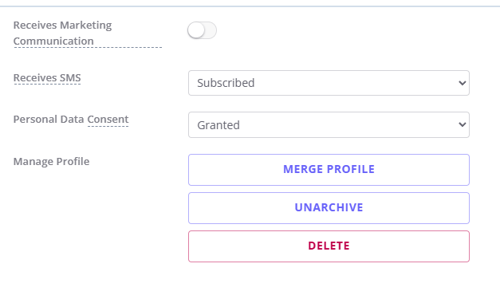
This will unarchive that client and make them active, meaning you can again start creating appointments for them in Zanda.
Flagging Client Profiles For Deletion
In Zanda, you can permanently delete a client profile. Once deleted, the profile will be removed completely from your account and from our database as well. This means once you permanently delete a client, you won’t be able to restore them back to your account.
Note: Your client profiles won't be deleted immediately. Instead, the system will process your request in 48 hours. In this grace period, you have the option to restore your client profile. This is useful in cases where you accidentally delete the wrong client profile or change your mind about deleting the client profile altogether. Should you choose not to restore within 48 hours, then the client profile will be permanently deleted.
Here’s how you can flag a client profile for deletion within 48 hours:
1. Use the search bar on top of the Zanda dashboard to search for the client you want to delete. Click on their name to go to their profile.
2. On the client’s profile page, navigate to Admin > Manage to go to the Admin Settings page.
3. On the Admin Settings page, click the DELETE button.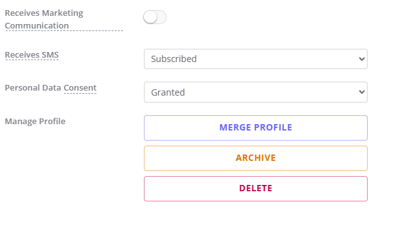
4. A confirmation box will appear. Read it carefully and click the DELETE button again.
Important Note: If a client profile stored invoices paid by other parties (contacts, members of shared profiles, referres, or third parties), these invoices will be deleted together with the rest of client's data.
However, the payments linked to these invoices will not be deleted as they are stored in the actual payees' profiles. Instead, the payments will be unallocated and continue to be stored in the payee profiles as credit/positive account balance.
We recommend creating dummy invoice(s) with an outstanding amount equal to the unallocated payment amount and allocating these payments to it to balance the payee's account.
5. Now, another confirmation box will appear asking you to type DELETE in all-caps. Once you do this, click OK.
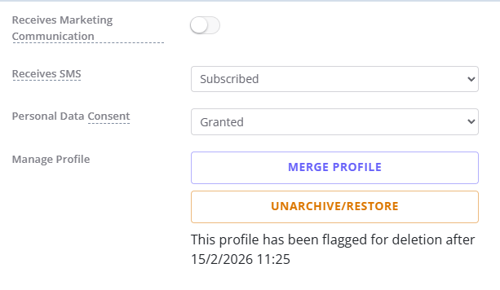
As a result, your client profile will be flagged for deletion within 48 hours. You'll see the exact date/time mentioned as to when the profile will be irreversibly deleted.
How To Restore a Client Profile Flagged for Deletion
💡Pro Tip: You can generate a list of all client profiles that have been flagged for deletion. Just go to People > Clients > Advanced Search. Here, set the 'Archived' status to Flagged For Deletion and run the report. This will show you a list of client profiles which will be deleted soon.
1. Open the client profile that's flagged for deletion.
2. Navigate to Admin > Manage.
3. Click the Unarchive/Restore button to restore the Client Profile.
Once you confirm this action, the client profile will be restored, and won't be deleted.
Archiving (or Deleting) Multiple Clients At Once
- Go to Tools > Bulk Update using the left-hand menu on Zanda.
- Add your desired filters to generate a list of clients matching a specific criteria, and simply click on the Get Clients button at the bottom-right corner of your screen.
- When the list of clients show up, simply tick the ones you want to archive/delete and click on the blue Archive (or Delete) button at the bottom of your screen. Archived clients will simply be hidden, and can be restored later. Deleted client profiles will be marked for deletion in 48 hours.
Frequently Asked Questions
❓ I deleted a client but do not know which client it was. How do I find them?
Use the deletion list rather than the archived-only list. Go to People > Clients > Advanced Search, set Archived to Flagged For Deletion, and run the search. Zanda lists client profiles that are still in the 48-hour deletion window. Open the profile you need, then go to Admin > Manage and select Unarchive/Restore before the deletion time shown on the profile.
The Deleted Appointments report can help investigate appointments that have been deleted, but it is not the client deletion list.
❓ Can I see which clients were recently archived, and when?
Yes—use the Activity Log to find archive events by date. Zanda records each archive action in the Log File, so this is where to look when you want to know which clients were archived in a recent period.
- Go to Tools > Log File.
- Set the Date range to the period you want to review. The Log File keeps the past 12 months.
- In the Note field, search for archived, then click Go.
The results show the Date, Profile Name, User Name, and Note for each archive event. Archiving a single client from their profile appears as Client profile archived against that client, and archiving several clients together in a bulk update appears as a single entry listing the client numbers that were archived. This gives you a dated history of archiving activity.
To see the full current list of archived clients without dates, go to PEOPLE > Clients > Advanced Search, set Archived to Archived Clients Only, and click Show Filtered List. Advanced Search shows who is archived now; the Log File shows when each client was archived.
❓ What happens when an archived client uses the Client Portal?
Archiving hides a client from your searches, but it does not close their Client Portal access. Here is what an archived client can and cannot do:
- Logging in — an archived client can still log in with their existing email and password and use the portal's other services, such as viewing invoices, past appointments, and forms. Logging in does not unarchive the profile; it stays archived until you unarchive it from Admin > Manage on their profile.
- Registering as a "new" client — if an archived client tries to register again using the same name and email (or mobile number), Zanda recognizes them as an existing person and reconnects them to their current profile instead of creating a duplicate. That profile stays archived — registering again does not unarchive it. A brand-new profile is only created if the details do not match any existing client and your portal is set to allow new client registration.
- Booking an appointment — by default, archived clients can still book online. To prevent this, turn off Allow Archived Clients to Book Appointments in User Menu > Account Settings > Schedule > Client Portal > Access and Settings (Online Bookings section). Blocked clients are then prompted to contact you directly, but they can still log in to view invoices, past appointments, and forms. This setting affects new bookings only. See Setting Up Online Bookings on Client Portal for details.
To give an archived client a normal active experience again, unarchive their profile from Admin > Manage on their profile.
Related Articles
- Restoring a Deleted Appointment - Learn how to restore an appointment that was deleted from the calendar.
- Setting Up Online Bookings on Client Portal - Configure who can book online, including the option to block archived clients.