%20-%20120%20x%2044.svg)
With BizzyAI creating session notes couldn't be easier. Allow BizzyAI to securely transcribe and summarize your session to prepare a note draft according to your selected note template. Add dictations to be transcribed and incorporated into the note. Use Refine to make any modifications to meet your writing style. Whatever it is you want, BizzyAI will do it for you. Read on to learn how.
BizzyAI: Refine is available at no extra charge, and BizzyAI: Scribe can be enabled from your Optional Add-Ons settings.
* You need to be an account owner/master user or a user with the 'Setup and Configure Zanda' permission to enable BizzyAI in your account.
Watch the webinar:
In this article:
- How to use BizzyAI: Refine for modifying your notes
- Setting up your default note output preferences
- Pricing Information
- Security Information & FAQs
Overview of the BizzyAI note-taking functionality
While editing or creating a note, you will see the following options for BizzyAI: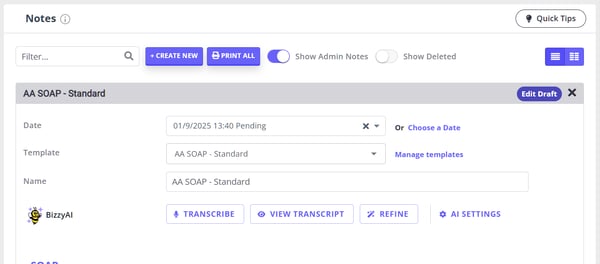
-
- Transcribe: Used to transcribe your session or dictate session information.
- View Transcript: View and edit the session transcription.
- Refine : Ask BizzyAI to make updates to your note. Undo and redo changes made by BizzyAI. There is no character limit for the 'Refine Input' field.
- AI Settings: Apply default note output preferences. The character limit for the 'Custom Preferences' field under AI settings is currently set to 5,000 characters.
How to Enable BizzyAI Scribe & BizzyAI: Refine
The settings to turn BizzyAI features on and off are located in User Menu > Your Account > Subscription > Optional Add-Ons.
Enable AI Features and Enable Scribe are both on by default during your trial, so you can start using BizzyAI straight away. Converting from a trial to a paid account does not change either setting: whatever they were set to during the trial is what you keep. You can turn either one off at any time.
During your trial, BizzyAI: Scribe is free to use up to a set usage limit. When you reach it, recording stops and you are prompted to convert your account to keep using Scribe.
To review or change these settings:
- Navigate to User Menu > Your Account > Subscription > Optional Add-Ons.
- In the BizzyAI Features section, Enable AI Features is the master switch. It gives your account access to AI features, and it gives users with access to notes BizzyAI: Refine and BizzyAI: Write.
- Enable Scribe controls transcription separately for users who have access to notes. You can leave Enable AI Features on and turn Enable Scribe off if you want the free AI features without usage-based transcription.
- Review the Per hour charge shown beside BizzyAI: Scribe so you understand the usage-based cost before you start recording.
Turning Enable AI Features off switches Enable Scribe off with it, and stops Write, Refine and note summaries for everyone in the account.
If BizzyAI: Scribe is not enabled, the notes area will show a message directing you to your subscription settings before you can use transcription.Transcript Retention Settings
You have the option to automatically delete transcripts after a selected period—so they’re only available for as long as you need them.
This feature is especially helpful if you prefer to keep your workspace clean, or if you need to align with specific data storage policies.
Here's how to set this:
- Navigate to User Menu > Your Account > Subscription > Optional Add-Ons.
- Go to BizzyAI Features > Transcript Retention Period.
- In the available drop-down field you can choose to:
-
Never delete transcripts (this is the default)
-
Delete after 1 day
-
Delete after 7 days
-
Delete after 30 days
Once you’ve set your preferred retention period, BizzyAI will handle the rest.
Here’s how it works:
- A transcript associated with a note will be deleted after the set period, according to the start time of the recording made for that note.
- If a note includes multiple recordings, all transcripts in that note will be deleted once the last recording's start time has reached the end of the retention window. For example, if your setting is 7 days, all transcripts from that note will be deleted 7 days after the last recording began.
- There is a daily process that runs overnight to remove the transcripts according to the selected retention period.
This feature helps ensure transcripts are only visible while needed, giving you full control over what stays and what goes.
How to use BizzyAI: Scribe for transcribing your session
You can record your session with the client, or dictate notes to be transcribed and summarized into a clinically relevant session note. This works for both clinical and admin notes in the client's profile, and you can can add a transcription to a new note, or an existing note.
Some tips for a successful recording:
- Reduce external noises. Try to find a quiet environment to avoid external conversations being picked up.
- Ensure you allow access to the microphone in the browser.
- Ensure that all speakers are close to your microphone so that it can capture all speakers.
- You may wish to do a test recording to ensure your microphone is working and your sound is being detected before starting the session.
- On a phone or tablet , keep the Zanda recording screen open and active. If you lock the screen, switch to another app, or change browser tabs, Scribe pauses the recording — the audio captured so far is kept, not lost — and you can return and resume. See Recording on a phone or tablet below for the full detail.
Here's how to transcribe your session with BizzyAI: Scribe:
- While in the client's notes page (Client Profile > Records > Notes) either create a new note, or edit an existing note.
- If creating a new note, select the date and template first. Your template must have a single line or multiple line text field - these are the only fields that the BizzyAI generated content will populate in the note template.
- Ensure you obtain informed consent from the client before recording your session (read more under FAQs).
- Press Allow to give access to your microphone
- Press Transcribe
- Select your microphone (if you are on mobile, your default microphone will be used).
- Press Test Microphone to test that your audio is captured. This will record a few seconds of audio and play it back to you.
- Press the Record icon and wait a moment to connect. Once it starts recording you will see your sound picked up in the audio wave.
- Conduct your session. While recording, you can type notes to the Context Notes field to be incorporated into the note draft. This may be things such as objective notes about the patient
- Once you've finished recording press the Pause button to stop the recording. You can press the Pause button to pause the recording and then click Play to resume at any time.
- Click Finish & Update Note. It may take a moment for BizzyAI to process the transcription and summarize the content into your note template. You'll see the loading screen while the context is being generated.
Recording on a phone or tablet (screen lock, background, and iPad)
You can use BizzyAI: Scribe on a mobile phone, tablet (including iPad), laptop, or desktop, as long as Zanda can access the microphone and the recording screen stays open and active.
For the most reliable in-room setup, use a laptop or desktop browser where you can. This lets you choose which microphone to use, run Test Microphone, and keep the recording screen open without depending on a phone or tablet screen staying unlocked during the session.
If you record on a phone or tablet, keep the Zanda page open and in the foreground. If you lock the screen, switch to another app, or move to another browser tab, the browser sends the page to the background and Scribe pauses the recording. Your audio up to that point is kept — it is not lost. You will see a "Transcription stopped — background recording not supported on this browser" message; despite the "stopped" wording, the recording is only paused. Return to the Zanda recording screen, then tap the microphone button to resume, or tap Finish & Update Note to build the note from what has already been captured. (This applies to phones and tablets only; on a laptop or desktop, switching tabs does not pause the recording.)
When positioning a phone or tablet in the room, place it close enough for the microphone to capture each speaker clearly, and confirm the audio first with Test Microphone. On a phone or tablet, Scribe uses the device's default microphone.
Transcription Processing FAQs
❓ What is the maximum transcription processing timeout?
BizzyAI allows up to 5 minutes of processing time for each transcription. This limit refers to the time BizzyAI spends generating the transcript — not the length of the audio or recording itself. Any transcription that finishes processing within this 5-minute window is accepted.
❓ Why would a transcription processing take longer?
Most transcriptions complete well under the 5-minute processing limit. However, BizzyAI may take longer when:
- The transcript content is very detailed or extensive
- You’re using complex templates or additional context
- The AI needs extra time to produce a high-quality, accurate output
❓ Do I need to do anything if a transcription takes close to 5 minutes?
No — as long as BizzyAI finishes processing within the 5-minute limit, the transcription is accepted automatically, even if it takes longer than usual.
You will see this waiting screen informing you of the processing steps in progress:
❓ What happens if a transcription exceeds 5 minutes of processing time?
If BizzyAI’s processing time goes beyond the 5-minute maximum, the transcription will time out and won’t be accepted. If you encounter a timeout, please reach out to our support team at support@zandahealth.com for help.
❓ What should I do if Finish & Update Note says the transcript cannot be found?
Open View Transcript in the note first. If the transcript is visible, follow the Refine recovery tip in the next section. If View Transcript shows No transcript yet, Zanda does not have transcript text available for that note. Check for connection warnings, refresh the page, try an incognito or private browser window, or switch to another supported browser before recording again. If the issue continues, contact Zanda Support with the browser used, whether the problem affects one user or several users, and the steps already tried.
- Browser session issuesTemporary browser or session interruptions can prevent new records from being saved.
- Hidden formatting in pasted textCopying content from other apps (for example, Word or email) may introduce hidden formatting that interferes with saving.
- Date validation issuesNotes can’t be created for appointments outside the allowed date range (for example, appointments older than two years).
- Permission-related restrictionsSome actions, such as editing or unlocking completed notes or forms, require specific user permissions.
How can I fix it?If you see this message, try the following steps:
- Wait for confirmation before starting AI toolsMake sure you see a clear confirmation that the note has been created before clicking Start Recording or using AI Transcript.
- Refresh the pageA simple refresh can resolve temporary session issues.
- Use an incognito or private windowThis helps rule out cached data or extension-related problems.Chrome:
Ctrl + Shift + NSafari: File → New Private Window - Disable browser extensionsTemporarily turn off extensions such as ad blockers, script blockers, or privacy tools, then try again.
- Check your internet connectionAn unstable connection can interrupt saving and prevent records from being created.
- Try a different browserSwitching to another supported browser (such as Chrome, Edge, or Safari) can help confirm whether the issue is browser-specific.Helpful tips to avoid data loss
❗ If you’ve entered a lot of text, copy it to a separate document before leaving or refreshing the page.
❗ If the error happens repeatedly across multiple clients or users, it may point to a broader issue that needs investigation.
Using BizzyAI: Refine
- Once the note output is ready, you'll land on the Refine tab. You will see a confirmation message that your note has been updated, and you'll see the note draft in the single and multiple line fields in the note below. Any notes you had written into the template prior will be used to compile the new note summary, however, the exact wording may be changed to fit the new context.
💡 If you click Finish & Update Note but no written content is produced in your note template:
-
Try prompting the AI again using the Refine option.
-
For example, you can enter: “Please use all details in the transcription and populate the note template.”
-
This often resolves the issue and generates the expected content.
-
-
If the problem continues, please reach out to our Support Team. Include the note details in your request so we can investigate further.
-
- You can edit the note output directly in the field:
- If you want to revert the changes made to the note you can press the undo icon. You can only undo the last immediate change made by BizzyAI. Once you've saved the note again, you cannot undo. You also have the option to redo to go forward to the note produced by BizzyAI.
- You can click on the View Transcription tab to view the transcription.
- To edit some text in the transcription click into the line to edit. Once done, press Save Transcript. The changes made here will only be incorporated into the note draft when you either make another recording, or use the AI Actions to make a change to the note draft.
- Once you are finished, click Save as Draft or Save and Complete to finish editing. Your note will be auto-saved as changes are made to it.
Note about the Context Note content:
The context notes are saved for a note session when you first create or edit the note.
If you update the clients name, date of birth, gender, or pronouns and then view the existing note for that client again then the context notes will not fetch the latest changes. This is to ensure that any custom information you add to the context notes are not overwritten.
You can edit the context notes directly if needed to reflect any changes in that information.
Important:
While the transcription and summarization tools we use are leaders in accuracy, it is advised that the practitioner reviews all note output content as the practitioner remains responsible for the documentation.
Using one transcript with more than one note template
❓ Can BizzyAI: Scribe create two notes from one transcript using different note templates? No. BizzyAI: Scribe creates the transcript and note draft in the note you are editing, using the text fields from that note template. If you need a second version, create or open a second note with the other template, add the source content you want BizzyAI to work from, and use Refine to make the note shorter, more detailed, or formatted for a different purpose.
For example, you might keep the original detailed note in Zanda, then create a second note with a contractor or referral template. Paste or type the relevant summary content into the second note, click Refine, and tell BizzyAI how you want the second version adjusted. If the second note needs its own transcript, start BizzyAI: Scribe from that second note so the recording is attached to that note.
Sessions with more than one client
❓ Can I use BizzyAI: Scribe when two clients are in the same face-to-face session?
Yes. Start BizzyAI: Scribe from the note you want to draft first, usually by opening one client's profile and going to Records > Notes. BizzyAI: Scribe records the session into that note, then prepares the transcript and note draft for that note.
❓ Can BizzyAI: Scribe split one couples or group session into separate notes for each person?
No. BizzyAI: Scribe prepares one transcript and note draft in the note you are recording from. If you need separate clinical notes for each person, create or open a note in each relevant client profile and save the appropriate content there. If you record from a shared profile note, that note is stored as a record for the shared profile, not as separate notes for each member.
Internal staff meetings
❓ Can I use BizzyAI: Scribe for an internal staff meeting? Yes, if the meeting should be recorded into a client or shared profile note. BizzyAI: Scribe runs from Client Profile > Records > Notes, so create or open the profile and note where the meeting record should be saved, then use Transcribe from that note.
The note template must include a single line or multiple line text field, because BizzyAI places the generated content into text fields in the note template. Review the generated note before saving it, and make sure storing the meeting content in that profile fits your practice's privacy and record-keeping requirements.
💡 Tip: Reports > Practice > AI Scribe Usage is for reviewing transcription usage and billing details. Start BizzyAI: Scribe from the note itself, not from the usage report.
How to use BizzyAI: Refine for modifying your notes
Once you've got a note draft (either using BizzyAI: Scribe, or if you've typed some notes), you may want to change the formatting or make some changes to it. You can use the Refine window to ask BizzyAI to make these changes for you. Here's how to use it:
- While editing a client's note, click on the Refine button.
- You can select one of the default instructions (e.g. "Make more detailed") or you can type a custom instruction. Some example of instructions you can use are:
- Rewrite using appropriate professional language and tone
- Add more quotes from the client
- Replace the word {example1} with {example2}
- Use the patients name instead of "the patient"
- After the change has been made to the note, you can press the undo or redo buttons to go back to a previous version, or forward again. You'll see the content updated in the relevant note fields below.
Note: When making a change, the tool will aim to make the change with as little changes to your current draft as possible. So if you ask the tool to replace a word or phrase used throughout the note, it will aim to do just that without rewriting the whole note and changing significant pieces of the note.
AI Settings: Setting up your default note output preferences
- When you first use BizzyAI in your notes you will see the modal pop up 'Configure your note style preferences'
- This can later be opened by pressing AI Settings.
- The AI Settings modal can be used to save your default note preferences. This includes how you would like the note to be formatted (in paragraphs or bullet points), and the level of detail (detailed or concise).
- Once you press "Save preferences" these will be applied to every note produced by BizzyAI.
- You can also type in custom preferences - this could be anything from clinical context (e.g. "You are writing notes for a clinical psychologist that specializes in child therapy") or instructions on abbreviations (e.g. "Use L for left; use R for Right" or "use the degrees symbol instead of the word"), or anything else that would aid the AI in producing a note that meets your style and content.
- AI Settings save one default set of preferences for BizzyAI note output. These preferences apply when BizzyAI produces notes for you, alongside the note template's single-line and multiple-line text fields.
- To guide different note types, use clear field labels in each note template and add any broad style or terminology preferences in Custom Preferences. After BizzyAI creates a draft, use BizzyAI: Refine for changes needed on that specific note.
- Another use may be if the transcript mistranslates a word that you commonly say, you can ask if to correct this based on the output it produces in the transcript. For example, if it commonly transcribes CBT as CBD you could instruct it "replace CBD with CBT".
- You can still use BizzyAI: Refine to make changes to a specific note. If you have the default setting to use paragraphs for example you can instruct it to use bullet points instead of paragraphs to override this setting.
Pricing Information
- BizzyAI: Refine is free to use with all subscription plans.
- BizzyAI: Scribe is a paid optional add-on. You can enable or disable it from User Menu > Account Settings > AI Settings.
- Pricing for BizzyAI: Scribe will be based on your billing currency as follows:
- $1 USD / transcription hour
- $1 AUD +GST/ transcription hour
- £1 GBP / transcription hour
- €1 EUR / transcription hour
- $1 NZD / transcription hour
- R20 ZAR/ transcription hour
- The minimum billing duration for BizzyAI: Scribe will be 1 minute. The duration will be charged based on your total minute usage per month, at the rate of $1/hour. You can calculate the price based on your minute usage using the following calculation: 1 / 60 * minutes usage. For example, for 20 minutes it would be calculated as 1/60*20 = $0.33.
- For information on other upcoming AI Functionality please see our article here
❓ Will I be charged if I leave BizzyAI: Scribe recording while no one is speaking?
Yes. BizzyAI: Scribe usage is calculated from the time recording is active, not from whether speech is being detected. If you need to step away, press the Pause button before leaving, then resume recording when you are ready to continue. Paused time is not included as active recording time, and the AI Scribe Usage Report shows the transcription duration used for billing review.
BizzyAI: Scribe Usage Report
The report is located in Reports > Practice > AI Scribe Usage.
The AI Scribe Usage Report helps you monitor how transcription is being used across your account. It shows the total transcription time per user for a selected date range, making it easier to track usage and manage your billing.
Use this report to estimate Scribe charges before your subscription invoice is generated. Select the date range you want to check, turn on Use UTC Time Zone to match billing time, then multiply the transcription minutes by your hourly Scribe rate divided by 60. Your final invoice remains the billing record for the account, but the report gives you the usage minutes needed to estimate a specific day's charge.
Available Report Filters
- Search On: Transcription Date or Session Note Date
- Start Date and End Date - use to select the search period for the transcriptions
- Use UTC Time Zone -transcription usage is billed in UTC time. To match your report with invoiced usage:
-
Enable the “Use UTC timezone” toggle to view timestamps in UTC.
-
If this setting is off, the report uses your account's local timezone instead. (Your Zanda account time zone is defined in User Menu > Account Settings > Practice > Business Info).
-
- Users - you can filter the report for transcriptions made by all users or by specific users in your account.
What This Report Shows
- The total transcription duration (in minutes and hours) for each user.
-
A user filter that lets you view transcript data for specific team members.
-
A summary total at the bottom of the report for all filtered results.
How User Attribution Works
Each transcript is attributed to the first user who started recording it in a note.
If multiple users contribute to a single note's transcript, only the first recorder is shown in the report.
Who Can Access This Report?
Only users with the “Access Financial Reports” permission can view the Transcript Usage Report. Enable this permission for authorized users in User Menu > Account Settings > Team > Users > User Management.
Security Information & FAQs
The BizzyAI: Scribe and Note Refine have been built with privacy and security at the forefront. Zanda adheres to strict privacy standards and the services we are using for transcribing and summarizing notes meet rigorous industry standards for security and compliance.
Learn about the extensive security and privacy measures in place that protect your data, and the steps we are taking to keep the tool accurate and reliable.
About the services we are using:
Transcription Service:
- We use using our own in-house transcription service for transcribing the sessions.
- The audio is never stored anywhere. It only lives in memory for the few seconds it takes to transcribe, then it's gone.
- The audio never leaves our infrastructure and is not sent to any third party (no external AI provider). Our transcription service runs on servers we own and control.
- Only the text transcript is saved against the session (encrypted), which is what powers the note generation afterwards. Based on your retention settings, you can control how long this is stored for.
Note Summarization and AI Actions:
- We are using the AWS Bedrock service to access an industry leading LLM (large language model) for generating the note draft summary and for performing AI Actions on the note.
- We have configured AWS Bedrock to use Anthropic's Claude for processing and generating note content.
- Data is encrypted in transit and at rest.
- No data is used to train the AI model, and all information is processed securely in real-time.
- Zanda has a zero retention agreement with AWS to ensure that no data is stored after processing.
FAQs
-
Do I need to create a custom note template before using BizzyAI: Scribe?
No. You can use BizzyAI: Scribe without creating a custom note template first, as long as the note you select contains at least one single-line or multiple-line text field. Custom note templates are mainly useful when you want BizzyAI to follow a consistent structure. Field labels help BizzyAI decide where to place content; if the text fields do not have labels, BizzyAI uses them to prepare a general session summary.
-
Can I save separate AI Settings for each note template?
AI Settings stores one default set of note output preferences. Use clear single-line or multiple-line field labels in each note template to guide where content is placed, and use BizzyAI: Refine when a specific note needs different wording, detail, or formatting. - How does BizzyAI know where to add the note information on my template?
You can use any custom note template however it must contain a single form multiple line text field as these are the only fields in the template that BizzyAI will populate. When the note template is passed to the AI model it interprets the headers of these fields and uses this as context to determine what content to put in that section. For example, if you have a multiple line field where the field title is "Subjective" then BizzyAI will place subjective content into that field. - Who can view the transcript?
The transcription and note draft are only accessible when opened directly through the note in the client profile. The Client Portal does not expose the BizzyAI transcript to clients. Only authorized users in your account twho have access to that client's notes will be able to view the BizzyAI content, including the transcript and note draft content for that note. - Can a client access the session note created from the transcript? Session notes stay in the client profile for your practice to review and manage. Your practice controls if note content is shared with a client, such as sending it to them through your usual workflow.
- How do I track who made changes to a note in the BizzyAI tool?
A log file entry will be added to the main Log File, as well as to the note log when the note has a recording added, is edited, or is saved from the BizzyAI tool. This will track the time and username that performed the action. - Are the recordings stored?
We processing the audio into text in real time. There is no storage of the audio for the recorded session, and we only store the text based transcription output which is double encrypted in our database. - I transcribed but didn't press "Finish & Update Note" and no note was produced - what can I do?
Your transcript will be saved to the note every few second and available to view in the View Transcript modal, regardless of whether you click Finish & View note to produce a note summary. If you have had created a transcription and didn't get to produce a note you can either press transcribe again for a few seconds and then press Finish & Update Note and then it will create a note based on all transcripts available for that note and other context - or you can use the Refine area to prompt it to produce a note based on your transcript. - I have Completed my note - how can I view the transcript?
Currently, the transcript and AI options are only available to view for a Draft note. If you have Completed a note and you want to view the transcript you will need to unlock the note first. After unlocking the note, you will see the option to View Transcript. - Is there a maximum recording time?
The maximum recording time is currently three hours. You will be notified at 2 hours 50 minutes, and then at 3 hours you will be notified again and your recording paused. You are able to continue recording by pressing the play button. - Will my data be used to train the AI model?
No, our service (AWS) does not use any data input out output for training their own or any third party model providers. - Can I transcribe my telehealth calls?
- BizzyAI: Scribe records from the microphone selected in your browser. It does not connect directly to the Zoom audio stream.
- To use BizzyAI: Scribe during a Zoom telehealth session, start the telehealth call from Zanda in one browser window or the Zoom Desktop App, then open the client's note in another Zanda window and start BizzyAI: Scribe from the note.
- Before the session, allow browser microphone access, select the microphone you want to use, and use Test Microphone to confirm the audio is being captured.
- If you need BizzyAI: Scribe to capture both sides of the conversation, make sure the client's audio is audible to the selected microphone. For example, using computer speakers can allow the microphone to pick up the client's voice, while using headphones may prevent the client's audio from being captured.
- How accurate is the transcription output?
We use a highly accurate automatic speech recognition service that handles a wide range of speech and acoustic characteristics, including variations in volume, pitch, and speaking rate. The quality and content of the audio signal (such as background noise, overlapping speakers, accented speech, or switches between languages within a single audio file) may affect the accuracy of output. While this is an industry leading service, it is expected that on occasion some words may not be transcribed accurately given the variety of factors that can affect speech recognition. - How accurate is the note output?
We deliver extensively fine-tuned instructions to the LLM service to control the information being returned to ensure that it is is healthcare specific and based on the information provided in the transcript, note draft, context notes, and AI Actions prompting. The instructions have been built by practitioners in line with healthcare documentation standards. We will continue closely monitoring and fine tuning performance to ensure the model is delivering high quality and accurate output. It is recommended that the practitioner reviews all note output content as the practitioner remains responsible for the documentation. - Where is the transcription and note draft content stored?
The transcription, note content, and context notes are double encrypted at rest in our database in a region according to your Zanda region. - What happens if I lost internet connection during the recording?
We have mechanisms in place to warn you once your connection with our transcription service has been interrupted. If you are actively recording and experience a network connection issue, or your connection to our service is interrupted, we will display a warning to notify you that we are attempting to reconnect to the service. If you are able to be reconnected during this time we will reconnect you and show a confirmation. After one minute without a successful connection, an error will convey that we are unable to connect. Recording will not be ongoing while this occurs. - Can I use my mobile or an iPad for recording?
Yes — you can record on a phone or tablet (including iPad), as well as on a laptop or desktop. On a phone or tablet, keep the Zanda page open and active while recording. See the Recording on a phone or tablet section above for what happens if the screen locks or the app is sent to the background. - What happens if my phone or tablet screen locks (or I switch apps) while recording?
Scribe pauses the recording — the audio you have captured so far is kept, not lost. You will see a "Transcription stopped — background recording not supported on this browser" message, but the recording is only paused. Return to the Zanda recording screen and tap the microphone button to resume, or tap Finish & Update Note to generate the note from what was captured. To avoid interruptions, keep the screen unlocked and the Zanda page in the foreground, or use a laptop or desktop for in-room sessions. - Do I need to gain consent from my clients to use this service?
Requirements on this may vary per region, however, it is advised to gain informed consent from your clients before utilizing this service. You can record this with a toggle in the note template and by toggling this on when informed consent has been obtained. Alternately, you can use a form to explain the service and have clients sign and date their agreement. We have an example consent form in our template library (accessible in Tools > Form Designer > Template Library) under the name "AI Scribe Consent Form". - We have written a dedicated article for sharing with clients that explains how the scribe works and covers the compliance of the feature which you can access here.
- Can I delete a transcript myself once I have reviewed the note?
Transcripts are removed for you, on the schedule you choose. Set the Transcript Retention Period for your account and every transcript is deleted automatically once that window passes—see Transcript Retention Settings above for the options and where to find them. The setting applies to the whole account rather than to a single note, so there is no per-transcript delete button to press. Only the text transcript is affected, because the session audio is never stored in the first place. - Once a transcript is deleted, is it gone for good?
Yes, permanently. When the retention period removes a transcript it is deleted from Zanda for good, with no archive, recycle bin, or restore option in the app. Your session note is unaffected and stays in the client profile. If you need written confirmation about backups or infrastructure-level retention, for example for a compliance questionnaire or a client consent form, contact Zanda Support and include the exact wording you need. - Which server location are you interacting with for Note Refinement?
We are using AU and US servers depending on your region for the Note Refinement Bedrock services and in doing so we make sure your data stays safe and meets AU, EU, and UK privacy laws. We use legally binding agreements—like the EU’s Standard Contractual Clauses (SCCs) or the UK’s IDTA—to make sure your data remains protected. We follow the approved rules for each region:
- EU: We work with US companies certified under the EU-US Data Privacy Framework.
- UK: We use the UK-US Data Bridge, the UK’s version of the above.
- Australia: We follow the Australian Privacy Act and use extra safeguards (like contracts) when needed.
- Does BizzyAI: Scribe & Note Refine comply with data protection laws?
Yes, the BizzyAI: Scribe & Note Refine features are compliant with GDPR, HIPAA and other regional laws. AWS services and Zanda are designed to meet healthcare industry regulations, ensuring patient information is handled in accordance with legal and ethical standards.-
- HIPAA Compliance: Adheres to U.S. HIPAA regulations, safeguarding protected health information (PHI) with robust privacy and security measures.
- GDPR: Full compliance with EU and UK GDPR, ensuring lawful data processing, minimization, and protection of data subject rights.
- Regional Laws: Complies with other key regulations, including Australia’s Privacy Act, Canada’s PIPEDA, South Africa’s POPIA, and California’s CCPA.
- ISO 27001 Certification: This certification demonstrates that we have implemented stringent security measures to protect sensitive information and maintain data integrity.
- Business Associate Addendum (BAA): We had signed a binding BAA agreement with AWS covering all the services included in the AI functionality. We offer the same standardized BAA for customers, providing them a secure environment to process, maintain, and store PHI.
-
- Can BizzyAI: Scribe transcribe sessions in other languages?
At this time, BizzyAI: Scribe is optimized for English-language sessions. The system currently does not support changing the transcription language or automatically detecting and transcribing non-English languages, including when using ambient listening mode.
- Where is my Australian account data stored?
All data for Australian accounts is stored in AWS data centers within Australia, encrypted at rest and in transit. See Australian Data Residency and Access for the full detail, including the limited situations where data may be accessed from overseas.