%20-%20120%20x%2044.svg)
When to Use BizzyAI: Write
BizzyAI: Write is Zanda's built-in AI writing assistant, designed to help you create clear, professional communication across your practice — included free with your Zanda subscription.
BizzyAI: Write helps you produce professional written content in three key areas:
-
Day-to-day client emails and letters — draft, refine, or rewrite messages to individual clients, using their details where relevant.
-
Reusable communication templates — create new templates for situations that aren't already set up in your Zanda account (for example, a reminder or follow-up letter you haven't built yet), or improve existing ones.
-
Internal Practice Operations Manual policies and procedures — draft and polish internal documentation for your team.
BizzyAI: Write adapts to the context you're working in. Whether you're a practitioner responding to a client, an admin or practice manager building out your template library, or a practice owner documenting internal processes, it uses client-specific information where appropriate — or switches to a privacy-safe "template mode" that works with generic merge fields instead of real client data when you're creating templates.
Across all use cases, you stay in control: every result is reviewable and editable before you use it, and all processing is handled securely in line with healthcare privacy and compliance standards.
- Overview of the BizzyAI: Write functionality
- How to Enable BizzyAI: Write
- How to Use BizzyAI: Write in Communication Templates
- Compliance & Security
- Related Articles
- Generate New Templates: You can provide a prompt (e.g., "Write a polite appointment reminder email"), and BizzyAI will draft the entire template structure.
- Refine Existing Text: You can select specific sections of a template and ask BizzyAI to improve clarity, tone, grammar.
- Template Context Mode: Unlike the clinical interface in where patient context is key, the AI in this mode understands it is strictly working within the context of a generic template. It is "template-aware" and knows to include placeholders for merge fields where appropriate (e.g., leaving space for
[Client Name]).
- Supported Formats: Available for Email and Letter templates. This feature is NOT available for SMS templates.
- Toolbar Access: Integrated directly into the template editor toolbar via a "AI Write" button.
- Context Menu: Selecting text automatically triggers a floating menu to quickly AI refine the selection.
- Replace: Overwrites the selected text or current content with the AI-generated version.
- Insert: Adds the generated text to the document at the cursor's current position.
- History & Undo: The chat interface keeps track of the refinement session, allowing you to retry or switch directions without losing progress.
How to Enable BizzyAI: Write
Note: Accounts in a trial period will have AI features automatically enabled. Once you subscribe to a paid account, you can choose to keep AI features active or disable access to them for all users in your practice in User Menu > Your Account > Subscription > Optional Add-Ons.
You will need to opt-in to use AI features in you Zanda account. By default, AI features will be off in your account. Follow these steps to enable access to AI features for all users in your account:
- Navigate to User Menu > Your Account > Subscription > AI Settings
- Under the section "BizzyAI Features" toggle on "Enable AI Features". This will enable access to Write in notes as well as in the clients email and letters for all users in the account with access to those places.
How to Use BizzyAI: Write for Communication Templates
Creating a new template with BizzyAI: Write
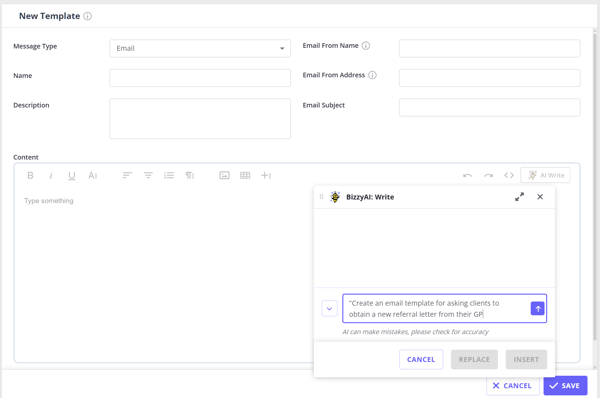
- Navigate to Tools > Communication > Templates and click '+ New Template' at top-left.
- Choose Email or Letter as the message type.
- Click the "AI Write" button in the formatting toolbar.
- A floating BizzyAI modal will open, where you'll be able to type a command (e.g., "Create an email template for asking clients to obtain a new referral letter from their GP").
- Hit 'Enter' on your keyboard or click the blue arrow button on the AI modal to send the command.
- The AI will generate a draft. It will include the available merge fields where applicable.
- We recommend that you review the generated content.
- Read the generated content.
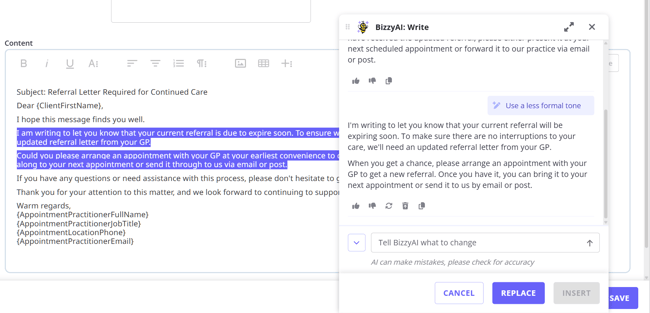
- If needed, ask for adjustments (e.g., "Make it friendlier"). You can select the preset prompts by clicking the arrow button on the left:
- Once you are happy with the result, click Replace or Insert to move the text into the editor.
- Navigate to Tools > Communication > Templates and find a template you'd like to edit (it can be an email or letter template, NOT an SMS template).
- Select a block of text you'd like to edit and click "AI Write" button in the editor toolbar or a floating AI button.
- Type a command into the BizzyAI modal or select one of the preset prompts
- The AI generates a draft.
- Review generated content. If needed, ask for adjustments (e.g., "Make it more succinct").
- You can continue the conversation to make further adjustments (e.g., "Add a section about fees without a referral").
- You can also rate the response using the thumbs up or thumbs down icons to help improve future performance.
- If you want to start a fresh instruction without the AI considering previous context, click the broom icon to clear the conversation history.
- You can copy the text to your clipboard so you can paste it manually.
- Click Replace to move the text into the editor.
Compliance and Security
Learn about the extensive security and privacy measures in place that protect your data, and the steps we are taking to keep the tool accurate and reliable.
About the service we are using:
- We are using the AWS Bedrock service to access an industry leading LLM (large language model) for generating and refining the letter and email content.
- We have configured AWS Bedrock to use Anthropic's Claude.
- The system explicitly informs the model that it is operating in "Template Mode" (no specific client data), ensuring privacy and generic applicability.
- Actions such as "Replaced content into communication template" are logged for audit and usage tracking in Tools > Log File.
- Data is encrypted in transit and at rest.
- No data is used to train the AI model, and all information is processed securely in real-time.
- Zanda has a zero retention agreement with AWS to ensure that no data is stored after processing.
FAQs
- Will my data be used to train the AI model?
No, our service (AWS) does not use any data input out output for training their own or any third party model providers. - How accurate is the output?
We deliver extensively fine-tuned instructions to the LLM service to control the information being returned to ensure that it is healthcare specific. The instructions have been built by practitioners in line with healthcare documentation standards. We will continue closely monitoring and fine tuning performance to ensure the model is delivering high quality and accurate output. It is recommended that the users review all output content as the user remains responsible for the documentation. - Which server location are you interacting with for AWS?
We are using US servers for the AWS Bedrock services and in doing so we make sure your data stays safe and meets AU, EU, and UK privacy laws. We use legally binding agreements—like the EU’s Standard Contractual Clauses (SCCs) or the UK’s IDTA—to make sure your data remains protected. We follow the approved rules for each region:
- EU: We work with US companies certified under the EU-US Data Privacy Framework.
- UK: We use the UK-US Data Bridge, the UK’s version of the above.
- Australia: We follow the Australian Privacy Act and use extra safeguards (like contracts) when needed.
- Does BizzyAI: Write comply with data protection laws?
Yes, the BizzyAI: Write features are compliant with GDPR, HIPAA and other regional laws. AWS services and Zanda are designed to meet healthcare industry regulations, ensuring patient information is handled in accordance with legal and ethical standards.-
- HIPAA Compliance: Adheres to U.S. HIPAA regulations, safeguarding protected health information (PHI) with robust privacy and security measures.
- GDPR: Full compliance with EU and UK GDPR, ensuring lawful data processing, minimization, and protection of data subject rights.
- Regional Laws: Complies with other key regulations, including Australia’s Privacy Act, Canada’s PIPEDA, South Africa’s POPIA, and California’s CCPA.
- ISO 27001 Certification: This certification demonstrates that we have implemented stringent security measures to protect sensitive information and maintain data integrity.
- Business Associate Addendum (BAA): We had signed a binding BAA agreement with AWS covering all the services included in the AI functionality. We offer the same standardized BAA for customers, providing them a secure environment to process, maintain, and store PHI.
-