%20-%20120%20x%2044.svg)
In this article:
Overview
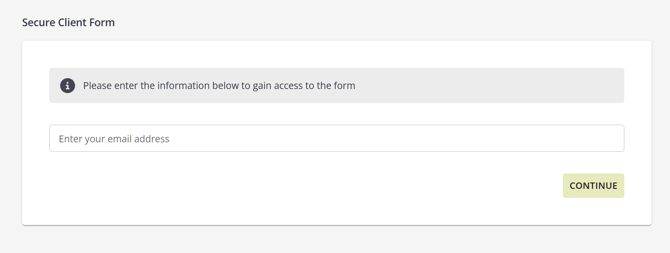
To strengthen the security of client information and ensure a consistent experience across all online forms, Zanda will soon make Client Form Authentication mandatory for all practices.
Once live, anyone accessing an online form will be required to authenticate using either:
-
The email address, or
-
The mobile phone number
saved in their Zanda profile.
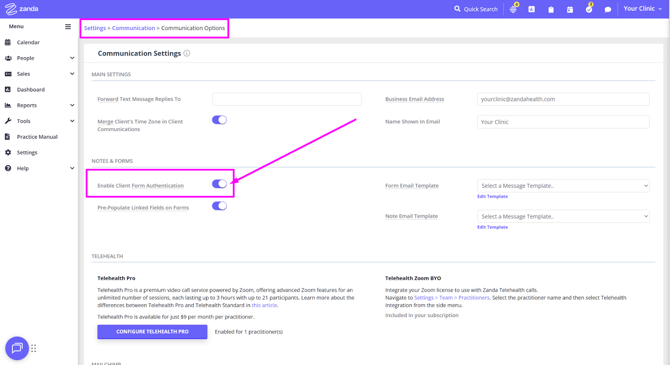
Because authentication will become compulsory, the “Enable Client Form Authentication” setting will be removed from: Settings → Communication → Communication Options.
Why This Matters
Mandatory authentication ensures that all online forms are:
-
Accessed securely by the correct individual
-
Better protected, in line with best-practice privacy and security standards
This update helps keep your practice, your clients, and their information safe.
What You Need to Do Before the Update
If you’re already sending out forms directly from Zanda using email or SMS it’s unlikely you’ll need to do anything. This is because your clients will already have email or phone number details stored.
If you’re sending forms outside of Zanda, for example by copying a form link and emailing it using an external email system , we recommend reviewing your records to ensure that each active profile has at least one of the following saved:
-
A valid email address
-
A valid mobile phone number
If a profile does not contain either of these details, the person associated with that profile will not be able to authenticate and therefore won’t be able to open online forms once the update is applied.
Steps to Prepare Your Practice
1. Review all active profiles - Check profiles to identify anyone missing an email address or mobile number.
2. Decide how to collect missing details - You may need to reach out to active clients or their associated contacts/referrers to obtain updated contact information.
3. Update the profiles in Zanda - Once collected, add the email address or mobile number to the profile so the individual can authenticate and access forms without interruption.
Pro Tip: How to Find Profiles Missing Contact Details
-
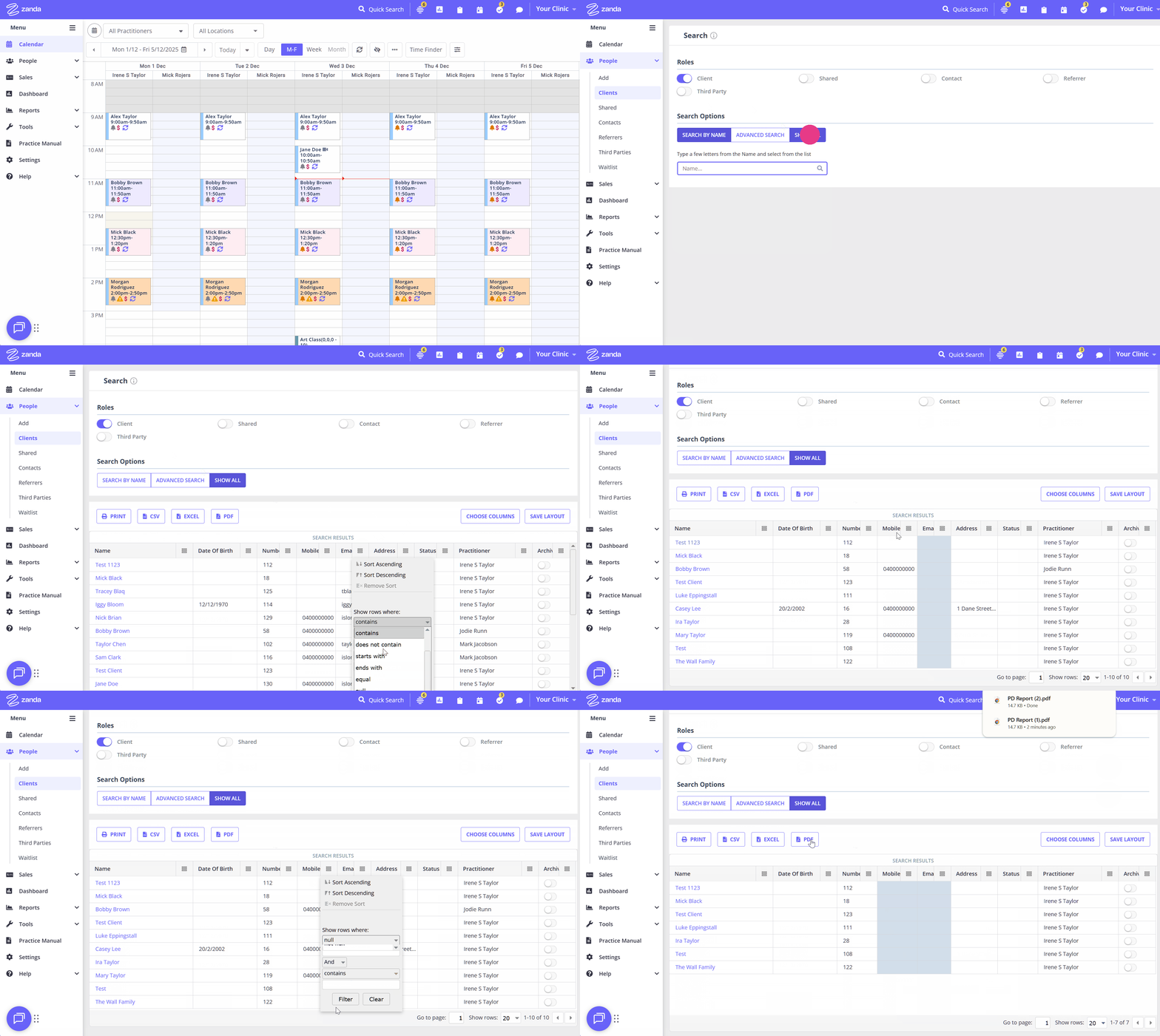
Go to People > Clients
-
Select Show All
-
In the generated table, use the Mobile and Email column filters
-
Set each to Show rows where: Null
-
This will display all client profiles with neither an email nor a mobile number
-
-
Export or print the list for easy reference
-
Repeat the process for Contacts, Referrers, and Third Parties if you share online forms with them
Need Help?
If you have any questions about this update or would like assistance reviewing your client information, our Support Team is here to help.
Reach out anytime through Help → Get Help or email to support@zandahealth.com in your Zanda account.