%20-%20120%20x%2044.svg)
Your Zanda Client Portal includes a secure registration process that allows new clients to create an account before booking appointments or accessing their information. This guide explains how the registration process works from a client’s perspective, as well as the settings that control what they see.
In this article:
- How New Clients Register for the First Time
- What Happens Behind the Scenes
- Settings That Control Registration
- Sending a Portal Invitation to an Existing Client
- More Client Experience
- Related Articles
How New Clients Register for the First Time
Clients can start the registration process from several places in your Client Portal:
-
Register button in the header (visible to anyone not logged in)
-
During appointment booking (if enabled)– if a client tries to book but isn’t logged in
-
During class booking (if enabled) – registration or login is required
- The system will prompt them to login or register if this is their first time on your client portal. A new client should click Register and complete the registration form.
When a client clicks Register, the portal opens a simple two-step process: entering their details and verifying their identity.
Step 1: Entering Registration Details
Clients first complete a short form that asks for:
-
First Name
-
Last Name
-
Email Address (used as the login username)
-
Password (6–30 characters, with a strength indicator to guide them)
-
Mobile Number
-
Required only if your clinic uses SMS verification
-
Optional if your clinic uses email verification
-
After entering their details, clients click Get verification code.
The portal then sends a 6-digit code to:
-
The client’s email, or
-
Their mobile number, depending on your clinic’s chosen verification method.
- A client will be able to resend the verification code if they didn't receive it.
A message on screen confirms where the code was sent.
Pro Tip: If you want to collect more client information when they register, use the New Client Intake online form embedded in the Client Portal registration confirmation message which Zanda will send automatically after you've set it up once. Learn more here.
Step 2: Verifying Identity and Creating the Account
On the next screen, clients:
-
Enter the 6-digit verification code
-
Accept your booking Terms and Conditions (only if you’ve enabled them on the User Menu > Account Settings > Client Portal > Access and Settings page)
-
Click Register
If everything is correct, the client:
-
Has their account created
-
Is automatically logged in
-
Is redirected to complete their booking or view their client portal dashboard
If the code has expired or is incorrect, the portal provides a clear message and lets the client request a new code.
What Happens Behind the Scenes
When the person is not yet in your system
If your clinic allows new client creation through the portal:
-
A new client record is created
-
Your team receives a notification
-
The client is logged in immediately
If a client profile with the same details already exists:
-
First name
- Last name
- Email address
- Mobile Number (if provided)
The system will match the details and recognise it is the same person. Instead of creating a duplicate new client profile, it will link them to an existing client profile.
If your clinic does not allow new client creation:
-
The portal displays a message asking them to contact your clinic instead
-
No record is created
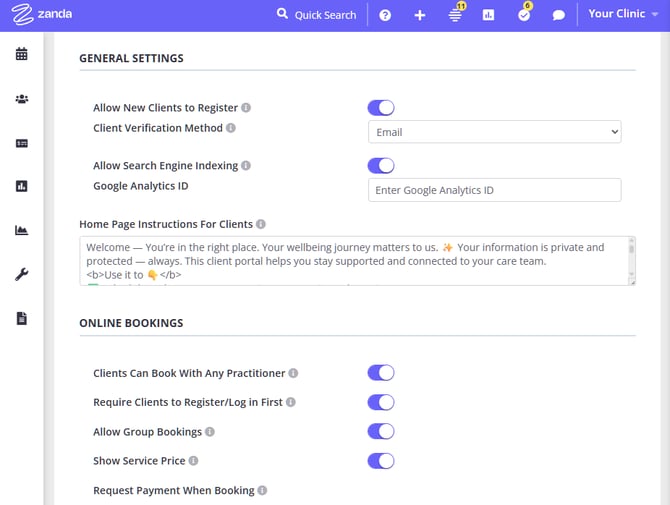
Settings That Control Registration
You can customize how registration behaves in User menu > Account Settings > Schedule > Client Portal > Access and Settings.
1. Allow New Clients to Register
-
Enabled → brand-new clients can sign up themselves
-
Disabled → only existing clients can log in and reset their password
2. Client Verification Method - Choose how the portal verifies new accounts:
-
Email verification
- Clients receive their code by email
-
Mobile number becomes optional
-
SMS verification
-
Mobile number is required
-
Clients receive their code by text message
-
3. Require Clients to Register/Log in First - Controls whether clients must log in/register before booking appointments. If enabled, registration prompts appear earlier in the booking flow.
4. Booking Terms and Conditions
-
Optional
-
If enabled, clients must tick a checkbox to proceed
-
You can include your full policy text in an expandable section
Security and Privacy Protections
The registration process includes:
-
Strong password protection with real-time strength feedback
-
Unique, time-limited verification codes
-
Country-specific mobile number validation
-
Automatic secure login after successful verification
Sending a portal invitation to an existing client
If you have already added a client to Zanda and want to invite them to set up their Client Portal login, you can send them a portal registration link from their profile.
There is no dedicated Send Invitation button. Instead, you can send the registration link using a communication template that includes the {PortalRegistrationLink} merge field. When the email is sent, the merge field is replaced with a client-specific registration link the client can select to set up their Client Portal access.
Step 1: Create or check for a portal invitation email template
- Go to Tools > Communication > Templates.
- Check whether you already have a portal invitation template.
- If you need to create one, select + New Template, then select Email.
- Fill in the template details:
- Name: For example, Portal Invitation
- Email Subject: For example, Access your client portal
- In the email body, write your invitation message and insert the
{PortalRegistrationLink}merge field where you want the registration link to appear.
Example email text:
Hi {ClientPreferredName},
You can now access your online client portal to view appointments, invoices, and forms.
Select this link to register: {PortalRegistrationLink}
If you have any questions, please contact us.
- Select Save.
Step 2: Send the invitation from the client's profile
- Open the client's profile.
- Go to Communication > New Email.
- Select your portal invitation template from the template dropdown.
- Review the email.
- Select Send.
The client will receive an email with a direct link to set up their portal access. Once they complete the process, their portal account is linked to their existing client profile in Zanda. A duplicate client record is not created.
Tips
- The
{PortalRegistrationLink}merge field generates a client-specific registration link for the selected client. The link uses the client's existing profile and is valid for 7 days. - You can also include
{PortalRegistrationLink}in your new client welcome email template, so new clients receive the link as part of your onboarding workflow. - To find all available merge fields, including
{PortalRegistrationLink}, go to Tools > Communication > Templates, open any email template, and select Available Merge Fields in the editor.
Frequently Asked Questions
❓ Should I send clients {PortalRegistrationLink} or {ClientPortal}?
Use {PortalRegistrationLink} when you are emailing a specific client and want them to set up access to their existing Client Portal profile. This link takes them through the registration/password setup flow for their client record, so they may see wording such as Please enter a new password for your account. That message is expected when the client is setting up or resetting their portal login.
Use {ClientPortal} when you want to send the general Client Portal homepage link. This takes clients to your portal, where they can log in, select Register, or start an enabled booking workflow.
❓ Is there a way to tell if a client has registered on the Client Portal?
Use the client profile's portal access actions and communication records to check for Client Portal access. The profile does not show a separate Client Portal Registered status.
- Open the client's profile.
- Go to Admin > Manage.
- Use Send Password Reset Link when you need to send the client a link to set up or reset their portal login.
- Go to Communication > Activity to review sent and received communication for the client, such as portal invitation or password reset emails.
These checks can help you confirm whether portal access has been sent or managed for the client. Use your communication history and any portal notifications your practice has configured as the closest available signals.
❓ What should clients do if they see "Message request limit exceeded. Please wait and try again." when requesting an SMS verification code?
This message means Zanda has paused new verification-code messages for the moment because the portal message request limit has been reached. Ask the client to wait before selecting Resend the verification code again.
If the client needs immediate access and email verification is appropriate for your practice, use email verification instead. Then ask the client to request a new code.
More Client Experience
What Clients See When Something Goes Wrong
The Client Portal displays clear, friendly messages such as:
-
Incorrect or expired code
-
Invalid email or phone number
-
Weak password
- Message request limit exceeded
-
New client registration not allowed by the clinic
-
Maintenance or connectivity issues
These messages guide clients on what to do next—usually retrying the step or contacting your clinic.
After Registration: A Smooth Experience
Once the account is created, clients can immediately (depending on your client portal configuration):
-
Book appointments or classes
-
View invoices and payments
-
Access forms
-
Join waitlists
-
Update personal details
-
Join Telehealth sessions
Everything continues seamlessly from wherever they started the registration process.
Related Articles
- Client Portal Login and Password Reset Guide for Existing Clients - Help existing clients log in, reset passwords, and request verification codes.
- Getting Started With Your Client Portal - Configure Client Portal access and choose SMS or email verification.
- Setting Up and Sending Client Portal Notifications - Set up notifications for new client registration and other Client Portal activity.
- Creating and Managing Communication Templates - Create templates and insert merge fields for client emails, SMS, and letters.
- Available Merge Fields for Communication Templates - Review the merge fields available for communication templates.
- Allowing Contacts to Book on Behalf of Clients - Set up a parent or guardian to book for a child, including the order to follow for a brand-new family where neither person is in Zanda yet.