%20-%20120%20x%2044.svg)
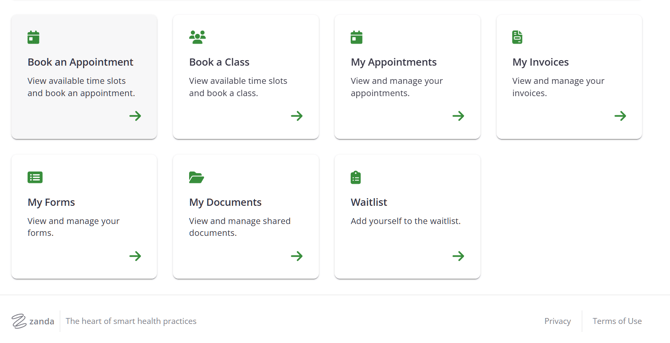
Your practitioner's Client Portal home page allows managing appointments for you and your dependents, booking classes, and viewing and paying invoices.
In this article:
- Registering as a New Client
- Logging in as an Existing Client
- Booking an Appointment
- Booking a Class
- Managing Appointments
- Viewing and Paying Invoices
- Viewing and Completing Online Forms
- Sharing Documents with Your Practitioner
- Adding Yourself and Your Dependants to the Practice Waitlist
Registering as a New Client
If you are a new client (i.e. have never had an appointment at this practice before)
-
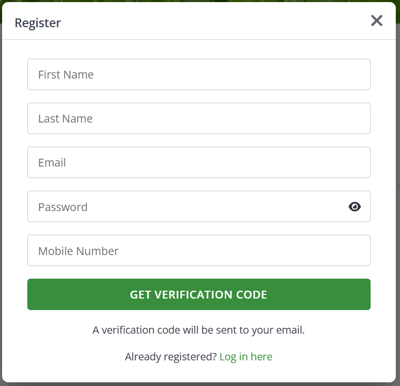
Click Register.
-
Fill out the registration form and click Get Verification Code, which will be sent via Email or SMS (the prompt at the bottom of the form will tell you how the code will be delivered).
- Enter the four-digit code that was sent and complete the registration.
- You can now log in with your email address and password to book appointments, view invoices, and pay them online if required, complete online forms, and much more.
Verification Code Not Received: Troubleshooting
1. If a code was sent via email, please check your email spam folder.
2. To improve email delivery, it is recommended that you add your healthcare provider practice email address to the Safe Senders List in your email account settings.
Logging in as an Existing Client
-
If you are an existing client of the practice (i.e. have had appointments here before)
-
but haven't used the Client Portal yet,
-
or if you need to reset your client portal password:
-
Option 1: reset your password via the registration link
Your practice will email/text you your client portal registration link. Click the link and follow the steps to reset your password.
Option 2: reset your password via the Login button on the client portal home page.
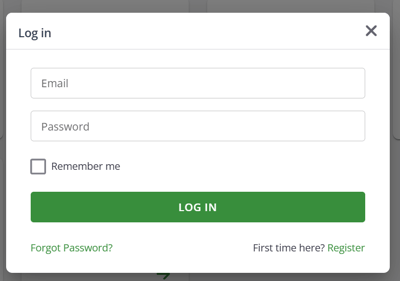
- Click the client portal link you practice shared with you and click the Login button.
- Select the 'Forgot Password?' link at the bottom of the login form.
- Follow the instructions to reset the password.
Booking an Appointment
- Click on the Book Appointment button on the home page.
- If requested, select a Location.
- Select the Service you would like to book.
- If you attend a multi-disciplinary clinic, it is possible to first select the category of services they provide.
- If required, select a Provider (practitioner who will provide your service).
- Select the Date and Time of your appointment.
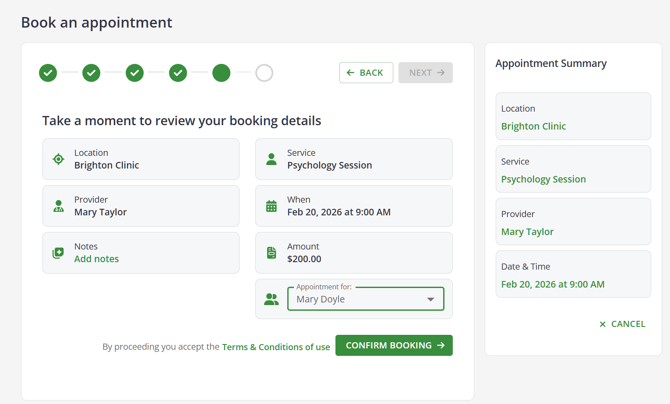
- On the Appointment Booking form, you are able to add a Note for the practitioner.
- The Appointment for drop-down is available if you are a Contact of a client and allowed to book on their behalf (this can be your child or a dependent).
- If you and your dependents visit the same clinic, but you do not see the Appointment For option on the appointment booking form, please contact your practitioner and ask them to allow you to book on behalf of your dependents.
- Read the Terms and Conditions of use by clicking on the link.
- If required or suggested, pay for the service by clicking on Pay Now
- Click Confirm Booking to finalize the booking.
Booking a Class
- Click on the Book Class button on the home page.
- If requested, select a Location.
- If required, select a Practitioner.
- Select the Date and Time* of your class appointment.
- On the Class Booking form, you are able to add notes for the practitioner, and select who the class/appointment is for, yourself, or another person on whose behalf you are allowed to book (this can be your child or a dependent).
- Read the Terms and Conditions of Use by clicking on the link.
- If required or suggested, pay for the service by clicking on Pay Now.
- Click on confirm booking to finalize the booking.
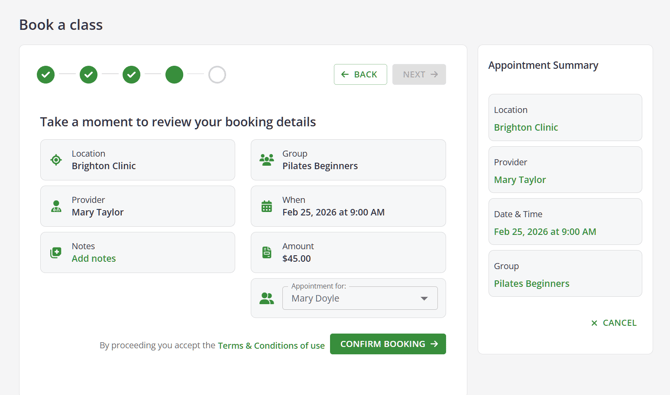
*Important: Your Client Portal home page will display the times in your local time zone. If your practitioner lives interstate or in another country, the appointment confirmations and reminders will include the appointment start and end times in your time zone. Otherwise, the practitioner's local time zone will be mentioned in the confirmations and reminders.
Managing Appointments
-
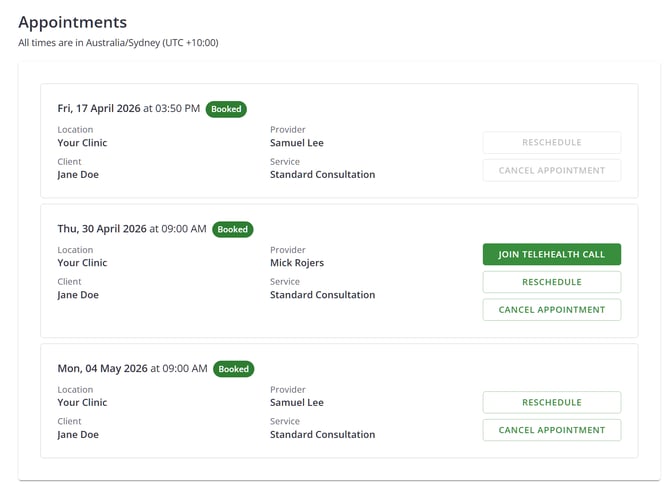
Click on the My Appointments button on the home page. You will see a list of your upcoming appointments, including the appointments you have booked on behalf of your children or dependents.
-
If allowed, you can cancel appointments from this screen. Click on the Cancel Appointment button and confirm cancellation.
- If allowed, you can reschedule appointments. Click on the Reschedule button next to your appointment to select a new available time.
-
You can join your telehealth sessions from your client portal appointments page. Simply click the appointment block a few minutes before the session start time.
Viewing and Paying Invoices
- Click on the My Invoices button on the home page.
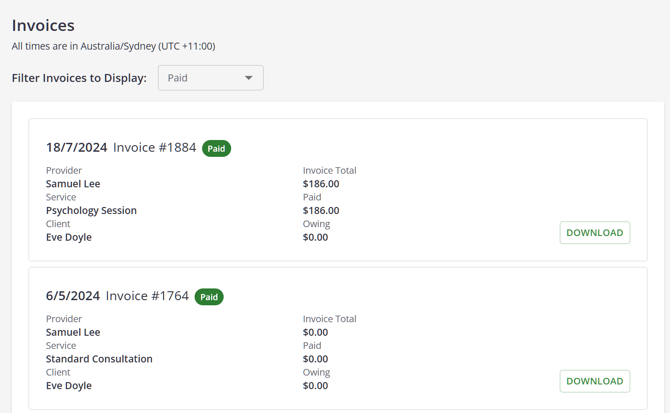
- You will see a list of your outstanding and paid invoices. Use the available filter to sort the list by All, Paid or Unpaid invoices.
- If you are a contact to client(s) in this practice, and their invoices are billed to you, you will see their invoices listed on the same page.
- Click on Download to download a PDF copy of your invoice or receipt.
- If your practitioner has enabled online payments, you will see an option to pay an invoice online, and pay all invoices in one transaction.
-
If you have paid the invoice online, you will be able to email the receipt to you.
Viewing and Completing Online Forms
-
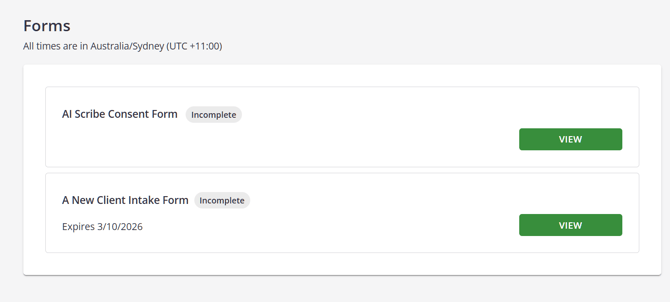
Click the My Forms button to access the online forms that your practice has assigned to you. You will be able to see which forms need to be completed.
-
If a form has the Incomplete status, click the 'View Form' button, complete the required fields and click 'Complete. The form will be saved and the data you entered submitted to your practice.
-
You will be able to download the completed form as a PDF file on your device.
Sharing Documents with Your Practitioner
You can easily access and share documents with your practice directly through the client portal. Everything is kept in one place, so it’s simple to find what you need or send files when requested.
View and download documents
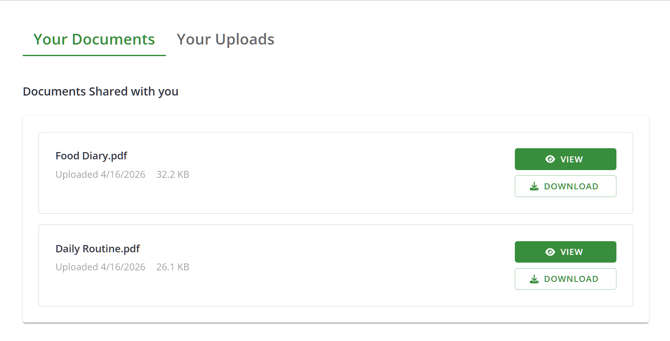 If your practitioner has shared any files with you:
- Log in to the client portal
- Open My Documents from the home page
- Go to the Your Documents tab
- Click on a document to view it, or download it to your device
This is where you’ll find things like reports, forms, or instructions shared with you.
A quick note: If you don’t see any shared documents yet, that’s completely normal. Your practitioner may not have shared any files yet, but you can still upload documents anytime using the Your Uploads tab.
Upload documents to your practitioner
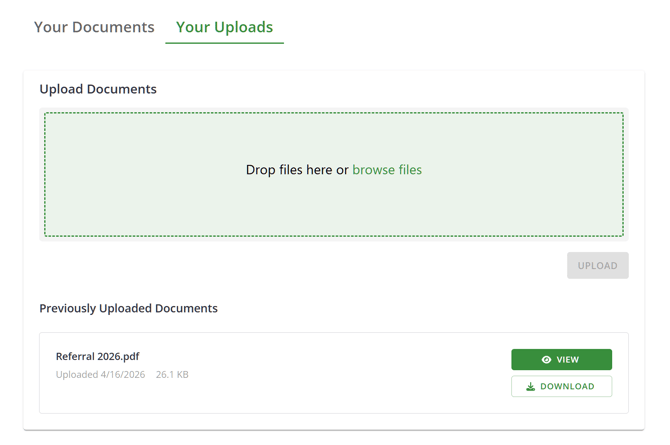 If you need to send a document:
- Go to My Documents
- Open the Your Uploads tab
- Click Upload and select your file
- Once uploaded, your practitioner will be able to review it
You’ll also see a list of any documents you’ve already uploaded here. You can view and download them to your device if you need.
Adding Yourself and Your Dependants to the Practice Waitlist
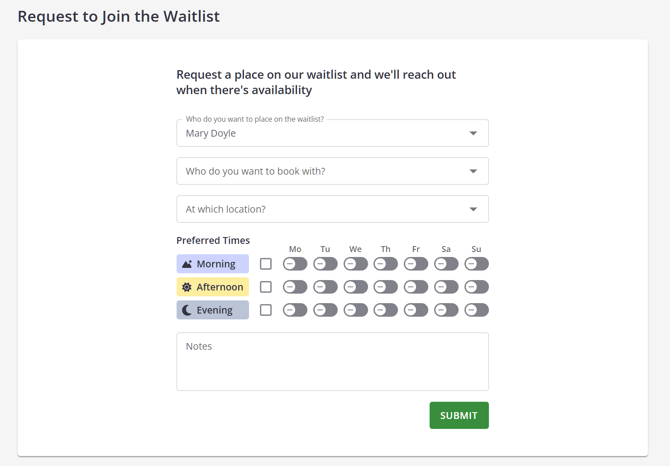
If your practice permits this, you can submit a request to be added to the practice's waitlist. You can also add other patients who are your dependants to the waitlist, if the practice has made such arrangements.
-
Login to your client portal home page.
- Click the Waitlist button
- Select who you are adding to the waitlist
- Make other selections, such as practitioners, locations, preferred times, add any relevant notes.
- Click the Submit button to send the request.
- You might receive a notification message from the practice to confirm that they received your request and information about the next stepos.