%20-%20120%20x%2044.svg)
If you'd like to learn more about the clients and referrals in your health practice, you can use the Reports section in Zanda. Reports on clients and referrals can be found on the left-hand side of the Zanda dashboard under Reports > Clients.
There are 11 reports related to clients and referrals you can generate in Zanda. In this article, we'll take a closer look at them - and see what information you can get.
In this article:
- Appointments
- Client Birthdays
- Client Statistics
- Client Forms
- Client Classification
- Client Retention
- Client Referral Expiry
- New Clients
- Inactive Clients
- Membership Expiry
- Appointment Count
- Client Sources (How Clients Heard About Us)
Hint 💡
You can print any report, export it into an excel file, or download it as a PDF.
Appointments
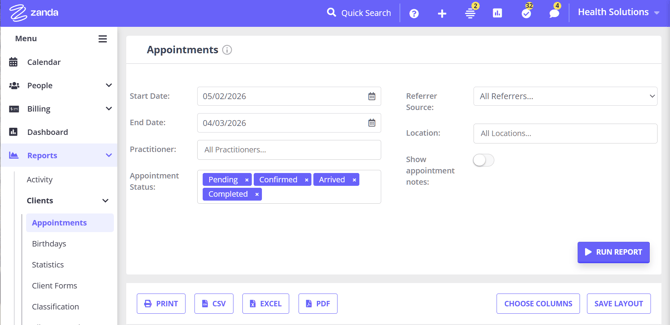
The Appointments report shows a brief summary of appointments scheduled within a appointment date range. You can filter appointments by active, cancelled, pending, recurring, confirmed, arrived, and more.
Here's what information the Appointment Reports can give you:
- Client Information: The first things you'll see are the name and client number, mobile number and address, and type of the client.
- Date and Time: Next, you'll see the starting and ending time date of the appointment for that client.
- Calendar: You can see which calendar or practitioner the appointment is assigned to.
- Appointment Information: Lastly, you'll see the status of the appointment and the cancellations reasons, if any; its Appointment Flag, its Location, and its session notes (if any).
- You can drag the Appointment Flag column into the grouping area to count how many appointments belong to each flag — see Grouping Reports for steps.
-
- Toggle on the Show Appointment Notes switch to include the comments saved on the appointment panel. This information can be used to run a report based on the episode of care a client is treated for.
- For your convenience, once you've run the report, you'll see a tally ot total clients and total appointment included in the report on the screen and in the printout of the report.

Frequently Asked Questions
❓ Can I see a client's total hours since they started with the practice?
Use the Financial > Sales report to run the list of all serives sold within the life time of the client. This report shows the time of each service provided and the total hours, and can be sorted and grouped by the Clients column.
Alternatively, use the Appointments report as the source data, then total the appointment durations after exporting the report to Excel. Go to Reports > Clients > Appointments, set the date range from the client's first appointment to the current date, apply any practitioner, location, or appointment status filters you need, and export the results. In Excel, filter the exported rows to the client, use the appointment date and end time columns to calculate each appointment duration, and sum the total hours outside Zanda.
If you only need appointment counts, open the client's profile > Appointments > Statistics, or use Client Retention for the number of appointments in a client's lifetime, or Appointment Count to find clients with a certain number of appointments in a selected period. These reports count appointments rather than total appointment hours.
❓Can I view a list of clients who have no clinical notes?
There is no dedicated "clients with no notes" report in Zanda.
-
The closest workaround is to use the Appointments report filtered by date range. Enable the Show Appointment Notes toggle to see session notes alongside appointments — clients with blank notes fields may be candidates for follow-up.
-
Another option is to use the Calendar Filters and filter appointments by Notes with No Note, Draft Status and Completed Status. Learn more here.
❓ Can I report on client Alert Notes?
For profile-level Alert Notes, use data export rather than the Clients reports. The Clients reports do not have a filter that lists only client profiles with Alert Notes, so use the available option that matches what you need:
- To review appointment-level notes, go to Reports > Clients > Appointments and turn on Show Appointment Notes. This shows the Appointment Notes column for each appointment. If an Alert Note was copied onto a future appointment, that text appears as part of the appointment notes.
- To count or group appointments by a reportable category, use Appointment Flag in the Appointments report. Appointment Flags are separate from Alert Notes.
- To review profile-level Alert Notes across exported client data, use data export and check the Client Alert Notes column in the client CSV file.
❓ Can I see appointment statistics for video, phone, and face-to-face appointments?
You can use Reports > Clients > Appointments to review appointments by delivery method when your account setup records those methods on appointments. For modality statistics, the report works from fields on each appointment, such as Location and Appointment Flag, rather than a dedicated automatic video, phone, and face-to-face summary.
- Go to Reports > Clients > Appointments.
- Set the date range, practitioner, appointment status, referrer source, and location filters you need.
- Run the report.
- Use the Location column when your face-to-face, phone, and telehealth appointments are booked into separate locations. You can filter by a specific location before running the report, or drag the Location column into the grouping area after the results load to count appointments by location.
- Use the Appointment Flag column when your practice uses flags to mark video, phone, or face-to-face appointments. Drag Appointment Flag into the grouping area to count appointments by flag.
- Print the report, or export it to Excel or CSV if you need to sort, filter, or create a pivot table.
💡 Tip: Location types in Zanda are In Person, Phone, and Telehealth Video Call. The Appointments report filters by the location name saved on each appointment, so check how your locations are named and configured before using the report for modality counts.
For video, phone, and face-to-face statistics, use the fields that reflect how your practice records appointment modality. The Type column in this report is not the modality field, so use Location or Appointment Flag instead.
Client Birthdays
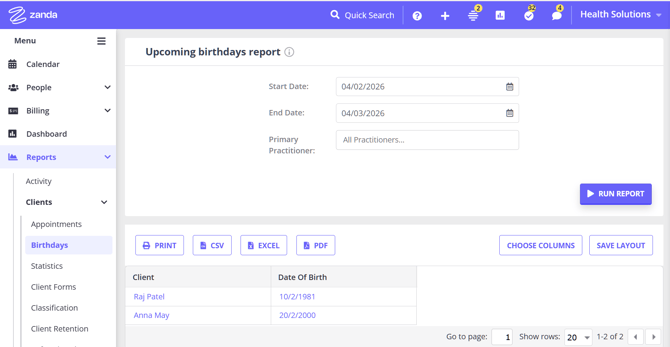
You might want to know when your clients' birthdays are coming up so you can do something extra-special for them - like give them a discount or a free appointment. For this reason, Zanda provides you will a list of client birthdays in the Client Birthdays Report.
Here, you can:
- See a list of clients who have birthdays within the selected date range.
- See the client's name and date of birth.
Client Statistics
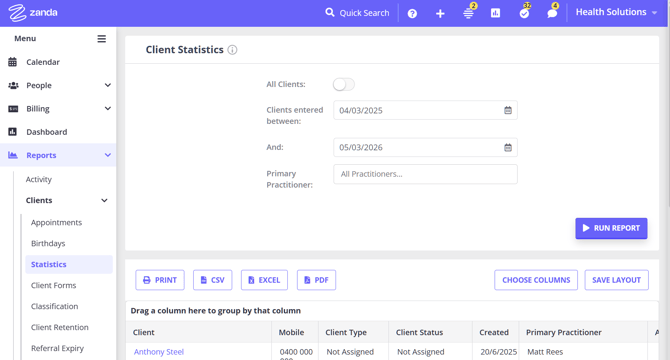
With Client Statistics, you can see the statuses and types of your clients according to their respective categories. To change the statuses of your clients, go to User Menu > Account Settings > Clients > Client Statuses. To configure client types, go to User Menu > Account Settings > Clients > Client Types.
That being said, here's what you can see with Client Statistics Reports.
- A list of all your clients is categorized into their relevant client status and client type.
- The option to filter clients based on when they were entered into your Zanda system, or to get a report on all clients
- The option to filter by primary practitioner when you are not reporting on all clients.
The report is organized by clients' names, mobile numbers, client type, sex, gender identity, client status, date created, primary practitioner, age, postcode, and state. You can use Choose Columns to show hidden columns, then print the report or export it to CSV, Excel, or PDF.
❓ My Client Statistics report shows a date range even with All Clients on — is my list limited to that period?
No. When All Clients is turned on, the report includes every client regardless of when they were added, even if a date range (for example, "Clients entered between") still appears in the report filters or on the printout. That displayed range is only the default used when All Clients is turned off — it is not applied while All Clients is on.
To hand someone (such as a marketing advisor) a complete list of every client of all time:
- Go to Reports > Clients > Client Statistics.
- Leave All Clients turned on.
- Run the report — it lists every client, regardless of the date they were added.
- Use Choose Columns to adjust the fields if needed, then export to CSV, Excel, or PDF.
To limit the list to clients added within a specific period instead, turn All Clients off and set the date range.
❓ Can I report on client demographic data?
You can use Reports > Clients > Client Statistics for a broad demographic-style list of clients by client status, client type, sex, gender identity, age, primary practitioner, postcode, and state. Use All Clients for your full client base, or turn All Clients off to filter by the date clients were added and by primary practitioner.
For a more specific demographic list, use Using Advanced Search for Client Reports. Advanced Search lets you filter client lists by fields such as sex, gender identity, date of birth range, client status, client type, referrer, and practitioner, then choose the columns you want and export the result.
For client time zone audits, use Data Export instead of Reports > Clients. Export Clients, then review the Timezone column in Clients.csv.
❓ Can I report on a practitioner's caseload?
Yes. If you define caseload as clients who have a practitioner set as their Primary Practitioner, use Reports > Clients > Client Statistics:
- Go to Reports > Clients > Statistics.
- Turn All Clients off to show the date range and practitioner filters.
- Select the practitioner in the practitioner filter.
- Run the report.
The report lists matching client profiles and includes the Primary Practitioner column. You can choose columns, print the report, or export it if you need to review the list outside Zanda.
If you need a broader caseload list, use Using Advanced Search for Client Reports instead. Advanced Search can find clients by Primary Practitioner, Assigned Practitioners, or Appointment Practitioner, which is useful when the practitioner relationship is based on access settings or appointment history rather than the primary practitioner field.
The Practitioner Utilization Report is different. It shows available hours, booked hours, unutilized hours, and utilization percentage by practitioner. Use it for capacity and scheduling analysis, not for a client-by-client caseload list.
❓ Is there an Active Clients report?
Zanda does not have a separate report named Active Clients. For a broad list of current client profiles, use Reports > Clients > Client Statistics with All Clients turned on. This report lists clients and includes fields such as client status, client type, date created, primary practitioner, age, postcode, and state.
If you mean clients with a specific Client Status value, such as a custom status named Active, use People > Clients > Advanced Search instead. Set Client Status to the status you need, leave Archived as Non-Archived Only if you only want current non-archived profiles, and click Show Filtered List. You can then choose the columns you want and export the results to PDF or Excel.
For client time zone audits, use Data Export instead of Reports > Clients. Export Clients, then review the Timezone column in Clients.csv.
Client Forms
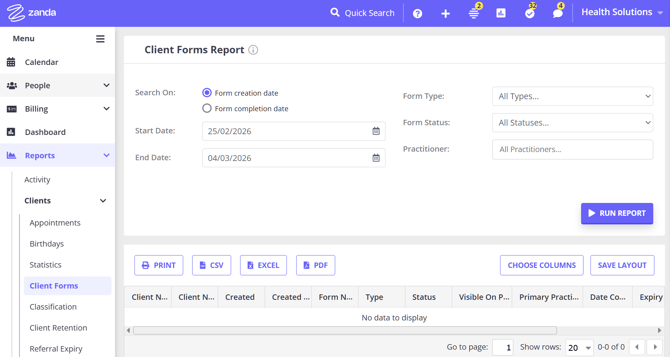
With Client Forms, you can see the statuses of all forms created or completed within a specified period of time. This is based on forms created in the client profile and allows you to keep track of outstanding client forms.
Here's what you can see and do with Client Forms Reports:
- A list of all your client forms filtered either based on creation date or completion date.
- Specific form information:
- The client name,
- Client number,
- Form created date,
- Created by (user or auto),
- Form name,
- Form type (clinical or admin),
- Form status (draft or completed),
- Visible on the portal forms page,
- Client's primary practitioner,
- Date form completed, and
- The date of form expiry.
- The option to filter forms based on the created or completed date, the form type (admin or clinical), form status (draft or completed), and the client's primary practitioner.
- You can click on the actions cog to open that clients forms page.
The Client Forms report covers forms created in a client's profile — admin and clinical online forms — and reports on the forms themselves rather than the answers entered inside them. To see the information captured within a form, open the form in the client's profile, or use the Client Progress Report for scored assessment forms.
Client Classification
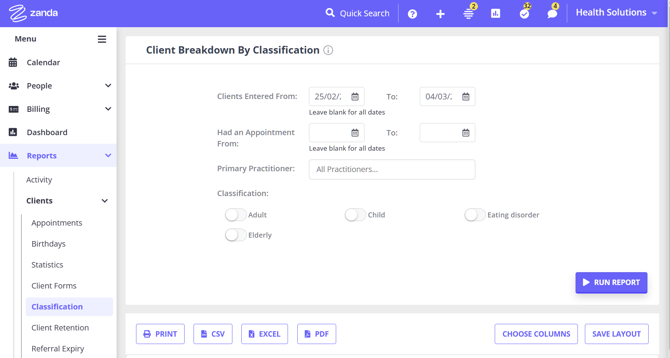
Client Classifications in Zanda allow you to classify clients by the special needs they require. Examples of some classifications are 'work issues', 'body image', 'anxiety' etc. You can see your current classifications - and add new ones by going to User Menu > Account Settings > Clients > Classifications.
And once you classify your clients, you can view all clients within a classification by going to the Classification Reports.
Here, you can:
- See which classifications are associated with a higher number of appointments.
- Filter your report by clients who were entered within particular dates, or remove the dates to get a report on all clients.
- See the clients names, client numbers, client types, client statuses, mobile numbers, emails, calendar/practitioner, classifications, the number of appointments and the date a client was created.
Client Retention
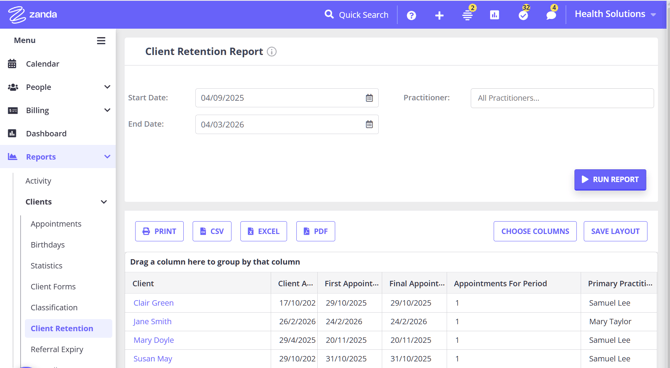
With the Client Retention Report, you can see the exact number of appointments a client attends during their client's lifetime.
- The client's lifetime is based on the date range in which their first and last appointment occurred. This is controlled using the Start and End dates to capture all clients who have had all of their appointments within that period.
- As such, it is best to use a wider date range to pick up clients with a longer lifetime (such as from the date the practitioner started taking on clients to the current date). This will capture all clients who had their first appointment after the Start Date and have their last appointment before the End date and have no other appointments booked after the End Date.
- This will allow you to report on how many appointments a client attends in their lifetime and to see how many average appointments you have per client.
- The report will include Confirmed, Arrived, Pending, and Completed appointments in the count. Rescheduled, Cancelled, Late Cancelled or No Show appointments are not included in the count.
- The Client Retention Report is sorted by client name, the date they were added, the date of the first appointment and last appointment, a total number of appointments, and default calendar/practitioner.
Client Referral Expiry
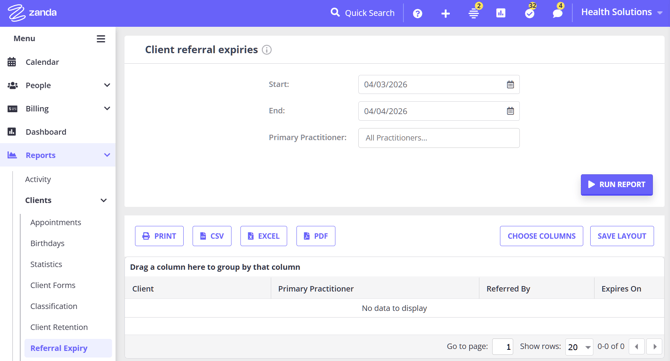
If you want to see which of your clients' referrals are expiring, you can visit this section. Here, you'll get a report in which you can see:
- A list of clients whose referrals are expiring within the period you specified.
- The complete report includes the client name, calendar/practitioner name, referral source, and date of referral expiry.
New Clients
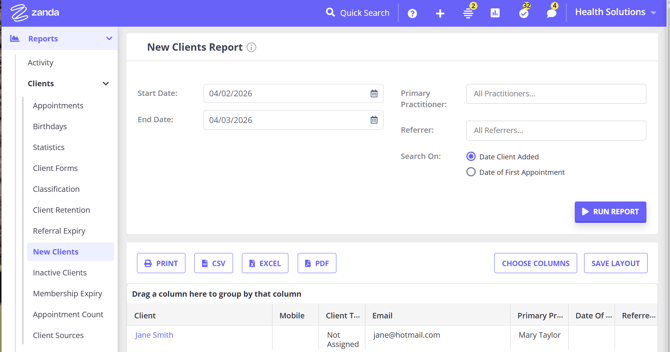
- A list of clients whose profiles have been created within a specified period. (i.e. new clients from last week).
- Can be filtered to report on new clients based on the date that the client profile was created, or based on the date of the first appointment for the client.
- Filtered reports based on the date the client profile was created - or based on the date of their first appointment with your clinic.
- The complete report includes the client name, client number, mobile number, client type, email, calendar of appointment, date of birth, referred by (if any), the date the client was added and date of the first appointment.
- The Referred by column shows formal referrers added to the client's referral record. It does not show the client's marketing source or How Heard value.
Inactive Clients
With the Inactive Clients report, you can see which clients have stopped doing business with your clinic for a specific period of time.
This report can come in handy if you want to analyze which of your clients require re-engagement or remarketing. Or you can use this section's report to simply figure out which clients can be archived.
In this report, you get:
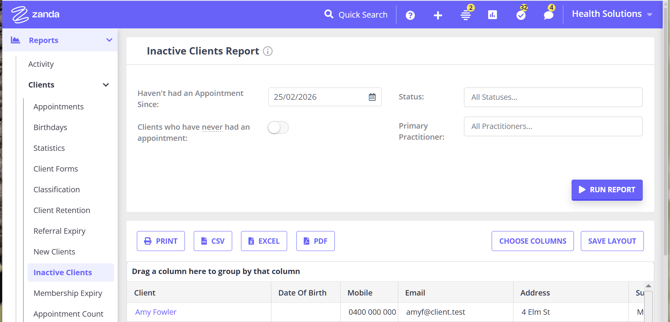
- A list of clients who have not made an appointment since a specified date.
- A list of clients who have never made an appointment with you by using the Clients who have never had an appointment filter.
- When the generated report lists the last Appointment, this will be the last Appointment with an Appointment Status of Pending, Confirmed, Arrived or Completed.
- A complete report includes the client full name, Zanda Client Number, Client Status, date of birth, mobile number, email address, the date when the last calendar/practitioner was seen and their last appointment date with your clinic.
Frequently Asked Questions
Can I find clients who do not have another appointment booked?
Yes. The best report depends on what you want to find:
- Use Reports > Clients > Client Retention to find clients whose appointment history ends within a selected date range and who have no future appointments booked after the end date. This report includes a Final Appointment column.
- Use Reports > Clients > Inactive Clients to find clients who have not had an appointment since a selected cutoff date. Set Haven’t had an Appointment Since to the date you want to use. This report includes Last Appointment and Last Practitioner Seen columns.
The Inactive Clients report checks for clients who had a Pending, Confirmed, Arrived, or Completed appointment before the selected date, with no Pending, Confirmed, Arrived, or Completed appointment on or after that date.
If a column is hidden, click Choose Columns, select the available column, and click Save Layout if you want to keep that layout for next time.
To search across the practice, leave Primary Practitioner set to All Practitioners. If you select one or more practitioners, the report filters by the client’s primary practitioner, not by assigned practitioners. To start from assigned practitioners instead, use People > Clients > Advanced Search with the Assigned Practitioners filter to create your client list first.
Can I include clients who have never had an appointment?
Yes. In Reports > Clients > Inactive Clients, select Clients who have never had an appointment.
When this option is selected, Zanda hides the last appointment columns because these clients do not have an appointment date to show.
Can I list inactive clients by last name first?
The Inactive Clients report shows each client in one Client column using the standard report name format. For a last-name-first version, run the report with the filters you need, export it to Excel, then sort or rearrange the client name data in your spreadsheet.
Membership Expiry
If you've offered your clients memberships with your clinic, you'll be able to use the Membership Expiry report to identify people with expiring memberships.
The report lets you see:
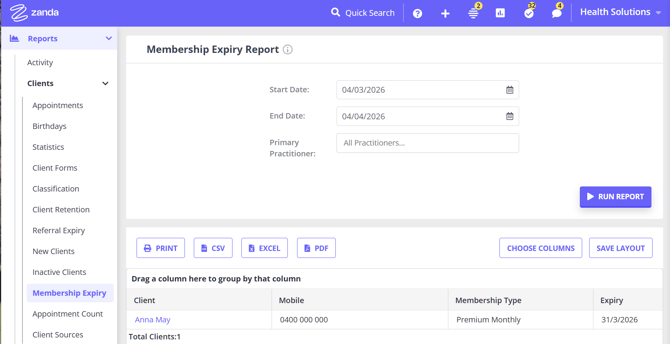
- A list of clients whose memberships are expiring within your selected period.
- A full report includes the client name, their mobile number, the membership type they have, and their membership expiry date.
Appointment Count
In the Appointment Count section, you can see which of your clients have had a specific number of appointments with you within a specific time period. This allows you to see who your most frequent clients are - and track session numbers.
The report shows you:
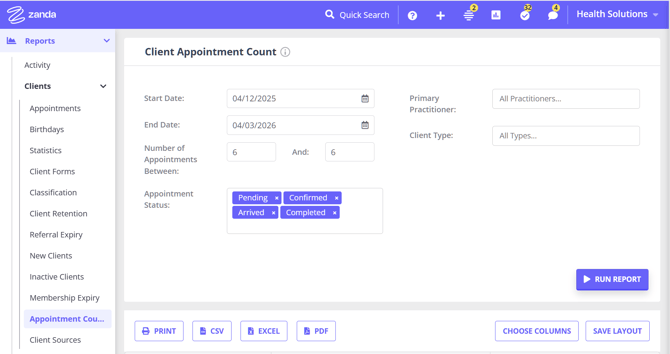
- The list of clients who have had X number of appointments with you in a given period.
- The complete report includes the client name, their number of appointments within the specified time period and the first appointment date.
- You can filter the count by Appointment Status. For example, select Completed, Cancelled, or Late Cancellation to count appointments with that status in the selected date range.
Using Appointment Count for a monthly unique client list
Use the Appointment Count report when you need one row per client for a selected month, such as counting how many people attended a training session without counting repeat appointments twice.
-
Go to Reports > Clients > Appointment Count.
-
Set the Start Date and End Date for the month you want to report on.
-
Set Number of Appointments Between to start at 1. Leave the upper value blank, or enter a higher number if you only want clients within a specific appointment-count range.
-
Select any Appointment Status, Practitioner, or Client Type filters you need, then run the report.
-
Review the Number Of Appointments column. Each client appears once, with their total number of matching appointments for the selected period.
For recurring monthly reporting, run the report for each month you need and use the print, CSV, Excel, or PDF export options to keep a copy of the results.
What this report does not include
The Appointment Count report does not filter by appointment type, service, or appointment flag. It also does not show separate columns for each appointment status in one report. The available columns are client name, number of appointments, and first appointment date.
If you need to find clients based on a specific appointment type, such as clients who only have a portal registration appointment and have not yet booked a session, use the Appointments report instead.
❓ Can I count completed, cancelled, and late cancellation appointments per client?
Yes. If you need one status at a time, go to Reports > Clients > Appointment Count, set the date range, select the relevant Appointment Status, and run the report. The Number Of Appointments column counts matching appointments per client for the selected status and date range.
If you need completed, cancelled, and late cancellation counts side by side, use Reports > Clients > Appointments as the source data. Set the date range, select the statuses you want to include, and run the report. You can then group the report by Client and Status, or export it to Excel and create a PivotTable using the client and status columns.
Workaround: finding clients by appointment type
1. Go to Reports > Clients > Appointments.
2. Set your date range and any status filters.
3. Once the report is generated, drag the Appointment Flag column into the grouping area to group and count appointments by flag type. See Grouping Reports for steps.
Note: The Appointments report lists all appointments individually. It does not filter by clients who have exactly X appointments. For a combined filter, such as a specific appointment type and a specific appointment count, export the report and cross-reference the results in a spreadsheet.
Frequently Asked Questions
❓ Can I count appointments by the month they were booked?
No. The Appointments and Appointment Count reports use the scheduled appointment date for the selected date range, not the date the appointment was booked or originally created. If you need to review appointments for a month, use Reports > Clients > Appointments or Reports > Clients > Appointment Count for the appointment dates in that month, then export the results if you need to analyse them further outside Zanda.
❓ Can I see each client's appointment (session) count and whether they are Active or Inactive in one report?
Yes, with one built-in report — plus a spreadsheet fallback that covers every client.
- If your clients are classified, use Reports > Clients > Classification. It shows an Appointments count for each client, and you can add a Client Status column with Choose Columns — so the session count and the Active or Inactive status appear together in the same report. This report only lists clients who have at least one classification assigned.
- For your full client base, run Reports > Clients > Appointment Count to get the per-client counts, and Reports > Clients > Client Statistics (or People > Clients > Advanced Search with the Client Status filter) to get each client's status. Export both and match them by client in a spreadsheet.
The Appointment Count report shows counts but no status, and Client Statistics and Advanced Search show status but no count — so combining the two takes either the Classification report or a spreadsheet cross-reference.
Client Sources (How Clients Heard About Us)
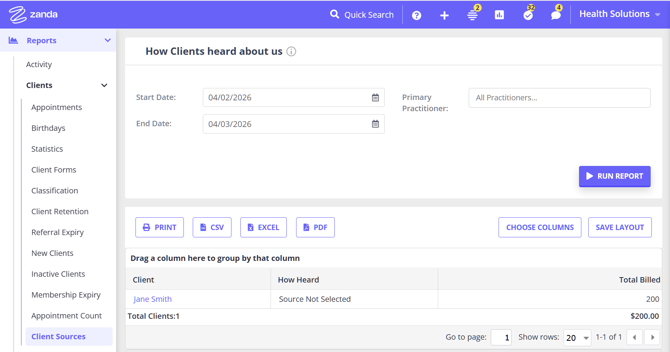
If you'd like some insight on which of your marketing channels are bringing you the best clients, this is the report you should see.
With it, you'll get information such as:
- How many clients are in which 'how-heard' category? (How-heard categories represent where your clients heard about you i.e. TV, Social Media, Print Ads, etc.)
- The revenue you generated from clients in each how-heard category.
- The complete report includes the client name, the marketing source from which they came from and the total amount billed throughout the client's lifetime (based on the sum of the invoiced amount for that client).
- Use the date range to show clients whose profiles were created during that period. For example, select last month's dates to see new clients added last month and their How Heard category.
Frequently Asked Questions
Can I view total billed amounts by client source for a specific time period?
Short answer: Not at the moment.Zanda does not currently have a report that calculates total billed amounts for a selected date range and breaks those totals down by client source.
Here’s how the available reports work today:
- Why the Client Sources report doesn’t change with date filters
The Client Sources report shows total billed amounts across a client’s entire lifetime. This means the totals are not adjusted when you select a specific date range, even if date filters are available in the report. - How to get accurate billing totals for a specific period
If you need billing totals for a defined timeframe, you can use financial reports such as Invoices and Payments report. This report respects date filters and provides accurate totals for the selected period. However, it doesn't group results by client source.
What to do if you need revenue by marketing source for a timeframe
- For more detailed insights—such as understanding how much revenue came from each client source during a specific period—the best workaround is to:
-
Export data from the relevant financial report (Invoices and Payments).
-
Cross-reference it externally with client source information, for example in a spreadsheet or reporting tool.