%20-%20120%20x%2044.svg)
Practices often need to record more than one insurance policy for a client, such as primary and secondary coverage.
With the Multiple Insurances option for the Insurance Details linked profile field, clients can now add more than one insurance record when completing a form.
When this option is enabled, clients can add or remove additional insurer sections while filling in the form. Each completed insurance entry is saved as a separate insurance record on the client’s profile when the form is submitted.
This article explains how to enable multiple insurance entries and what both staff and clients will see when using this feature.
This behaviour applies when the form is completed via:
-
Client Portal
-
Save & Complete from the client’s profile in Records > Forms and Admin > Admin Forms in Zanda accounts
The feature is controlled per a form template field through a setting in Tools > Form Designer.
💡 Pro Tip: This feature is particularly useful for practices that work with primary and secondary insurance coverage, allowing clients to submit both policies in a single form.
In this article:
- Enable multiple insurances in the Form Designer
- What clients see on the form
- How insurance data is saved to the client profile
- Use Case Examples
- Frequently Asked Questions
- Related Articles
Enable multiple insurances in the Form Designer
To allow clients to add more than one insurer:
-
Go to Tools > Form Designer.
-
Create a new form template or open an existing template to edit.
-
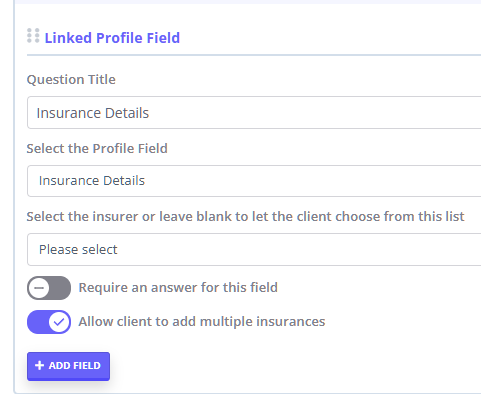
Add the Insurance Details linked profile field, or select an existing Insurance Details linked profile field.
-
Enable the toggle Allow client to add multiple insurances.
-
Save the form.
Your toggle setting is preserved when the form is reopened in the Form Designer.
What clients see on the form
This behaviour applies when:
-
The form contains the Insurance Details linked profile field, and
-
Allow client to add multiple insurances is enabled.
Initial view
When the client opens the form in the Client Portal or via the form link:
-
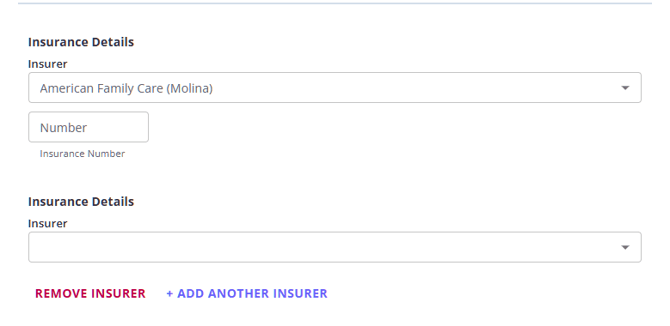
One Insurance Details block is displayed.
-
Below the block, the client will see the option:
+ Add Another Insurer

⚠️ Note: The exact insurance fields displayed in each block may vary by region.
For example, US accounts may include additional insurance-related fields, such as Medicare details.
Adding additional insurers
When the client clicks + Add Another Insurer:
-
A new Insurance Details block appears.
-
The new block includes the same fields as the original block, based on the configuration for the client’s region.
-
Previously entered insurance information remains unchanged.
Under the new block, the client will also see:
Remove Insurer
Clients can repeat this process to add multiple insurers, subject to any system limits.
Removing an added insurer
If the client clicks Remove Insurer:
-
That specific insurance block is removed.
-
Other insurance blocks and their entered data remain unchanged.
The first Insurance Details block is always present.
The Remove Insurer option only appears on additional blocks that the client adds.
💡 Pro Tip: In US accounts, an extra Insurance Details block that a client adds and leaves blank still has to be completed before the form can be submitted, so ask the client to click Remove Insurer underneath it rather than leaving it empty. Adding Insurance Information (US-only) covers what to check when a client cannot submit a form because of the insurance fields.
How insurance data is saved to the client profile
This behaviour applies when the form is completed through:
-
Client Portal
-
Save & Complete from the client profile Records > Forms and Admin > Admin Forms in Zanda accounts
When the client submits multiple insurance entries
If the client completes more than one Insurance Details block:
All insurance information entered is:
-
Captured from the form
-
Saved as multiple insurance records on the client’s profile
The records appear on:
-
The Insurance tab in client profiles
-
Other relevant sections of the client profile
Each insurer is stored as a separate record.
When the client submits only one insurer
If the client completes only the first Insurance Details block:
The form behaves exactly as before:
-
A single insurance record is created or updated on the client profile using the existing logic.
Use Case Examples
Example 1: Client with primary and secondary insurance
A client has two insurance policies:
-
Primary insurer: Insurer A
-
Secondary insurer: Insurer B
When completing the form:
-
The client enters Insurer A in the first Insurance Details block.
-
They click + Add Another Insurer.
-
They enter Insurer B in the second block.
-
They submit the form.
Result
Two separate insurance records are saved to the client profile:
-
One for Insurer A
-
One for Insurer B
Example 2: Removing an additional insurer before submitting
A client begins entering a second insurer but decides not to include it.
-
They click + Add Another Insurer.
-
They start filling in the fields.
-
They click Remove Insurer.
-
They submit the form with only the first insurer completed.
Result
Only the first insurer is saved to the client profile, matching the information visible on the final form.
Frequently Asked Questions
❓ Do I have to allow multiple insurances on all forms?
No.
The behaviour is controlled per Insurance Details field using the Allow client to add multiple insurances toggle.
If the toggle is turned off, the form supports only one insurer.
❓ Does this work in both Client Portal and in Zanda accounts?
Yes.
Multiple insurance entries are supported when the form is:
-
Completed in the Client Portal
-
Completed from the client profile using Save & Complete in Records > Forms and Admin > Admin Forms
❓ Will existing forms break?
No.
Existing forms remain unchanged because:
-
The new toggle defaults to off
-
Multiple insurance entries are enabled only if the toggle is turned on
❓ Can I use an online form to collect a client's Medicare details before an appointment?
Yes. Add the Insurance Details linked profile field to a client-entered form, then ask the client to select the relevant Medicare insurer when they complete the form. For Medicare insurers, the form displays fields for the client's Medicare Number, Ref, Month, and Year. When the form is submitted, those details are saved to the client's insurance record.
If the form should show information already saved on the client profile, enable Form authentication and Form pre-population on the form template. Form pre-population is only available when form authentication is enabled.