%20-%20120%20x%2044.svg)
Once you have seen a client you may wish to enter the service provided or payment received, edit the amount charged or generate an invoice/receipt.
In this article:
- Adding a Service
- Adding a Payment
- Printing an Invoice or Receipt
- Editing the Amount Charged for a Service
- Adding Multiple Payment Methods or Part-payments
Adding a Service
-
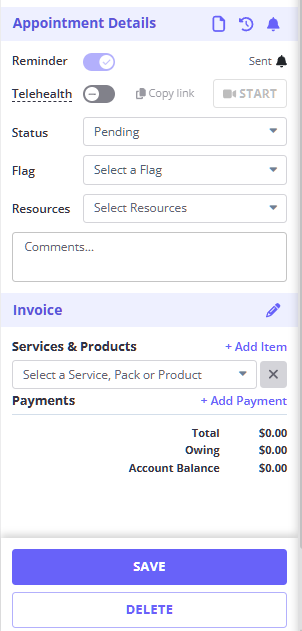
- Click the appointment block in question.
- In the Invoice section, click the "Select a service or Pack" drop-down list and select the service you wish to add.
- Click "Save" (Note: you can also Add a Payment before saving.)
Adding a Payment
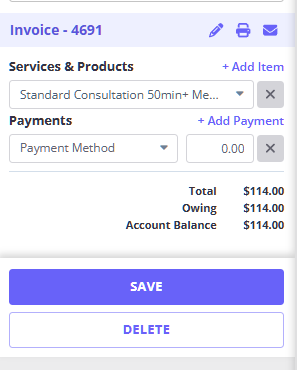
- Click on the appointment block.
- Click on the blue text + Add Payment to add the payment drop-down list.
- Select the payment method you wish to add and the amount in your local currency.
- Click "Save".
Printing an Invoice or Receipt
There are two ways of printing an invoice/receipt:
Method 1: From the Appointment Panel
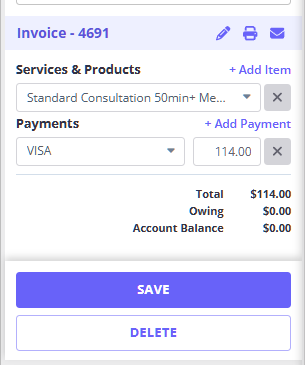
- Click on the appointment block.
- On the Invoice panel banner, you'll see a printer icon.
- Click the printer icon and follow the prompts
Method 2: Quick Print
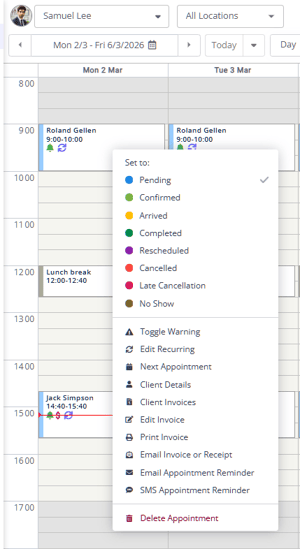
- Right-click an appointment block.
- Select Print Invoice command from the context menu
Editing the Amount Charged for a Service
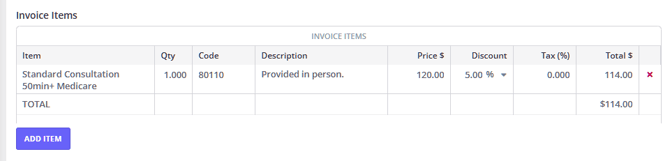
When you add a service to an appointment Zanda uses the default Sell Price related to the service as the fee. You can edit the amount charged for a particular appointment if required. For example, you may decide to discount a service for a client on a particular day. Here's how you do it:
-
Right-click on the appointment and select Edit Invoice
-
You can also click Invoice > Edit Invoice in the appointment panel.
-
-
Enter the amount you wish to charge in the Price field.
- Alternatively, enter an fixed amount or % discount to reduce the price
- Click Save Invoice.
Adding Multiple Payment Methods or Part-payments
A client may pay using multiple payments (e.g. Cash and Eftpos), or may only make a partial payment. You can easily manage these situations using the Edit Invoice feature. Here is how you do it:
-
Right-click on the appointment and select Edit Invoice
-
You can also click Invoice > Edit Invoice in the appointment panel.
-
-
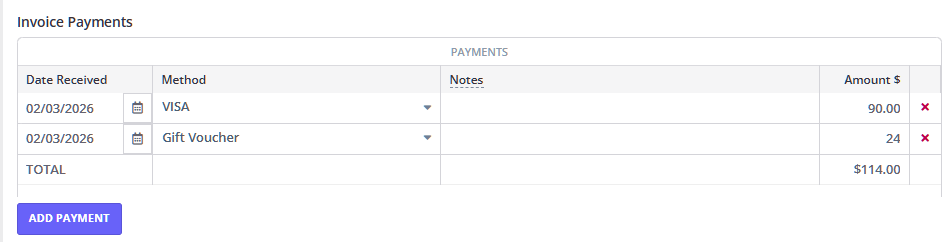
Use the "Add Payment" function to add a partial payment, or to add multiple payment methods (e.g. $90 VISA and $24 Gift Voucher).