%20-%20120%20x%2044.svg)
Statements allow you to show multiple paid or unpaid invoices for a certain period of time for a client. Statements are found in each Client's profile, which can be accessed by searching for the client in the Quick Search or by double-clicking on a client's appointment in the calendar.
There are two different statement types to choose from, which work as follows:
- Activity: Both paid and unpaid invoices in that period
- Outstanding Invoices: Unpaid invoices in that period only
In this article:
Creating a Client Statement
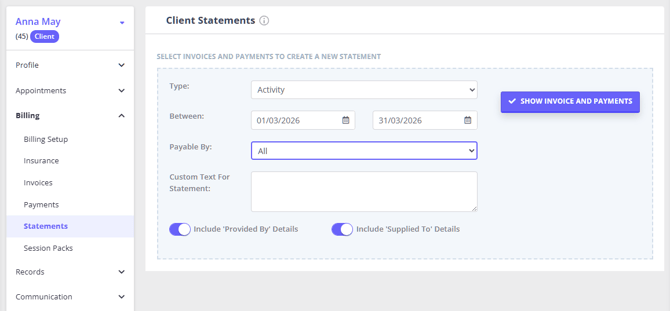
The statements feature is found in a Client profile under Billing > Statements.
-
In the Statements tab, click "New Statement".
-
Select the Statement Type: Activity or Outstanding Invoices.
-
Between: enter the date range, or leave as the default current 30-day period.
- In the Payable By: field, select the payee(s) of the client's invoices: All, Self (client), linked Contact, or Third Party.
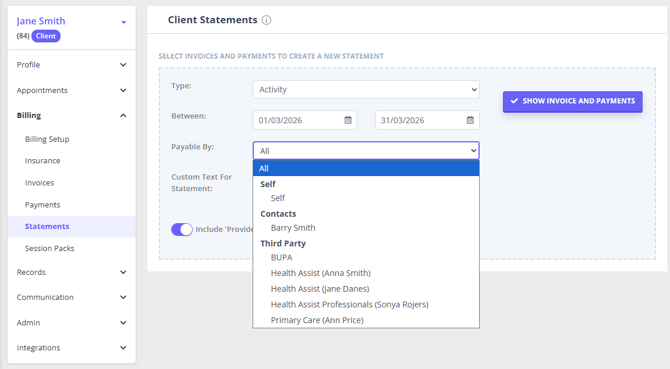
- Custom text For Statement: is optional, you can type some text which will print at the bottom of the statement document, like payment instructions for example.
- Toggle on Include 'Provided By' Details to show practitioner details
- Toggle on Include 'Supplied To' Details to show client details
- Click "Show Invoices and Payments".
You will see three sections appear below:
- Invoice Items
- Payments allocated to invoices
- All payments received during the period
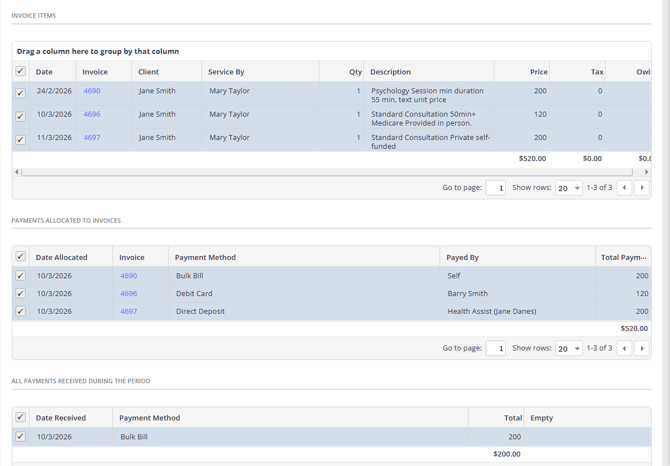
Invoices and payments will be included in these sections based on the filters settings you've selected.
Here's how the Payable By filter logic operates:
- Payable By set to All: includes all billing activity related to the client, regardless of who paid or who was billed. Use this option if you want a complete financial overview for the client.
- Invoice Items: includes invoices billed to client, contact(s) and third parties
- Payments allocated to invoices: includes payments made by the client, contacts, or third parties
- All payments received during the period: includes any received payments recorded on the client’s profile only
- Payable By set to Self: Includes only activity where the client is personally responsible for payment. This option ensures the statement shows only invoices and payments related directly to the client, excluding anything billed to contacts or third parties.
- Invoice Items: includes invoices billed directly to the client
- Payments allocated to invoices: includes payments made directly by the client
- All payments received during the period: includes any received payments recorded on the client profile
- Payable By set to Specific Contact or Third Party: Includes only activity billed to a specific contact or third-party payer linked to the client. This is useful when generating statements for parents or guardians, employers, insurance companies, funding bodies, other third-party payers
- Invoice Items: includes Invoices billed to the selected contact or third party
- Payments allocated to invoices: includes payments made by that contact or third party
- All payments received during the period: will be blank
- Select the invoices and payments which you would like to combine into the statement - check the boxes next to each invoice and payment separately, or check a box at the top of the invoices and payments lists to select all.
- Click " Create Statement".
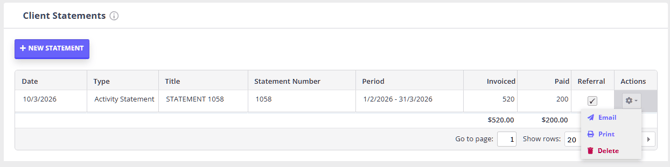
- Once you have created your statement you have the option to show the Referrer on the statement, which you can do by ticking "Referral".
- This will show the referrer details at the top right hand of the Statement (the same place that it is shown on a normal invoice).
- You also have the option to either Email, Print or Delete the Statement.
Statement Layout
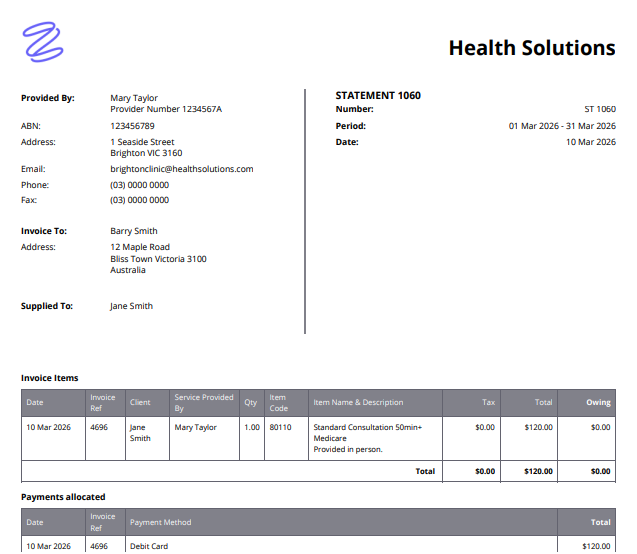
The statement header layout obeys the same rules as invoice header layout. You can find the detailed description of each field and how it is set up here: Quick Reference Guide to Invoice Fields
The difference from the invoice layout will be in the information shown in the Provided By and Invoice To sections.
- Provided By: part shows the appointment practitioner details, and may include the details of multiple practitioners if they provided services included in the Invoice Items section of the statement.
- Invoice To: part whos the invoices payee information and will depend on the Payable By: filter selection:
Because this filter allows you to select invoices billed to different payers, Zanda evaluates the invoices you selected and decides what information should appear in the Invoice To section.
-
If all invoices have the same payee
-
If every invoice included in the statement is billed to the same contact or third party, the statement will display that payer’s details in the Invoice To section. Example: If all selected invoices were billed to the same insurance company, the Invoice To section will show that insurer’s details.
-
-
If invoices are billed to different payees
-
If the selected invoices include a mix of payees (for example, some billed to the client and others billed to a contact or third party), the statement cannot assign a single payer to the document. In this case, the Invoice To section will default to showing the main client’s details. This ensures the statement still has a clear header when multiple payers are involved.
-
-
If all invoices are billed to the client
-
If all invoices in the statement are billed directly to the client, the Invoice To section will display the client’s details, as expected.
-
✅ When generating a statement with the Payable By filter set to Self, the Invoice To section in the statement header will include the client's information.
✅ When generating a statement with the Payable By filter set to Contact, the Invoice To section in the statement header will include the contact's information.
✅ When generating a statement with the Payable By filter set to Third Party, the Invoice To section in the statement header will include the third party payee information.
Note: The Invoice Items section reflects the final total amount with any applied discounts incorporated, but the specific details of the applied discounts are not shown.
Frequently Asked Questions
❓ Where do I find an existing statement?
Open the relevant payee profile, then go to Billing > Statements. For statements billed directly to the client, use the client profile. For statements billed to a contact or third party, open the full contact or third-party profile where the statement was created.
The statements list shows details such as the Statement Number, date, type, title, period, invoiced amount, paid amount, and available actions. Use the Actions menu to email, print, or delete the statement.
❓ Can I change the title of a statement?
Yes. Open the relevant payee profile, go to Billing > Statements, and find the statement you want to update. From the statement's Actions menu, select Print or Email. Zanda opens the Statement Title window before continuing, where you can edit the Title field and click Ok.
The Title field changes the statement title. It is separate from Custom text For Statement, which prints at the bottom of the statement, and Custom Text for Top of Invoices and Statements, which is managed in your invoice and statement layout settings.
❓ Can I use the statement number to find invoices linked to a payment?
Yes. When allocating or editing a payment, click Show Filter, choose the statement from the Statement dropdown, then click Update invoice list. Zanda filters the invoice list to the invoices linked to that statement number.
❓ Can I send a client their account balance in a monthly statement?
Yes. Use statements when you want to send invoice and payment activity for a selected date range, then use an email template with {StatementPDFLink} or {StatementPDFAttachment} to send the statement document. If the message also needs to show the client's current overall account balance, add the {ClientAccountBalance} merge field to the template.
For unpaid invoices in the selected period, choose the Outstanding Invoices statement type. For a broader view of invoices and payments in the period, choose Activity. The {ClientAccountBalance} merge field is separate from the statement PDF and shows the client's current account balance at the time the message is created.
Related Articles
- Creating Statements Billed to Contacts - Generate and find statements in a contact profile
- Creating Statements Billed to Third Parties - Generate and find statements in a third-party profile
- Paying Invoices Using Statement Numbers - Use a statement number to filter invoices when allocating payments