%20-%20120%20x%2044.svg)
HelperBee is your built-in AI assistant for Zanda. It lives as a small floating button in the bottom-left corner of every page and is always ready to answer questions about using Zanda—from creating appointments and managing your calendar to billing, client records, and more. You can ask it anything, and it will respond using Zanda's own documentation.
In this article:
- Getting started
- Sending a message
- Conversation history
- Resize: compact and expanded views
- Moving the chat window
- Your session and using HelperBee across devices
- When HelperBee can't find an answer
- Tips for getting the best results
- Quick reference
- Frequently Asked Questions
- Related Articles
Option 1
-
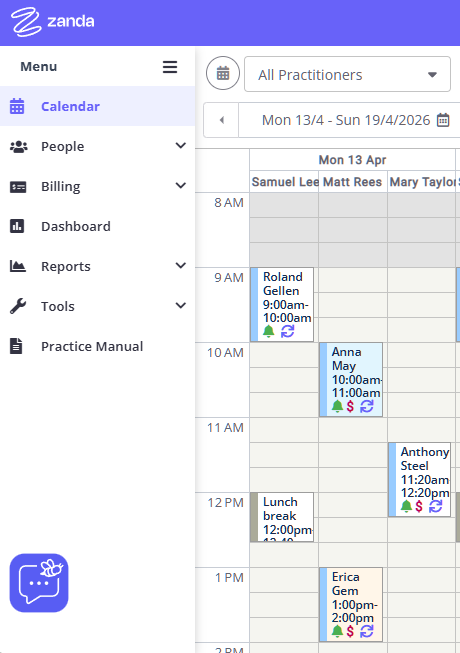
Look for the purple rectangular button with the HelperBee icon in the bottom-left corner of your screen.
-
Click it once to open the chat window, which slides up with a smooth animation.
Option2
-
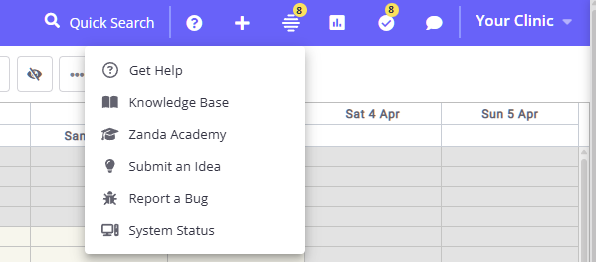
Click Help (question mark icon) at the top panel toolbar
-
Select Get Help
Welcome greeting
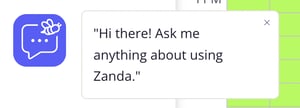
The first time you visit, a small popup appears above the button after a few seconds saying "Hi there! Ask me anything about using Zanda." You can click the × on the popup to dismiss it permanently—it will not appear again on future visits.
Click the ✕ (Close) button in the top-right corner of the chat window to collapse it back to the floating button. You cannot remove the floating icon completely from view on the desktop and laptop computers and tablets. The next time you open the chat window, your most recent conversation will be restored right where you left off.
Using HelperBee on Mobile
On mobile devices, the floating chat icon is hidden by default to keep the screen clear. To use HelperBee on mobile:
- Tap the Help menu (question mark icon) and select Get Help
- The HelperBee chat will open - use it as described below.
- Once you've opened and closed HelperBee, the floating icon will reappear. Tap it so you can easily return to your conversation.
- If you refresh the page or move to another Zanda page, the icon will hide.
- If you need to return or start a new conversation use the Help menu again.
Once the chat is open, you'll see the message input field at the bottom with the placeholder "Ask me anything..."
- Type your question in the text area—it expands automatically as you write.
- Press Enter to send your message, or click the send button (the paper-plane icon).
- If you want to write a multi-line message before sending, press Shift + Enter to add a new line.
- Use the paperclip icon to upload a file, such as a screenshot, which you think will help HelperBee to understand your query better.
- Your typed text is preserved even if you switch between compact and expanded view while composing.
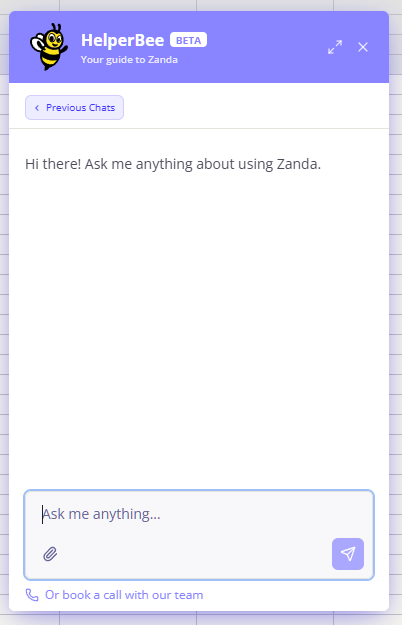
Use the Or book a call with our team link below the chat box to schedule a phone or video call with one of our support team members at a time that suits you.
Attaching images to your message
You can attach images to your messages to give more context and make it easier to explain what you’re seeing.
Supported image formats
You can upload the following file types:
- JPEG (.jpg)
- PNG (.png)
- WebP (.webp)
- GIF (.gif — animations are preserved)
Limits to keep in mind
- Maximum file size: 10 MB per image
- Maximum images per message: 3
Images are automatically optimized before upload to keep things fast and reliable. This includes resizing large images and converting them to WebP format where needed. GIFs are not changed so animations stay intact.
How to attach images
You can add images in whichever way is easiest for you:
- Use the file picker — click the paperclip icon next to the message box (on mobile, you’ll also see a camera option)
- Drag and drop — drag images directly into the chat (desktop)
- Paste — copy an image and paste it into the message box (Ctrl+V on Windows or Cmd+V on Mac)
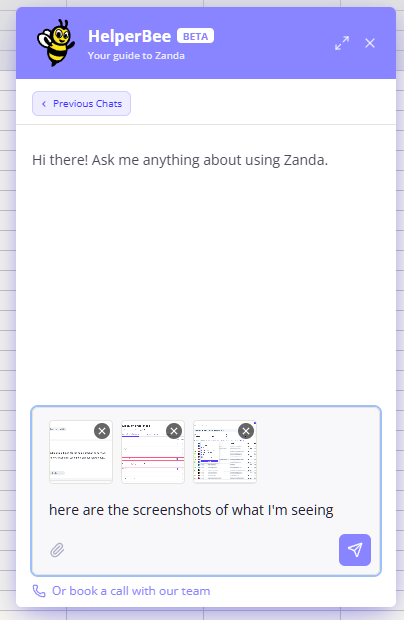
What happens next
- Your images will appear as thumbnails above the message box before you send
- Once you’ve added 3 images, the paperclip icon will be disabled until you remove one
- If an image isn’t supported or is too large, you’ll see an error on the thumbnail — simply remove it and try again
- You’ll need to wait until images finish uploading before sending your message
Data retention
Uploaded images are automatically deleted after 90 days.
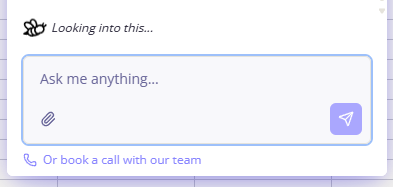
After you send a message, a typing indicator appears at the bottom of the chat with an animated HelperBee icon and rotating status messages such as "Looking into this…", "Searching Zanda resources…", and "Almost there…"—letting you know a response is on its way.
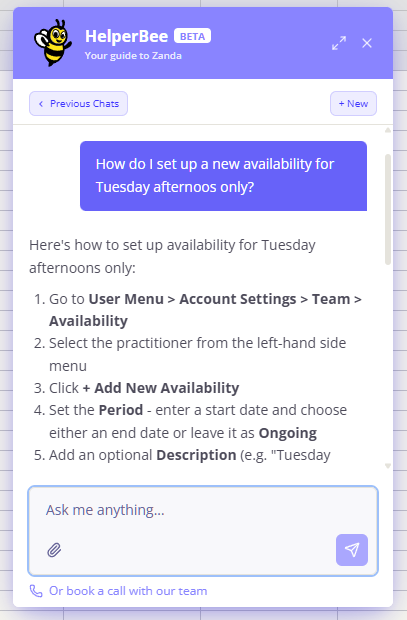
HelperBee's answers use rich formatting—bold text, numbered lists, headings, and bullet points—to make instructions easy to follow. Messages appear in a scrollable window that automatically scrolls to the latest reply.
- Your messages appear as purple/blue bubbles on the right side.
- HelperBee's replies appear on the left with a clean, white background.
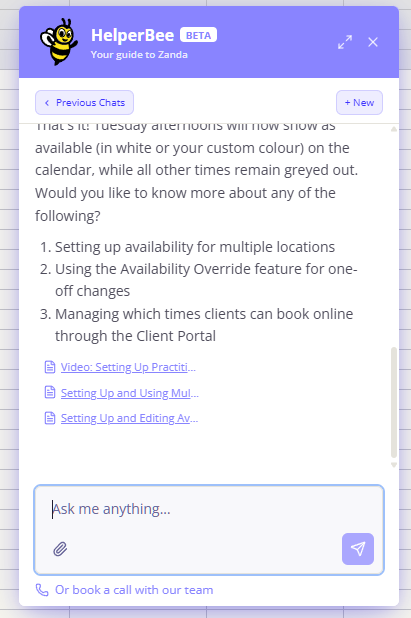
When HelperBee draws on a specific Zanda help article to answer your question, source links appear below the response as clickable document pills. Each pill shows the article title and opens the full article in a new browser tab when clicked—so you can read the complete documentation if you need more detail.
HelperBee stores all your past conversations, so you can always go back and review what was discussed.
However, HelperBee does not carry information from one conversation into a brand new chat. If you would like to continue an earlier discussion and avoid repeating questions, simply reopen that previous chat and pick up where you left off.
Click the "< Previous Chats" button at the top of the chat window to open the history panel. You'll see a list of your past conversations, each showing:
- A title (generated automatically from the first message)
- A preview of the last message
- The date the conversation was created
- A status indicator: a purple circle for conversations that are still active (within the last 24 hours), and a green checkmark for older ones
The currently selected conversation is highlighted.
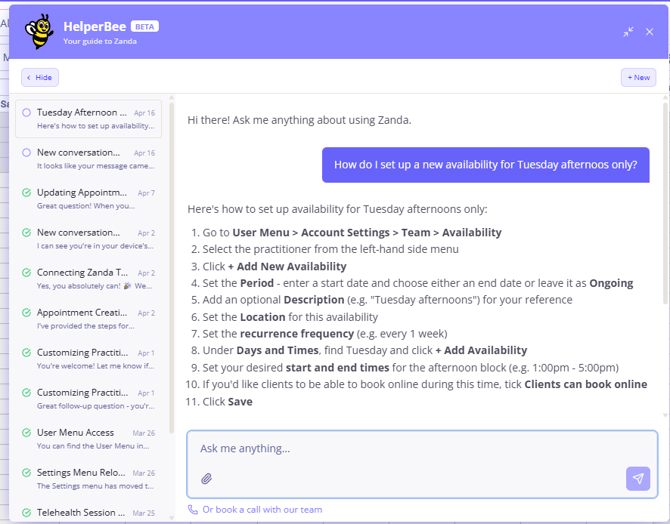
Click any conversation in the list to load it. The full message history will appear in the chat area, and you can continue the conversation from where you left off by typing in the input field as normal.
Click "< Hide" to close the history sidebar and return to the current chat. On smaller screens, the history panel replaces the chat view; a "Back to Chat" button returns you to your conversation.
When you're viewing an existing conversation or browsing history, a "+ New" button appears in the top-right area of the chat. Clicking it starts a fresh conversation with a clean slate. On smaller screens, clicking "+ New" also closes the history panel.
The chat window has two size modes you can switch between at any time.
Expand: Click the maximize button (the outward arrows ↗↙ icon) in the top-right corner of the header to expand the chat to a larger size. In expanded mode on a wide screen, the Previous Chats history panel slides in as a sidebar alongside the chat—so you can browse past conversations and still see the current chat at the same time.
Collapse (compact): Click the minimize button (the inward arrows icon) to shrink the chat window to a more compact size. If the history sidebar was open in expanded mode, it closes automatically when you switch to compact mode.
Your size preference is remembered so the chat opens in the same mode next time.
You can drag the chat window to any position on your screen on desktop and laptop computers. Simply click and hold the purple header bar (the cursor changes to a grab hand ✋) and drag it wherever you like. This is useful if the default position is overlapping content you need to see.
- We disabled the option to move the floating chat icon and the chat window on devices with touch screens (including mobiles and tablets).
HelperBee does not require you to log in. When you open the chat for the first time, it automatically creates an anonymous session for you—a unique identifier stored privately in your browser. This is what allows HelperBee to remember your conversations, preferences, and chat state without you needing to sign in to anything.
This identity lives entirely within your current browser on your current device. It is not connected to your Zanda login or any account credentials. No sensitive clinical information is stored in the chat state.
HelperBee automatically remembers several things between visits so you don't lose your place. The following are saved locally in your browser and restored automatically each time you visit:
- Whether the chat was open or closed when you last left the page
- Your preferred window size—compact or expanded
- The conversation you were viewing—so you land straight back in your last chat (note: this is cleared when you close the chat with the ✕ button, so the next session starts fresh)
- Whether you have dismissed the welcome greeting—so it never appears again
Because everything is stored locally in your browser, your session does not carry over to a different browser or device. Specifically:
- Opening HelperBee in a different browser (e.g. switching from Chrome to Safari) will start a completely fresh session with no history visible.
- Opening HelperBee on a different device (e.g. your laptop at home vs. your work computer) will also start fresh—none of your past conversations will be shown.
- Using your browser's private/incognito mode will start a fresh session, and nothing from that session will be saved once you close the window.
- If you clear your browser's local storage or cookies, HelperBee will treat you as a new user and your previous conversation history will no longer be accessible from that browser.
In short: HelperBee's memory is tied to the specific browser on the specific device you are using. Your conversation history is safe on the server, but the widget needs to recognize you via your browser to show it to you.
While the chat state (open/closed, window size, etc.) lives only in your browser, your actual conversation messages are stored on Zanda's servers. This means the content of your conversations is not lost if you clear your browser—however, without the browser-stored session identifier, HelperBee has no way to associate those conversations back to you automatically on a new device or browser.
HelperBee searches Zanda's knowledge base to answer your questions. There are three typical scenarios:
- Clear match found—HelperBee answers your question directly and confidently, often with step-by-step instructions.
- Partial match—HelperBee may ask a clarifying question to make sure it's addressing the right topic (e.g., "Are you asking about changing your profile settings or appointment types?").
- No match found—HelperBee will let you know it couldn't find relevant information and may suggest rephrasing your question or offer to connect you with the Zanda support team.
- Be specific. Instead of "how do I add someone?", try "how do I add a new practitioner to my team?"
- Use natural language. You don't need to use technical terms—ask questions the same way you'd ask a colleague.
- Follow up. If the answer doesn't fully address your question, just reply with more detail. HelperBee keeps the context of the current conversation.
- Check source links. When HelperBee cites a help article, clicking the source pill gives you the complete, up-to-date documentation page.
- Start a new chat for a new topic. Keeping conversations focused on one topic helps HelperBee give more accurate answers.
- Stick to the same browser. For the best experience and full access to your conversation history, use HelperBee in the same browser on the same device each time.
| Action | How to do it |
|---|---|
| Open HelperBee | Click the purple bee button (bottom-left) |
| Send a message | Press Enter or click the send button |
| New line in message | Press Shift + Enter |
| View past conversations | Click "< Previous Chats" |
| Start a fresh chat | Click "+ New" |
| Expand to full size | Click the ↗↙ maximize button |
| Collapse to compact | Click the ⇲⇱ minimize button |
| Move the chat window | Click and drag the purple header bar |
| Close the chat | Click ✕ in the top-right corner |
Frequently Asked Questions
❓ Can I close HelperBee completely to remove its icon from my Zanda screen?
❓ Is there a mobile app so I can use HelperBee on my phone or away from my computer?
There is no dedicated Zanda mobile app. However, you can use HelperBee (and all of Zanda) on your phone or tablet by opening your mobile browser and logging in to Zanda as usual. HelperBee is fully accessible from any smartphone or tablet through the browser — no app download needed.
❓ I booked a call with the support team but haven't received a confirmation or meeting link. Is my call scheduled?
You book support calls through our online booking page, so HelperBee can't look up or confirm a booking for you. To check your booking yourself:
- Check your spam or junk folder—booking confirmations sometimes land there.
- If you still can't find a confirmation, your booking may not have been completed. Email support@zandahealth.com with your name and the date and time you selected, and our team will check the booking and help you reschedule if needed.
- You can also book a new time at zandahealth.com/book-a-call.