%20-%20120%20x%2044.svg)
In this article:
- Overview
- Enabling Apple Calendar Sync
- Getting Your Feed Link
- Adding Your Zanda Calendar to Apple Calendar on iPhone or iPad
- Adding Your Zanda Calendar to Apple Calendar on Mac
- Using Your ICS Feed in Other Calendar Apps
- Resetting Your Link
- Disabling Apple Calendar Sync
- Frequently Asked Questions
- Related Articles
Overview
You can sync your Zanda calendar with your Apple Calendar so your Zanda appointments appear alongside your personal events on your iPhone, iPad, or Mac, all in one place.
Zanda generates a personal, private feed link (in standard ICS format) that Apple Calendar subscribes to. Apple Calendar periodically checks the feed and keeps your schedule up to date automatically.
Important Note: This is a read-only subscription.
Changes made inside Apple Calendar are not passed back to Zanda. All appointment changes must be made directly in Zanda, which will then be reflected in Apple Calendar on the next sync.
Enabling Apple Calendar Sync
To get started, navigate to your practitioner profile settings:
- Click the account business name at the top-right corner of Zanda to open the User Menu
- Select Practitioner Profile from your user menu.
- Alternatively, navigate to User Menu > Account Settings > Team > Practitioners and open your practitioner profile.
- If neither option is available, contact your Zanda account administrator for assistance.
- In the practitioner profile, select the Calendar Sync tab, then choose Apple Calendar.
- Turn on the Enable Apple iCal feed toggle.
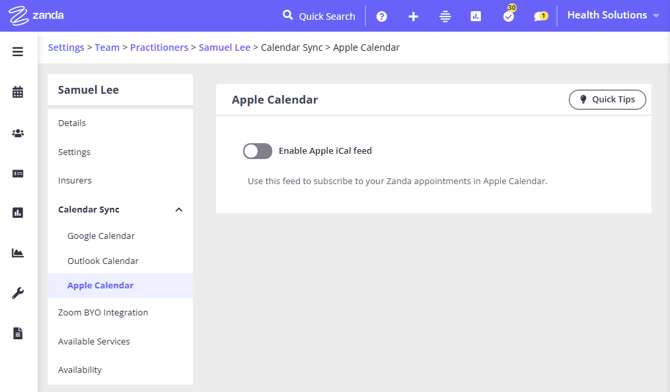
Getting Your Feed Link
- With the Enable Apple iCal feed toggle on, click GET MY LINK.
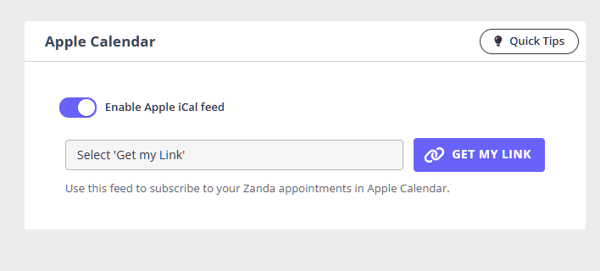
- Your unique feed URL will appear in the field below the button.
- Click COPY LINK to copy the URL to your clipboard.
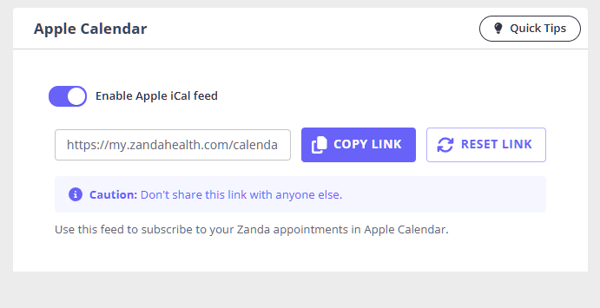
Important Note: Keep this link private.
Do not share this link with anyone else. Anyone who has access to this link will be able to view your appointment schedule.
Adding Your Zanda Calendar to Apple Calendar on iPhone or iPad
These steps assume you have already copied your Zanda feed link as described above. See the instructions provided in iPhone User Guide here.
- Open the Settings app on your iPhone or iPad.
- Tap App, then tap Calendar.
- In Calendar, tap Calendar Accounts.
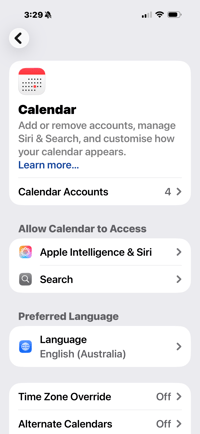
- Tap Add Account, then tap Other.
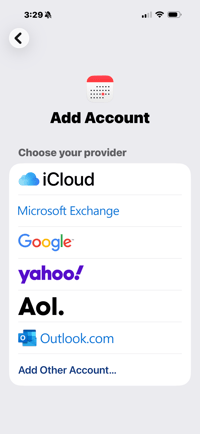
- Tap Add Subscribed Calendar.
- Paste your Zanda feed URL into the Server field and tap Next.
- Tap Save.
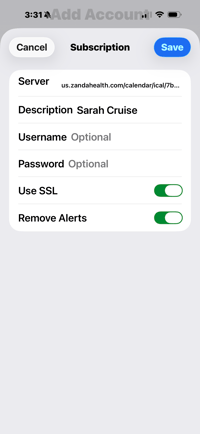
- Your Zanda appointments will begin appearing in Apple Calendar.
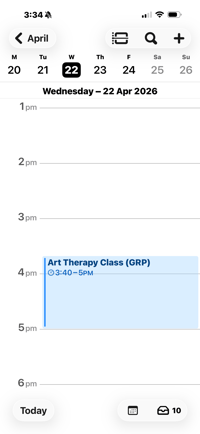
Pro Tip: Apple Calendar controls how often it checks for updates on subscribed calendars. There may be a short delay (typically a few hours) before new appointments appear. You can manually refresh by pulling down on your calendar in Apple Calendar.
Adding Your Zanda Calendar to Apple Calendar on Mac
These steps assume you have already copied your Zanda feed link as described above. See the full Mac Calendar User Guide instructions here.
- Open Apple Calendar on your Mac.
- From the File menu, select New Calendar Subscription…
- Paste your Zanda feed URL into the field and click Subscribe.
.png?width=670&height=378&name=image%20(11).png)
- Give the calendar a name (e.g. Zanda), set your preferred Auto-refresh frequency, then click OK.
.png?width=670&height=388&name=image%20(12).png)
- Create and update your appointments in your Zanda calendar and they will be automatically synced with your Apple Calendar
.png?width=670&height=335&name=image%20(13).png)
Note: The calendar will now appear in the Other section of Apple Calendar’s sidebar.
Using Your ICS Feed in Other Calendar Apps
The feed URL Zanda generates is a standard ICS format link. This means it is compatible with any calendar application that supports ICS calendar subscriptions — not just Apple Calendar.
To subscribe in a compatible app, locate the option to add a subscribed or external calendar, and paste your Zanda ICS feed URL when prompted. Refer to the documentation for your chosen app for specific instructions.
Note: Zanda’s ICS feed is a read-only subscription in all calendar apps. Changes must always be made in Zanda.
Resetting Your Link
If you believe your feed link has been shared with someone unintended, you can reset it. Resetting generates a new link and immediately invalidates the old one.
- In Zanda, navigate to your practitioner profile > Calendar Sync > Apple Calendar.
- Click RESET LINK.
- A confirmation prompt will appear. Click RESET LINK to confirm.
- Your new feed URL will be displayed. Copy it.
- With the copied link, re-subscribe in Apple Calendar/other calendar using the steps above.
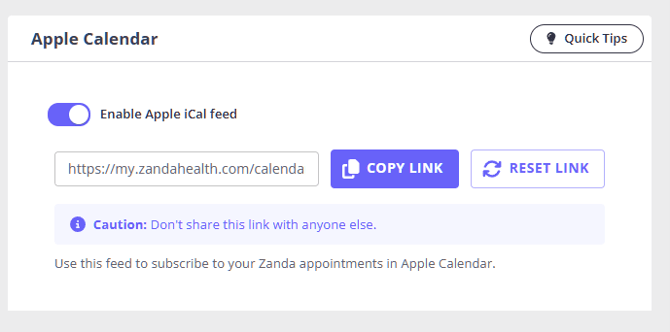
Important Note: Any calendar app still using the old link will stop receiving updates. You will need to update the subscription URL in each app using your new link.
Disabling Apple Calendar Sync
You can turn off Apple Calendar sync at any time.
- Navigate to User Menu > Account Settings > Team > Practitioners > your practitioner profile > Calendar Sync > Apple Calendar.
- Turn off the Enable Apple iCal feed toggle.
- A confirmation prompt will appear. Click DISABLE LINK to confirm.
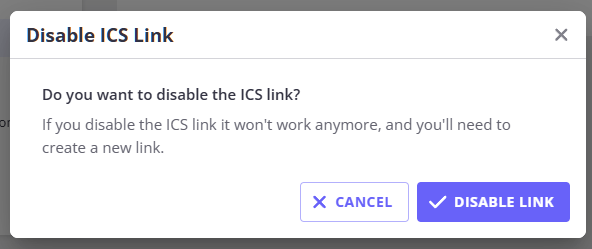
Your feed link will be deactivated and Apple Calendar will stop receiving updates from Zanda. If you re-enable the sync in future, a new link will need to be generated.
Frequently Asked Questions
Will my appointments sync in real time?
No — Apple Calendar checks subscribed calendars on its own schedule, typically every few hours. There may be a short delay between a change in Zanda and it appearing in Apple Calendar. You can trigger a manual refresh from within Apple Calendar if needed.
What information about my appointment will be sent to my personal calendar from Zanda via ICS feed?
Each appointment in the ICS feed includes:
- Date and time
The start and end time of the appointment (based on your practice timezone) - A short title (summary)
This depends on the appointment type:- Client appointments → client initials + status (e.g. JS (CFM))
- Group appointments → group name
- Personal/reserved time → your custom title, followed by (PER) (e.g. Lunch (PER))
- Appointment status (if cancelled)
Cancelled appointments are clearly marked - Notes (if added)
Any notes from the appointment will appear in the description, followed by a separator line
What is NOT shared
To keep your data secure, the ICS feed does not include:
- Full client names
- Phone numbers or email addresses
- Practitioner names
- Appointment service or type
- Location details
- Billing or clinical information
Can I sync only my client appointments and leave personal appointments out?
No. The Apple Calendar (ICS) feed always includes every appointment on your Zanda calendar for the period it covers — client appointments, group appointments, and personal appointments alike. There is no setting to filter the feed by appointment type.
This also applies to the Google Calendar and Outlook Calendar integrations, so switching to one of those will not exclude your personal appointments either.
If you would rather not see the detail of your personal time in your phone or desktop calendar, you have two options:
- Use a generic title on your personal appointments. The feed sends the title you type on the appointment, so a personal appointment titled Busy will appear as Busy (PER) in your calendar app rather than describing what the time is for.
- Hide the Zanda calendar when you don't need it. Apple Calendar (and most other calendar apps) lets you untick a subscribed calendar to hide all of its events at once, without removing the subscription.
If you no longer want any Zanda appointments in your calendar app, you can turn the feed off entirely — see Disabling Apple Calendar Sync above.
Why can’t I show full client names in an Apple / ICS calendar feed?
An ICS feed is essentially a shareable link—anyone who has the URL can subscribe to it and view the calendar. There’s no login or authentication required. To protect client confidentiality, the option to display full names is removed entirely for ICS feeds.
(This is different from Zanda integrations with Google and Outlook calendars which are set up via OAuth connections with a required login and where practitioners have an option to choose to send clients full names to their connected Google and Outlook calendars.)
Can I edit or cancel appointments from Apple Calendar?
No. The ICS feed is read-only. All appointment changes — including cancellations and reschedules — must be made in Zanda. These changes will then be reflected in Apple Calendar on the next refresh.
Can I share my link with a colleague so they can see my schedule?
This is not recommended. Your feed link provides access to your full appointment schedule. If you need to share availability, use Zanda’s existing availability and online booking features instead.
Can I use this on Android or Windows?
The ICS feed is a standard format and is compatible with many calendar applications across platforms. Apple Calendar is the primary supported use case, but you can use the feed link in any ICS-compatible app on any device.
What happens if I lose my link?
You can retrieve your link at any time by navigating to User Menu > Account Settings > Team > Practitioners > your practitioner profile > Calendar Sync > Apple Calendar and clicking GET MY LINK again.