%20-%20120%20x%2044.svg)
You can enter all your Insurance IDs (Provider Numbers) into Zanda so that the correct Provider Number is displayed on invoices for each client depending on the insurance policy they have. Some insurers also require separate Provider Numbers to be used for each location that you practice from. To manage this Zanda allows you to record different Provider Numbers for each of your locations if needed.
Note: For Australian users, Medicare is considered as an insurance policy.
In this article:
- Initial Setup
- Applying An Insurer To The Client
- Add or Remove An Insurer From A Clients Invoice
- Update Provider Number
- Removing insurers you no longer use
- Removing a default insurer from your clients
- Frequently Asked Questions
- Related Articles
Initial Setup
The three initial steps required to set up insurers and their provider numbers are: (You'll only have to do these once.)
-
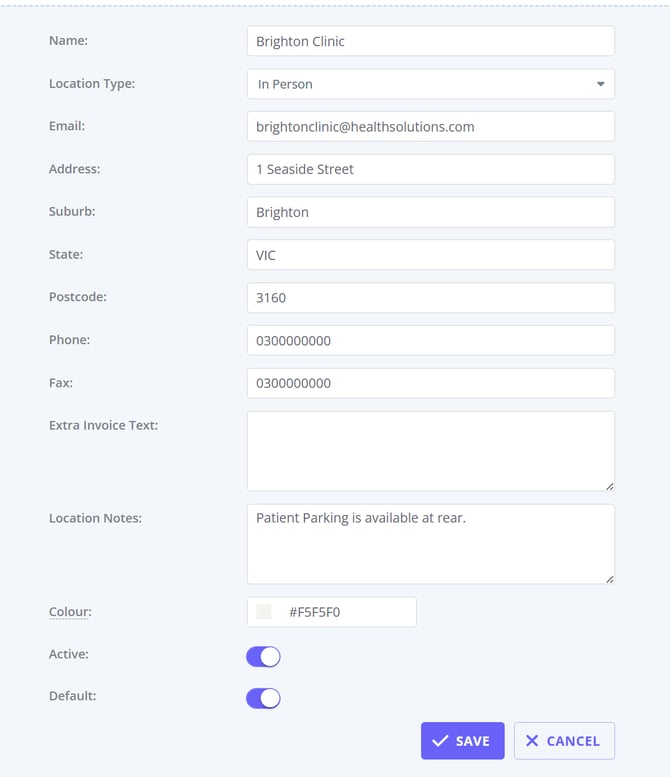
Set up locations.
-
Navigate to User Menu > Account Settings > Practice > Locations.
-
Click Add Location.
- Enter the details of your new location in the form. Save the changes.
-
Adding Insurers.

-
Navigate to User Menu > Account Settings > Payments > Insurers
- Click Add Insurers
- For private insurers, add Insurer Name (for example, BUPA) and set Type to Standard.
-
Important: For integrated insurers, such as Medicare (AUS), DVA (AUS) and NDIS (AUS) , enter their Insurer Name, and select the relative insurer type. This is important for the seamless work of the Medicare (AUS) and DVA (AUS) integration and the NDIS report.
- Tick Show on Invoice if you would like the insurer information to be visible on invoices
- In the Text on Invoice field, enter the insurer information you want display on your invoices (e.g. BUPA Provider Number:)
- Click Save
After you save the insurer, it becomes available when you add insurance details to a client's profile and when you add provider numbers to a practitioner's profile.
-
Adding Provider Number for Specific Practitioners.
-
Navigate to User Menu > Account Settings > Team > Practitioners
-
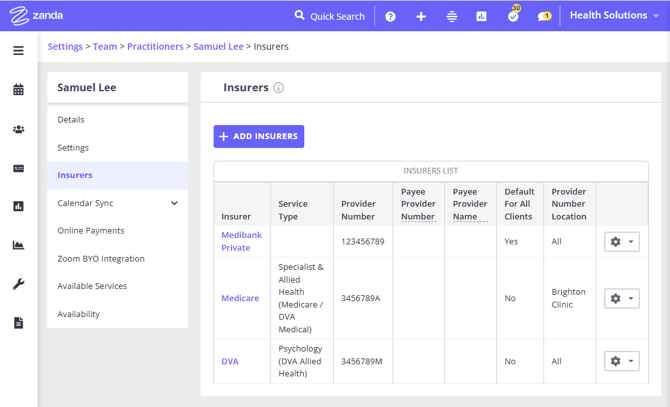
Select the practitioner to which you'd like to add an insurer and their Provider Number.
-
Go to Insurers. Select an existing insurer from the list or click Add Insurer to create a new insurer.
-
Enter the provider number and select whether this is for a specific location or for 'All' locations.
- Switch on Default For All Clients if you want this insurer applied automatically as the default insurer for this practitioner's clients.
-
Click Save.
Important: Default For All Clients applies to existing clients as well as new ones. When you switch it on, Zanda asks whether you want to add this insurer as the default insurer for all clients of that practitioner. If you confirm, Zanda adds the insurer to every active client whose primary practitioner is that practitioner and marks it as their default, replacing any default insurer those clients already had. Switching the setting back off later does not undo that change: the insurer stays on those client profiles until you remove it from each client. To reverse it, follow Removing a default insurer from your clients below.
Note 💡 Default For All Clients is a different setting from Default for New Clients , which sets your practice's default primary practitioner.
Applying An Insurer to The Client
You can view, add or edit the client's selected insurer. Here's how:
-
Go to the client's profile page by searching for them in the search bar on top of your Zanda dashboard.
-
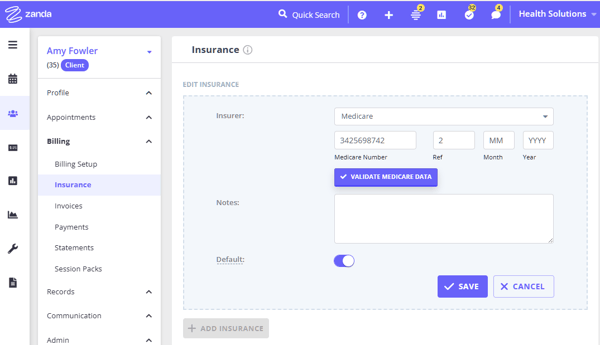
Navigate to Billing > Insurance.
-
Choose an existing insurer from the list or add a new insurer by clicking Add Insurance. 4. Enter the insurance details and toggle the switch labelled Default on.
-
Click Save.
Note 💡You can use Zanda online forms with a linked profile field 'Insurance Details' to automatically collect client insurance details.
Change An Insurer From a Clients Invoice
You change the insurer in a client's invoice to another insurer. Here's how:
-
Go to the client's profile page.
-
Navigate to Billing > Invoices.
-
Click on the invoice whose insurer you'd like to change.
OR
-
In your calendar, click on the client appointment whose invoice's insurer you want to change.
-
In the Appointment Settings Panel, scroll down until you see the Invoice section. Click on the Edit Invoice icon.
OR
-
Use the Quick Search bar to look up an invoice
-
Once you have the invoice open, chose an insurer from the drop-down list next to the field labelled Insurance.
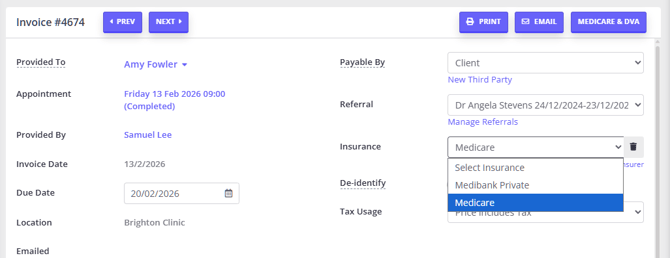
Tip: If you cannot find the appropriate insurer, click Manage Insurance and follow the instructions listed in the Step 2: Adding Insurers section
Update Provider Number
To update your Provider Number:
-
Go into User Menu > Account Settings > Team > Practitioners.
-
Click on the name of the practitioner you need to update.
-
Click on Insurers and then click the Insurer you need to update.
-
Input the correct Provider Number.
-
Click Save
Removing insurers your practice no longer uses
If your practice no longer bills insurers, you can deactivate insurers in User Menu > Account Settings > Payments > Insurers and remove insurance records from individual client profiles. Deactivating a practice-level insurer keeps your historical records intact while removing that insurer from active insurer lists. Zanda keeps at least one insurer active in the custom list, so leave a placeholder or the least-used insurer active if the page prevents the final insurer from being deactivated.
Note 💡 Deactivating an insurer removes it from the lists you pick from when adding insurance to a client or creating an invoice. It does not clear that insurer from clients who already have it set as their Default , and those clients' new invoices will still default to it. To stop that, clear the insurer on each client as described in Removing a default insurer from your clients below.
To stop an insurer from being used for a specific client, open the client profile, go to Billing > Insurance, and use the delete or remove action on the client's insurance record. Removed client insurance records are no longer active and are not included when Zanda selects default insurers for new invoices.
Removing a default insurer from your clients
Default insurers are removed one client at a time: there is no bulk way to remove or clear a default insurer across client profiles. The Bulk Update tool has no insurer field, so it cannot add or clear an insurer for a group of clients, and no other tool clears a default insurer in bulk.
If the insurer was applied to your clients by the Default For All Clients setting on a practitioner's provider number, work through these steps:
- Stop it being applied to new clients. Go to User Menu > Account Settings > Team > Practitioners , open the practitioner, go to Insurers , open the insurer and switch Default For All Clients off. This stops the insurer being added to new clients. It does not remove the insurer from clients who already have it.
- Find the clients who have it. Run a data export and open the Client Insurance.csv file. It lists each client, the insurer recorded against them, and whether that insurer is set as their default, so you can build the list of clients you need to update. See Exporting Your Data.
- Clear it on each client. Open the client's profile, go to Billing > Insurance , and either switch the Default toggle off on the insurance row to stop that insurer being selected automatically on new invoices, or use the delete or remove action on the row to remove the insurance record entirely.
Existing invoices are not changed by any of these steps. To change the insurer on an invoice that has already been created, follow the steps in Change An Insurer From a Clients Invoice above.
Frequently Asked Questions
❓ Which provider number appears on an invoice when a practitioner has different provider numbers for each location?
Zanda uses the invoice's location context to choose the provider number. If the invoice is linked to an appointment, Zanda uses the appointment location. This means the provider number can change when the appointment's Where field changes to a different location.
If the invoice is not linked to an appointment, Zanda uses the location selected on the invoice. When there is no matching location-specific provider number, Zanda can use the provider number set for All locations.
Related Articles
- Preparing for Medicare Claiming (AU-Only) - Set up Medicare claiming, including practitioner provider numbers.
- Setting Up and Using Multiple Locations - Add practice locations and assign locations to appointments.
- Setting Up and Editing Availability - Set practitioner availability and location-based schedules.