%20-%20120%20x%2044.svg)
In this article
- What is Google Analytics?
- Connecting Your Google Analytics Account to Your Zanda Client Portal
- Tracking bookings and conversion goals
- Cross-Domain Measurement in Google Analytics for Your Zanda Client Portal
- Privacy and Compliance
- Related Articles
What is Google Analytics?
Google Analytics is a free tool from Google that helps you understand how people interact with your website or client portal.
It collects pseudonymous analytics data about how clients use your authenticated healthcare portal, for example, page views and interaction events (such as login/registration, booking steps and completion, form views/downloads, and invoice/payment clicks). To do this, Google Analytics may receive online identifiers and technical metadata like an analytics client/cookie ID, device/browser details, approximate location (derived), timestamps, and referrer/source information (e.g., Google Search, ads, social, email links, or direct visits).
For practices using the Zanda Client Portal, integrating Google Analytics can help you:
-
See which parts of your client portal clients use most (like bookings, forms, or invoices).
-
Understand how clients find your portal — for example, through your website, ads, or online listings.
-
Identify where clients might drop off in the booking process, so you can improve the client experience.
You don’t need Google Analytics to use your Zanda Client Portal — it will function perfectly without it.
However, if your practice wants to measure how clients move between your website and portal, or track the effectiveness of your marketing, this integration provides valuable insights for growth and decision-making.
💡 Pro Tip:
Before enabling Google Analytics on an authenticated patient/client portal, do a privacy and compliance check. Portal activity (e.g., logins, bookings, invoices) is inherently linked to the patient–provider relationship and can be sensitive even without names or clinical notes. GA4 also supports advertising-related features, so you should ensure those are disabled and that your setup avoids any identifiers in URLs or event parameters.
US/HIPAA note: Google Analytics is not generally offered with a HIPAA BAA, so it should not be used where it would involve PHI or a covered entity/business associate relationship. If you operate under HIPAA, consider an alternative analytics approach designed for regulated healthcare use.
If you proceed, you’ll need a GA4 property and should follow Google’s setup guide, plus your own consent/notice and transfer safeguards where required.
Google provides a step-by-step guide for setting up GA4.
Connecting Your Google Analytics Account to Your Zanda Client Portal
- In your Google Analytics account, locate your Google Analytics ID. Your Google Analytics ID (also known as a Measurement ID in GA4) is what connects your Zanda Client Portal to your Google Analytics property. You’ll find it inside your Google Analytics account by following these steps:
-
Log in to your Google Analytics account.
-
Click Admin ⚙️ in the bottom-left corner.
-
Under the Data collection and modification
column, select the property you want to connect. -
Click Data Streams, then select your website data stream.
-
Look for your Measurement ID — it starts with “G-” (for example, G-123ABC4567).
-
Copy this ID
-
Enabling Google Analytics in your Zanda Client Portal settings
Google Analytics is optional and needs to be enabled before you can add your Google Analytics ID to your Client Portal settings.
To enable Google Analytics for your Client Portal:
- In your Zanda account, go to User Menu > Account Settings > Schedule > Client Portal > Access and Settings.
- Scroll to the General Settings section.
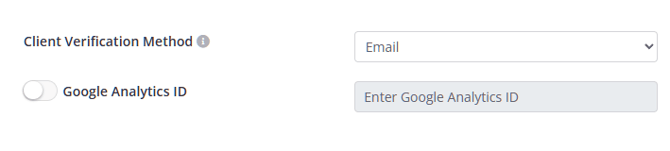
- Turn on the switch next to Google Analytics ID. [see Screenshot 1]
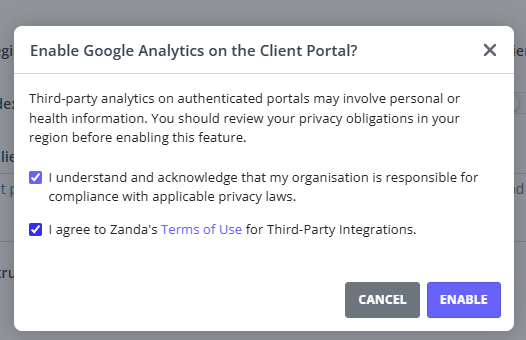
- A confirmation window will open with important privacy and compliance information. [see Screenshot 2]
- Review the message carefully, then select both acknowledgement checkboxes:
- I understand and acknowledge that my organisation is responsible for compliance with applicable privacy laws.
- I agree to Zanda Terms of Use for Third-Party Integrations.
- Click Enable.
- Once enabled, the Google Analytics ID field becomes available. [see Screenshot 3].
- Paste your Google Analytics Measurement ID into the field. This ID usually starts with G-, for example, G-123ABC4567.
- Click Save Changes.
Important: Third-party analytics on authenticated portals may involve personal or health information. Before enabling Google Analytics, review your privacy obligations in your region and make sure your setup is appropriate for your practice.
Screenshot 1:
Screenshot 2:
Screenshot 3:

To update or disable the integration later, return to the same section, edit the Google Analytics ID field or switch Google Analytics ID off, then click Save Changes.
-
In your Zanda account, navigate to User Menu > Account Settings > Schedule > Client Portal > Access and Settings.
-
Scroll to the General Settings section and paste your Google Analytics ID in the dedicated field on that page.
-
Save the page.
Tracking bookings and conversion goals
Zanda connects your Client Portal to one GA4 property by using the single Google Analytics ID field in your Client Portal settings. Enter one GA4 Measurement ID in this field, then manage any additional reporting destinations or data routing inside your own Google Analytics setup.
When a client completes an online booking in the Client Portal, Zanda shows a built-in booking success screen. Depending on the booking and payment status, clients see a success message such as Your appointment is successfully booked, Full amount paid and your appointment is successfully booked, or Deposit paid and your appointment is successfully booked, with options to go HOME or VIEW BOOKINGS.
For conversion tracking, use the GA4 event booking_completed rather than adding a separate thank-you page after booking. This event is sent when the booking is completed and includes booking context such as booking type, location, service, provider, appointment date, duration, and whether notes were added.
booking_completed covers online bookings only. Zanda sends this event when a client completes a booking in your Client Portal. Appointments your team creates in the Zanda calendar do not send it, so any conversion figure built on this event reflects portal bookings only.
Using a completed booking as a Google Ads conversion
If you advertise with Google Ads, you can attribute an ad click through to a completed Client Portal booking. Zanda does not have its own Google Ads field or tag—you make the connection in Google Analytics and Google Ads, using the booking_completed event Zanda already sends.
Set up in Zanda first:
- Turn on the Google Analytics ID switch and save your GA4 Measurement ID (steps above). Both are needed—the switch on its own, or an ID saved without the switch turned on, sends nothing to Google Analytics.
- Add zandahealth.com to your cross-domain measurement settings, so a visitor who moves from your practice website to the portal is still recognized as the same person. See Cross-Domain Measurement below.
- Set a referral exclusion for zandahealth.com, so the portal doesn't overwrite the original ad source. See Referral Exclusion Management below.
Then, in your own Google Analytics and Google Ads accounts:
- Mark booking_completed as a key event in your GA4 property.
- Link that GA4 property to your Google Ads account and import the key event as a conversion.
These steps happen entirely in Google's tools and Google changes them from time to time, so follow Google's own guides:
- About key events (Google Analytics Help)
- Create conversions from Google Analytics events in Google Ads (Google Ads Help)
If bookings aren't showing up as conversions in Google Ads, check the Zanda side first: the Google Analytics ID switch is on, your Measurement ID is saved, and a test booking through your portal shows a booking_completed event in your GA4 real-time report.
💡 Using Google Tag Manager? Add the GA4 Measurement ID from the GA4 property you want Zanda to send Client Portal events to. For extra reporting destinations, use the tools in your Google setup; Zanda provides one Client Portal field for the GA4 Measurement ID.
Cross-Domain Measurement in Google Analytics for Your Zanda Client Portal
When you integrate Google Analytics with your Zanda Client Portal, you can configure reporting so the client journey stays consistent across your website and portal. Because the Client Portal is hosted on zandahealth.com, cross-domain measurement helps Google Analytics recognize the same visitor when they move between your practice website and the portal..
Without this, you’ll see inflated user counts, misleading traffic sources, and sessions that “restart” the moment someone logs in. That can make your data less reliable and harder to act on.
Why Cross-Domain Measurement Matters
- Accurate User Tracking: Ensures the same visitor is counted as a single user across both your site and the Zanda portal.
- Clean Session Data: Prevents session breaks when a client clicks between domains.
- True Conversion Paths: Lets you see how clients move from initial visit to your client portal to booking or payment.
This helps you understand the client journey more clearly, so you can make better decisions about your marketing and practice growth.
How to Set It Up
Google provides a full guide on how to set up cross-domain measurement. We recommend following their step-by-step instructions:
Set up cross-domain measurement via Admin (Google Analytics Help)
When setting it up, you will add zandahealth.com, where your client portal continues to be hosted.
Need more assistance with setting up cross-domain measurement? Contact Google Analytics Help specialists.
Other Analytics Practices to Keep in Mind
Referral Exclusion Management
Are you running ads or sending links directly to your client portal for people to book directly with you? If so, Google Analytics may think that “zandahealth.com” is a new traffic source, you’ll see referrals from Zanda instead of the true source (like Google Ads, Facebook, or email campaigns).
In GA4, set referral exclusions so that traffic from Zanda client portal doesn’t overwrite your original traffic source. Google provides a guide here.
Consistent Source Tracking
If you want to understand where your users are coming from, be sure to use consistent UTM parameters. Google offers a builder which can make it easier for you.
Final Word
Cross-domain measurement helps keep your analytics trustworthy. Zanda connects Google Analytics to your Client Portal, and your GA4 property settings determine how accurately Google reports the client journey across domains.
👉 Start with Google’s guide: Set up cross-domain measurement via Admin.
Privacy and Compliance
Google Analytics is optional. If you choose to use it with your authenticated client portal, you’re responsible for setting it up in line with applicable privacy laws and healthcare obligations.
Because the portal is used in a healthcare setting, analytics data can be sensitive in context. Google Analytics typically uses online identifiers (like cookies or device/session IDs) and sends usage events (e.g., page views, login and booking steps). This is usually pseudonymous personal data, not fully anonymous.
To keep things compliant and low-risk, we recommend you:
- US / HIPAA: If your practice is subject to HIPAA, don’t use Google Analytics on a patient portal unless you have confirmed it’s appropriate for your organisation (including any BAA requirements). Many practices choose a HIPAA-ready alternative instead.
- Update your privacy/cookie notice to mention analytics and explain what it’s used for.
- Use a cookie consent banner/tool where required, and only load analytics in line with consent choices.
- Keep tracking minimal and avoid identifiers: don’t put patient/client details in URLs, event names, or event parameters (no names, emails, appointment IDs, invoice numbers, form links, or free text).
- Review your GA settings and disable advertising/personalisation features you don’t need.
What Data Is Collected
When enabled, the integration sends portal usage events to your Google Analytics (GA4) property so you can understand how clients use your portal (for example, page views, booking steps, form activity, and invoice/payment actions).
To support analytics reporting, GA4 may also receive pseudonymous online identifiers and technical data, such as:
- an analytics client/cookie ID (used to recognise a browser across pages/sessions)
- device and browser details (e.g., type, OS, language)
- timestamps and basic engagement data (e.g., time on page)
- referrer/source information (e.g., Google Search, ads, social media, email links, direct)
- approximate location (derived)
Events Sent From the Zanda Client Portal
Once your Google Analytics account is connected to your Zanda account, the following events are pushed from your client portal to GA4 when they occur:
- page_view
- user_login
- user_registration
- user_logout
- password_reset
- telehealth_join_clicked
- appointment_cancelled
- invoice_pay_clicked
- invoice_pay_all_clicked
- invoice_payment_form_opened
- invoice_payment_success
- form_view_clicked
- form_downloaded
- booking_step_completed (used for: location, service, provider, availability steps)
- booking_completed
- booking_cancelled
- booking_waitlist_clicked
- telehealth_join_browser_clicked
- telehealth_join_app_clicked
- telehealth_test_connection_clicked
- telehealth_zoom_download_clicked
Important: This data is not fully anonymous. The integration is designed not to send direct identifiers (like name or email) or clinical notes. To keep your setup low-risk, make sure you do not include any client/patient information in URLs or event parameters (for example: names, emails, appointment IDs, invoice numbers, form links/tokens, or free text).
US / HIPAA: If your practice is subject to HIPAA, analytics on a patient portal may involve PHI. Confirm your approach is appropriate for HIPAA before enabling GA4.
Related Articles
- Setting Up Online Bookings on Client Portal - Configure online booking options for your Client Portal.
- Adding Your Client Portal to Your Website, Social Media and Google - Share your Client Portal link from your website and online profiles.