%20-%20120%20x%2044.svg)
This guide walks you through setting up the integration between Zanda and Parchment, enabling you to manage electronic medication prescriptions directly from your Zanda account. This integration streamlines your workflow by syncing client data and allowing for single sign-on (SSO) access.
In Australia, e-prescribing — also known as eScripts or electronic scripts — is handled through this Parchment integration. So if you're asking whether Zanda is compatible with eScripts, the answer is yes, via Parchment, as set out below.
e-Prescribing is currently in Beta and isn't available in all accounts.
If you are interested in joining beta testing, please register your interest here.
💡 Tip: To ensure seamless SSO (single sign on) between Zanda and Parchment, your Zanda and Parchment user accounts must be set up with the same email address.
In this article:
- Sign up for Parchment
- Integration for Existing Parchment Users
- Connect Parchment to Zanda
- Configure User Permissions for Practitioners in Zanda
- Create Clients in Parchment
- Pricing
- Troubleshooting
- Frequently Asked Questions
- Related Articles
To get started, you'll need a Parchment account for your practice.
- Navigate to https://www.parchment.health/ and sign up for a Parchment Account.
- Follow the steps to Setup your Organization (practice information) in Parchment.
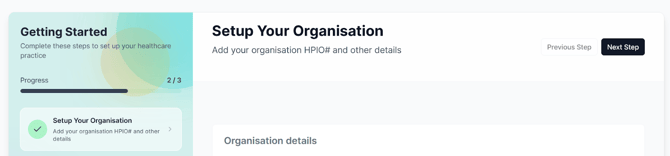
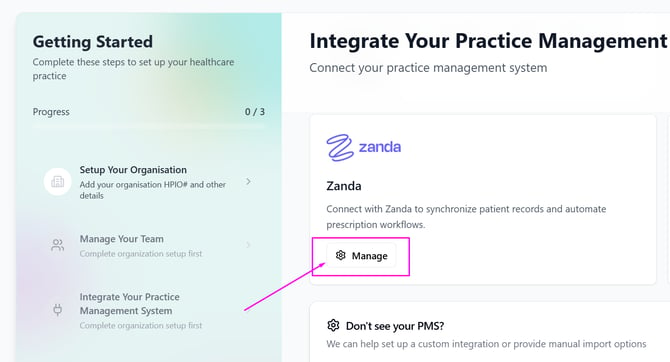
- Once set up, navigate to the Integrate your Practice Management System step in the Parchment setup wizard.
- Scroll down and locate the Zanda card.
- Click Manage on the Zanda Card.
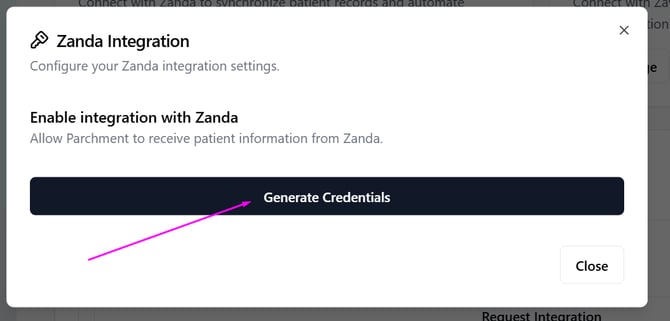
- Click 'Generate Credentials'
- Copy your Organisation Credentials (Organisation ID, Organisation Secret, and User ID).
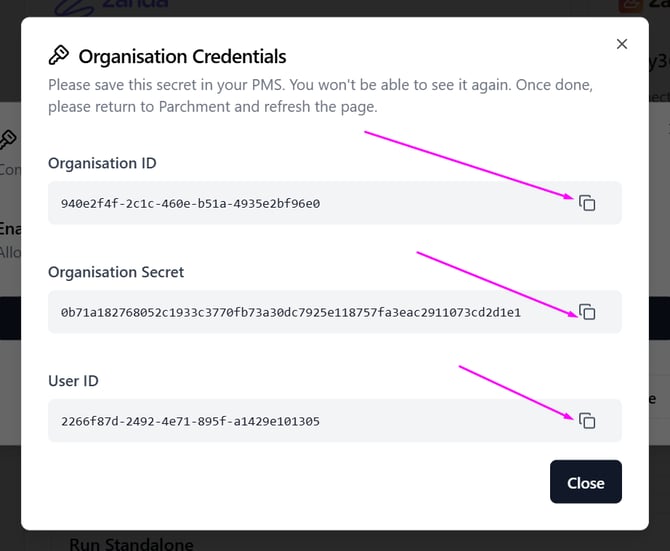
💡 Pro Tip: You can keep this modal open to copy the information directly into your Zanda Account in the next step.
If you already have a Parchment account, you can still integrate it with Zanda.
Important: Reach out to Parchment first to avoid duplicate billing before integrating an existing account.
Ensure that users use the same email address for both Zanda and Parchment. Zanda uses the email address to link your Zanda user to the correct Parchment user.
Connect Parchment to Zanda
- Log in to your Zanda account.
- Navigate to User Menu > Your Account > Optional Add-Ons.
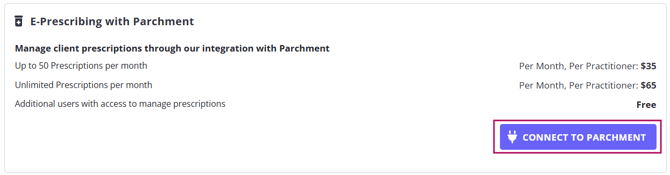
- Scroll down to the E-Prescribing with Parchment section.
- Click Connect to Parchment.
- Paste your Organisation ID, Organisation Secret, and User ID that you copied from Parchment.
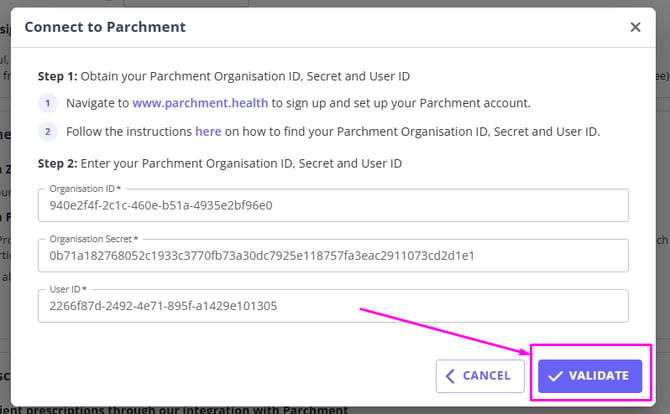
- Click Validate.
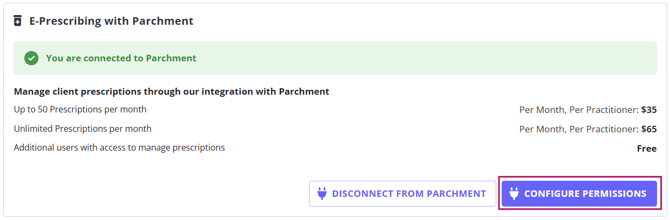
Your account will now be successfully integrated with Parchment.
Note: you'll be able to re-generate your Parchment credentials in Parchment later.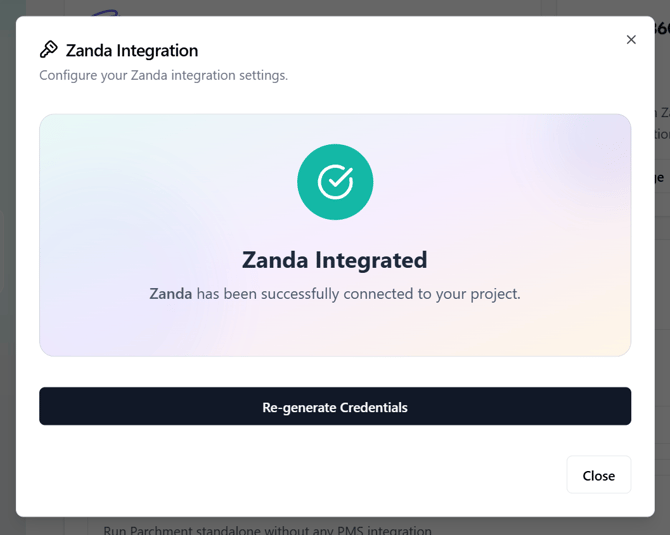
Configure User Permissions for Practitioners in Zanda
Important: For seamless SSO navigation between Zanda and Parchment, ensure each user’s Zanda and Parchment logins are registered with the same email address.
After connecting the integration, you need to grant access permissions to your practitioners' Zanda users.
💡 Pro Tip: While you can configure permissions immediately after validation by clicking Configure Parchment, you can also access these settings at any time via User Menu > Account Settings > Team > Users > Parchment Permissions.
- Navigate to User Menu > Account Settings > Team > Users.
- Click on the Parchment Permissions tab.
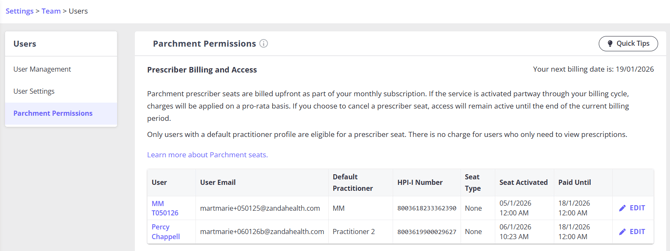
- Select the user you want to grant access to.
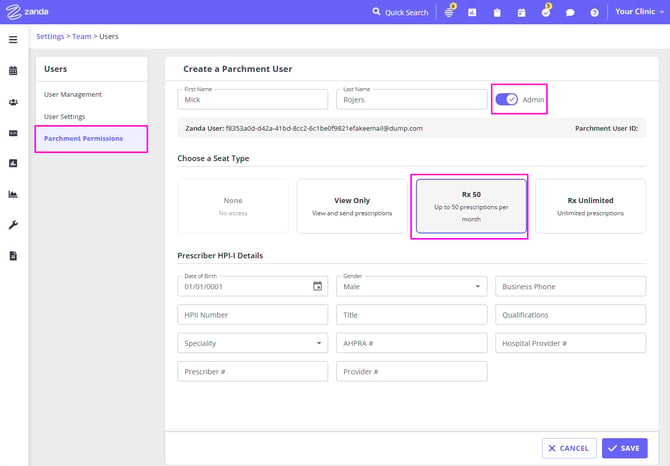
- Fill in the Parchment Registration information.
- First Name & Last Name: Ensure these are correct as accuracy is crucial for Prescribers.
- Admin toggle: Toggle On for users who need Parchment Organisation level administration rights (not needed for the Account Owner).
- Select the Access Seat Type:
- None: User will have no access to Parchment.
- View Only (Free): Users can access Parchment via the Client Profile to view basic info and existing prescriptions. Cannot create new prescriptions.
- Rx 50 (Paid): Setup for 50 new prescriptions per month. Can view info/prescriptions and create new ones.
- Rx Unlimited (Paid): Unlimited new prescriptions per month. Can view info/prescriptions and create new ones.
- Prescriber HPI-I Details: (Required for Rx 50 or Rx Unlimited seats)
- Fill in all HPI-I fields for any user with a Prescriber seat.
- Click Save to create the user in Parchment.
💡 Note: Users marked as 'Admin' within Zanda will be able to update user roles in Parchment. Currently, there is no way to prevent users from logging into Parchment directly; permissions set in Zanda will apply.
You can create or link client profiles in Parchment directly from Zanda.
- Navigate to a Client Profile in Zanda.
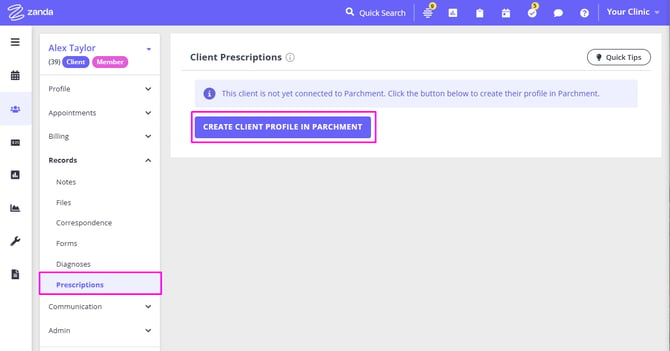
- Go to Records > Prescriptions.
- Note: Only master users and users with Parchment access will see this option.
- You will see a Create Client Profile in Parchment button.
- Ensure the following mandatory information is saved on the Zanda profile:
- First Name & Last Name
- Date of Birth
- Sex
- Street address (e.g., "11 Main Street")
- Suburb/Town
- State
- Postcode
- Click the button to initiate creation.
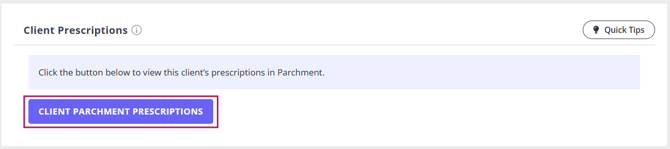
- You will see a Client Parchment Prescriptions button.
- Click this to access the client profile in Parchment.
- Parchment will open in a new tab and initiate SSO login. Complete your 2FA authentication if prompted.
💡 Note: We are working with Parchment to display the client's list of prescriptions and the prescription form in the Zanda client profile and will have this option available in the future.
Pricing
E-Prescribing with Parchment is charged per month, per practitioner.
You can choose from two prescription volume options:
| Plan | Price |
|---|---|
| Up to 50 prescriptions per month | $35 per month, per practitioner |
| Unlimited prescriptions per month | $65 per month, per practitioner |
Additional users who need view only access to prescriptions can be added at no extra cost.
💡 Tip: Choose the plan based on how many prescriptions each practitioner expects to create each month.
If you encounter issues during integration, try these common solutions:
- Double-check that you copied the Parchment Organisation ID, Organisation Secret, and User ID correctly.
- Ensure there are no extra spaces when pasting the values into Zanda.
- Your HPI-O number must be entered correctly in Step 1 of the Parchment onboarding wizard. Without it, the integration may fail.
- Check that your Parchment trial account is active and verified via email.
- If you recently generated new credentials, try refreshing the Zanda integration setup page and re-entering them.
Frequently Asked Questions
❓ Is Zanda compatible with eScripts in Australia?
Yes. Zanda supports e-prescribing — also called eScripts or electronic scripts — for Australian accounts through the Parchment integration, which lets you manage electronic medication prescriptions directly from Zanda. e-Prescribing is currently in Beta and isn't enabled on every account; if you'd like to use it, register your interest here. Once it's enabled for your account, follow the setup steps above to connect Parchment to Zanda.
- User Settings in Zanda - Learn more about account user settings.
- Client Profile in Detail in Zanda - How to update mandatory client details.
- Parchment Help Guides - a collection of help guides from the Parchment team
- Parchment FAQs - common user question about using Parchment answered by the Parchment team