%20-%20120%20x%2044.svg)
We’ve introduced a new Quick Actions menu and streamlined layout to help you work more efficiently—especially when multitasking or using smaller screens.
Nothing you rely on is being removed. These updates are designed to support intuitive workflows and reduce unnecessary clicks.
What’s new
Quick Actions (➕ icon)
We’re adding a Quick Actions menu behind the new ➕ icon that lets you access the most commonly used features from anywhere in Zanda.
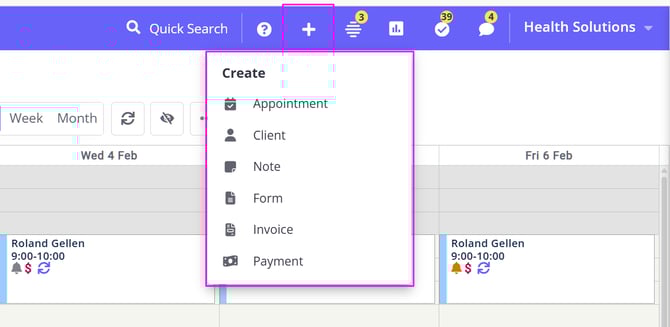
With one click on the ➕ icon, you can quickly add a new:
- Appointment
- Client
- Note
- Form
- Invoice
- Payment
This means less navigating between sections and more time for the work that matters.
Supporting layout changes
Alongside Quick Actions, we've also refreshed the layout by renaming some items, grouping related tools, and we've made account options easier to find.
Sales menu
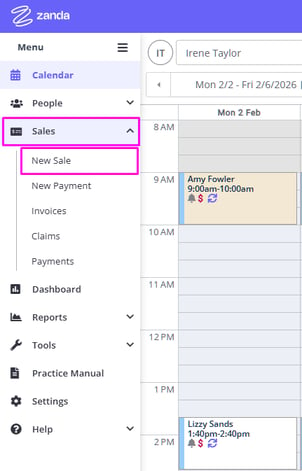
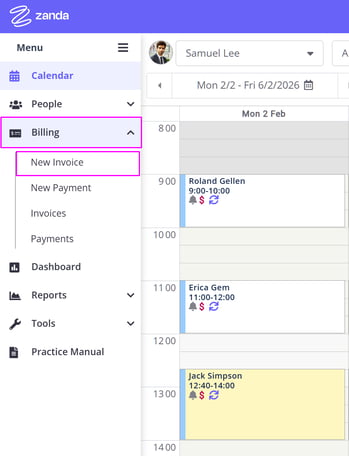
We’re renaming the Sales menu to Billing, and New Sales to New Invoice, so the names clearly reflect what these tools do—creating new invoices and payments, and showing lists of existing invoices and payments.
| Before | After |
 |
 |
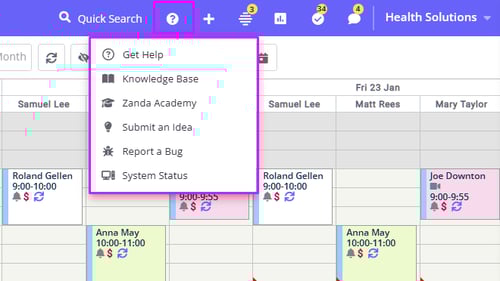
Help menu
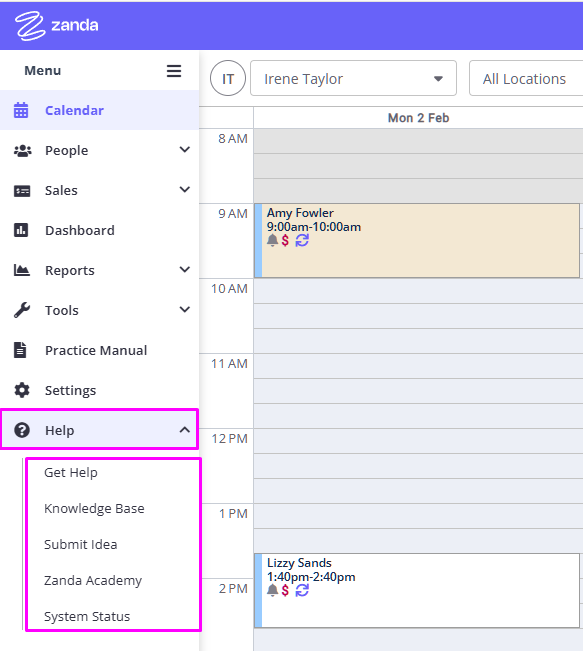
- The Help menu is moving to the top bar
- Just look for the new❔ icon to access it
| Before | After |
 |
 |
Waitlist
The Waitlist icon is moving from the top bar to the Calendar toolbar so it’s easy to locate among the other scheduling tools- 💡 Alternative Waitlist access remains available via People → Waitlist
| Before |
 |
| After |
 |
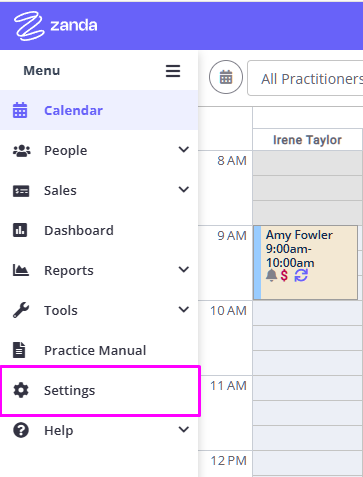
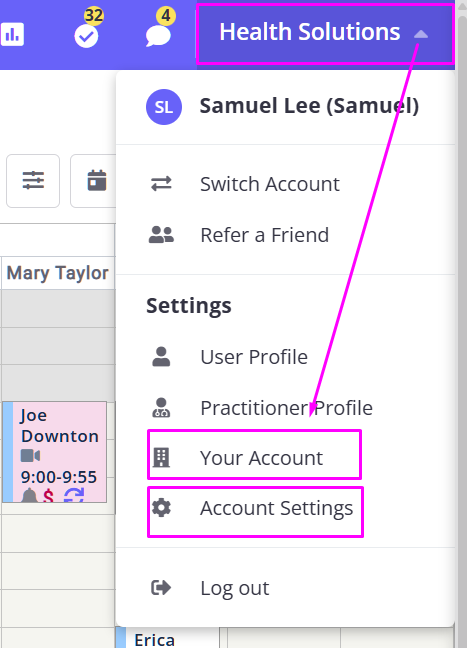
User menu and account Settings access
The user menu (top-right corner) is updated to make key account options easier to find:- A new ‘Your Account’ shortcut provides quick access to the subscription and billing
- The ‘Settings’ menu is being moved from the left side menu to the user menu as ‘Account Settings’
| Before | After |
 |
 |
This means:
- Account and profile-related settings now live in one place in your user menu
💡 Important Note: Access to ‘Your Account’ and ‘Account Settings’ is available to account owners and users with ‘Setup & Configure Zanda’ permission.
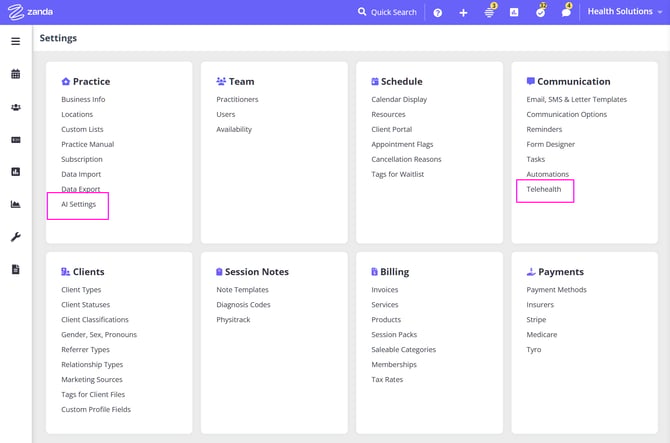
- When users with access select ‘Account Settings’, they’ll see the familiar settings springboard with a few additions:
- New settings options:
- Practice: AI Settings → opens the Optional Add-Ons page with the focus on BizzyAI settings
- New settings options:
-
-
- Communication: Telehealth → opens Communication Options and focuses on the Telehealth settings
- Communication: Telehealth → opens Communication Options and focuses on the Telehealth settings
-
Have questions?
Send us an email at support@zandahealth.com