%20-%20120%20x%2044.svg)
The Practitioner Utilization Report helps you understand how much of a practitioner’s available time is being booked. This allows you to spot under-booked staff, identify demand pressure, and plan roster changes across one or more locations.
In this article:
Accessing the report
Master users have access to this report by default. Non-master users require the Access Practice Dashboard permission to view it.
What a non-master user can see within the report depends on their Profile Access permission:
- See all clients. Access all clients — the user sees utilization data for every practitioner in the practice, and can use the Practitioner filter to select any individual practitioner or the whole team.
- See only their clients. Access only their clients — the user sees only their own utilization data. The Practitioner filter is limited to their own profile, so they cannot view other practitioners' figures.
So to let a practitioner review only their own utilization, grant Access Practice Dashboard while leaving their Profile Access on See only their clients. Access only their clients. To let them review the whole practice, also grant the See all clients. Access all clients Profile Access level.
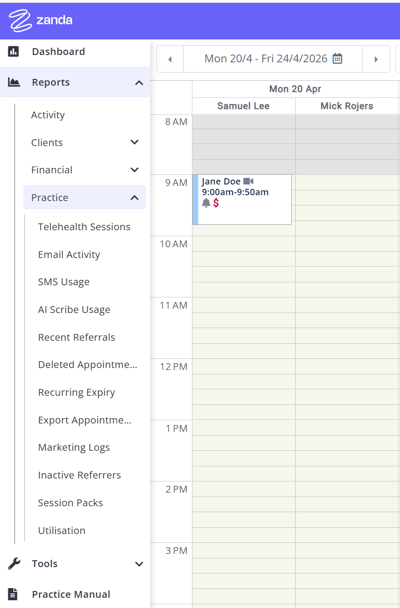
You can find the report in your system by navigating to the Reports menu > Practice > Utilization.
Report Use Cases
You can use the Practitioner Utilization Report in your day-to-day operations to:
-
Spot under-booked practitioners: Identify staff with high available hours but low booked hours.
-
Identify demand pressure: Notice consistently high utilization (near or above 100%).
-
Plan availability changes: Decide when to add or remove availability blocks or adjust recurring schedules.
-
Compare performance: Review metrics across different locations or time periods.
-
Support capacity planning: Prepare ahead of seasonal spikes, holidays, or new service launches.
-
Find operational anomalies: Notice bookings happening outside configured availability.
Available filters
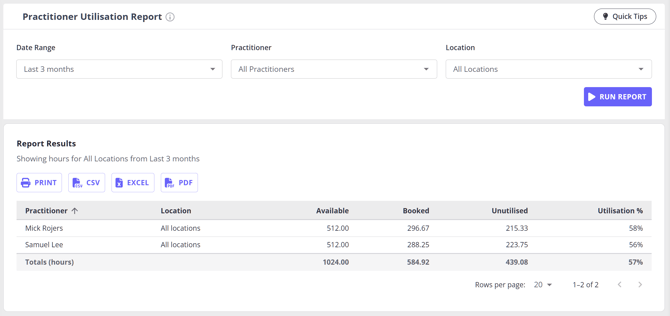
You can use the following filters to narrow down the data shown in the report.
Date range
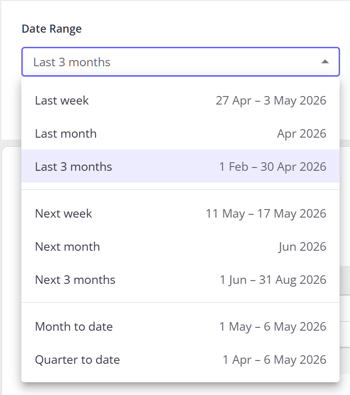
Use this filter to choose the period you want to report on.
By default, the report is set to Last 3 Months.
Available options include:
Past
- Last week
- Last month
- Last 3 months (the last three fully completed months)
Future
- Next week
- Next month
- Next 3 months
To date
- Month to date
- Quarter to date
Choose one of the listed presets to run the report. The date range menu does not include a Last year preset or a custom start and end date range.
Practitioner
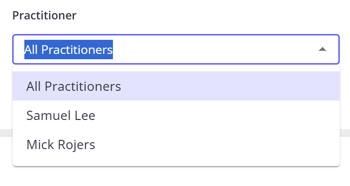
Use this filter to view utilization data for:
- a specific practitioner, or
- your entire team
By default, this is set to All Practitioners.
Location
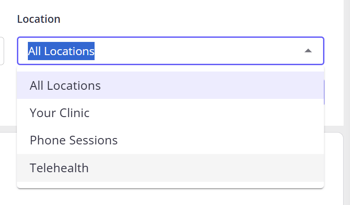
Use this filter to control which locations are included in the report.
By default, this is set to All Locations.
Specific location
When you select a single location:
- each practitioner is shown separately for that location,
- available hours only include hours at that location, and
- booked hours only include appointments at that location.
All locations
When you select All Locations:
- each practitioner appears once in the report,
- available hours show their total availability across locations, and
- booked hours show all bookings across locations.
Understanding the key metrics
The report breaks down performance into four key metrics.
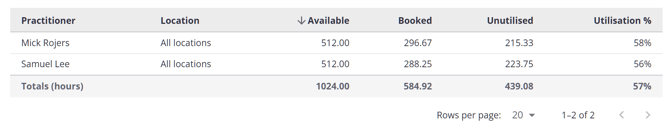
Available Hours
Available Hours is the total time a practitioner is configured to be available during the date range you selected. It’s based on:
-
The practitioner’s availability settings (including recurring schedules)
-
The selected date range
-
The selected location scope (a single location or "All locations")
-
Any availability overrides (extra availability added, or time removed)
Booked Hours
Booked Hours is the total duration of appointments scheduled in the calendar that count as ‘booked’ within the selected date range and filters. This calculation uses the appointment duration, not the duration of services added to the appointment invoice.
Appointments are included if their status is:
-
Pending
-
Confirmed
-
Arrived
-
Completed
Appointments are excluded if their status is:
-
Rescheduled
-
Cancelled
-
Late Cancellation
-
No Show
Utilization (%)
Utilization shows how much of the available time was booked.
Formula: Utilization (%) = (Booked Hours ÷ Available Hours) × 100
💡 Tip: Utilization can be over 100% if appointments were booked outside configured availability.
Unutilised Hours
Unutilised Hours shows how many available hours were not booked.
Formula: Unutilised Hours = Available Hours − Booked Hours
What’s not included in these calculations
- Cancelled hours and No-show hours are not included
- “Personal hours” / “total available” breakdowns are not included
- Appointment purpose is not considered—every client and group appointment in a qualifying status counts towards Booked Hours whatever service is attached to it, including appointments booked for admin work such as report writing or phone calls.
So the report focuses strictly on:
- Available Hours (from configured availability + overrides)
- Booked Hours (from qualifying appointment statuses)
- derived Utilisation and Unutilised hours
How calculations work
To ensure accuracy even with recurring patterns and exceptions, the system calculates hours using a specific pipeline. All calculations use your account timezone, including daylight saving time changes.
How Available Hours is calculated
-
Expanding recurring availability: The system expands recurring rules (e.g., weekly) into specific calendar dates within the report's date range.
-
Applying daily time blocks: Multiple blocks in a single day (e.g., 9:00 AM to 12:00 PM and 1:00 PM to 5:00 PM) are included.
-
Merging overlapping times: Overlapping availability blocks on the same day are merged to avoid double counting.
-
Applying availability overrides: Extra available time is added, and subtractive overrides (removed time) are deducted.
-
Summing the time: All remaining time is summed to produce the final Available Hours.
How Booked Hours is calculated
-
Finding appointments in the selected date range and practitioner filter.
-
Applying the location scope (single location or all locations).
-
Including only appointments in qualifying statuses (Pending, Confirmed, Arrived, Completed).
- Adding up the appointment durations to produce the Booked Hours. Where two appointments overlap, the overlapping time is merged and counted once, so it is never double counted.
Quick example
If a practitioner has:
- Available Hours: 40 hours
- Booked Hours: 30 hours
Then:
- Utilisation: (30 ÷ 40) × 100 = 75%
- Unutilised: 40 − 30 = 10 hours
Interpreting common outcomes
Utilization is 0%
This usually means there were no booked appointments in the period, or no configured availability in the period.
Utilization is over 100%
This can happen when:
-
Appointments are booked outside configured availability (e.g., manual scheduling, extended sessions).
-
Availability was reduced (e.g., subtractive overrides) but bookings still occurred.
This isn’t necessarily an error—it can be a useful operational signal showing overbooking.
Recording client admin time without inflating Booked Hours
Record admin work outside the calendar to keep it out of Booked Hours. Booked Hours counts every client and group appointment in a qualifying status, whatever service is attached to it. An appointment booked under a client for report writing, phone calls, or other admin time therefore counts exactly like a clinical session. There is no filter or setting that excludes a particular appointment type or service from this report, and the only filters available are Date range, Practitioner, and Location.
If you want the report to compare booked clinical time against genuinely unbooked time, record the admin work in one of these ways.
Bill it on an invoice without an appointment
- Go to Billing > New Invoice.
- Select the client.
- Add the service, pack, or product as an item line.
A standalone invoice is a billing record only, so the work is billed under the client but never counts towards Booked Hours. See Creating an Invoice Without Appointment. For NDIS plans, you can also apply a Session Pack retrospectively to record extra services such as report writing, phone consultations, or travel. See Managing NDIS Billing (AU-only).
Block the time with a personal appointment if you need it visible in the calendar
Personal appointments are excluded from Booked Hours and they stop clients booking that slot through the Client Portal. They do not reduce Available Hours, so the time is reported as Unutilised.
Remove the time from Available Hours as well
Add an unavailable (subtractive) availability override, or trim the recurring availability, in User Menu > Account Settings > Team > Availability. This is the only way to take regular admin time out of the utilization calculation altogether, so that unfilled hours reflect only the time you were genuinely open for bookings.
Frequently Asked Questions
❓ Can a practitioner see only their own utilization, without seeing everyone else's?
Yes. Give them the Access Practice Dashboard permission and keep their Profile Access on See only their clients. Access only their clients — the report will show only their own figures. They will only see other practitioners' utilization if they also have the See all clients. Access all clients Profile Access level.
❓ Can I see all therapists' schedules and locations in one report?
No. The Practitioner Utilization Report is not a roster-style schedule and location report. Use this report to compare each practitioner's booked hours, available hours, unutilized hours, and utilization percentage by location, then use User Menu > Account Settings > Team > Availability to review the practitioner's regular weekly availability, location, available days, online booking settings, and overrides.
❓ Are cancelled or no-show appointments included in the report?
No. Cancelled and No Show hours are entirely excluded from all calculations to keep the report simple and accurate. Only Pending, Confirmed, Arrived, and Completed statuses are counted as Booked Hours.
❓ Can I run the report for last year or a custom date range?
Use the Date range filter to choose one of the available presets: Last week, Last month, Last 3 months, Next week, Next month, Next 3 months, Month to date, or Quarter to date. The report does not currently include a Last year preset or a custom start and end date picker.
❓ Can appointments outside of availability count towards Booked Hours?
Yes. Appointments can count as "Booked" even if they fall outside configured availability. This reflects real operational overbooking, which is why utilization can exceed 100%.
❓ How does the system handle daylight saving time?
All date expansion and duration computations use your account timezone. Durations reflect the real time difference on that date, so daylight saving time changes are accurately respected.
❓If you put a personal meeting in, does that make the appointment unavailable and take it off the count?
A personal appointment created during available hours does not make the time block unavailable and does not remove it from the availability count of the practitioner.
Personal appointments are explicitly excluded from both the "Available Hours" adjustments and the "Booked Hours" aggregations. Consequently, the time block occupied by a personal appointment will still be counted as "Available Hours" but will not contribute to "Booked Hours," effectively classifying that time as "Unutilised."