%20-%20120%20x%2044.svg)
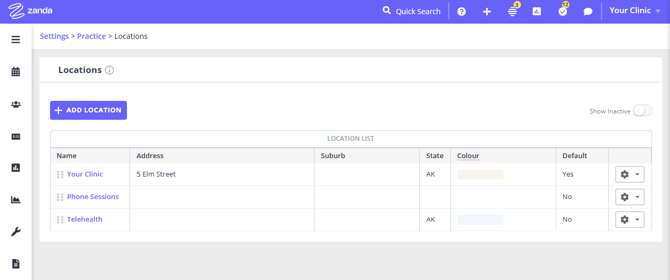
You can control the order your locations appear across Zanda using a simple drag‑and‑drop interface on the Locations page. This lets you prioritize your most important locations and keep things consistent wherever locations are shown.
Where the order is controlled
The master order is set on:
- User Menu > Account Settings > Practice > Locations
Any changes you make here will be reflected anywhere you pick or view locations.
How to reorder locations
- Go to your locations list in User Menu > Account Settings > Practice > Locations. You’ll see all active locations listed.
- Use drag-and-drop to change the order on the locations list
- Each location row has a drag / move icon on the left.
- Click and hold the drag icon for the location you want to move.
- Drag the location up or down to its new position in the list.
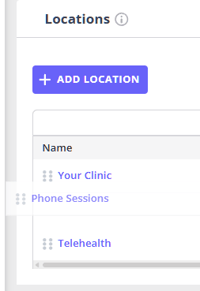
- Release the mouse to drop it into place.
- Changes are saved automatically once you drop a location into its new position.
Where the new order is used
After you reorder locations on the Locations page, that same order is used in:
- Calendar – Location picker
- Appointment panel – Location dropdown
- Waitlist – Location dropdown
- Invoice screen – Location dropdown
- Client Portal
- Book appointment page
- Book a class page
- Automations – Location condition options
- Reports – any location selectors
Default location behaviour
Your business default location is still important and is used intelligently in location pickers:
- On the Appointment panel, the default location is used as the placeholder when:
- The practitioner is available at that location for the selected time range.
- If the practitioner is not available at the default location for that time:
- The placeholder will show the first location from the practitioner’s Availability list in User Menu > Account Settings > Team > Availability, ensuring the suggested location is one where they can actually be booked.