%20-%20120%20x%2044.svg)
Pre-appointment automations help your practice send the right information to clients before an appointment, based on the conditions you choose. You can use them to send targeted appointment reminders for specific appointment types, services, locations, practitioners, appointment flags, client types, or telehealth appointments.
They are also useful for sending preparation instructions, intake form links, appointment-specific details, telehealth information, location guidance, payment links, or other helpful information before a client attends their session.
You can also use pre-appointment automations to create internal tasks for your team before an appointment. For example, you might create a task to prepare paperwork, check client details, review an intake form, or follow up on information needed before an initial consultation.
Pre-appointment automations are especially useful when different appointments need different reminders or communication. For example, you can send one reminder for initial consultations, another for telehealth appointments, and another for appointments at a specific location or with a specific practitioner. This also means that you can disable reminders for some appointment types. If they don't meet the automation conditions, the reminder messages triggered by automations won't send.
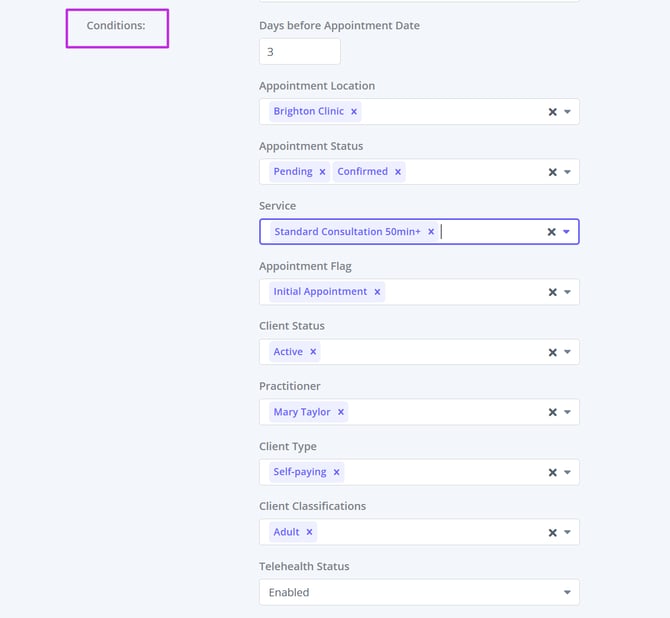
You can set up targeted messages based on conditions such as days before the appointment, appointment location, appointment status, service, appointment flag, client status, practitioner, client type, client classification, or whether telehealth is enabled.
Use this article to set up automated pre-appointment emails, SMS messages, and tasks for targeted appointment reminders, appointment preparation, client instructions, intake follow-up, telehealth appointments, first appointments, practitioner-specific workflows, location-specific reminders, service-specific reminders, and other pre-session communication.
Pre-appointment automations are processed every day at 2:00 PM (14:00) local time for each account for eligible appointments.
Using Pre-Appointment Automations For Sending Communication Before An Appointment
Such automations are set in User Menu > Account Settings > Communication > Automations:
- Once on the automation settings page, click '+ ADD AUTOMATION':
- Enter automation name and select the automation type: 'Pre-appointment':
the available Conditions dropdowns to set the conditions for this particular automation. The available conditions for the pre-appointment automations are:
- Days before appointment date (you can select starting from 1 day before the appointment date)
- Appointment Location (you can select multiple locations for the same automation)
- Appointment Status (you can select multiple statuses for the same automation)
- Service (you can select multiple services for the same automation)
- Appointment Flag (you can select multiple flags for the same automation)
- Client Status (you can select multiple client statuses for the same automation)
- Practitioner (you can select multiple appointment practitioners for the same automation)
- Client Type (you can select multiple client types for the same automation)
- Client Classifications (you can select multiple client classifications for the same automation)
- Telehealth Status (refers to appointments with telehealth links on or off, select All, Enabled or Disabled)
⚖️ How Matching Works
-
Within a single condition (for example, selecting multiple Locations or multiple Client Classifications), the system applies OR logic. Example: If you select Melbourne and Sydney, the automation will trigger if the appointment is in either Melbourne or Sydney.
-
Across different conditions (for example, Location + Practitioner + Service), the system applies AND logic. Example: The automation will trigger only if the appointment is in Melbourne AND with Practitioner Dr. Lee AND for Service Initial Consultation.
| Logic Type | Example | Result |
|---|---|---|
| OR (within one condition) | Appointment Location = Melbourne OR Sydney | Triggers if the appointment is at either location |
| AND (across conditions) | Location = Melbourne AND Practitioner = Dr. Lee AND Service = Initial Consultation | Triggers only if all match |
💡 Tip: Multiple selections inside one condition = OR, while multiple conditions together = AND.
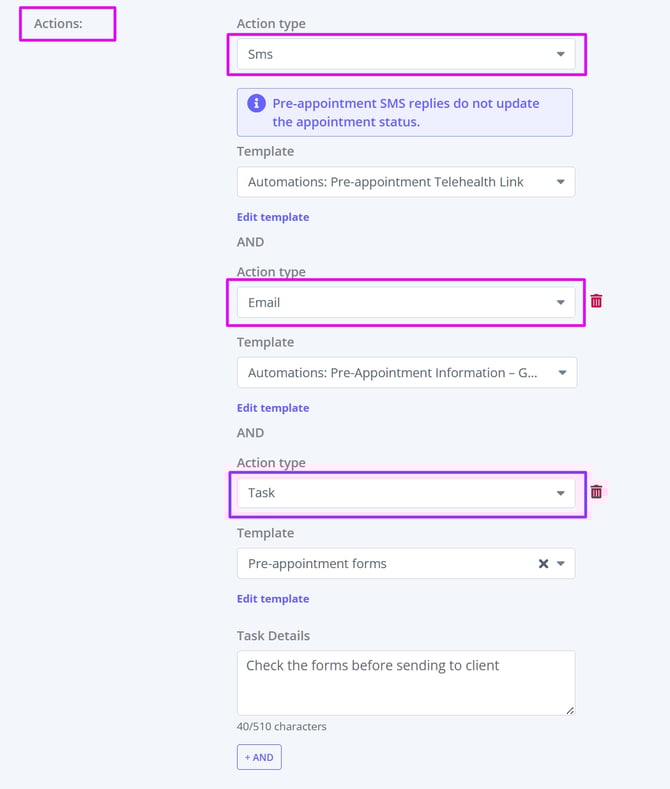
4. Now, select the action type: Email, SMS* or Task
5. Select a communication template to be used with each action you selected for this automation. If you do not have a suitable template, create it in Tools > Communication > Templates or copy them here.
Important note about appointment reminders
Pre-appointment SMS actions can be used for targeted or specialized appointment reminders, such as reminders for a specific service, location, practitioner, appointment flag, client type, or telehealth appointment.
They are different from standard appointment reminders and do not include reminder-specific features such as failed-send retry attempts, AM/PM delivery scheduling, or automated reply handling to update appointment statuses.
For general attendance reminders that apply broadly across appointments, use standard appointment reminders. For customized reminders or additional appointment-specific messages, use pre-appointment automations.
6. Click 'AND' to add more actions if needed.
7. If you selected a Task action, in addition to selecting a communication template, you can also add an internal note for your team in the Task Details field. The automation task will appear in your main Tasks dashboard and will be visible to all users.
8. Save the changes.
💡 Tip:
- You will be able to set up more automations to cater for different practitioner needs and other use cases.
- If a communication template includes invoice merge fields—such as
{InvoicePayLink},{InvoicePDFLink}, or{InvoicePDFAttachment}—and the appointment has a linked invoice, the pre-appointment automated message will include the invoice in the format specified by the merge field used.
💡 Why a Pre-Appointment Automation Might Not Be Sent
Pre-appointment automations are designed to be sent a specific number of days before an appointment, based on the condition you've set.
However, if the appointment is booked after that timeframe has passed, the automation will not be triggered.
Example:
If your automation is set to send 4 days before the appointment, but the appointment is created 2 days before, the automation won’t be sent because the condition was already missed at the time of booking.
This helps ensure clients don't receive reminders or forms too late to act on them.
Tip: To ensure automations work as intended, consider how far in advance clients usually book and adjust the timing of your condition accordingly.
Sending All Automation Communication to Clients' Contacts
You can send automations communications, such as pre-appointment messages, follow-ups, invoices reminders, recalls and so on, directly to a client’s contact.
How It Works
- Open the relevant client Profile > Contacts tab and select their connected contact, or add the contact who will be receiving their automation communication messages.
- Each connected contact profile includes a Send all automation communication toggle. You’ll find this setting just below the Send reminders toggle in the connected contact’s settings. Turn this toggle on.
- Save the changes. When this option is turned on, all automated messages that would normally go to the client will also be sent to that contact. This includes any automations triggered by reminders, invoices, recalls, or similar workflows.
Example
If a parent, guardian, or carer is listed as a contact and the Send all automation communication option is enabled, they will receive the same automated messages as the client.
💡 Tip:
Before enabling this setting, make sure you have the contact’s consent to receive communications on behalf of the client. This helps maintain privacy and ensures compliance with communication and data protection standards.
Example Use Cases
Custom reminder for initial consultations
If you’d like to send a tailored message—such as what to bring, intake forms, or what to expect—only for first-time appointments, you can set up a targeted automation:
- Create a Pre-appointment Automation
- Set the condition: Appointment Flag = Initial Appointment
- Select your custom template as the action
This ensures the message is sent only to appointments with the Initial Appointment flag, while all other reminders continue as usual—no manual tracking required.
💡 Tip: This is a great way to personalise the onboarding experience for new clients without adding extra admin work for your team.