%20-%20120%20x%2044.svg)
Before you can begin using our integration with Stripe to process credit card payments through Zanda you will need to connect Zanda to a Stripe account. Stripe accounts are free to set up (you are only billed on a per-transaction basis) so it's worth doing, even if just as a backup payment method. If you don't already have a Stripe account you'll be able to quickly create one as part of the integration process.
⚠️ Important:
Stripe will need to verify new accounts/businesses (see this article), if they are not eligible this means they will not be able to use this feature at all.
In this article:
- Pricing/Fees
- Connecting to Stripe
- Turning off online card payments
- Disconnecting from Stripe
- Security Information
Pricing/Fees
- A Zanda Connect Fee.
- A Stripe Credit Card Processing Fee.
Your fees will vary slightly depending on where you're from - and all of these fees are visible from your Stripe dashboard.
- United States accounts:
- Stripe Connect Fee: 50¢ (USD)
- Credit Card Fee (domestic cards): 2.9% + 30¢
- United Kingdom accounts:
- Stripe Connect Fee: 50p (GBP)
- Credit Card Fee (domestic cards): 1.5%* + 20p
- European countries accounts:
- Stripe Connect Fee: 50¢ (local currency)
- Credit Card Fee:
- See Stripe's Pricing Page
- Australia:
- Stripe Connect Fee: 50¢ + GST (AUD)
- Credit Card Fee (domestic cards): 1.7% + 30¢ (inc. GST)
- New Zealand:
- Stripe Connect Fee: 50¢ (Local Currency)
- Credit Card Fee (domestic cards): See Stripe's Pricing Page
💡 Tip: You can run a monthly report on application connection fees directly in your Stripe account. Go to the Transactions tab in the Stripe Dashboard, then select Export > Columns > Custom. Scroll down to the Connect section and include Application Fee in your export. You’ll also be able to set your timezone and choose a custom date range.
⚠️ Please note: This report is only available for Standard connected accounts. It is not supported for Express accounts.
Click here to see if Stripe is supported in your country.
Connecting to Stripe
Follow the steps below to create and/or link your account to Strip.
💡 New accounts: If you see the message Please contact Zanda to setup Stripe instead of the Connect to Stripe button, your Zanda account may still be completing its initial setup. Wait a few minutes, refresh User Menu > Account Settings > Payments > Stripe, and contact the Zanda team if the button still does not appear.
The steps listed below are to connect your Zanda account with a default Stripe account that all practitioners can use. If you're needing to connect separate Stripe accounts for each practitioner in your account, please refer to our Knowledge Base article here going into more detail on that process: Managing Multiple Stripe Accounts in One Zanda Account.
1. Go to User Menu > Account Settings > Payments > Stripe and click Connect to Stripe.
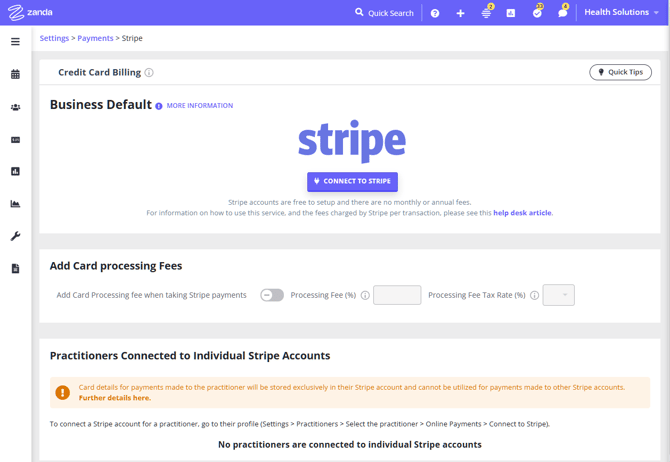
2. Either log into your existing Stripe account (by clicking the login link at the top of the page) or create a Stripe account by filling out the provided form.
3. Click ✓ Connect my Stripe Account (for existing Stripe users) or Authorise Access to This Account (for new Stripe users).
Turning off online card payments
You do not need to disconnect Stripe to stop taking online card payments. In most cases it is better not to, because disconnecting removes your clients' stored card details. Turn off the payment options you don't want instead.
Stop clients paying when they book online
- Go to User Menu > Account Settings > Schedule > Client Portal > Access & Settings.
- On the online booking settings find Request Payment When Booking.
- Set Client Bookings to Disabled.
- Set Group/Class Bookings to Disabled.
- Click Save.
Clients can still book online, but they are no longer asked to pay at the time of booking.
Stop sending invoice payment links
An invoice payment link you have already sent keeps working while the invoice is unpaid—turning off the Client Portal settings above does not switch off links that are already out with clients. To stop new links going out, remove the {InvoicePayLink} merge field (and {InvoicePDFLink}, if you don't want the PDF either) from the communication templates and automations you use to send invoices. See Sending Links to Pay Invoices Online.
Stop staff processing card payments in Zanda
Card payments taken by your team from the appointment panel or an invoice run through Stripe. To stop those as well, you need to disconnect Stripe—see below.
Disconnecting from Stripe
Disconnect only when you no longer want to process card payments through Zanda at all.
- Go to User Menu > Account Settings > Payments > Stripe.
- Click Disconnect from Stripe.
If a practitioner is connected to their own Stripe account, disconnect that one from the Practitioner Profile > Online Payments page instead. See Managing Multiple Stripe Accounts in One Zanda Account.
⚠️ Before you disconnect
- Your clients' stored card details are removed from Zanda. Reconnecting does not bring them back—you would need to collect and save each card again.
- Client Portal booking payments are switched off automatically once no Stripe account is left connected, and the Stripe payment method is removed from the list you choose from when recording a payment.
- Invoice payment links stop working, and clients see a message that card processing is not available.
What happens to payments you have already taken?
Disconnecting changes what Zanda can do next—it does not move, hold, or cancel money. Zanda never holds your funds: payments you have already processed sit in your Stripe account and are paid out to your nominated bank account by Stripe on Stripe's normal schedule. Disconnecting in Zanda only removes access to your Stripe account; your Stripe account itself stays open and under your control.
To check payouts that are on their way, sign in to your Stripe Dashboard and go to Balance > Payouts, where you can see the status, amount, and estimated arrival date of each one. If you have a question about a specific payout, contact Stripe support—payout timing and processing are handled entirely by Stripe.
Security Information
Zanda does not store your client’s credit card details. All credit card information will be stored by Stripe.
Stripe encrypts all card numbers on disk with AES-256 encryption and stores decryption keys on separate machines. Stripe is certified as a PCI Service Provider – Level 1, which is the highest level of certification available as the Payment Card Industry Data Security Standard. You can read more about Stripe's security here.