%20-%20120%20x%2044.svg)
The Settings Springboard is a central hub that streamlines your workflow by giving you quick, organised access to all settings and configurations within Zanda.
In this article:
The Settings Springboard Overview
The Settings Springboard is your go-to place for managing everything from user permissions and calendar settings to appointment reminders and billing options. By organizing these options in one convenient location, the Settings Springboard allows you to quickly navigate and customize your Zanda experience to suit your specific needs, ensuring that you can efficiently manage your practice with just a few clicks.
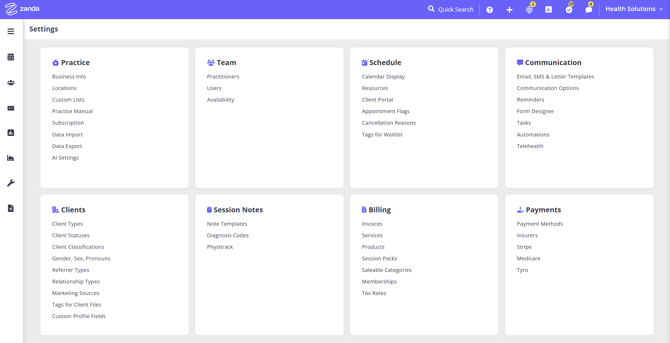
- To open the Settings Springboard, click your account business name in the top-right to go to User Menu > Account Settings
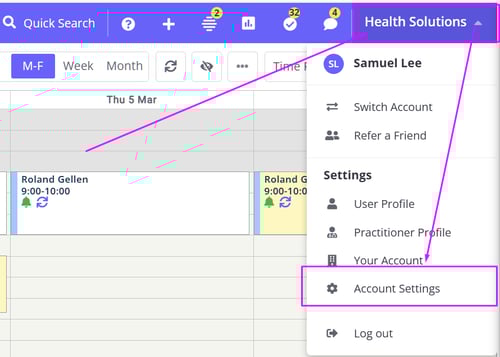
- The settings springboard is organised in eight different categories, each covering a certain aspect of a practice management. Here is the current breakdown of each category:
- Practice
- Business Info
- Locations
- Custom Lists
- Practice Manual
- Subscription
- Data Import
- Data Export
- AI Settings
- Team
- Practitioner
- Users
- Availability
- Schedule
- Calendar Display
- Resources
- Client Portal
- Appointment Flags
- Cancellation Reasons
- Tags for Waitlists
- Communication
- Email, SMS & Letter Templates
- Communication Options
- Reminders
- Form Designer
- Tasks
- Automations
- Telehealth
- Clients
- Client Types
- Client Statuses
- Client Communications
- Gender, Sex, Pronouns
- Referrer Types
- Relationship Types
- Marketing Sources
- Tags for Client Files
- Custom Profile Fields
- Session Notes
- Note Templates
- Diagnosis Codes
- Physitrack
- Billing
- Invoices
- Services
- Products
- Session Packs
- Saleable Categories
- Memberships
- Tax Rates
- Payments
- Payment Methods
- Insurers
- Stripe
- Medicare (AU-only)
- Tyro (AU-only)
- Practice
Navigating the Settings Pages
This settings springboard makes navigating different settings fast and more efficient. You can access everything you need within a few clicks, reducing the time spent managing practice settings.- To access any settings page listed here, find it in its category and click on its name.
- The settings page you selected will open for you to make the necessary edits.
- To quickly navigate back to the settings springboard or its categories, use the navigation breadcrumbs located at the top of the page.