%20-%20120%20x%2044.svg)
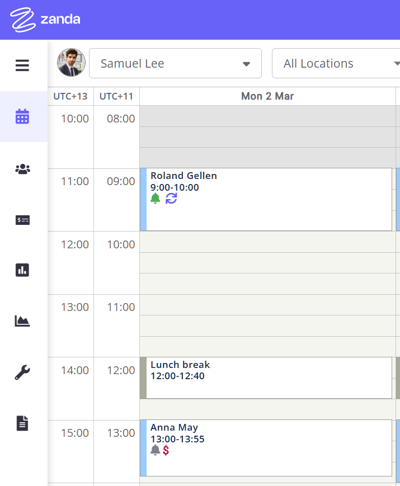
Keeping track of time zones can be a challenge, especially when managing a busy schedule with team members spread across different regions. To make this easier, Zanda offers a feature that allows you to display both your own time zone as a user and your account business time zone in your calendar. Follow along to ensure your appointments are always scheduled accurately, no matter where you are located
In this article:
- When Would You Use This?
- Setting Up User Time Zone
- Viewing User and Business Time Zones on Calendar
- Related Articles
When Would You Use This?
The most common scenarios include:
- A practitioner temporarily working interstate or overseas (for example, delivering telehealth sessions) who needs to see both their local time and the practice’s scheduled appointment times side by side—without affecting existing bookings.
- A multi-location practice where team members operate across different timezones and need a quick, reliable way to reference appointment times.
Important Notes:
-
This feature is for display purposes only. Setting an Additional Time Zone does not change how appointments, availability, or reminders are stored. All times in Zanda continue to use the account’s business timezone (User Menu → Account Settings → Practice → Business Info → Time Zone).
-
If you’re temporarily working from a different location, do not change the account timezone to match your travel location. This would shift all existing appointments and impact every practitioner in the account. Instead, use this feature alongside Availability Overrides to manage your schedule safely and accurately.
Setting Up User Time Zone
Your account will have a default time zone that is used system wide and used to view the calendar. This is set in User Menu > Account Settings > Practice > Business Info > Time Zone.
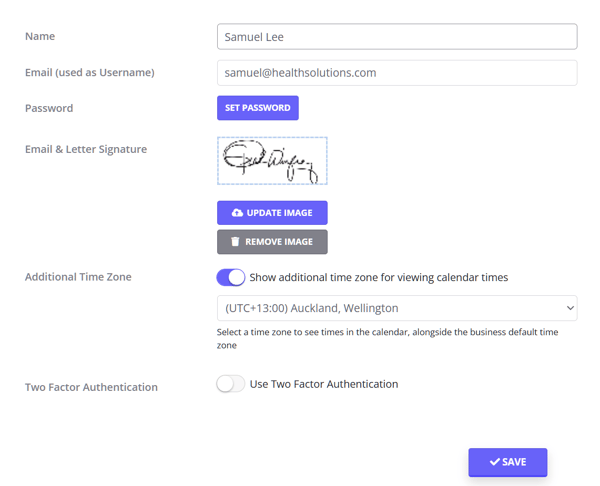
If you have users that operate in a time zone different to the business time zone and want to view their own time zone in the calendar they are able to choose this in their user profile. This is how it is done:
1. Click your User Menu (Zanda account business name) and select 'Profile'.
2. Your user profile will have the 'Additional Time Zone' setting.
3. To add an additional time zone, enable the switch on this setting.
4. Use the available dropdown list to select the time zone you wish to see in the calendar.