%20-%20120%20x%2044.svg)
In this article:
Zanda Public API - COMING SOON
Enrolments in the Zanda Public API BETA testing group are closed. This feature will be released for all users in the near future.
The Zanda Public API provides secure, rate‑limited, read‑oriented access to key practice data such as:
- Client profile data
- Practitioner data
- Locations
- Appointments
- Invoices & payments
- Billable items (services & products unified)
It’s intended for practices and integrators who want to build custom reporting, dashboards, or integrations (e.g. into BI tools, middleware, a CRM for lead and referral management, or other 3rd‑party apps).
Documentation is published via our Docusaurus site: https://zandaapi.zandahealth.com/docs/
Zanda API Key: How to Generate, Use, and Revoke Your Key
What is the Zanda API key?
A Zanda API key is a secure, private token that allows outside applications to access your data inside Zanda.
- Treat your API key like a password.
- Anyone with this key can access the Zanda data permitted by the integration.
- For security reasons, once generated, the full API key cannot be viewed again in Zanda.
Accessing the Zanda API Key page
- Have the user permission for “Setup and Configure Zanda”
- Sign in to Zanda
- Go to Tools > Zanda API Key
- The Zanda API Key page opens
Generating a new Zanda API key
- On the Zanda API Key page, locate the field:
- Enter a name for your API Key
- Enter a descriptive name for your key, for example:
- “Clinic integration – production”
- “Reporting tool – read only”
- The name:
- Is mandatory
- Has a 150 character limit
- Click Generate API Key.
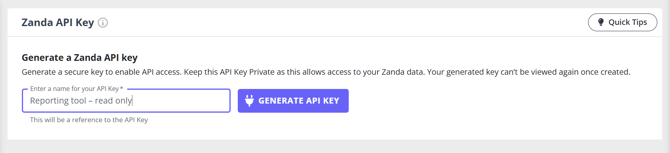
Validation error: missing name
If you click Generate API Key without entering a name:
- An error will appear: “Please enter a name for the API Key”.
- Enter a name, then click Generate API Key again.
Copying your API key (one‑time view)
If the name is valid, a confirmation modal appears:
- Header: Zanda API key
- Title: Zanda API Key successfully generated
- Subtitle:
“Make sure to copy your key now — for security reasons, it won’t be shown again after you close this window.” - A field displaying your newly generated API key
- Copy button
- Done button
To copy and use your key:
- Click Copy to copy the key to your clipboard.
- Paste it into the external application or integration that requires it.
- After you’ve stored it securely, click Done to close the modal.
Important: Once you close this window, the full key value cannot be displayed again.
If you lose it, you’ll need to revoke the key and generate a new one.
Viewing an existing key name
After you have generated a key, when you return to the Zanda API Key page you will see:
- The name of your existing API key.
- A Revoke button to remove that key.
The key value itself is not shown again; only its name and status are visible.
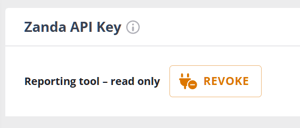
Revoking your API key
If you suspect that your API key has been compromised, no longer need an integration, or simply want to rotate keys, you can revoke it.
- Go to Tools > Zanda API Key page
- Click Revoke next to the API key name.
- A revoke confirmation modal appears with two options:
- Cancel
- Yes, revoke
- Click Yes, revoke to confirm.
Result:
- Your existing public API key is deleted.
- A confirmation/snackbar message appears.
- You can now generate a new key again by following the steps in Generating a new Zanda API key.
Security best practices
- Keep the key private: Do not share it via email, chat, or screenshots.
- Limit who has access: Only provide the key to trusted systems or administrators.
Frequently Asked Questions
❓ Where do I find account integrations in Zanda?
For API-based account integrations, go to Tools > Zanda API Key. This page is where users with Setup and Configure Zanda access can generate, view, or revoke the API key used by external applications.
Some integrations have their own setup pages or articles instead of being managed from the Zanda API Key page. If you are setting up a named integration such as Stripe, Xero, Google Calendar, Outlook Calendar, Mailchimp, Physitrack, or Tyro, use the setup guide for that integration.
Related Articles
- Setting up your Stripe integration - Connect Stripe for online card payments.
- Exporting to Xero - Export invoices and payments to Xero.
- Connecting to Google Calendar - Connect a Zanda calendar to Google Calendar.
- Connecting to Outlook Calendar - Connect a Zanda calendar to Outlook Calendar.
- Connecting to Mailchimp - Connect Zanda contacts to Mailchimp.
- Connecting to Physitrack - Connect Zanda with Physitrack.