%20-%20120%20x%2044.svg)
In this article
- How to load a meeting without using the Zoom App
- Using the Zoom Whiteboard
- Enabling Closed Captions In Session
- Joining a Telehealth Zoom session - Client Experience
How to load a meeting without using the Zoom App
1. Click the 'Start in Browser' button:
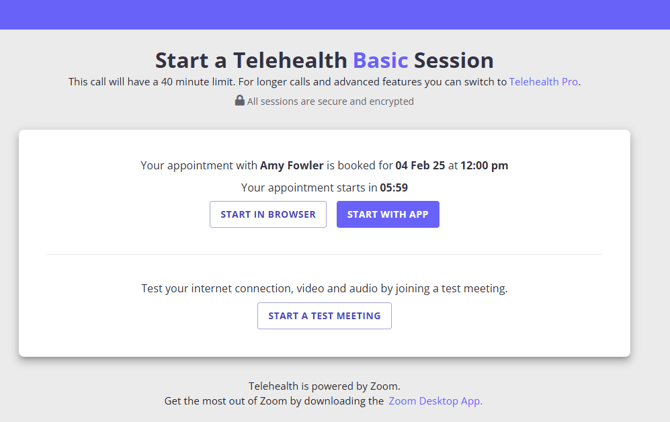
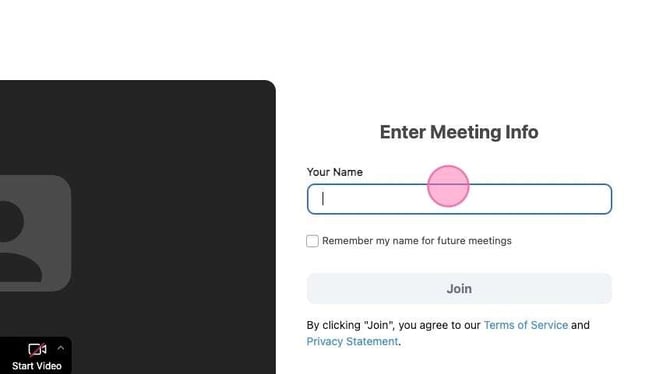
2. Enter 'Your Name' in the Enter Meeting Info box and proceed as usual within your browser.
Using the Zoom Whiteboard
Practitioners have the capability to create and manage whiteboards during their Zoom sessions, which can enhance the interactive experience. Here are some essential features and guidelines to consider:
- The whiteboards created during a session are tied to the practitioner's account, not the client's.
- Practitioners can set up or adjust whiteboards before a scheduled appointment by joining the Zoom meeting individually. This enables thorough preparation and customization.
- For ease of use, whiteboards can be named for quick identification.
- These whiteboards are stored in Zoom’s cloud and can be accessed* only when the practitioner is the host of an active Zoom meeting associated with their appointment.
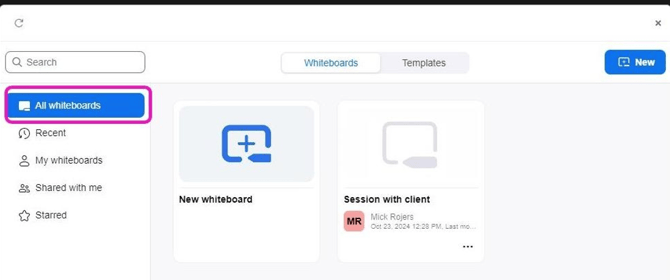
* It is important to understand that whiteboards are linked to the practitioner's account. Any Zoom call initiated under the practitioner's name provides access to all related whiteboards. As a best practice, avoid storing any confidential information on whiteboards, as they may be visible to anyone with access to the practitioner's appointment panel.
Allowing clients to write on a Zoom Whiteboard
Clients can write on a Zoom Whiteboard when the board is opened or shared with edit access. Start the telehealth session from Zanda, then manage the whiteboard from the Zoom controls in the browser or Zoom app.
- Start the telehealth session from the appointment panel.
- Join the session with Start in Browser or Start With App.
- In the Zoom session controls, select Whiteboards.
- Create a new whiteboard, or open an existing whiteboard.
- When Zoom asks how you want to open the board, choose Collaborating to give meeting participants edit access. Choosing Presenting opens the board in view-only mode.
- If you are sharing an existing whiteboard, set the participant permission to Edit so the client can draw, type, and add objects on the board.
💡 If the client can see the board but cannot write on it, check that the board was opened in Collaborating mode or shared with Edit permission. Zoom account settings can also restrict whiteboard collaboration for external participants, so a practitioner using Zoom BYO Telehealth may need to review their own Zoom Whiteboard settings.
Enabling Closed Captions In Session
Using captions in a session is beneficial for hearing impaired participants or participants who need this type of visual support for a more efficient participation.
- In Zanda Zoom Telehealth sessions, captions can be accessed from the "More" menu in both the Zoom app and the browser.
- Both practitioners and clients have the options to turn it on.
Joining a Telehealth Zoom session - Client Experience
Clients will need to click the Telehealth session link they received from you, to open a session. The client's experience will be the same regardless of the Zoom Telehealth subscription their practitioner is using in their Zanda account.
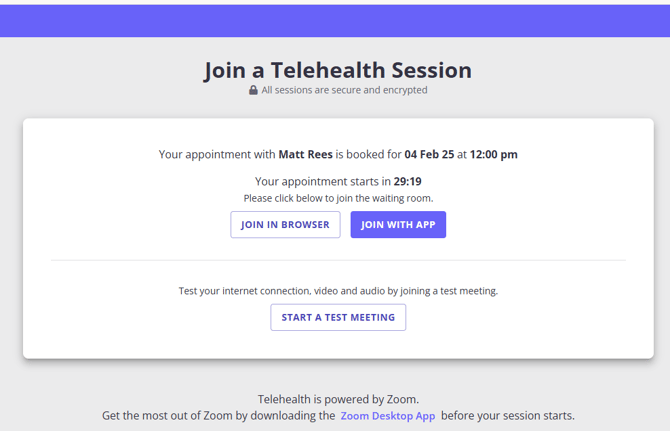
1. The link will open in their preferred browser on the Telehealth home page.
2. To join the session, they will need to click the 'Join With App' or 'Join With Browser' button.
- A client will be able to see the information about the date, time and session provider of this appointment.
- If the practitioner hasn't started the session yet, the client will still be able to join the meeting's waiting room.
- The client will be able to run a test meeting to check their internet connection, video and audio quality. Note: Clients will be able to open their session in a browser or in a Zoom App on any type of device (desktop computer, laptop or mobile).
6. Once connected, they will be able to test their speaker and microphone before joining the session.
7. You can share this client's guide Joining a Telehealth Session as a Client with your clients to help them get ready for telehealth sessions.