%20-%20120%20x%2044.svg)
You can enhance a client profile by adding a contact who will have the authority to schedule appointments on the client’s behalf. This feature is particularly beneficial when a family member, such as a parent, partner, or child, needs to arrange appointments for someone else. To set this up, follow the steps below.
- Go to the client's profile.
- Navigate to Profile > Contacts.
- Click + Add New Contact to add a new contact (or select an existing contact from the list).
- Fill in the contact settings details. Use different mobile phone numbers and email addresses for the client and the contact details.
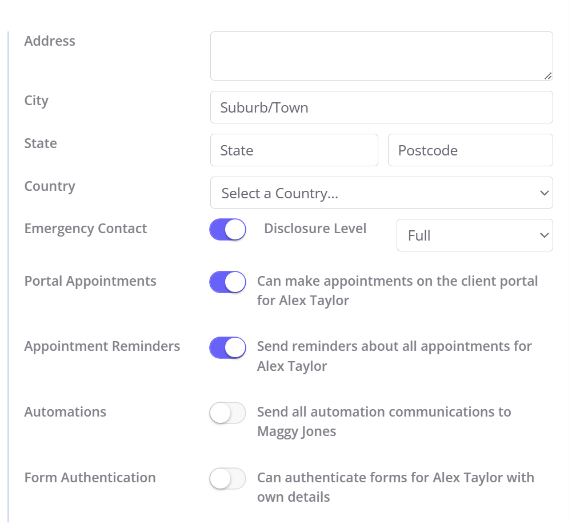
- Enable the Portal Appointments switch in the contact settings.
- Click Save.
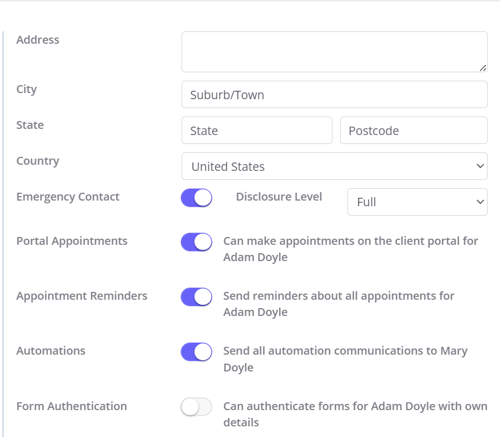
💡 Pro Tip: To keep each user's access distinct, leave the client’s email address and mobile number fields blank, or ensure they are different from those provided for the contact booking on their behalf. This maintains separate logins for the contact and the client, so each accesses the appropriate portal role.
Once done, the Contact will be able to log into their client portal account, and book an appointment for the client.
Important Notes
1. Sending client reminders and automations communication to their contact.
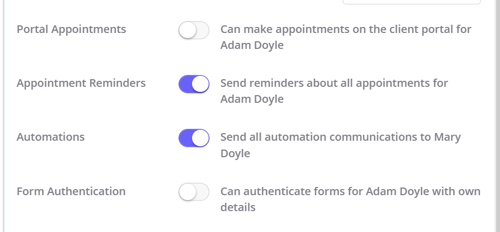
You can toggle on the Appointment Reminders and Automations Communication switches on the Contact Details page, to send reminders about all client appointments and all clients' automations messages to this contact.
2. Billing client invoices to their contact.
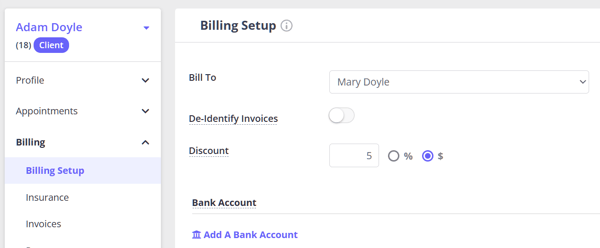
You can set the client contact as their default payee, this will automatically generate invoices where the contact will be listed as the person responsible for paying for the invoices. The detailed setup process is described here.
Setting this up for a brand-new family (when neither person is in Zanda yet)
If the child is a new client and the parent, guardian, or carer isn't in your Zanda account yet, set up the client profile and the contact link from your side first. A parent can't create this by registering on the Client Portal themselves.
When a parent registers on the Client Portal, they only create—or get matched to—their own client record. Self-registration doesn't create the child's client profile, and it doesn't set up the permission that lets one person book for another. That permission lives on the child's profile.
So for a brand-new family, the order is:
- Create the child's client profile in Zanda—the child is the client.
- On the child's profile, go to Profile > Contacts and add the parent or guardian as a contact, following the steps above—including enabling the Portal Appointments switch.
- Invite the parent to the Client Portal—for example, by sending them a registration link with the
{PortalRegistrationLink}merge field, or by letting them register using the same name and email you saved on their contact details.
Once the parent logs in, they can book appointments on behalf of the child. If the parent later registers as a new client using the same details, Zanda matches them to the contact you already created instead of making a duplicate (see Understanding Contact Registration Logic below).
We have updated the registration process on the Client Portal to make it easier for existing contacts (such as parents, guardians, or partners) to access services. This feature ensures that when a contact registers as a new client, or uses the Forgot Password option, their details are matched to an existing contact profile in Zanda account , instead of creating a duplicate profile.
When a person
-
registers on your Client Portal as a new client using their Name and Email (or Mobile Number):
- The system searches their existing records.
- If it finds a matching "Contact" profile, it recognizes this is the same person.
- Automatic Profile Upgrade: Instead of creating a duplicate profile, the system links them to their existing Contact profile.
- Result: The person can log in and continue using their existing contact profile for client portal bookings on behalf of their connected clients.
-
is an existing Contact in you Zanda account and they decide to reset their password in the Client Portal or via the Password Reset link which you can email them, the system will also match their details to the existing contact profile and they will continue using their existing contact profile for client portal bookings on behalf of their connected clients.