%20-%20120%20x%2044.svg)
The Log File records activity in your account, including the page, note, profile, user, IP address, and browser details for each log entry. You can filter the Log File by date, username, profile, page name, note text, and IP address to find specific activity. The system stores the past twelve months of activity.
In this article:
How to Use the Log File
- Go to Tools > Log File
- Select your filter options and click Go.
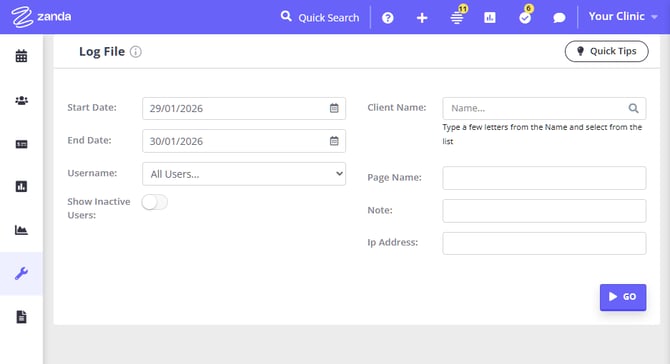
This is what the filter options do:
- Username: Shows activity for the selected user. Select Show All Users to include every user, or turn on Show inactive users to include users who are no longer active.
- Client name: Shows activity related to that profile. The search supports all profile types.
- Page name: Shows which users accessed a particular page in your account. Use part of the page URL when you want to narrow the results to one area of Zanda.
- Note: Searches the Activity Logs for particular words or actions. For example, search for 'bill', 'edit', 'insurer', or 'invoice'.
- IP Address: Searches all activity from a particular IP address.
For example:
- /Diary/EditDiary/XXXXX or /Diary/EditSettings/XXXXX - changes to Practitioner Profile
- /Profile/XXXXX/PackInstance/Create - created a new session pack
- /VideoCall/TrafficLog - Telehealth Session started/ended (refer to accompanying note name)
- /Log/Log - Viewed Log File
- /Communication/SendBulkMessage - Bulk Send feature
- /CustomFormTemplate/Update?isData=True - Updates to Form Templates
- /NoteTemplate/Update?isData=True - Updates to Note Templates
- Note: Allows you to search the Activity Logs for particular words/actions. For example: 'bill', 'edit', 'insurer', 'invoice'. etc.
- IP Address: Allows you to search all activity from a particular IP address.
Frequently Asked Questions
❓ Can I see who changed a client's profile details or status?
Use Tools > Log File as the audit trail for client profile changes. Set the date range, choose the client in Profile Name, and search the Note field for Saved Client Details to find profile edits. If you are looking for a client status change, search for Saved Client Details: Client Status; status changes made from a client-list or bulk update workflow can appear as Client Status is updated to '<status>'.
The results show the Date, Profile Name, User Name, Page Name, Note, IP Address, and User Agent for each matching log entry. A status such as Closed is a label from your client status list; the Log File shows when the Client Status field was changed and which user made the change.
Related Articles
- Client Profile in Detail - Learn where client status and profile details appear in the client profile.
- Archiving, Deleting, Unarchiving and Restoring Clients - Learn how to archive, unarchive, delete, and restore client profiles.