%20-%20120%20x%2044.svg)
There are two different problems that can look the same from the outside:
- The link itself won't open — an error page, or it looks invalid.
- The link opens, but clients can't complete a booking, so you never receive any online bookings.
Work through the checks below in order. Most cases are resolved by one of them.
In this article:
- Make sure you're using the current link
- Confirm online bookings are switched on
- Make at least one service available to book
- Check who your clients are allowed to book with
- Check practitioner availability
- Check your time zone
- Frequently Asked Questions
- Still stuck?
- Related Articles
Make sure you're using the current link
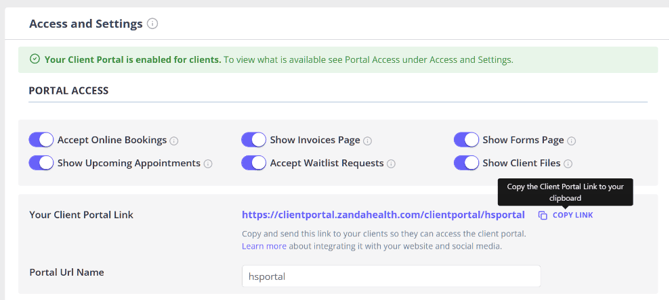
If your saved or shared link still points to the old powerdiary.com address, update it to the zandahealth.com address. The old link still redirects, but an out-of-date saved link or password-manager entry is a common reason a link looks invalid.
To copy your current link, go to User Menu > Account Settings > Schedule > Client Portal > Access and Settings, and copy the URL under Portal Access. Paste it into a browser to confirm it opens. For full details on the address change, see Important Update: Your Client Portal URL Has Changed.
Confirm online bookings are switched on
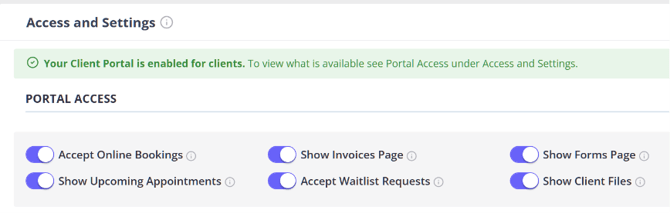
On the same page (User Menu > Account Settings > Schedule > Client Portal > Access and Settings), check that Accept Online Bookings is enabled. This is the master switch — if it's off, the portal will not take any online bookings even though the link opens normally.
Make at least one service available to book
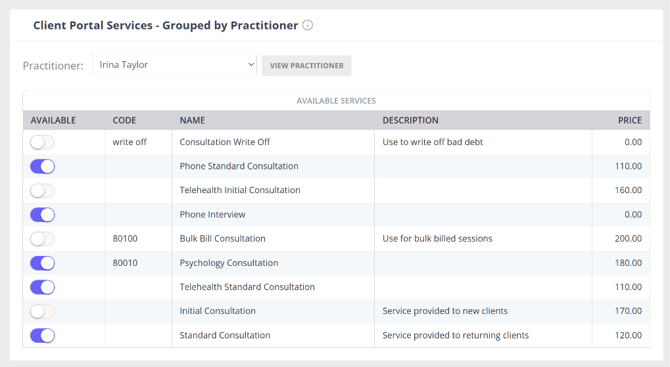
Clients can only book a service that has been made available for online bookings. Go to User Menu > Account Settings > Schedule > Client Portal > Available Services and make sure at least one service is turned on for the relevant practitioner. If no service is assigned, clients will open the link but have nothing to book.
Check who your clients are allowed to book with
A practitioner can have availability and services set up correctly and still be missing from the booking page, if your account limits who each client can book with.
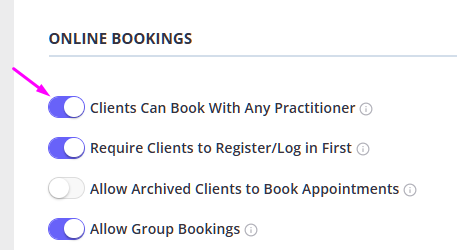
Go to User Menu > Account Settings > Schedule > Client Portal > Access and Settings and check Clients Can Book With Any Practitioner:
- Enabled—any client can see and book with any practitioner who has matching online availability and services.
- Disabled—a logged-in client only sees their primary or assigned practitioners, plus the practitioners of any contact authorized to book on their behalf. Any other practitioner will not appear on the booking page for that client, even with availability set.
This is worth checking when a practitioner appears for you or for a new client, but not for one particular existing client. To let that client book with the practitioner while keeping the setting off, add the practitioner to the client's profile as an assigned practitioner. See Assigning Multiple Practitioners to a Client Profile.
Check practitioner availability
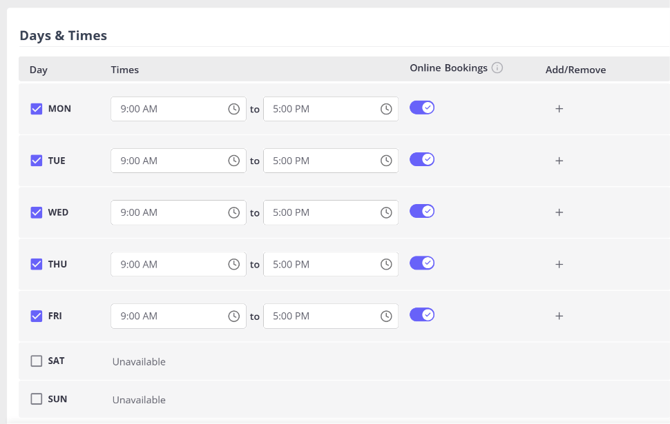
The times clients can book come from each practitioner's availability. If a practitioner is missing from the Select a Provider step entirely, or appears but has no bookable times, go to User Menu > Account Settings > Team > Availability and confirm the practitioner has availability:
- at the correct location (the portal only offers a practitioner at a location where they actually have availability),
- on time blocks where Clients Can Book Online is turned on, and
- on an availability period that has not passed its end date.
If a practitioner has no online-bookable availability at the location the client picked, they will not appear in the provider list at all, and a client who has picked that location and service will see No providers are available. Where only one practitioner qualifies, the portal selects them automatically and skips the step.
Check your time zone
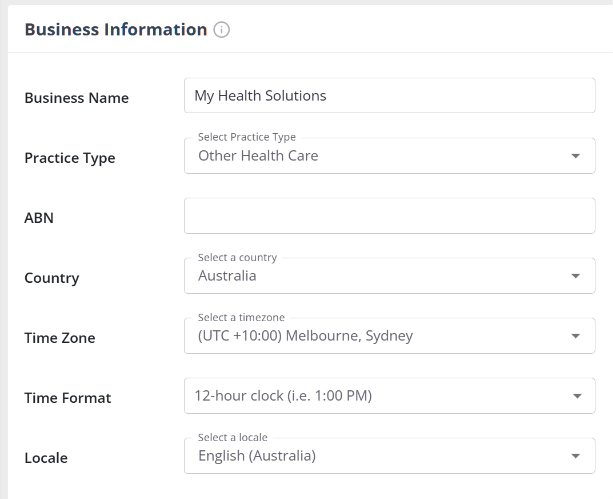
If availability appears at the wrong times, confirm your account time zone under User Menu > Account Settings > Practice > Business Info. Availability is shown to clients based on this setting, and adjusted to the client's own device time zone.
Frequently Asked Questions
❓ Do changes take time to appear?
Your changes are live straight away. Availability, services, and Client Portal settings apply to the portal the moment you save them. There is no sync or overnight update to wait for, so a change that isn't showing is being filtered out by one of the checks above rather than held up.
If a client already has the booking page open, they will keep seeing what loaded before your change. Ask them to refresh the page or start the booking again, and the update will appear.
❓ Do I need to send clients a new link?
No. Your Client Portal address stays the same, so you never need to re-issue or re-send it after changing availability, services, or portal settings. The only thing that changes it is renaming your portal address yourself under User Menu > Account Settings > Schedule > Client Portal > Access and Settings. The one exception is historical: if you still have an old powerdiary.com link saved somewhere, update it to your zandahealth.com address.
Still stuck?
If the link opens and all of the above are in place but clients still can't book, reach out to our support team at support@zandahealth.com with the link you're sharing and the service and practitioner a client is trying to book, so we can pinpoint where the booking is stopping.
Related Articles
- Setting Up Online Bookings on Client Portal - Turn on online bookings and configure the Accept Online Bookings switch.
- Setting Up Available Services and Times on Client Portal - Assign services to practitioners and set availability for online bookings.
- Assigning Multiple Practitioners to a Client Profile - Add extra practitioners to a client so they can book with them in the portal.
- Important Update: Your Client Portal URL Has Changed - How the portal address changed and how to update your saved links.
- Adding Your Client Portal to Your Website, Social Media and Google - Share your booking link so clients can find and use it.