%20-%20120%20x%2044.svg)
Setting up the right mix of services and available times on your Client Portal helps clients book with confidence while ensuring your team’s schedule runs smoothly. In this guide, you’ll learn how to prepare your services, configure practitioner availability across different locations, and control exactly what appears in your Client Portal. With these settings in place, your clients will see accurate service options and real-time availability, making online bookings simple and reliable for everyone.
In this article:
- Recommended Settings Checklist
- Managing Available Services
- Managing Available Times
- Frequently Asked Questions
- Related Articles
Recommended Settings Checklist
✅ If you offer services in multiple locations, set them up in User Menu > Account Settings > Practice > Locations. See the detailed guide here. For example, you can have different locations for your face to face, telehealth and phone sessions, or different practice buildings.
✅ Set up service templates for each service you'll be offering for online bookings. This is done in User Menu > Account Settings > Billing > Services. See the detailed guide here. 💡 The order of services in User Menu > Account Settings > Billing > Services controls the order users see services in dropdowns throughout Zanda and clients see during Client Portal booking. To change the display order, reorder the services in the Services list.
Service template fields relevant to client portal behavior:
-
- Name, Duration, Price, (Tax if applicable)– displayed to clients when booking.
- Category (optional) – helps clients filter services.
- Location – limits the service to selected locations
- Portal Deposit – optional upfront payment for online bookings, available when a Stripe account is integrated with your Zanda account. You have the option to pass on Stripe transaction fees to clients by transparently adding these charges to their invoices, helping your practice manage card processing costs more effectively.
- Client Portal Availability – controls which practitioners can offer the service for online bookings. Select No Practitioners to keep the service active in your account but hide it from Client Portal bookings.
- Active – determines whether the service appears at all in your Zanda account selections.
✅ Set up your practitioner(s)' availability in each location. See the detailed guide here.
This is an example of how a practitioner's availability will appear on a client portal: 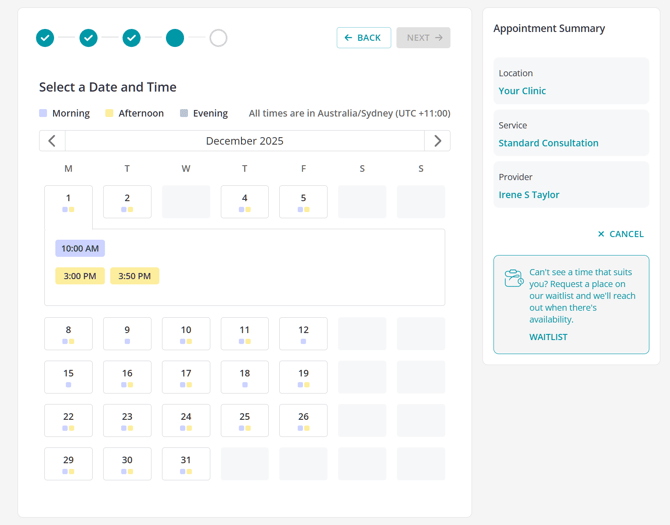
Managing Services Available On Client Portal
To customise the order that services appear, simply navigate to Account Settings > Billing > Services. There, you can drag and drop the services into your preferred order, and this will be reflected both in your Zanda account services lists and on the client portal at the time of booking.
Once your service templates are ready, you can choose which ones to display in your client portal and assign them to specific practitioners as needed.
- Go to User Menu > Account Settings > Schedule > Client Portal.
- Navigate to Available Services.
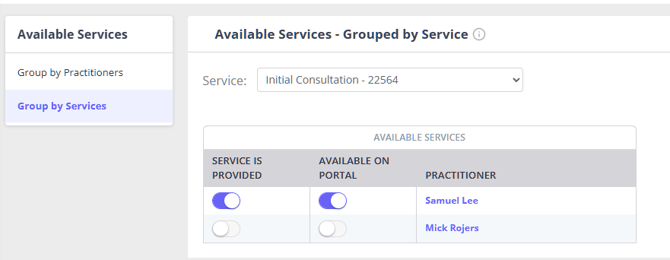
Here, you will see two options:
- Group by Practitioner: On this page, you can specify which services each practitioner is available to offer by toggling the services relevant to them.
- Group by Services: On this page, you can select a service and assign which practitioners are available for bookings under that service.
Once you’ve assigned services to practitioners and enabled them for online bookings, Zanda will automatically update your client portal with these preferences. This ensures clients can easily book the appropriate services with the right clinicians.
Important Note: Restricting a service to specific practitioners using these settings only affects Client Portal bookings. The same screens also carry a Provides Service switch, which is a separate setting: it records who provides a service inside Zanda and changes the order services appear in when your team books or invoices. It does not restrict anything. See Marking Which Services Each Practitioner Provides.
When your team manually books an appointment or creates an invoice internally within a Zanda account, all active services remain available for selection across all practitioners.
Nominating Available Times
The times that show up as available for a practitioner in the Client Portal are determined by that practitioner's availability.
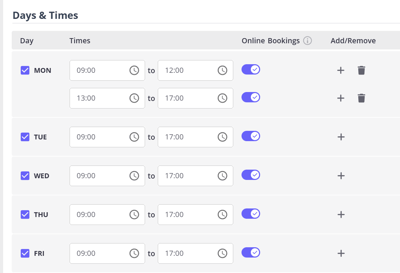
When you are on the User Menu > Account Settings > Schedule > Client Portal > Access and Settings page, you can scroll down to the bottom of the page to the 'Set your available times and services' section and click the 'User Menu > Account Settings > Team > Availability' link provided.
You can also add and manage availability by going to User Menu > Account Settings > Team > Availability directly any time.
- Practitioners must have availability set for the correct location and time blocks where “Online Bookings ” toggle is enabled.
- There are some other ways to limit practitioners' availability on the client portal for one-off cases, such as public holidays, annual or sick leave, etc. See our detailed guide about managing availability tips and tricks here.
💡 Important Note: Make sure you have set your time zone correctly in your Zanda account. By doing so, the availability times you have set in the availability will display exactly the same way to your clients in the Client Portal. If your clients live in a different time zone, the Client Portal will display the availability times to those clients according to their device time settings.
✅To set the account time zone, go to User Menu > Account Settings > Practice > Business Info.
✅ To set the client's time zone, go to Client Profile > Details
Frequently Asked Questions
❓ Why does the Client Portal only show very early-morning or odd-hour times (for example, 2:30 AM)?
This is almost always a time zone mismatch. The Client Portal shows each client their available times in their own local (device) time, converted from the availability you set in your account's business time zone. When only odd hours such as pre-dawn slots appear, check these in order:
- Confirm your account business time zone is correct. Go to User Menu > Account Settings > Practice > Business Info and make sure the Time Zone matches where your practice actually operates. An incorrect business time zone shifts every availability slot, so clients can end up seeing only odd hours.
- If a practitioner is travelling or working from another time zone, do not change the account business time zone, because that shifts existing appointments and reminders for everyone. Instead, use an Availability Override to enter their working hours converted into the business time zone. See Working Remotely from a Different Timezone.
- Check the client's time zone. The Portal uses the client's device time settings, and you can also set a client's time zone under Client Profile > Details. A client whose device is set to a distant time zone will see your available times shifted accordingly.
Once the business time zone is correct and any travelling practitioner uses Availability Overrides, the Client Portal shows clients bookable times at the hours you actually work, in their own local time.
❓ How do Client Portal services connect to billing, prices, and client access?
Client Portal bookings use the service templates you set up under User Menu > Account Settings > Billing > Services. When a client chooses a service online, Zanda creates the appointment from that selected service and generates the linked invoice from the same service, including its price, tax, and Portal Deposit settings where applicable.
If you use DVA or another claiming workflow, add the correct service code to the service template before you make the service available online. The Client Portal booking creates the appointment and invoice from that service; your team still completes the claim through the relevant claiming workflow after the appointment is booked.
Clients see service names, descriptions, duration, and available times during booking. They only see service prices when Show Service Price is enabled under User Menu > Account Settings > Schedule > Client Portal > Access and Settings. Internal billing codes and claiming details are managed in Zanda and are not presented as separate booking choices for clients.
The services a client can book are controlled by the service, location, practitioner, and availability settings. If Clients Can Book With Any Practitioner is enabled, clients can book with any practitioner who has matching online availability and enabled services. If it is disabled, existing clients can only book with their primary or assigned practitioners, so they will only see services connected to those practitioners' online availability. The same service list applies to every client booking online, new and existing alike. To steer new clients toward a narrower set of services, see Setting Up Online Bookings on Client Portal.
❓ Can I hide a service from online bookings without deactivating it?
Yes. Keep the service active, then remove its Client Portal availability so clients cannot select it when booking online. To do this, go to User Menu > Account Settings > Schedule > Client Portal > Available Services and turn the service off for each practitioner, or edit the service under User Menu > Account Settings > Billing > Services and set Client Portal Availability to No Practitioners.
Deactivating a service removes it from appointment, invoice, and Client Portal selections. Use deactivation only when your team no longer needs to use the service in Zanda.
❓ Can I set up mini consultations on the Client Portal?
Yes. Set up mini consultations as their own service, then make that service available to the right practitioners and booking times.
For a mini consultation setup, we recommend:
- Create a separate service for the mini consultation with a clear name, duration, price, description, and location.
- Use Client Portal Availability on the service to choose Some Practitioners or All Practitioners, depending on who should offer the mini consultation online.
- Set practitioner availability for the correct location and enable Online Bookings for the time blocks where clients can book the mini consultation.
Clients will see the mini consultation as a separate service during online booking. The service duration controls the appointment length, and the available times depend on the practitioner, location, and online booking availability you have set.
❓ How many locations can be shown on the Client Portal?
The Client Portal can show every active location that has online-bookable practitioner availability and at least one available service; it does not use a separate location selection limit.
If a location is not appearing for clients, check these setup areas:
- Go to User Menu > Account Settings > Practice > Locations and confirm the location is active.
- Go to User Menu > Account Settings > Team > Availability and confirm the practitioner has availability at that location with Online Bookings enabled.
- Go to User Menu > Account Settings > Schedule > Client Portal > Available Services and confirm at least one active service is assigned to a practitioner who works at that location.
- If the service uses the Location field, confirm the selected location includes the place clients should be able to book.
❓ Can I password protect a location on the Client Portal?
No—the Client Portal doesn't offer password protection or separate access controls for individual locations. Your practice has one Client Portal link, and clients sign in with their own client login, which works the same way across all of your locations.
If you'd like to control what clients can see or book at a particular location, you can use these settings instead:
- Limit services by location. Assign services to specific locations so clients only see the services offered at the location they select during booking. See How Can I Limit Services and Products By Locations?.
- Keep a location off the Client Portal. A location only appears online when it has practitioner availability with Online Bookings enabled and at least one available service. Remove the online-bookable availability or available services for a location, and clients won't see it on the Client Portal at all.
- Show existing clients only their practitioners' locations. If Clients Can Book With Any Practitioner is disabled under User Menu > Account Settings > Schedule > Client Portal > Access and Settings, existing clients only see the locations where their primary or assigned practitioners work.
If a location-level access-control option would help your practice, we'd love to hear about it—you can share the idea with our team through the Customer Ideas Portal.
❓ Can clients choose multiple services in one Client Portal appointment booking?
Clients choose one service for each Client Portal appointment booking. If clients need to book more than one service, they should complete a separate booking for each service so Zanda can use the correct service duration, price, practitioner availability, and location rules for each appointment.
For services that are commonly provided together, create clear service templates for the booking options you want clients to choose from, then assign those services to the relevant practitioners under User Menu > Account Settings > Schedule > Client Portal > Available Services. Your team can then review the booked appointment and manage any extra invoice line items internally if needed.
❓ Can I offer home visit services through Client Portal bookings?
Yes. Set up a dedicated location and service for home visits, then use service locations, practitioner availability, and Client Portal available services to control when that home visit service appears online.
Clients choose the booking location by name. For home visits, use a clear location or service name and confirm the client's visit address through your normal intake or booking follow-up process.
For a home visit setup, we recommend:
- Create a location for home visits under User Menu > Account Settings > Practice > Locations.
- Use the In Person location type for physical home visits. The available location types are In Person, Phone, and Telehealth Video Call, so home visits are best represented by the location and service name rather than a separate location type.
- Create or edit a home visit service under User Menu > Account Settings > Billing > Services. Use the service Location field to limit that service to the home visit location.
- Set the service Price and, if you use Stripe, the Portal Deposit to collect an upfront payment. If home visits need a different fee, create a separate home visit service with its own price rather than relying on a separate surcharge during booking.
- Set practitioner availability for the home visit location and enable Online Bookings for the availability blocks you want clients to book.
- Go to User Menu > Account Settings > Schedule > Client Portal > Available Services and assign the home visit service to the practitioners who offer it.
Client Portal bookings create appointments directly from the available service, practitioner, location, and time the client selects. If a practitioner needs to review whether a home visit is suitable before clients can book with them, limit which home visit services and practitioners are available online, or use the triage workaround in Setting Up Online Bookings on Client Portal.
❓ Can I offer different services on different days for online booking?
Yes. You can present a day-specific mix of services online by combining locations, service location limits, and practitioner availability:
- Create a separate location for each group of services you want on particular days, under User Menu > Account Settings > Practice > Locations. For example, an "Assessments" location and a "Therapy" location.
- Limit each service to its matching location using the Location field on the service, under User Menu > Account Settings > Billing > Services. A service limited to a location only appears for Client Portal bookings at that location.
- Set practitioner availability separately for each location, under User Menu > Account Settings > Team > Availability, and enable Online Bookings only on the days you want that location's services to be bookable. For example, enable online bookings for the Assessments location on Mondays and the Therapy location on Tuesdays.
- Go to User Menu > Account Settings > Schedule > Client Portal > Available Services and assign each service to the practitioners who offer it at that location.
Zanda does not have a direct setting that turns an individual service on or off for particular days of the week; availability applies to all of a practitioner's online-bookable services at a location. Combining locations, service location limits, and availability is what lets clients see each service only on the days you intend.
❓ Can I offer telehealth on some days and in-person appointments on other days for online booking?
Yes. If you see clients face to face on certain days and by telehealth on others, use a separate location for each way you work, and give each location its own weekly availability on only the days it applies:
- Create two locations under User Menu > Account Settings > Practice > Locations—one with the In Person location type for your face-to-face days, and one with the Telehealth Video Call location type for your telehealth days. See the detailed guide here.
- Go to User Menu > Account Settings > Team > Availability and add a separate Regular Weekly Availability for each location. In each schedule, add time blocks only on the days that location applies—for example, add Tuesday blocks to the telehealth location's schedule and Wednesday blocks to the in-person location's schedule—and enable Online Bookings on each block you want clients to book.
- Check User Menu > Account Settings > Schedule > Client Portal > Available Services to confirm your services are assigned to the practitioner as usual—the same service can be booked at either location, so you don't need a separate service for each.
The Client Portal only offers times from availability blocks that have Online Bookings enabled, at the location each block is linked to. With this setup, clients booking online will only see telehealth times on the days covered by the telehealth location's schedule, and only in-person times on the days covered by the in-person location's schedule. Because the Telehealth Video Call location type also enables the online session link on the appointment, bookings on your telehealth days are set up for telehealth automatically.
❓ Can I offer different services at different times of day? (For example, 30-minute appointments only at certain times, and 1-hour appointments the rest of the day.)
Yes. Zanda does not have a direct setting that restricts an individual service to particular times of day—practitioner availability applies to all of a practitioner's online-bookable services at a location. You can achieve this by combining locations, service location limits, and practitioner availability, the same pattern used for offering different services on different days:
- Create a separate location for each group of services you want offered in its own time window, under User Menu > Account Settings > Practice > Locations. For example, a "Short Sessions" location for 30-minute appointments alongside your main location for 1-hour appointments.
- Limit each service to its matching location using the Location field on the service, under User Menu > Account Settings > Billing > Services. A service limited to a location only appears for Client Portal bookings at that location.
- Set practitioner availability separately for each location, under User Menu > Account Settings > Team > Availability, and enable Online Bookings on each block. Give each location availability only in the time windows you want its services bookable—for example, the Short Sessions location from 12 PM to 2 PM and your main location for the rest of the day.
- Go to User Menu > Account Settings > Schedule > Client Portal > Available Services and assign each service to the practitioners who offer it at that location.
Clients then choose between the services as usual, and each one only shows appointment times within its own location's availability.
A note on availability block length: an availability block only offers services that fit within it, so a block shorter than a service hides that service for that block (for example, a 30-minute block cannot show a 1-hour service). The reverse is not true—a shorter service still fits inside a longer block, so a 30-minute service remains bookable throughout a 1-hour availability block, and back-to-back blocks act as one continuous window. Block length alone therefore cannot keep a shorter service out of certain times; use the location-based setup above for that.
❓ Can clients choose in-person or online for the same service, without a separate service or booking code for each?
Yes. You do not need a duplicate service, or a separate booking code, for the in-person and online versions of a session. In the Client Portal the location is a separate choice from the service, so a client selects the service once and then chooses where it takes place—your physical location or online.
To set this up:
- Create two locations under User Menu > Account Settings > Practice > Locations. Give one the In Person location type (for example, your clinic) and one the Telehealth Video Call location type for online sessions. See the detailed guide here.
- For each service you want offered both ways, leave the service Location field unrestricted (its default, which makes the service available at all locations) or set it to include both the in-person and the online location, under User Menu > Account Settings > Billing > Services. The service keeps a single service code—the billing code lives on the service, not the location, so there is nothing to duplicate.
- Set practitioner availability for both locations under User Menu > Account Settings > Team > Availability, and enable Online Bookings for the time blocks clients can book at each.
- Go to User Menu > Account Settings > Schedule > Client Portal > Available Services and assign each service to the practitioners who offer it.
When booking, the client picks the service and then selects the location by name, choosing your in-person location or the online (Telehealth Video Call) option for that same service. Repeat step 2's setup for each service you offer, so every service appears at both the in-person and online locations. Because the Telehealth Video Call location type also enables the online session link on the appointment, bookings made against the online location are set up for telehealth automatically.
❓ Can I assign a specific room to a practitioner for Client Portal bookings?
No. Client Portal bookings do not automatically allocate a Resource Item, such as a room, to the appointment. Portal bookings create the appointment from the service, practitioner, location, and time the client selects.
To control what clients can book online, use locations, service location limits, practitioner availability, and Available Services. If a physical room or other Resource Item needs to be blocked for the appointment, open the appointment after it has been created and assign the Resource Item from the appointment details. See Managing Resources for Appointments for the resource workflow.
Related Articles
- Setting Up Online Bookings on Client Portal - Configure booking rules, payment requirements, booking flags, and triage options for Client Portal appointments.
- Managing Resources for Appointments - Add rooms, equipment, or other Resource Items to appointments after they are created.
- Reflecting Location Types on Appointments - Understand how the In Person, Phone, and Telehealth Video Call location types appear on appointments.
- Adding and Editing Services - Create services, set prices, configure Portal Deposit, and manage Client Portal availability.
- How Can I Limit Services and Products By Locations? - Limit services to specific locations so clients see the right service options when booking online.
- Creating, Editing, Printing and Emailing Invoices - Add or adjust invoice line items after an appointment has been booked.