%20-%20120%20x%2044.svg)
In this article:
- Client Progress Report Overview
- Filters: Assessment Type and Date Range
- Progress Overview: Trend Graph
- Assessment Scores Table
- Sharing or Sending Progress Information
- Reporting Across Multiple Clients
- Important Notes
- Related Articles
Client Progress Report Overview
Client Progress Report helps you clearly see how a client’s scored assessments are changing over time, all in one place. You can track trends, compare results, and review individual form responses without needing to open each form separately.
What you can use it for
Use client progress reports to:
- Track how a client’s scores change over time
- Compare multiple calculated scores (such as subscales) within the same assessment
- Review completed forms in detail when needed
This gives you a quick, structured view of client progress, while still allowing you to dive deeper when required.
What the report includes
The Client Progress Report is built from the calculated scores on your scored forms. It shows each score total, its interpretation, and how those numbers change over time.
Written answers are not part of the report. If your assessment mixes free-text questions with scored questions, the free-text answers stay on the completed form and do not appear in the Progress Overview graph or the Assessment Scores table. To read them, open the form from the table.
Where to find it
- Open the client profile
- Go to Records > Progress Report
Who can see it
The report is available for any user that can access the client profile and that is either a primary or assigned practitioner or a user with access that has a Clinical access level, or has "Access all Clinical Notes & Forms" permission enabled.
How the page is structured
The client progress report page has three main areas:
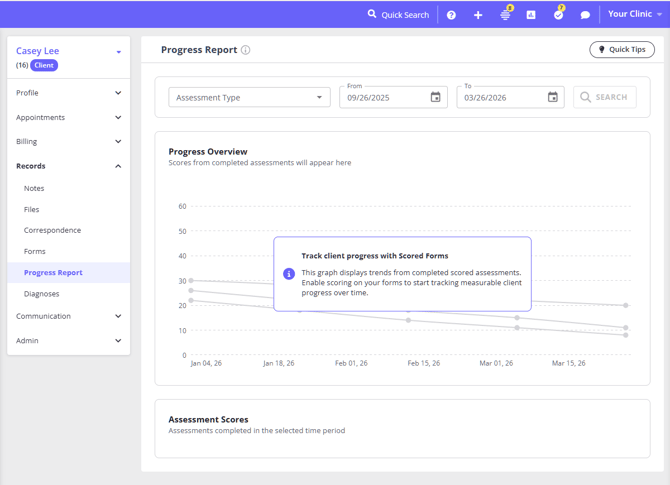
- Filters (top of the page)
- Progress Overview graph
- Assessment Scores table
All three work together to give you a consistent view of the same data.
Filters: Assessment Type and Date Range
At the top of the page, you’ll see two filters that control what data is shown.

Assessment Type
- Shows only scored form templates (forms with scoring enabled)
- Starts empty with the placeholder “Assessment Type”
- You must select an assessment form template before you can click Search
- Only completed scored forms for that template will be included
Date Range
- Defaults to the last six months
- You can adjust the From and To dates
- Only forms completed within this range are included
How filters work
- Click Search after making changes
- The filters apply to both the graph and the table
- Results refresh across the entire page
Progress Overview: Trend Graph
The Progress Overview section shows a visual timeline of the client’s scores.
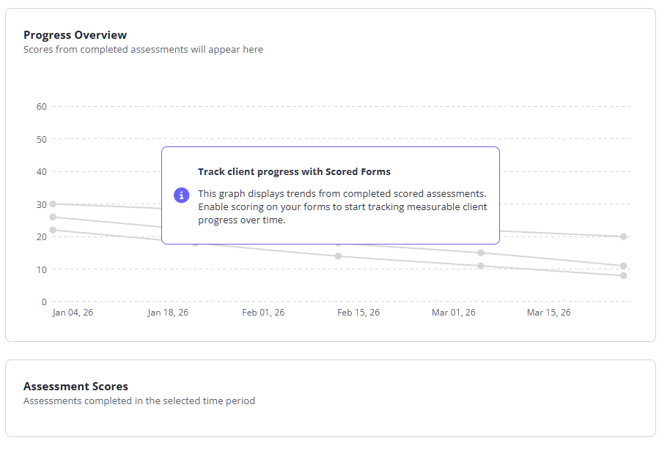
Before selecting an assessment
- A sample (skeleton) graph is displayed
- This is only a visual example (not real client data)
- It helps you understand how the graph will look once data is loaded
After selecting an assessment and clicking Search
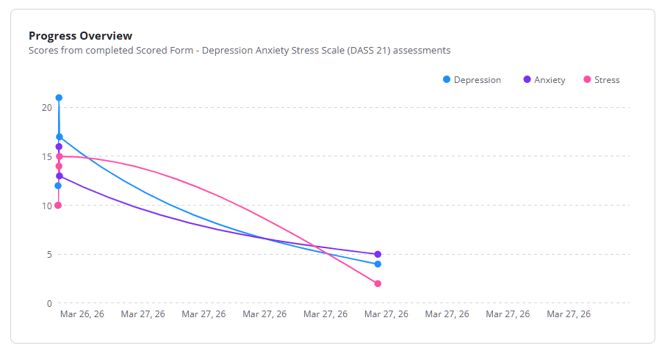
- The graph displays real client data
- Each calculated score appears as a separate line
- Each point represents one completed form
What you’ll see
- X-axis: Assessment dates
- Y-axis: Score values (scaled to your data)
- Legend: Score types (e.g. Depression, Anxiety)
Hover details
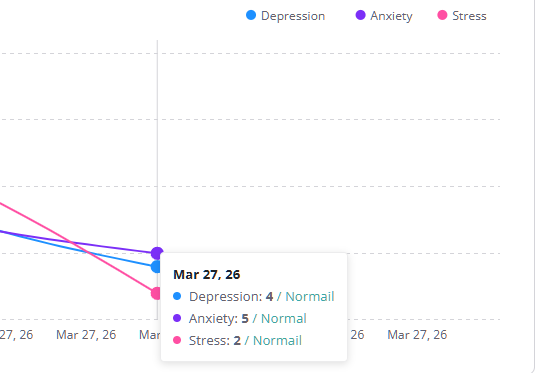
Hover over a point to see:
- Assessment date
- Score name
- Interpretation (e.g. Mild, Moderate, Severe)
If no data matches
- The graph shows an empty state message
- No lines are displayed
Assessment Scores Table
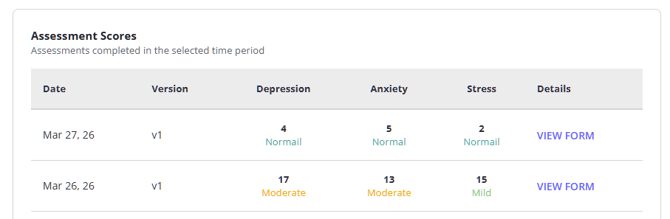
Below the graph, the table lists each completed scored form.
What’s included
- Only forms that match your selected assessment type
- Only forms within the selected date range
How to read it
- Each row represents one completed form
- Columns include:
- Date (completion date)
- Version (template version used)
- Score columns (one per calculated score)
- Details - View Form (link to view the full form)
Score columns
Each score shows:
- The numeric value
- Its interpretation (e.g. Mild, Moderate, Severe), often with colour indicators
Ordering
- Sorted by most recent first
If no data matches
- The table shows an empty state message 'Assessments completed in the selected time period'
- No rows are displayed
Sharing or Sending Progress Information
The Client Progress Report is designed as an in-system clinical view. There is no button on the page to export the graph and table as a PDF or to send them to a client or referrer, and no Zanda document builds the trend graph and your written commentary into a single report automatically.
If you need to share progress information outside Zanda, pick the option that matches what you want the client to see:
Send one completed assessment, with its scores
- In the Assessment Scores table, click VIEW FORM in the Details column. This opens a read-only preview of that form.
- Click Go to Form to open the form in Records > Forms.
- Use the printer icon to print or save the form as a PDF, or the mail icon (Send As Attachment) to email it to the client as a PDF.
The preview itself has no print or send action, so you do need to open the form first. For the scores to appear on the PDF the client receives, the template must have scoring enabled and Display Scores in Portal/Emails turned on. See Using Scored Forms.
Send several forms or notes in one PDF
Go to Records > Forms or Records > Notes and use Print All to produce a single PDF for that client.
- Type in the search box first to narrow what is included. Print All follows whatever the search has left on screen, so searching for the assessment name is the practical way to limit the PDF to one assessment.
- There is no filter for assessment type or date range, so the search box is the only way to narrow it.
- A form you currently have open is left out of the PDF. Close it first, or open a different one, so it is back in the list.
Print All includes the full forms or notes, so it carries your narrative content, but it does not include the trend graph.
Send a written progress summary
Create a letter from the client's profile when you want a narrative summary for the client, a referrer, or another contact. Letters can be printed, exported, or emailed as a PDF attachment. There is no merge field for assessment scores or for the progress graph, so any figures you want in the letter need to be typed in yourself.
If you want the trend and the narrative together
There is no single report that produces both. The usual approach is to write the letter with your commentary and key scores, then attach the completed assessment PDF (or a Print All PDF of the relevant forms and notes) alongside it.
Use the Progress Report to review the scoredtrend first, then choose the option above that best matches what you need to share.
Reporting Across Multiple Clients
Client Progress Reports are generated one client at a time. Zanda does not combine scored-assessment data or progress trends from multiple clients into a single report.
If you need to share outcomes with an organization that oversees several of your clients, such as an Employee Assistance Program (EAP) provider, generate and share each client's Client Progress Report individually rather than looking for a combined, multi-client view. Use the sharing options described above for each client's report.
Important notes
- Only forms with scoring enabled appear in the report
- Draft or incomplete forms are not included
- The same filters apply to both the graph and the table
- You can open any form directly from the table to review full responses
What to expect when there’s no data
If no forms match your selected filters:
- The graph will show an empty state message
- The table will show no rows
This usually means:
- The selected assessment hasn’t been used yet, or
- No forms were completed within the chosen date range