%20-%20120%20x%2044.svg)
We're introducing new ways to protect the online forms you send to clients. Here's a preview of what's on the way — and where you'll find each setting.
In this article:
- What's changing
- New: Turning on per form template authentication
- New: Choose date of birth as the authentication method
What's changing
This new per-template control replaces the current account-wide form authentication setting. Your existing forms will keep working — you won't need to do anything to prepare.
We are replacing the global, account-wide form authentication toggle with a per-template setting. Users can now choose which specific form templates require client authentication and which forms can be accessed instantly.
❗Forms containing prefilled linked fields will continue to automatically require authentication to protect client privacy.
New: Turning on per form template authentication
Authentication will be set on each form template, so you choose exactly which forms need it. This is how it will work:
1. Go to Tools > Form Designer.
2. On the Form Templates page, click + New Form Template, or open an existing client form template.
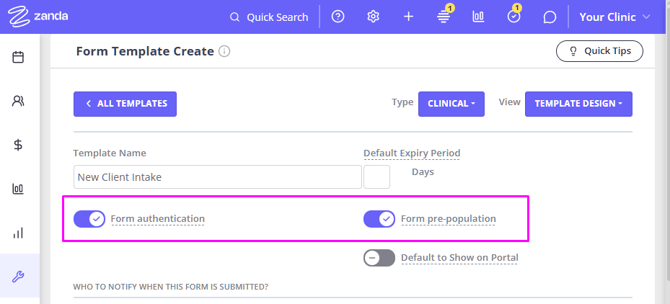
3. Directly beneath the Form Name field you'll find two settings — Form Authentication and Form Pre-population.
4. Turn Form Authentication on to require clients to verify their identity for forms made from that template, then Save. (It'll be on by default for new templates after this update is released.)
5. If needed, enable the Form Pre-population switch to automatically fill supported fields from the client's profile. It's available only when Form Authentication is on for that template.
New: Choose date of birth as the authentication method
The method clients use to authenticate is set once for your whole practice.
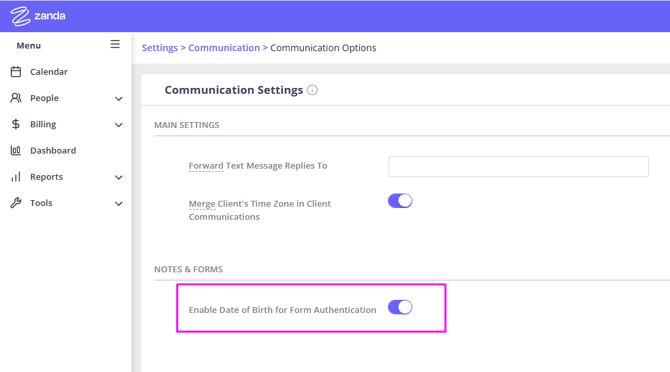
1. Go to User Menu > Account Settings > Communication > Communication Options: Notes & Forms.
2. Turn on Enable Date of Birth for Form Authentication and Save.
When a client opens an authenticated form, they will enter their date of birth (in your region's format — e.g. DD/MM/YYYY for Australian accounts). Zanda checks it against the date of birth already on their profile; they're never asked to supply a new one.
If this setting is turned off, clients will be asked to enter their matching email address or a mobile number when accessing forms with authentication enabled.
Note: If the details entered don't match after three attempts, the authentication form will pause for five minutes before it can be tried again.
Letting a contact authenticate on a client's behalf
A contact — for example a parent or guardian — can verify with their own date of birth, if the DOB authentication is enabled in the Zanda account, and their connected client has the DOB saved in their client profile.
- If the client’s DOB is missing, the contact will be able to authenticate with the contact's email or mobile number.
- If a contact's DOB is not in the system, the contact can authenticate using the client's DOB. In this case, the client’s DOB must be saved in the connected client’s profile. Otherwise, the contact can still authenticate using their email address or a mobile number.
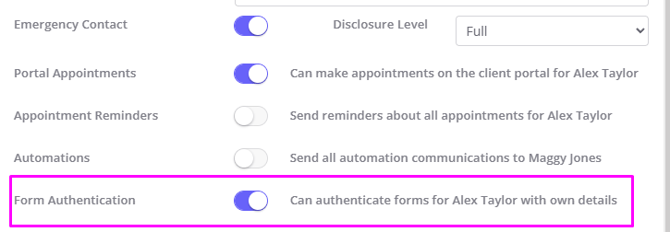
To allow a contact to authenticate forms for their connected client:
1. Open the Client Profile and go to the Contacts tab.
2. In the contact's settings, turn on Form Authentication: Can authenticate forms for [Client] with own details, then Save.