%20-%20120%20x%2044.svg)
Contact statements allow you to show multiple paid or unpaid invoices for a certain period of time for a particular contact and the received and allocated payments. This is useful when billing parents, guardians, spouses, or other family members who are responsible for paying a client's invoices.
There are two different statement types to choose from, which work as follows:
- Activity: Both paid and unpaid invoices in that period
- Outstanding Invoices: Unpaid invoices in that period only
💡 Tip: Contact statements work similarly to third party statements but are designed for individual payers like family members rather than organizations like insurers.
In this article:
- Creating a statement for a contact
- Statement layout
- Frequently Asked Questions
- Related Articles
Creating a Statement for a Contact
💡 Note : You will first need to ensure that the client's invoices have been billed to the Contact. For information on how to do this, please read our support article here.
Statements are created in the Contact Profile > Billing > Statements.
To access the Contact Profile, you can either:
- Search for the contact via People > Contacts or via the main Search bar, or
- Navigate to Client Profile > Contacts, click on the Contact Name, then click the View Full Contact Profile button at the bottom left.
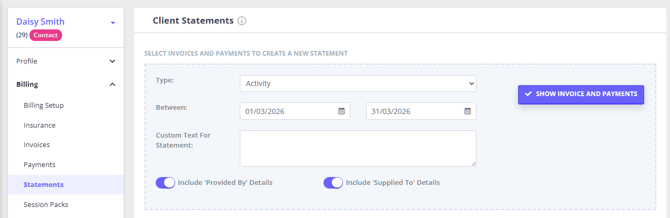
1. In the Statements tab, click "New Statement".
2. Select the Statement Type: Activity or Outstanding Invoices.
3. Enter the date range, or leave as the default 30-day period.
4. Optional: You can also type some text which will print at the bottom, like payment instructions for example.
5. Click "Show Invoices and Payments".
6. Tick the invoices and payments which you would like to combine into the statement.
7. Click "Create Statement".
8. Once you have created your statement, you have the option to show the Referrer on the statement, which you can do by ticking "Referral". This will show the referrer details at the top right-hand of the Statement (the same place that it is shown on a normal invoice).
9. You also have the option to either Email, Print or Delete the Statement.
Each Statement is designed to print the default Location configured in your account into the header of the document.
If you are using multiple Locations, you can modify the default Location (and the clinic details printed on Statements) by navigating to User Menu > Account Settings > Practice > Locations and alter which of them is the Default.
The statement will show:
- Invoice To: The Contact's name and address
- Supplied To: The client(s) who received the services
- All invoices billed to this Contact, even if they are for multiple different clients
Important: Statements will only show invoices that have been billed to the specific Contact. If an invoice is billed to the Client directly or to a different payee, it will not appear on this Contact's statement.
❓ Where do I find contact statements in Zanda?
You need to open the full Contact Profile first (via People > Contacts or through the client's Contacts tab), then navigate to Billing > Statements. Contact statements are not generated from the client profile.
❓ Can one statement include invoices for multiple clients?
Yes. If a Contact is the payee for multiple clients (for example, a parent paying for two children), you can include all their invoices on one statement. The statement will show the Contact as "Invoice To" and list each client under "Supplied To".
❓ What's the difference between a contact statement and a third party statement?
They work the same way technically. The key difference is:
- Contact statements are for individual payers like parents, guardians, or family members
- Third party statements are for organizations like insurance companies, employers, or plan managers
❓ Why don't I see a contact's invoices when I try to create a statement?
First, ensure the invoices have been billed to the Contact (not the client directly). Check Client Profile > Billing > Billing Setup to see if the Contact is set as the default payee, or check individual invoices to see who the "Payable By" is set to.
❓Why am I seeing statements as Invoice To: Client, when all client invoices are billed to their contact or third party by default?
- Statements created from the Client Profile > Billing > Statements will default to showing the client as the invoiced entity, even if the invoices are billed to their contact or third party.
- Proposed solution: create statements directly in payee profiles to see payees details listed in the Invoice To: section of the statement. For example, if client invoices are billed to their contact, go to Contact profile > Billing > Statements and generate the statement there.
❓ Can I email the statement directly to the contact?
Yes. After creating the statement, click the Email button, verify the Contact's email address is correct, select your email template, and send.
- Invoicing to a Contact - Set up contacts as payees and configure billing for invoices billed to family members
- Creating Statements Billed to Clients - Generate statements for invoices billed directly to the client
- Creating Statements Billed to Third Parties - Generate statements for invoices billed to organizations like insurers or employers
- Adding Client Contacts - Create contact profiles and link them to client records
- Reference Guide to Statements Layout - Understand what appears on statements and how to customize the layout
- Automatic Statement Generation and Sending - Set up monthly automated statement emails for contacts
- Creating Superbills (US-only) - Use the same Payable By selection to create a superbill covering one payer only