%20-%20120%20x%2044.svg)
When you hover over appointments on the main calendar screen, there will be a pop-up with the appointment and client summary information. While most of its content is self-explanatory, some entries might need a bit of clarification, so read on.
In this article:
- Client Appointment
- Personal Appointment
- Group Appointment
- Frequently Asked Questions
- Related Articles
Client Appointment Information
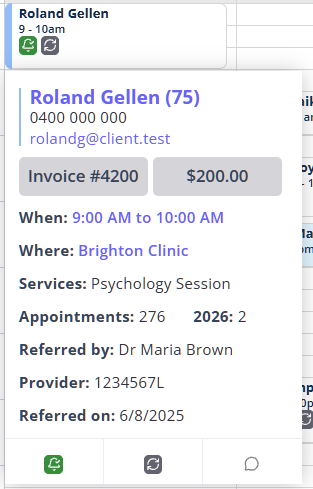
The Client Appointment pop-up includes the following information:
- Client information: name, client ID, mobile phone number, email address, and date of birth (with the client's age shown in brackets next to it);
- Invoice number and the total amount of the invoice linked with this appointment;
- appointment information: duration, location, service name, appointment comments, appointments statistics, referrer name, and referral date
- Appointments: the total number of appointments created during this client's lifetime in your account;
- YEAR: the number of appointments created this year, with the status of Confirmed, Arrived, or Completed (i.e. provided to the client)
- icons at the bottom of the pop-up with the following information:
- bell icon: appointment reminder status
- currency icon: shows the account balance of the client. (When appointments are marked with dark-colored flags, the red currency icon is replaced with a white currency icon on the appointment for better visibility.)
- recurring appointment
- SMS messaging panel and a shortcut to it
Personal Appointment Information
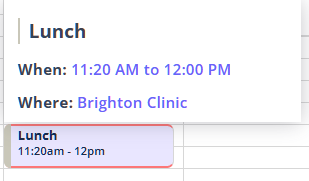
This pop-up contains
- title of the personal appointment
- duration and location
- appointment notes/description
Group Appointment Information
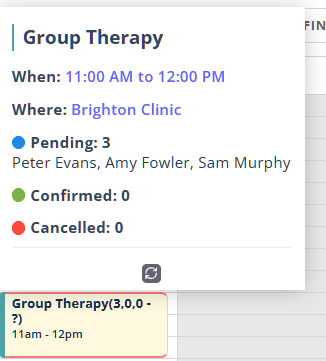
The Group Appointment pop-up contains
- Group Name
- Duration and Location of the appointment
- List of existing participant clients and the status of their appointment
- Appointment notes - if available
Frequently Asked Questions
❓ Can I show a client copay directly on the appointment pop-up?
A separate copay field does not display on the appointment pop-up. To review the amount a client needs to pay, use the invoice linked to the appointment: the pop-up can show the invoice number and invoice total, and the currency icon shows the client's account balance when a balance is available. For US insurance invoices, a copay saved on the client's primary insurer can populate the client due amount when you edit the invoice.
If you want to collect part of the appointment fee during online booking, set a Portal Deposit on the service and turn on payment collection in your Client Portal payment settings.
Related Articles
- Completing Appointments and Generating Invoices/Receipts - Add services, edit invoice amounts, and record payments from an appointment.
- Requiring Payment for Appointments - Require full or partial payment when clients book online through the Client Portal.