%20-%20120%20x%2044.svg)
In this article:
- Overview
- Accessing the Quick Search Bar
- Searching for a Record
- Recently Viewed Items
- Filtering by Category
- Finding a Referrer by Their Practice or Business
- Searching for System Settings
- No Results — Using Advanced Search
- How Search Results Are Ranked
- Permissions and Visibility
- Troubleshooting
- Related Articles
Overview
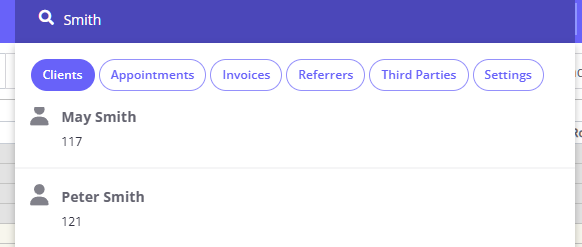
The Quick Search Bar is located in the top navigation menu and is available on every page in Zanda. It lets you rapidly search across clients, appointments, invoices, referrers, third parties, and system settings, without navigating away from your current page.
Accessing the Quick Search Bar
On Desktop / Laptop
Look for the search input field labelled "Quick Search" with a magnifying glass icon in the top navigation bar. It is always visible and ready to use.
On Mobile Devices
Tap the magnifying glass icon at the top of your screen. This toggles open the search input and dropdown panel.
Searching for a Record
- Click (or tap) inside the Quick Search box.
- Start typing a name, mobile number, or email address.
- Zanda waits briefly while you type before sending a search request — this keeps the experience smooth and avoids unnecessary loading.
- Matching results appear in a dropdown list below the search bar.
- If there are many results, scroll down inside the dropdown to load more automatically.
- Click on any result to open that profile or record directly.
Tip: You don't need to type the full name. Partial matches work well — see How Search Results Are Ranked below for details on result ordering.
Recently Viewed Items
When you click inside the Quick Search box without typing anything, a "Recently viewed" list appears automatically. This shows the records you have visited most recently, grouped by category.
- Click any item in the list to navigate directly back to it.
- The list is stored in your browser and is unique to your session and device.
Filtering by Category
By default, the Quick Search bar searches Clients. To search a different type of record, select a category using the filter chips displayed inside the dropdown:
| Category | What it searches |
|---|---|
| Clients | Client profiles |
| Appointments | Appointment records |
| Invoices | Invoice and statement records |
| Referrers | Referrer profiles |
| Third Parties | Third party organisation profiles |
| Settings | System configuration pages and settings |
To change category:
- Click inside the Quick Search box to open the dropdown.
- Click the chip for the category you want (e.g. Settings). The selected chip will appear highlighted.
- Type your search term. Results will only show records from the selected category.
Note: The categories you see depend on your user permissions. If a category does not appear, you may not have access to that area of Zanda. Contact your account administrator if you need access.
Finding a Referrer by Their Practice or Business
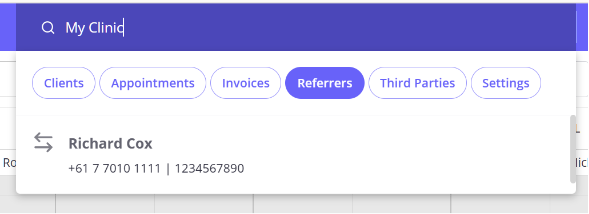
You can look up a referrer by the medical practice or business they belong to, directly from the Quick Search bar.
- Click inside the Quick Search box to open the dropdown.
- Select the Referrers category chip.
- Type the practice or business name, then click the matching referrer in the results.
Quick Search matches referrers on the Business or Practice Name recorded on their referrer profile, alongside their name, provider number, and contact details. For a referrer to appear this way, the practice name must be entered in the Business or Practice Name field on their profile — if that field is empty, searching by the practice name will not return them.
If a search by practice name does not return the referrer, open their profile and check that the practice name is entered in the Business or Practice Name field on the Profile > Details tab.
Searching for Account Settings
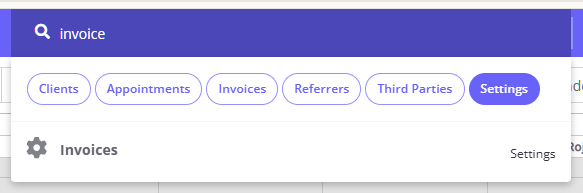
The Settings category is a new addition to the Quick Search Bar. It lets you jump directly to any system configuration page without having to navigate through the Settings menu.
How to use it:
- Click inside the Quick Search box.
- Select the Settings chip from the category filters.
- Type the name of the setting you are looking for (e.g. "invoice", "reminders", "users").
- Click on the matching result to navigate directly to that settings page.
What settings are searchable?
The Settings search returns links to configuration areas within Zanda — such as User Management, Appointment Reminders, Invoice Settings, and more. The results you see are filtered based on your user permissions, so you will only see settings pages you are authorised to access.
If no results are found:
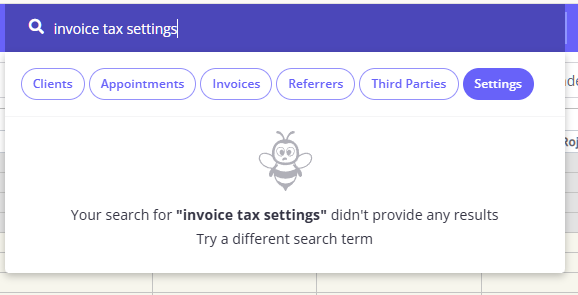
If your search term doesn't match any settings, a message will appear. Try using a different or broader term (e.g. search "invoice" instead of "invoice tax settings"). Unlike other categories, Settings does not offer an Advanced Search fallback.
No Results — Using Advanced Search
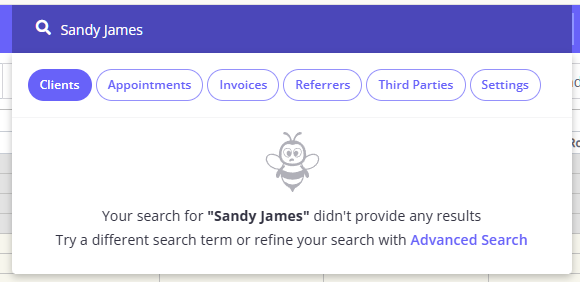
If a search returns no results for standard categories (Clients, Appointments, Invoices, Referrers, Third Parties):
- A message will appear: "Your search didn't provide any results."
- Click the Advanced Search link within that message to open a detailed search page with additional filters to refine your query.
How Search Results Are Ranked
Results are ranked based on the type of input you enter and how closely each profile matches your search term.
Searching by number
When you type a number, results are ranked by field in the following order:
- Client Profile Number
- Client Mobile
- Home Phone
- Work Phone
- Client Email
- Preferred Client Name
- Client First Name
- Client Last Name
- Client Middle Name
- Business Name
Exact matches appear above partial matches. For example, searching "13" will show client number 13 before client number 513.
Searching by name or text
When you type letters or a mix of letters and numbers (e.g. "Dan" or "A1"), results are ranked by:
- Preferred Client Name
- Client First Name
- Client Last Name
- Client Middle Name
- Business Name
- Client Email
Exact matches appear first. For example, searching "Dan" will show a client named Dan before Daniel or Daniella.
Searching by date of birth
When you enter a date, Zanda returns all profiles matching that date of birth, ordered alphabetically by profile name.
When multiple profiles match equally
If more than one profile matches on the same field with the same accuracy (e.g. two clients share the same mobile number), results are ordered alphabetically by profile name (preferred or first name, then last name).
Permissions and Visibility
The results and categories available in the Quick Search Bar are controlled by your user permissions:
- Clients — requires access to the Clients menu.
- Settings — each settings page result is individually checked against your permissions; you will only see settings you can access.
- Other categories follow their respective permission settings.
If you believe you should have access to a category or result that is not appearing, contact your account administrator.
Troubleshooting
A category chip is missing (e.g. Settings is not visible) This means you do not have the required permissions to access that area. Contact your account administrator to review your user permissions.
My search returns no results
- Check your spelling.
- Make sure the correct category chip is selected — for example, switching from "Clients" to "Referrers" if you are searching for a referrer.
- Try a broader or shorter search term.
- For Settings, try a different keyword (e.g. "user" instead of "user management").
The Recently Viewed list is empty The recently viewed list is stored in your browser. It will be empty on a new device, after clearing your browser data, or at the start of a new browser session.
Related Articles
- Client Profile in Detail — Learn about all sections of a client profile.
- Adding New Clients — How to create a new client profile in Zanda.
- Advanced Search — Generate filtered lists of clients using more specific criteria.
- Managing Users — Update user roles and permissions in your Zanda account.