%20-%20120%20x%2044.svg)
The Log File records activity in your account, including the page, note, profile, user, IP address, and browser details for each log entry. You can filter the Log File by date, username, profile, page name, note text, and IP address to find specific activity. The system stores the past twelve months of activity.
In this article:
How to Use the Log File
- Go to Tools > Log File
- Select your filter options and click Go.
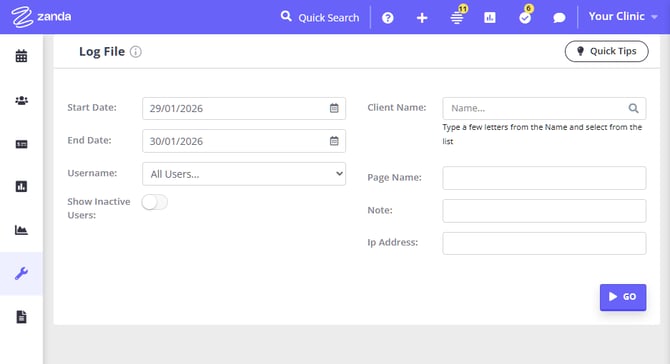
This is what the filter options do:
- Username: Shows activity for the selected user. Select Show All Users to include every user, or turn on Show inactive users to include users who are no longer active.
- Client name: Shows activity related to that profile. The search supports all profile types.
- Page name: Shows which users accessed a particular page in your account. Use part of the page URL when you want to narrow the results to one area of Zanda.
- Note: Searches the Activity Logs for particular words or actions. For example, search for 'bill', 'edit', 'insurer', or 'invoice'.
- IP Address: Searches all activity from a particular IP address.
For example:
- /Diary/EditDiary/XXXXX or /Diary/EditSettings/XXXXX - changes to Practitioner Profile
- /Profile/XXXXX/PackInstance/Create - created a new session pack
- /VideoCall/TrafficLog - Telehealth Session started/ended (refer to accompanying note name)
- /Log/Log - Viewed Log File
- /Communication/SendBulkMessage - Bulk Send feature
- /CustomFormTemplate/Update?isData=True - Updates to Form Templates
- /NoteTemplate/Update?isData=True - Updates to Note Templates
- Note: Allows you to search the Activity Logs for particular words/actions. For example: 'bill', 'edit', 'insurer', 'invoice'. etc.
- IP Address: Allows you to search all activity from a particular IP address.
Frequently Asked Questions
❓ Can I see who changed a client's profile details or status?
Use Tools > Log File as the audit trail for client profile changes. Set the date range, choose the client in Profile Name, and search the Note field for Saved Client Details to find profile edits. If you are looking for a client status change, search for Saved Client Details: Client Status; status changes made from a client-list or bulk update workflow can appear as Client Status is updated to '<status>'.
The results show the Date, Profile Name, User Name, Page Name, Note, IP Address, and User Agent for each matching log entry. A status such as Closed is a label from your client status list; the Log File shows when the Client Status field was changed and which user made the change.
❓ How can I tell whether a client was added through the Client Portal or created by a user?
The Log File records how each client profile was created, so you can use it to tell self-registrations apart from clients your team added.
- Added by a user or admin: Set the date range, choose the client in Profile Name, and search the Note field for
Client Created Client Number(a shared profile is recorded asShared Profile Created Client Number). Because this entry is linked to the client, you can look it up directly from the client's profile name. - Registered through the Client Portal: The entry reads
Client Portal new client record created. This one is recorded against the account rather than a specific profile, so it will not appear when you filter by Profile Name. Instead, set the date range, leave Profile Name on Show All, and search the Note field forClient Portal new client record created, then match the result to the client by the date and time they were added.
If a client's creation does not show up when you search by their profile name, that on its own is a strong sign they registered themselves through the Client Portal.
💡 Tip: If you want to route new clients differently depending on how they were added, the New Client automation trigger can filter on creation source with the conditions Only clients created on portal and Only clients created by users.
Related Articles
- Client Profile in Detail - Learn where client status and profile details appear in the client profile.
- Archiving, Deleting, Unarchiving and Restoring Clients - Learn how to archive, unarchive, delete, and restore client profiles.