%20-%20120%20x%2044.svg)
Use the refund payment workflow when you need to record money returned to a client for an invoice. If you are looking for a credit note to reduce the amount owed on an existing invoice, use the refund payment steps below for a paid invoice, or update the invoice items if the service or product was not provided.
In this article:
- Refunding a Payment
- Bringing the Invoice Owing Balance to $0 (Servie Not Provided)
- How To Clear a Credit (Negative) Balance
- Exporting To Xero When Refund Is Needed
- Related Articles
How To Refund a Payment
In your calendar, select the appointment whose invoice you want to refund - either in full or partially. Then, follow these steps:
-
In the appointment settings panel, scroll down to the Invoice section and click on the Edit Invoice pencil icon.
-
Scroll down to the Invoice Payments and click on the Add Payment button.
-
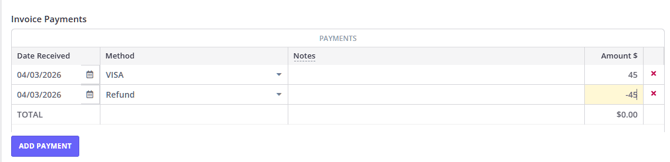
In the Method field, choose Refund (if you don’t have a refund payment method you can add one via User Menu > Account Settings > Payments > Payment Methods) from the drop-down menu.
-
In the Amount field, enter a negative number that represents the amount you want to refund the client. Also, add any notes about the refund if you want.
-
Note: Add a minus sign (-) at the start of the refund amount i.e. -170. Otherwise, the payment will be added to the client’s invoice instead of being deducted.
-
-
Once done, click the Save Invoice button.
How To Bring the Invoice Owing Balance to $0 (Servie Not Provided)
Use these steps only when the invoice still shows an amount owing—a positive balance—and the service or product was not provided to the client, so you are writing it off. Update the invoice after the refund is processed so it reflects what was actually provided. You have a couple of options:
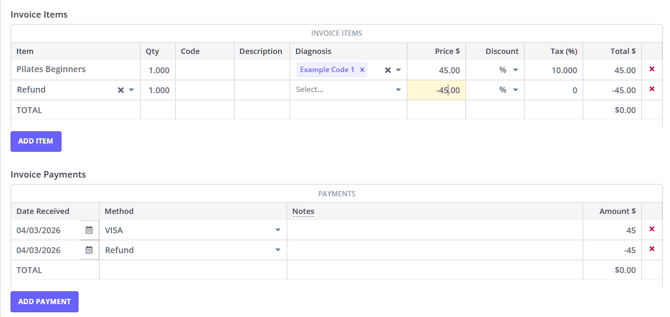
- Update the item price to $0 and save. Add a note to the item description to explain the change when needed.
- Or, add a new item line with a negative amount to bring the invoice total to $0.
How To Clear a Credit (Negative) Balance
Sometimes an invoice ends up showing a negative balance—for example -$203.80. This happens when the payment recorded against the invoice is larger than what the invoice charges. A common case is a client who paid online through Stripe for an appointment that was later cancelled: the appointment's charge is removed, but the online payment stays recorded on the invoice, so the invoice is now in credit.
Online payments through Stripe and Tyro can't be deleted or edited from the invoice, so you don't remove the payment—you balance it out by recording the refund in Zanda. If you have already refunded the client in Stripe or Tyro, this step simply mirrors that refund in Zanda so the books match.
- Open the invoice and click the Edit Invoice pencil icon.
- Scroll to Invoice Payments and click Add Payment.
- In the Method field, choose Refund (if you don't have a Refund method yet, add one via User Menu > Account Settings > Payments > Payment Methods).
- In the Amount field, enter the credit amount as a negative number—for example -203.80. The minus sign is important; without it the amount is added instead of deducted.
- Add a note explaining the refund, then click Save Invoice.
The invoice balance now returns to $0.
💡 Note: Only reduce an item price to $0 or add a negative item line when the invoice still shows an amount owing and the service or product wasn't provided. Doing that on an invoice that is already in credit pushes the balance further negative.
How To Export to Xero When Refund Is Needed
If you import your invoices to Xero, refunds recorded in Zanda do not export to Xero as refund transactions.
To show the refund in Xero, start by importing the original invoice.
Then, follow these instructions by Xero to process the refund in Xero.
Related Articles
- Managing Payment Methods - Add, deactivate, or reactivate payment methods in Zanda.
- Managing Integration With Xero - Set up and manage invoice and payment exports to Xero.
- Troubleshooting Xero Exports - Resolve common Xero export errors.