%20-%20120%20x%2044.svg)
The Client Portal allows your clients to reschedule their individual appointments online without needing to contact your practice. When enabled, clients can log in to the portal, view their upcoming individual appointments, and choose a new available time for an appointment with the same original practitioner, service, and location. This feature helps reduce administrative workload while giving clients more flexibility to manage their bookings. Whether a client can reschedule depends on your portal settings, the appointment status, and the rescheduling policy configured for your practice.
In this article:
- Enabling Appointment Rescheduling in the Client Portal
- Setting Up Client Portal Notifications for Rescheduled Appointments
- How Clients Can Reschedule an Appointment in the Client Portal
- What Happens After a Client Reschedules an Appointment
- When Clients Can Reschedule Appointments
- When Clients Cannot Reschedule Appointments
- What Clients See If They Cannot Reschedule
- Frequently Asked Questions
- Related Articles
Enabling Appointment Rescheduling in the Client Portal
To allow clients to reschedule their individual appointments online, you first need to enable the Reschedule option in your Client Portal settings. Once enabled, eligible appointments will display a Reschedule button on the My Appointments page in the Client Portal, allowing clients to select a new available time for their eligible individual future-dated appointments without contacting your practice.
To enable this feature:
-
Go to User Menu > Account Settings > Schedule > Client Portal > Access and Settings in your Zanda account.
- Ensure that you have "Show Upcoming Appointments" enabled to allow clients to view their upcoming appointments on the portal.
-
Scroll to the Online Bookings settings section and locate the Reschedule Policy setting.
-
Select one of the available option in the Reschedule Policy dropdown field. The Reschedule Policy sets the cut-off time before an appointment when clients can still reschedule online. For example, selecting “6 hours before appointment” means clients can reschedule up to 6 hours before the appointment start time, but not after that. The available options are:
- No rescheduling via portal
- Anytime
- 3 hours before appointment
- 6 hours before appointment
- 8 hours before appointment
- 12 hours before appointment
- One day before appointment
- Two days before appointment
- Three days before appointment
- Four days before appointment
- One week before appointment
After this option is enabled, clients will be able to reschedule appointments from the portal when the appointment meets your practice’s rescheduling policy and eligibility requirements.
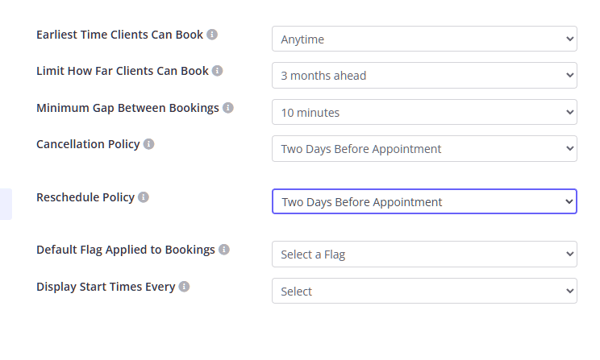
Save the changes made on the Access and Setting page. Your clients will now be able to reschedule their eligible appointments.
Setting Up Client Portal Notifications for Rescheduled Appointments
-
The settings for these notifications are located via the User Menu > Account Settings > Schedule > Client Portal > Notifications.
- Scroll to the Rescheduled Appointment section.
- You can enable notifications for
- Client's Primary Practitioner
- The Client
- These Email Addresses (comma separated list of email addresses)
- To enable each notification type, select a communication template template which will be sent for each type of recipient. You can create these templates in Tools > Communication > Templates.
Pro Tip: default communication templates are provided in new trial accounts. If you do not see these templates available in your Zanda account, you can copy them here and use to create your own copy of templates.
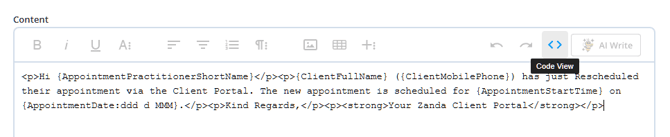
💡Switch the Content field to Code View to paste the provided HTML text code, as shown on the screenshot:
'Reschedule Appointments' Notifications Templates on Client Portal
Template 1
Name Client Portal - Appt Rescheduled Notification to User
Description Email to notify a calendar user that an appointment was cancelled via the Client Portal.
Email Subject Appointment Rescheduled via the Client Portal
<p>Hi {AppointmentPractitionerShortName}</p><p>{ClientFullName} ({ClientMobilePhone}) has just Rescheduled their appointment via the Client Portal. The new appointment is scheduled for {AppointmentStartTime} on {AppointmentDate:ddd d MMM}.</p><p>Kind Regards,</p><p><strong>Your Zanda Client Portal</strong></p>
Template 2
Name Client Portal - Appt Rescheduled Notification to Client
Description Email to notify a client when they've rescheduled an appointment via the Client Portal.
Email Subject Appointment Rescheduled via the Client Portal
<p>Hi {ClientFirstName}</p><p>This email is to confirm that you have <strong>rescheduled </strong>the appointment via our Client Portal. The new appointment details are:</p><p><strong>Date:</strong> {AppointmentDate:ddd d MMM}</p><p><strong>Time:</strong> {AppointmentStartTime}</p><p><strong>With:</strong> {AppointmentPractitionerFullName}</p><p>If you <strong>rescheduled </strong>this by mistake you can rebook it again via our Client Portal {ClientPortal} or contact us directly.</p><p>Kind Regards,</p><p><strong>{BusinessName}</strong></p>
-
If you enabled Client Portal Notifications in your Zanda Practice Hive, you will receive 'rescheduled appointments' notifications there too for the clients you are allowed to access.
Create a reschedule notification template if one is not listed
If the rescheduled appointment dropdown does not show the template you need, create an appointment communication template first, then return to the Client Portal notification settings to select it.
- Go to Settings > Communication > Templates.
- Select New Template.
- Create an email or SMS template for appointment messages.
- Add the appointment merge fields you want to include, such as the appointment date, start time, location, practitioner, and service.
- Save the template.
- Go back to Settings > Client Portal > Notifications.
- In Rescheduled Appointment, enable the recipient you want to notify: Client's Primary Practitioner, The Client, or These Email Addresses.
- Select the template from the matching dropdown, then select SAVE CHANGES.
Use Edit Template in the Rescheduled Appointment section when you want to update a template that is already selected in the dropdown.

What merge fields are available in reschedule notification templates
Reschedule notification templates use the same merge fields as other communication templates in Zanda.
When the template is sent, the merge fields show the new rescheduled appointment details, not the original appointment details.
❗There is currently no merge field for the original appointment date or time.
For a full list of available merge fields, see Available Merge Fields for Communication Templates.
How Clients Can Reschedule an Appointment in the Client Portal
If rescheduling is enabled for your Client Portal, clients can change the date and time of their upcoming appointments directly from the portal.
Who can reschedule appointments on the client portal:- Clients can reschedule their own appointments
- Contacts can reschedule appointments booked for their connected clients, if they are allowed to manage their client portal appointments
- Clients who are members of Shared profiles can reschedule appointmtents booked for their shared profiles.
To reschedule an appointment, clients or contacts will:
-
Log in to the Client Portal.
-
Go to the My Appointments page.
-
Find the appointment they want to change.
-
Click Reschedule next to the appointment.
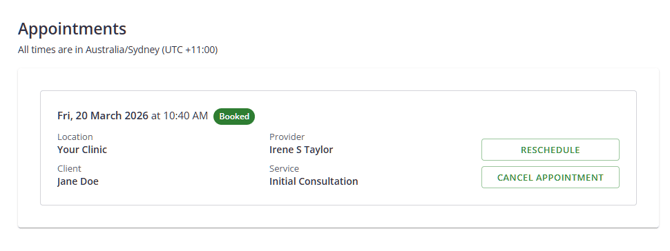
A scheduling window will open where the client / contact can view available dates and times for the same practitioner, location, and service as the original booking.
-
The client selects a new available time from the calendar.
-
A confirmation screen appears showing the updated appointment details.
-
The client clicks Reschedule to confirm the change.
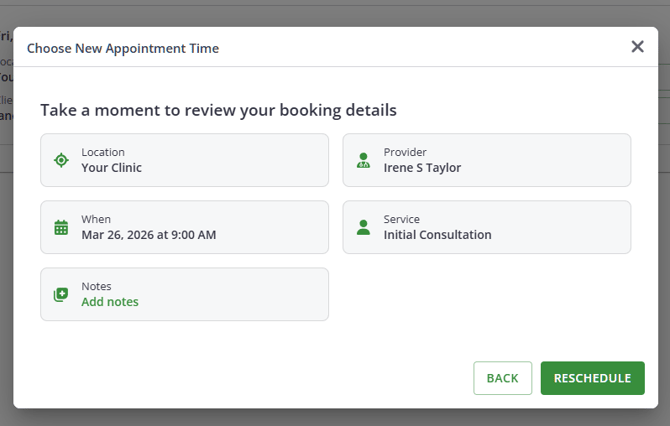
Once confirmed, the appointment will be updated to the new date and time in both the Client Portal and your Zanda calendar. The client / contact will see a confirmation message, and the updated appointment will appear in their appointments list.

If a Reschedule Attempt Fails
If an error occurs while the client is attempting to reschedule:
-
An error message will be displayed in the Client Portal.
-
The rescheduling window will remain open so the client can try again or cancel the request.
Note: If a payment has already been made for the appointment, it will automatically remain linked to the appointment after it is rescheduled.
What Happens After a Client Reschedules an Appointment
When a client successfully reschedules an appointment through the Client Portal, the change is automatically applied in your Zanda calendar.
Here’s what your practice will see:
-
The appointment is updated in the calendar
The original appointment is moved to the newly selected date and time. The practitioner, service, and location remain the same as the original booking.
-
Any existing payments remain attached
If the client has already paid for the appointment, the payment will automatically remain linked to the appointment after it is rescheduled.
-
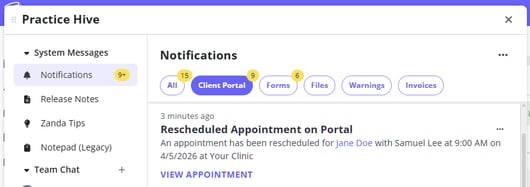
Client Portal Notifications are sent
-
A Practice Hive Notification is created to notify the appointment practitioner
-
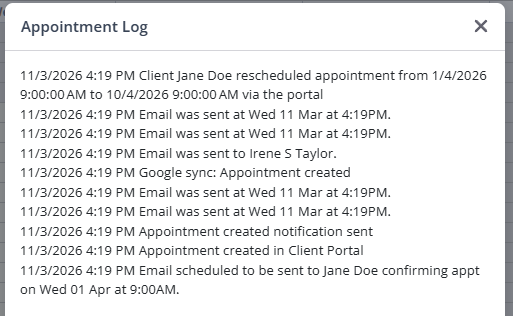
Activity is recorded in the appointment log
An entry is added to the Appointment Activity Log showing that the client rescheduled the appointment through the Client Portal. The log includes the original appointment time and the new appointment time.
-
A user activity log entry is created
A corresponding entry is also recorded in the user activity log you can see in Tools > Log File noting that the appointment was rescheduled by the client via the portal.
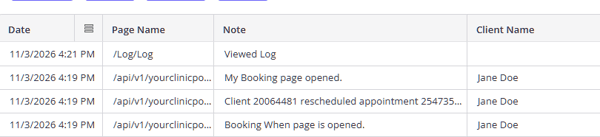
Pro Tip: These logs allow your practice to track when appointment changes occur and confirm that the update was made by the client through the Client Portal.
-
Payments: If the client had already paid for the original appointment, the payment automatically stays linked to the rescheduled appointment. No manual action is needed. There is no specific merge field to show payment transfer status in the notification because the payment remains on the same appointment record throughout the reschedule.
When Clients Can Reschedule Appointments
Clients can reschedule their appointments from the Client Portal when the following conditions are met:
-
The Reschedule Policy setting is enabled in your Client Portal settings
-
The appointment is still upcoming and active
-
The appointment is within your reschedule policy time window
-
The appointment has a valid service, practitioner, and location configured
-
The service is available on the Client Portal
- The appointment is NOT a group appointment
- The appointment is linked to a Session Pack that has a service available for online booking
If any of these conditions are not met, the reschedule option will be unavailable in the Client Portal.
When Clients Cannot Reschedule Appointments
There are several situations where the Reschedule option will not be available to clients in the Client Portal.
Clients will not be able to reschedule when:
-
The appointment has already been cancelled, rescheduled, or marked as a no-show
-
The appointment is a group appointment
-
The appointment does not have a service assigned
-
The service is not available for booking on the Client Portal
- The appointment is associated with a Session Pack that does not have a linked service (e.g., it is linked to a product or has no linked item).
- The service linked to the Session Pack is not enabled/available for online bookings
-
The appointment is past the rescheduling cut-off time defined in your Reschedule Policy
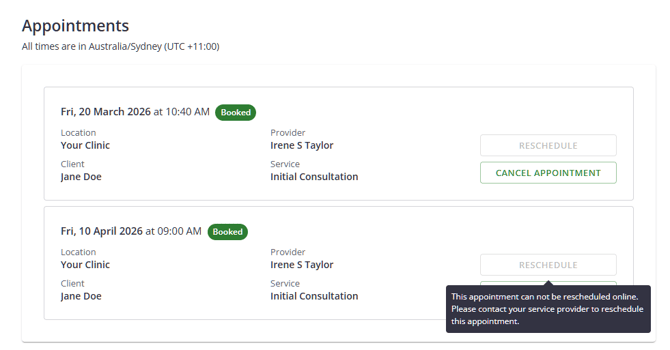
In some cases, the Reschedule button may appear but be disabled, with a hover message asking the client to contact the practice directly.
What Clients See If They Cannot Reschedule
If an appointment cannot be rescheduled online, the Client Portal may show a disabled Reschedule button.
When this happens, clients will see a message such as:
-
“This appointment cannot be rescheduled online. Please contact your service provider to reschedule this appointment.” - This means a service linked to this appointment is not available for online bookings, or the appointment is associated with a Session Pack that does not have a linked service.
-
“This appointment can’t be rescheduled online due to the rescheduling policy. Please contact your service provider for assistance.” - This means the start time of this appointment is outside of your Reschedule Policy setting.
This helps guide clients to contact your practice if the change cannot be made through the portal.
Frequently Asked Questions
❓ Can practitioners or prescribers use the Client Portal to self-book or reschedule appointments?
No. The Client Portal appointment workflow is designed for clients, connected contacts, and members of shared profiles. When a person logs in through the portal, the appointments they can book or reschedule are based on their client/contact access, not on a practitioner or prescriber role.
For practitioner-managed changes, update the appointment from the Zanda calendar instead. Open the appointment, go to the When & Where section, change the date, time, location, or practitioner as needed, and click Save.
Related Articles
- Setting Up Online Bookings on Client Portal - Configure online booking settings, including the Reschedule Policy.
- Allowing Contacts to Book on Behalf of Clients - Give connected contacts access to book appointments for clients through the Client Portal.
- Creating, Editing and Deleting a Client Appointment - Manage appointment changes directly from the Zanda calendar.