%20-%20120%20x%2044.svg)
Using AI for note-taking can feel like a big change, especially when clinical documentation is such an important part of your work.
BizzyAI: Scribe is designed to support your note-taking workflow, not replace your professional judgment. You stay in control of the final note, while BizzyAI: Scribe helps reduce the admin pressure around capturing, organizing, and drafting session notes.
This guide is designed to help you take a gentle first step. You do not need to use BizzyAI: Scribe for every appointment right away. Start with one session, review the note carefully, and build confidence from there.
💡 Tip: If you are looking for detailed setup instructions, start with our main guide: BizzyAI: Scribe & BizzyAI: Refine for Notes
In this article:
- Why Start Small With BizzyAI: Scribe
- Choose Your First Session
- Explain BizzyAI: Scribe to Clients
- Stay In Control Of The Final Note
- Use Your Existing Note Templates
- Try The First Three-Session Approach
- Frequently Asked Questions
- Pricing Information
- Related Articles
Why Start Small With BizzyAI: Scribe
You do not need to change your whole note-taking workflow in one day.
Many practitioners find it easier to begin with one appointment, see how the note is generated, and then decide where BizzyAI: Scribe fits naturally into their day.
Starting small helps you:
- Get familiar with the workflow before using it more widely
- Understand how BizzyAI: Scribe works with your usual note style
- Build confidence reviewing and editing AI-assisted notes
- Decide which appointment types are the best fit
- Reduce documentation time without feeling rushed into a new process
As Chiropractor Kathryn T. shared:
“BizzyAI: Scribe hasn’t changed how I practice. It’s helped me hold on to why I do this work. Documentation still matters and oversight stays with me, but the admin no longer takes centre stage.”
Choose Your First Session
For your first time using BizzyAI: Scribe, choose a session where you feel comfortable testing the workflow.
Good first options may include:
- A follow-up appointment
- A lower-complexity session
- A session where you already use a clear note template
- A client you have an established relationship with
- A session where you are comfortable explaining the use of Scribe
You may prefer not to start with your most complex clinical scenario. This helps you focus on learning the workflow instead of managing a difficult note at the same time.
Explain BizzyAI: Scribe to Clients
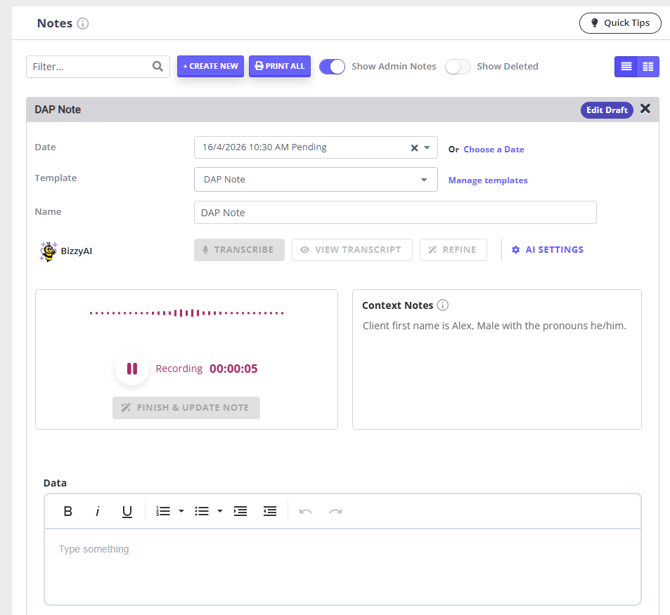
Some practitioners feel unsure about how to introduce AI-assisted note-taking to clients. A short, clear explanation can help clients understand what you are using and why. Follow your practice’s usual consent, privacy, and documentation requirements when introducing Scribe to clients.
Here is a simple example you can adapt:
“I use a secure note-taking tool in Zanda to help capture key points from our session. I’ll review and edit the note myself before it becomes part of your record. It helps me stay more present during the session while keeping your documentation accurate.”
You can adjust this explanation to match your profession, tone, and consent process.
For example:
“This tool helps prepare a draft of my session note, but I review everything myself before saving it.”
Or:
“I use Scribe so I can focus more fully on our conversation instead of typing detailed notes during the session.”
💡 For detailed instructions on how you can obtain and record clients' consent for use of AI Scribe tool for note taking, see this guide: How to Collect Clients' Consent for Using Zanda AI Scribe Tool
Stay In Control Of The Final Note
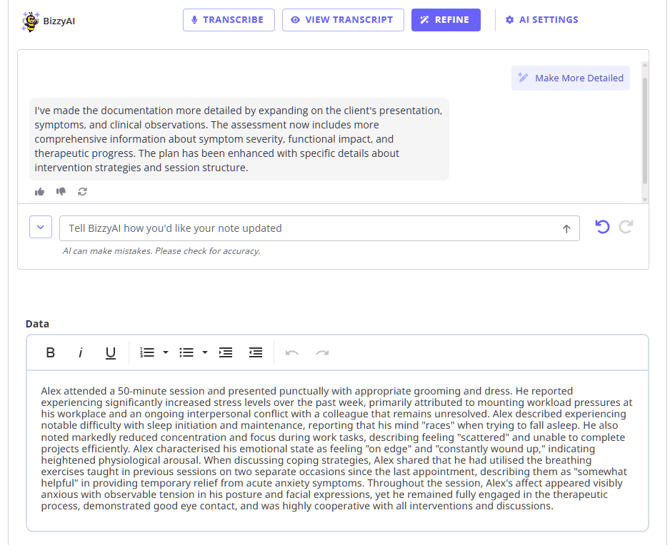
BizzyAI: Scribe helps create a draft note, but you remain responsible for reviewing and finalizing it.
Before saving the note, take time to check:
- The key details are accurate
- The note reflects the session appropriately
- The language matches your professional style
- Any irrelevant or unnecessary details have been removed
- The final note meets your documentation requirements
💡 Use BizzyAI: Refine to make the edits to the note but choosing the preset prompts or typing in your own imstructions.
Think of BizzyAI: Scribe and Refine as a documentation assistant. It can help reduce the time and mental load of note-taking, while you keep clinical oversight.
Use Your Existing Note Templates
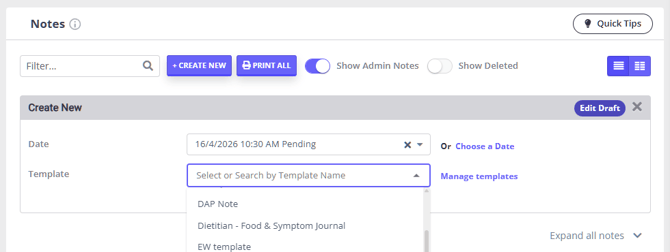
If you already use note templates in Zanda, Scribe can help support a more familiar workflow.
Starting with your existing templates may make the note easier to review because the structure already matches how you prefer to document sessions.
This can be helpful if you want to:
- Keep your notes consistent
- Follow a preferred clinical format
- Reduce editing time
- Help Scribe produce notes closer to your usual style
As Chiropractor Kathryn T. explained:
“BizzyAI works from my templates, not the other way around. As I refine them, the notes adapt to reflect that even within a specialised approach, it feels seamless.”
Try The First Three-Session Approach
If you are not sure how to start, try using BizzyAI: Scribe across three sessions before deciding how you want to use it long term.
✅ Session one: Test the workflow
-
Choose a simple appointment and focus on understanding how BizzyAI: Scribe works.
-
After the session, review the note carefully. Make any edits you need and notice what worked well.
✅ Session two: Use your preferred structure
-
Try BizzyAI: Scribe with one of your usual note templates or formats.
-
Compare the generated note with the way you normally write. Look for small adjustments that could make the note easier to review next time.
✅ Session three: Decide where it fits
-
Use BizzyAI: Scribe again and pay attention to the overall workflow.
-
Ask yourself:
-
Did it reduce the time I spent writing notes?
-
Did it help me stay more present during the session?
-
Was the note easy to review and edit?
-
Which appointment types would be a good fit for BizzyAI: Scribe?
-
Would I use this for live sessions, post-session dictation, or both?
-
✍️ By the third session, you may have a clearer sense of how Scribe can support your daily workflow.
Frequently Asked Questions
Will I lose control of my notes?
No. You review and edit the note before it becomes part of your clinical record. BizzyAI: Scribe helps prepare the draft, but you decide what is saved.
Do I need to use Scribe for every appointment?
No. You can start with one session and gradually expand from there. Some practitioners may use it for most appointments, while others may use it only for certain session types.
What if my client feels unsure about AI note-taking?
A clear explanation can help. Let clients know why you are using BizzyAI: Scribe, how it supports your focus during the session, and that you review the final note yourself.
What if the session is complex or non-linear?
Many client conversations do not happen in a neat order. BizzyAI: Scribe can help organize key points into a structured note, but you should still review the final version to make sure it reflects the session accurately.
What if the note does not sound like me?
You can edit the note before saving it. Using your existing note templates may also help the output better match your preferred documentation style.
Is it worth trying for just one session?
Yes. One session is often enough to understand the workflow and see whether Scribe could help reduce your note-taking load. Small time savings can add up across a full week of appointments.
I don't see BizzyAI: Scribe available in my clients' notes. How do I access it?
If you don't see this feature available in your clients notes, it means that it is disabled in your Zanda account. Click on your user profile button at the top right, select Your Accounts > Optional Add-Ons, and enable AI Features and AI Scribe toggles. * You need to be an account owner/master user or a user with the 'Setup and Configure Zanda' permission to enable BizzyAI in your account.
Pricing Information
- BizzyAI: Refine is free to use with all subscription plans.
- Pricing for BizzyAI: Scribe will be based on your billing currency as follows:
- $1 USD / transcription hour
- $1 AUD +GST/ transcription hour
- £1 GBP / transcription hour
- €1 EUR / transcription hour
- $1 NZD / transcription hour
- R20 ZAR/ transcription hour
- The minimum billing duration for BizzyAI: Scribe will be 1 minute. The duration will be charged based on your total minute usage per month, at the rate of $1/hour. You can calculate the price based on your minute usage using the following calculation: 1 / 60 * minutes usage. For example, for 20 minutes it would be calculated as 1/60*20 = $0.33.