%20-%20120%20x%2044.svg)
In Zanda, a third party profile is a special profile type used to represent an organisation, company, or individual who is responsible for paying invoices on behalf of your clients. Third party profiles are separate from client profiles—they exist to model real-world billing relationships, such as when an employer pays for an employee's sessions, an insurer covers a client's appointments, or an NDIS (AUS-only) plan manager funds services.
Third party profiles are a core part of Zanda's flexible billing system. Once created, a third party can be assigned as the default payer for all of a client's invoices, or as the payer for individual invoices—giving your practice full control over who receives invoices and payments.
In this article:
- What is a Third Party Profile?
- Common Use Cases
- Creating a Third Party Profile
- Navigating a Third Party Profile
- Billing Setup Options
- Finding a Third Party Profile
- Adding a Third Party as a Contact
- Archiving and Deleting Third Party Profiles
- Exporting Third Party Data
- Frequently Asked Questions
- Related Articles
What is a third party profile?
A third party profile is a profile record in Zanda with the Third Party role enabled. It functions similarly to a client profile in terms of the information it can store—name, contact details, business address, billing preferences, and custom fields—but its primary purpose is to act as a payer rather than a service recipient.
Third party profiles are distinct from:
- Client profiles – people who receive your services
- Contact profiles – people linked to a client for communication or booking purposes
- Referrer profiles – practitioners or businesses who refer clients to your practice
A single profile in Zanda can hold multiple roles at once. For example, a third party profile can also be enabled as a Contact, allowing it to appear in a client's contact list and receive appointment reminders on the client's behalf.
💡 Note: The Client Profile Number (the number shown in brackets next to the profile name) is system-wide and sequential across all profile types. Adding a third party profile increments this counter just like adding a client would.
Common use cases
Third party profiles are useful wherever the person receiving services is not the same person paying for them. Common scenarios include:
- Employers paying for employee health or wellbeing sessions
- Insurance companies or private health funds covering client appointments
- NDIS plan managers funding services for NDIS participants (AU)
- Government agencies or funding bodies paying on behalf of clients
- Corporate clients booking services for multiple individuals and receiving consolidated invoices
- Parents or guardians paying for a child's appointments where they are not the service recipient
In each of these cases, creating a dedicated third party profile keeps your billing accurate, your invoices correctly addressed, and your reporting clean—without mixing payer and client information.
Creating a third party profile
Before you can bill a third party, you need to create their profile in your account.
-
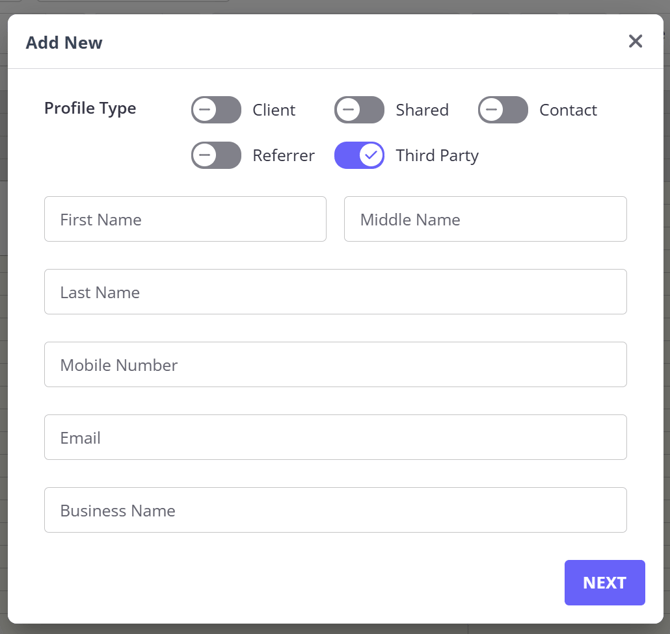
Navigate to People > Add in the left-hand menu of your dashboard. Alternatively, click the ➕ icon in the top panel and select Client.
-
Toggle the switch labelled Third Party to enable the Third Party role for this profile.
-
Enter the profile details:
-
First name and last name of the contact person at the organisation (if known)
-
Business name of the organisation (company, insurer, agency, etc.)
-
Mobile number and email address
💡 Tip: If you don't have a specific contact person's name, you can enter the business name in the first and last name fields. The business name will be used as the primary display name wherever this profile appears throughout Zanda.
-
-
Click Next. The new third party profile is created and you are taken to their profile page, where you can add further details and configure billing settings.
Navigating a third party profile
A third party profile page has several sections accessible from the navigation within the profile.
Profile
The Profile section stores the core details for the third party:
- Details – name, contact information (mobile, email, work phone, fax), business address, suburb, postcode, and any other general information. This is also where the Custom Profile Fields section appears if your account has active fields tagged for third party profiles.
- Contacts – any client profiles or other parties that have been linked to this third party.
Billing
The Billing section is where all financial interactions with the third party are managed:
- Billing Setup – configure how invoices sent to this third party are generated (see Billing setup options below).
- Invoices – view all invoices billed to this third party, including the associated client, practitioner, appointment date, and payment status. Use the print or export options to download the list as PDF, CSV, or Excel.
- Payments – view and record payments received from this third party. Create a new payment and allocate it to one or more unpaid invoices in a single step.
- Statements – generate and view statements billed to this third party, consolidating multiple invoices into a single document.
Admin
The Admin section allows you to manage the profile's roles, settings, and lifecycle:
- Manage – enable or disable profile roles (Third Party, Contact, etc.), set alert notes, manage subscription and communication preferences, and archive or delete the profile.
- Admin Notes – internal notes visible to your team only.
- Admin Files – non-clinical documents relevant to this third party (for example, a signed contract or service agreement).
Billing setup options
Within a third party profile, navigate to Billing > Billing Setup to configure invoice settings that apply automatically to all invoices billed to this third party.
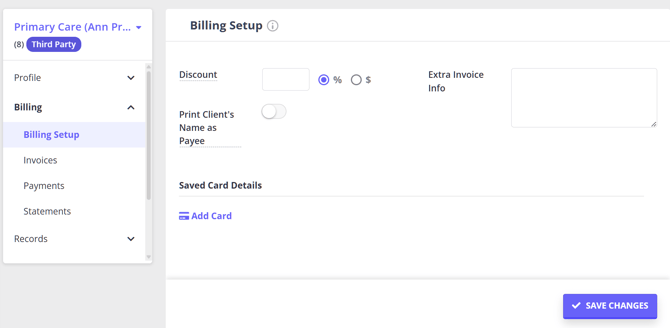
- Discount – set a percentage (%) or fixed dollar ($) discount to be applied automatically to every invoice billed to this third party. Useful when a negotiated rate has been agreed with an insurer or employer.
- Print Client's Name as Payee – when enabled, the client's name appears in the "Invoice to" section of invoices and statements, rather than the third party's details. This is particularly relevant for Australian practices working with NDIS plan managers.
- Extra Invoice Info – custom text added to all invoices and statements billed
to this third party (for example, a purchase order number, contract reference,
or provider number).- Note: this field applies to the third party as payer.
If you also need client-specific information (such as the client's home address) to appear on the invoice, add it in the Extra Invoice Info field on the
client's profile under Client Profile > Billing > Billing Setup instead.
- Note: this field applies to the third party as payer.
- Saved Card Details – if you use the Stripe integration, you can securely store the third party's card details here for use in future card-not-present or online payment transactions.
Click Save Changes to apply any updates. Changes to discount settings apply to invoices generated after the save; they do not retroactively alter existing invoices.
Finding a third party profile
You can find a third party profile using the Quick Search bar at the top of your Zanda dashboard. Type the third party's name or business name and select their profile from the search results.
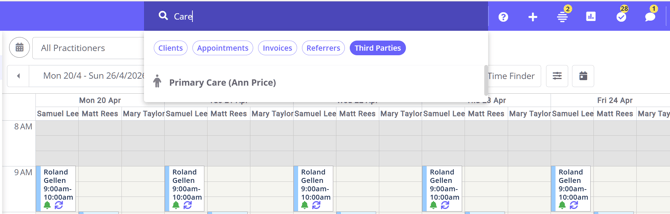
💡 Tip: Third party profiles display in search results and invoice dropdown menus in the format Business Name (Contact Name) when both are present—making them easy to identify at a glance.
You can also view invoices across all third parties from Billing > Invoices in the main navigation, using the Third Party filter to narrow results to a specific organisation or to all third party invoices at once.
Adding a third party as a contact
In some situations you may want a third party to also act as a contact for one or more clients—for example, so they appear in the client's contact list, receive appointment reminders, or can book appointments on behalf of the client via the client portal.
To enable the Contact role on a third party profile:
- Open the third party profile and navigate to Admin > Manage.
- Enable the Contact role toggle at the top of the page alongside the existing Third Party role.
- Click Save Changes.
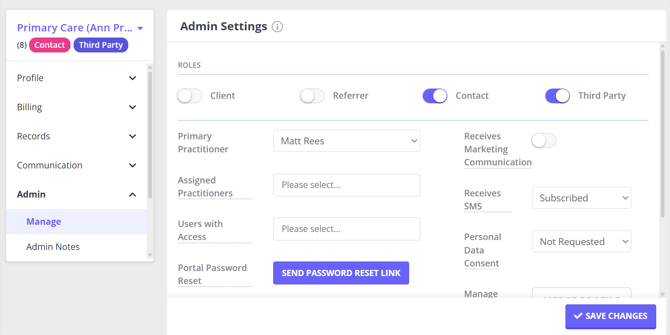
Once the Contact role is enabled, this profile can be added to any client's Profile > Contacts section. From there you can configure whether the third party contact can:
- Receive appointment reminders for the client
- Book appointments on behalf of the client via the client portal
- Receive automation communication messages (e.g. recall reminders, invoice reminders)
For full instructions on adding contacts to client profiles, see Adding Client Contacts Manually.
Archiving and deleting third party profiles
When a third party relationship ends—for example, when an insurer no longer covers a client—you can archive or delete their profile.
Archiving a third party profile
Archiving is the recommended option in most cases. An archived third party profile is removed from active lists and dropdown menus, but all data and invoice history remain intact in your account for reporting and record-keeping purposes.
To archive a third party profile:
- Open the third party profile.
- Navigate to Admin > Manage.
- Click the Archive button and confirm when prompted.
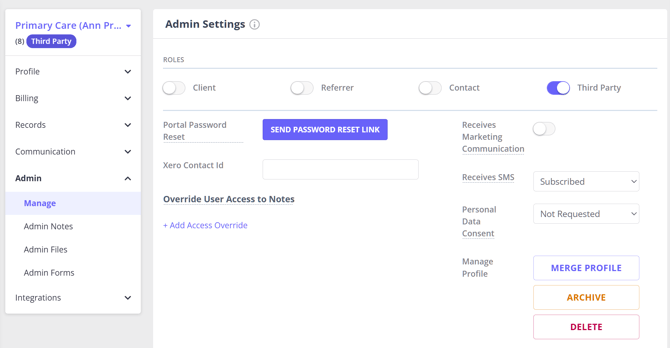
💡 Note: Archived third party profiles continue to appear on invoices and statements that were previously assigned to them. They remain visible in the billing history of associated clients. They simply no longer appear in search results or dropdown menus when creating new invoices.
Deleting a third party profile
Deletion permanently removes the profile and its associated data. The system processes deletion requests after a 48-hour grace period, during which you can restore the profile if you change your mind.
⚠️ Important: Before deleting a third party profile, ensure there are no outstanding invoices or unallocated payments associated with it, and export any records you may need for your own files.
To delete a third party profile:
- Open the third party profile.
- Navigate to Admin > Manage.
- Click the Delete button and follow the prompts.
For more detail on how archiving and deletion work across all profile types, see Archiving, Deleting and Restoring Clients.
Exporting third party data
You can export a full list of your third party profiles and their details from Tools > Data Export. Select Third Parties as the profile type and run the export to download a file containing contact details, billing information, and any active Custom Profile Fields tagged for third party profiles.
This is useful for:
- Maintaining an up-to-date record of all the payers your practice works with
- Auditing billing relationships and contracted discount arrangements
- Performing bulk updates to third party profile information
For more on data exports, see Exporting Your Data.
Frequently Asked Questions
❓ Why can't I see Print Client's Name as Payee on a third party profile?
The Print Client's Name as Payee setting appears in Billing > Billing Setup when the profile is being managed as a third party billing profile. If the same profile also has the Contact role enabled, Zanda shows the contact-style billing setup options instead, so the Print Client's Name as Payee switch is not shown.
For billing where a plan manager or other payer needs the client's name in the Invoice to section, keep the payer set up as a third party profile and enable Print Client's Name as Payee from that profile's Billing > Billing Setup page. Use a separate contact profile or contact relationship for appointment reminders, client portal booking on behalf of the client, and other contact workflows.
Related articles
- Invoicing to a Third Party – how to assign third parties as payers for client invoices and record third party payments
- Creating Statements Billed to Third Parties – how to generate consolidated statements for third party payers
- Adding Client Contacts Manually – how to add contacts to client profiles, including enabling the Contact role on a third party
- Custom Profile Fields – how to create and manage custom fields on third party profiles
- Exporting Your Data – how to export your third party profile data in bulk
- Archiving, Deleting and Restoring Clients – what happens when you archive or delete a profile