%20-%20120%20x%2044.svg)
The User Menu is your central hub for accessing personal settings, navigating between accounts, and managing account-level configurations. It is accessible from any page within your Zanda account.
To open the menu:
- Navigate to the top-right corner of the Zanda header.
- Click on your Zanda account name
- A drop down menu will appear, displaying options relevant to your specific access level and permissions.
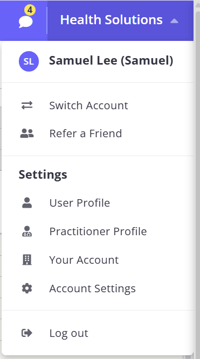
The available options may vary depending on your user role and account configuration.
If you have access to multiple Zanda accounts, the Switch Account option allows you to toggle between them quickly.
- Function: Displays a list of available linked Zanda accounts. Selecting one allows you access to that account without needing to log out.
- Requirement: You must be granted access to those linked accounts by their owners. See all details here.
Share Zanda with others through our referral program.
- Function: Opens a modal where you can copy your unique referral link or send invitations directly via socials, WhatsApp or email.
- Availability: Visible to eligible accounts (paid accounts active for more than 3 months).
This section contains links to various configuration areas:
- User Profile: Manage your personal settings for the currently logged-in user. Update your name, email, mobile number, change your password, and enable/disable Two-Factor Authentication (2FA).
- Practitioner Profile: Directly access the configuration settings for the practitioner linked to your user account. This includes updating personal details, managing availability, syncing calendars (Google, Outlook, Apple), configuring provider numbers, setting up online payments, adjusting other practitioner-specific settings, and more.
- Note: Requires the user to be linked to a practitioner and have the "Allow users to access their default practitioner profile" setting enabled. See more here.
- Your Account: The hub for subscription and billing management. View or update your Zanda subscription plans, manage credit cards, and view invoice history. You can also activate optional add-ons here.
- Note: Visible to Account Owners and users with "Setup and Configure Zanda" permission.
- Account Settings: A centralized dashboard for all practice-wide configurations. Access settings for Business Info, Locations, Users, Calendars, Communication Templates, Billing & Payments, and more.
- Note: Visible to Account Owners and users with "Setup and Configure Zanda" permission.
Securely ends your current session.
- Function: Signs you out of Zanda, clears session cookies, and redirects you to the login screen.