%20-%20120%20x%2044.svg)
In this article:
- Can I receive email notifications about activities in Stripe?
- What will show on my customers' credit card statements?
- What client data will be transferred from Zanda to Stripe?
- How do I receive my payment "Payouts"?
- How are integrated payments through Stripe different from a physical credit card terminal?
- Why do my clients see this error message "Live charges cannot be accepted" when they try to make a payment?
- What if a customer disputes a transaction?
- Can I use Tap to Pay on iPhone through Zanda?
- How can I securely collect and store my clients' credit card details?
- Are the security standards different for storing medical vs credit card information?
- How does Zanda store my client’s credit card data?
- Can I link my Zanda account with multiple Stripe accounts?
- Why am I Unable to Save Card Details?
- Why Is HSA/FSA Card Declined?
- Am I able to use one Stripe Account for multiple platforms?
- Are Stripe payments HIPAA Compliant?
- How can I pass Stripe transaction fees on to my clients?
- Can I generate invoices in different currencies using one Zanda account?
- What card payments are accepted with Stripe?
- Does Stripe in Zanda only accept credit cards?
- Can I offer Afterpay or another buy now, pay later option through Stripe?
- Does Stripe metadata include the invoice number?
- How do I clear a valid Stripe payment that is showing as an unallocated credit?
Can I receive email notifications about activities in Stripe?
You can set up email notifications in your Stripe account for various events, such as successful payments, disputes, and elevated risk payments. Team members can enable or disable notifications in their user settings. See this Stripe help article for detailed information and instructions.
What will show on my customers' credit card statements?
The business name you enter when setting up your Stripe account will be shown on your customer's statements. Zanda name will not appear anywhere.
What client data will be transferred from Zanda to Stripe?
When a client credit card details are saved for the first time, or when the first Stripe payment is processed for a client via their Zanda profile, a Stripe contact profile will be created automatically. Client full name, email address and Zanda profile number will be transferred to Stripe and saved in the relative Stripe contact profile.
How do I receive my payment "Payouts"?
Payments processed via your Stripe account (minus any transaction fees) will be paid directly to your nominated bank account by Stripe.
Zanda does not hold or have access to your money at any time.
Processed payments are transferred to your account based on Stripe's Payout guidelines which vary depending on your country. As an example in the USA and Australia, Payouts are typically made within two business days of the transaction. Full details of this can be found here.
How are integrated payments through Stripe different from a physical credit card terminal?
Stripe is a platform specifically designed to be able to legally, safely, and securely process credit card transactions in an online environment where the card is not (always) present.
Using our integration with Stripe will only incur a per-transaction fee, whereas physical credit card terminals will typically have a monthly rental charge plus per-transaction fees. Additionally, the contract for physical terminals specifies that only 'card present' transactions should be processed.
Manually processing credit cards via these terminals when the card is not present (i.e. the card is provided over the phone) is considered a violation of the contract and can result in penalties. With Zanda's integration with Stripe, you'll never have to worry about these issues again.
Why do my clients see this error message "Live charges cannot be accepted" when they try to make a payment?
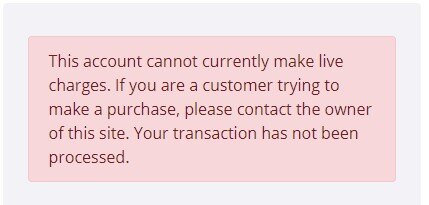
Log in to your Stripe account and see if perhaps the account is under review by Stripe. You should contact Stripe support too.
What if a customer disputes a transaction?
All disputes are handled through Stripe. Here is some information from Stripe's website on what to do once you’ve been notified of a dispute. You have a few options:
- If you have contact details for the customer, you can get in touch with them to understand the reason for the dispute. It’s possible (maybe even likely) that the customer simply did not recognise the transaction; contacting them can often help resolve the issue quickly. If the dispute is the result of a misunderstanding, the customer can ask their bank to withdraw the dispute. Even if your customer withdraws, it’s still important to provide evidence in the case.
- You can respond to the dispute. To do this, simply visit the dispute’s page (at the URL Stripe emails to you) and provide evidence appropriate for the dispute category. Stripe will guide you through the appropriate evidence to provide depending on the type of dispute. Stripe will also submit any information you can provide to your customer’s credit card company and keep you posted afterwards.
- You can accept the dispute — effectively agreeing to the bank’s refund of the transaction. You should always perform this action if you do not intend to respond and submit evidence.
Can I use Tap to Pay on iPhone through Zanda?
No. For in-person contactless payments, use the Stripe Dashboard mobile app or another Stripe-supported Tap to Pay workflow, then record the payment against the invoice in Zanda.
The Zanda Stripe integration processes card-not-present payments from the appointment panel, invoices, online payment links, the client portal, and saved card details. These workflows let you charge a card, securely store card details for future payments, and keep the payment record in the client or payee profile.
How can I securely collect and store my clients' credit card details?
- Send clients a Zanda online form with the ''Credit Card (Stripe)" linked profile field;
- Enter them directly via the Client Profile. (Zanda → Client Profile → Billing → Billing Setup → Add Credit Card); or
- Select ‘Securely Store Credit Card Details’ when processing a payment in your Zanda account; or
- Clients select ‘Securely Store Credit Card Details’ when they process a Stripe payment when booking online, or via an Invoice Pay Link. This option is enabled on the payment form by default.
Are the security standards different for storing medical vs credit card information?
Whilst the security and encryption methods used to secure credit card information vs medical information are very similar, they are implemented in different ways to meet different purposes. For example, medical records need to be encrypted once entered, and then unencrypted again anytime the practitioner wishes to review them.
However, under the PCI DSS credit card information can not be handled in this manner. Once a merchant enters credit card information the data needs to be encrypted and then not decrypted to be displayed again.
This means in most circumstances once entered, credit card information can not be made visible again to the merchant in a full and usable form. Instead, when the card is subsequently used, the established security protocols facilitate the communication of card information directly with the bank systems.
How does Zanda store my client’s credit card data?
To ensure compliance with the PCI DSS, when a card is entered into Zanda and is ‘stored for later use’ the card information is stored directly in your Stripe account. We simply store an ID and some partial card information to match to records in your Stripe account for subsequent transactions.
Hint 💡
You may be pleased to know that Stripe is certified as a PCI Service Provider – Level 1, which is the highest level of certification available as the Payment Card Industry Data Security Standard. You can read more about Stripe's security here.
Can I link my Zanda account with multiple Stripe accounts?
Yes, you can. You can connect your business default Stripe account to your Zanda account in User Menu > Account Settings > Payments > Stripe, and you can also allow each practitioner to connect with their own Stripe account via a Practitioner Profile > Online Payments. Practitioners can connect their own Stripe accounts even when no Business Default Stripe account is connected. You can find all the details here.
Why am I Unable to Save Card Details?
If a client's card is not saved after a Stripe payment, first check the payment workflow and the Stripe account used for the payment:
- Confirm that Securely Store Credit Card Details was selected when the payment was processed.
- If your Zanda account has multiple Stripe accounts connected, check which Stripe account the payment went to. Saved card details are stored in the Stripe account selected for that payment.
- Open the client, contact, or third party profile that was the invoice payee and check Billing > Billing Setup > Saved Card Details. For invoices with a third party or contact payee, the payment record and saved card details may be associated with the payee profile rather than the client profile.
- If the card still has not saved, contact the Zanda support team with the client or payee profile number, the invoice or payment date, and the Stripe account used so we can investigate the account-side record.
We have also come across reports where users received the following error notification when trying to save credit card details:

This issue was caused by the internet provider and users were able to save card details successfully when switching to an alternative internet provider/internet source.
Why Is HSA/FSA Card Declined?
Client credit cards can be declined for various reasons. You will see an error message that will provide the reason and error code. In most circumstances, the reason and the code would be self-explanatory, such as 'Insufficient Funds' or 'Card Not Activated'.
When it comes to HSA/FSA cards, they operate somewhat differently than the typical post-paid credit cards one might obtain from a bank. HSA and FSA cards are typically restricted to certain Merchant Category Codes (MCC) that correspond to healthcare-related expenses. If your merchant's MCC doesn't match the allowed categories, the transaction may be declined.
However, enabling an account to accept HSA or FSA payments does not guarantee a card will not be declined. Card issuers are still at liberty to authorize or decline any payment as they would with any other type of credit card. Please refer to this Stripe Support page for more detailed information.
Am I able to use one Stripe Account for multiple platforms?
Starting from July 2021, Stripe has begun to enforce a single platform connection policy: only one Platform (such as Zanda) can be connected to a Stripe account at any one time. This change ensures that in the rare case that a user interacts with two platforms, each platform’s activity is kept distinct in separate accounts.
Users that plan to use Stripe with multiple platforms can create individual accounts under the same Stripe user login to connect to different platforms. For more information, please click here.
Are Stripe payments HIPAA Compliant?
Although processing payments through a credit card processor can generate personally identifiable information, Health and Human Services (HHS) have stated that collecting payments is excluded explicitly from HIPAA mandates.
How can I pass Stripe transaction fees on to my clients?
Zanda allows you to automatically add a percentage-based card processing fee to client payments to cover Stripe transaction costs. You enable this feature account-wide in User Menu > Account Settings > Payments > Stripe by toggling on "Add Card Processing fee when taking Stripe payments" and entering your preferred percentage. This fee, along with an optional tax, is automatically calculated and added to the total for all card-not-present Stripe payments (client portal, payment links, and payments processed by staff in Zanda). Staff can manually waive the fee within the Zanda account, but clients cannot waive it when paying via the client portal or payment links.
Can I generate invoices in different currencies using one Zanda account?
Currently, Zanda does not support generating invoices in multiple currencies. Users can only invoice international clients in the local currency of their Zanda account. The client's bank will manage the conversion to their local currency, which may incur additional fees.
If you wish to change the currency of all invoices in your Zanda account, this can be done this way:
-
Go to User Menu > Account Settings > Practice > Business Info
-
Update the Locale setting to a new locale matching the new currency, for example from English (Australia) to English (United States)
-
Save the changes.
What card payments are accepted with Stripe?
Stripe supports several card brands, from large global networks like Visa and Mastercard to local networks like Cartes Bancaires in France or Interac in Canada.
When you integrate Stripe, you can begin accepting a diversity of card brands without any additional configurations, including:
- American Express
- China UnionPay (CUP)
- Discover & Diners Club
- eftpos Australia
- Japan Credit Bureau (JCB)
- Mastercard
- Visa
Some card brands require additional configuration, such as Cartes Bancaires and Interac. For more detailed information, navigate to this article on accepting card payments with Stripe.
Does Stripe in Zanda only accept credit cards?
No — the Stripe integration accepts both credit and debit cards. Any card brand Stripe supports (see "What card payments are accepted with Stripe?" above) can be used, whether it is a credit or a debit card.
Card payments are, however, the only payment method available through the Stripe integration. Apple Pay, Google Pay, other digital wallets, and bank transfers are unavailable on invoices, invoice payment links, and the Client Portal — even when these methods are enabled in your connected Stripe account, your clients always see the card payment form. To accept a payment made another way, process it outside Zanda and record it against the invoice with its own payment method, in the same way described for Afterpay below.
Can I offer Afterpay or another buy now, pay later option through Stripe?
The Zanda Stripe integration processes card payments only, so take Afterpay outside Zanda and record it against the invoice. Buy now, pay later options such as Afterpay are unavailable on invoices, invoice payment links and the Client Portal, even when Afterpay is enabled in your connected Stripe account — your clients see the card payment form in these workflows.
To offer Afterpay, process the payment outside Zanda using whatever Afterpay-enabled tool your practice uses, then record it against the invoice in Zanda:
- Take the Afterpay payment outside Zanda.
- Add a payment method named Afterpay in User Menu > Account Settings > Payments > Payment Methods (see Managing Payment Methods). You only need to do this once.
- Open the invoice, go to the Payments section, select Afterpay from the Method drop-down, enter the amount and date received, and click Save.
You can also record the payment from Billing > New Payment: search for the client or payee, fill in the date received, method, and amount, click Save, then select the invoices to allocate it to. See Taking Prepayments, Bulk Payments and Allocating to Invoices.
The payment then shows on the invoice and receipt with Afterpay as the method, so your records match what the client paid. You record each Afterpay payment this way, since it is processed outside Zanda.
Does Stripe metadata include the invoice number?
For invoice payments started from the Zanda clinic app, Stripe PaymentIntent metadata includes the invoice number under InvoiceNumber. This can help you identify which Zanda invoice a Stripe payment relates to when you review the payment in Stripe.
For invoice payments made through the Client Portal, the metadata uses InvoiceIds instead. This can include one or more invoice IDs when a client pays invoices online.
How do I clear a valid Stripe payment that is showing as an unallocated credit?
If the Stripe payment is legitimate and the money movement is correct, leave the original Stripe payment record in Zanda. Use an internal offset invoice to allocate the existing payment and add an equal negative adjustment payment, so the client balance nets to $0 without refunding or deleting the Stripe payment.
Use this workflow when a Stripe payment has imported correctly but remains unallocated and creates an incorrect credit on the client or payee profile:
- Open the client or payee profile and go to Billing > Invoices.
- Create an offset invoice that totals $0. For example, add one positive adjustment line and one matching negative adjustment line so the invoice total is $0.
- Open the offset invoice and go to the Payments section.
- Select the original Stripe payment from Use Existing Payment and save the invoice.
- Add another payment line using a non-Stripe adjustment or refund payment method.
- Enter the same amount as a negative number, add a note explaining the offset, and save the invoice.
- Check Billing > Payments to confirm the original Stripe payment no longer shows as unallocated and the offset invoice totals $0.
This adjustment is for Zanda billing records only. If you need to return money to the client, process the refund in Stripe first, then record the refund on the Zanda invoice.