%20-%20120%20x%2044.svg)
The text messaging panel not only provides you and your business an easy-to-use and central place to message your clients but also to be notified when a client responds to one of those messages, be it an automatic reminder or simply a happy birthday message.
We didn't need to reinvent the wheel here, so we've used a design that's similar to what most of you are likely already using on your smartphones.
Important
A dedicated Toll-Free Number (TFN) is required to send/receive SMS messages in the USA, Canada, Puerto Rico, Bahamas, Jamaica, Costa Rica, and Barbados. For more details, please click here.
In this article:
- Overview
- Filtering the conversation list
- Sending text messages
- Where do new client messages appear? Why don't I see an alert?
- Frequently Asked Questions
Overview
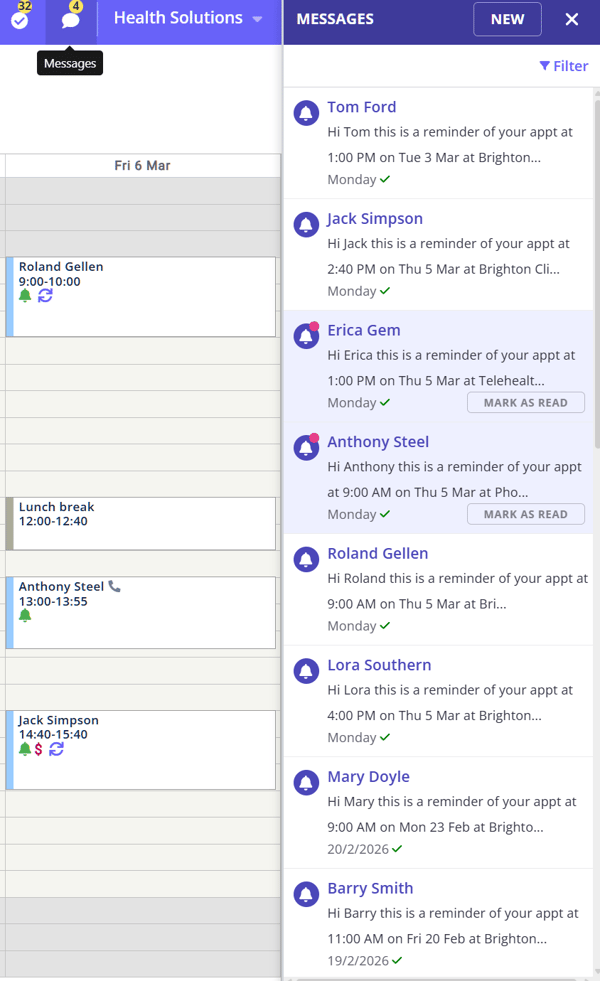
You can open the text messaging panel using the messaging icon from a variety of sources, such as
- the messaging icon in the header bar,
- via the client's mega menu,
- from the appointment hover card,
- from the client's appointment panel header.
Important notes:
-
The messaging panel is not linked to the appointment panel. When you open the messaging panel from a client's context (via the mega menu, appointment hover card, or appointment panel), it shows that client's message history.
-
However, it does not automatically switch contexts based on the client or appointment being viewed. To avoid confusion, we recommend closing the messaging panel after messaging a client and reopening it via the other client's appointment panel (or by searching for the client by name at the top of the messaging panel) to ensure you're viewing the correct client's messages each time.
- If you see an 'unread messages' alert on the messaging panel icon, but you are sure you've read all your new messages, try these troubleshooting steps:
- Clear your browser cache and then refresh the page
- Update your browser to the latest version.
- If the opposite happens—a client's message arrived but you don't see an alert—see the 'Where do new client messages appear? Why don't I see an alert?' section below.
Filtering the conversation list
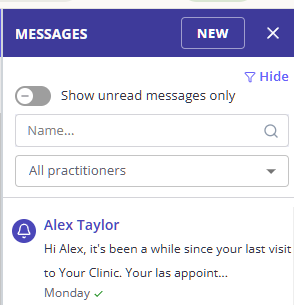
The tools at the top of the messaging panel help you find the right conversation quickly:
- Show unread messages only—turn on this toggle to narrow the conversation list to conversations with unread client replies.
- Client search—type a client's name to find their conversation in the list.
- Practitioner filter—select a practitioner from this dropdown to view only their conversations. It is set to All practitioners by default.
Sending Text Messages
Sending a message is super simple, you mightn't even need steps to figure it out, but just for good measure here they are.
- Open the Text Message Panel by clicking the speech-bubble icon.
- Click New.
- Search for the client that you would like to send a message to and select them.
- Either type a message on the spot or select a template from the drop-down list.
- Click Send Message to deliver it.
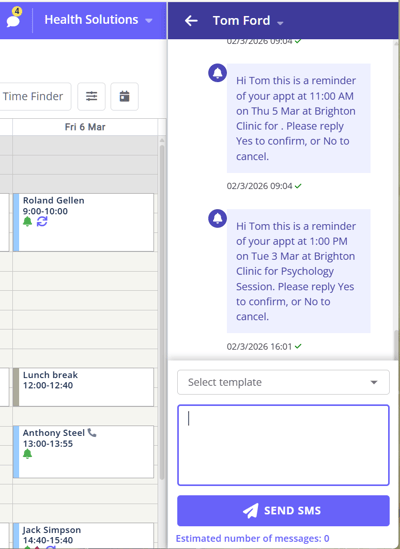
And that's it! Simple as that. If the client replies you will see a notification appear on the speech icon to let you know (this happens live: you don't even need to refresh). You can then read and reply to the response by selecting the conversation in the panel.
Note: When a message is sent from the Messaging Panel, Zanda automatically creates a corresponding entry in the user activity logs found in Tools > Log File. The log will record the event with the message “SMS queued for sending from the messaging panel” along with the SMS content and the details of Zanda user who sent this message.
This provides an auditable record of communication activity and helps you track message activity if troubleshooting or verification is required.
Where do new client messages appear? Why don't I see an alert?
The in-app alert for new client messages is the yellow unread-count badge on the Messages (speech-bubble) icon in the header bar, visible on every page. It updates live when a client replies. This badge is the place to look: new client SMS replies do not appear as notifications on your dashboard or in the Practice Hive.
If a client's message arrived but you don't see the badge on your main page, the usual causes are:
- Someone already opened the conversation. The unread alert is shared across your practice: as soon as anyone opens the conversation—from any device, including a phone—the alert clears for everyone. If you (or a colleague) read the message on a phone first, your desktop will not show an alert for it. The message itself is still stored in the conversation and in Communication > Activity with the status Received.
- Your user's access level. The badge only counts messages for clients your user can access. Users with an Administrative access level who don't have the Access all Client Communications permission won't see the alert at all. Other users see alerts only for their own or assigned clients. To see alerts for every client, a user needs both the See all clients profile access option and the Access all Client Communications permission. If a colleague sees an alert you don't, compare your permissions and client assignments.
- The alert covers SMS messages only. Client replies to emails sent from Zanda go to your email inbox, not into Zanda, and never trigger the alert.
- The live connection dropped. The badge updates live over a background connection; if your browser tab has been open a long time, refresh the page to bring the unread count up to date.
To make sure you never miss a client message, you can also have every SMS reply forwarded to your own mobile—see Forwarding SMS Replies from Client in Communicating with Clients.
Frequently Asked Questions
❓ Can I hide sent messages and see only received messages (an inbox view)?
To focus on new client replies, turn on Show unread messages only—it narrows the list to conversations with client messages you haven't read yet. Each conversation itself shows sent and received messages together, like a phone messaging app; there is no filter that displays received messages only. If an inbox-only view would help your practice, you can submit the suggestion via the Customer Ideas Portal.