%20-%20120%20x%2044.svg)
Overview
When a practitioner works remotely from a different timezone (for example, traveling interstate or overseas), it’s important to manage availability correctly to avoid booking errors.
Zanda uses a single, account-wide timezone, so a simple, reliable approach ensures your calendar, availability, and reminders continue working as expected.
In this article
- How Zanda handles timezones
- What not to do (and why)
- Show your travel timezone on the calendar
- Adjust your availability for your new working hours
- Worked example
- What your clients will see
- Returning to your normal setup
- Frequently asked questions
- Related articles
How Zanda handles timezones
Zanda operates on a single business timezone for the entire account.
Path:
User Menu → Account Settings → Practice → Business Info → Time Zone
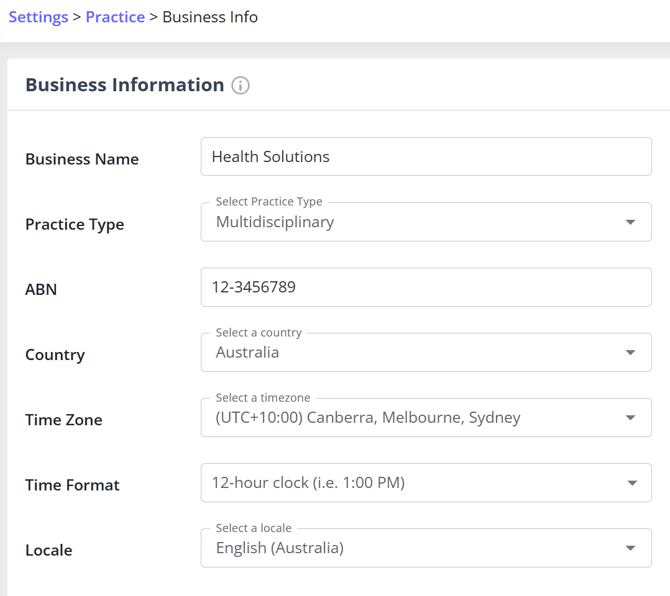
This timezone is used for:
- Appointments
- Availability
- Reminders
- Reports
You can also set an Additional Time Zone in your user profile.
This displays a second clock on your calendar—but does not change how bookings are stored.
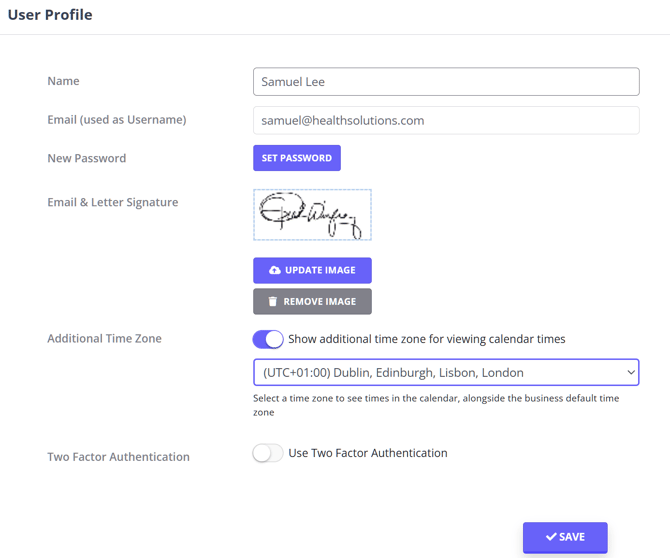
Note: The additional timezone is for display only. It does not affect other users or client bookings.
What not to do
Important: Do not change your account’s business timezone when traveling.
Changing the account timezone affects the entire system:
- Existing appointments shift times
- Team members see incorrect schedules
- Reminders may send at the wrong time
- Availability blocks may open unintended slots
Even if you’re the only practitioner, your existing bookings can still be disrupted.
Best practice: Only change the account timezone if your practice permanently relocates.
Step 1: Show your travel timezone on the calendar
Add your travel timezone so you can easily read both timezones side by side.
Steps:
- Go to User Menu → User Profile
- Find Additional Time Zone
- Enable the toggle
- Select your travel timezone
- Click Save
Your calendar will now display:
- Travel timezone (left)
- Business timezone (next to it)
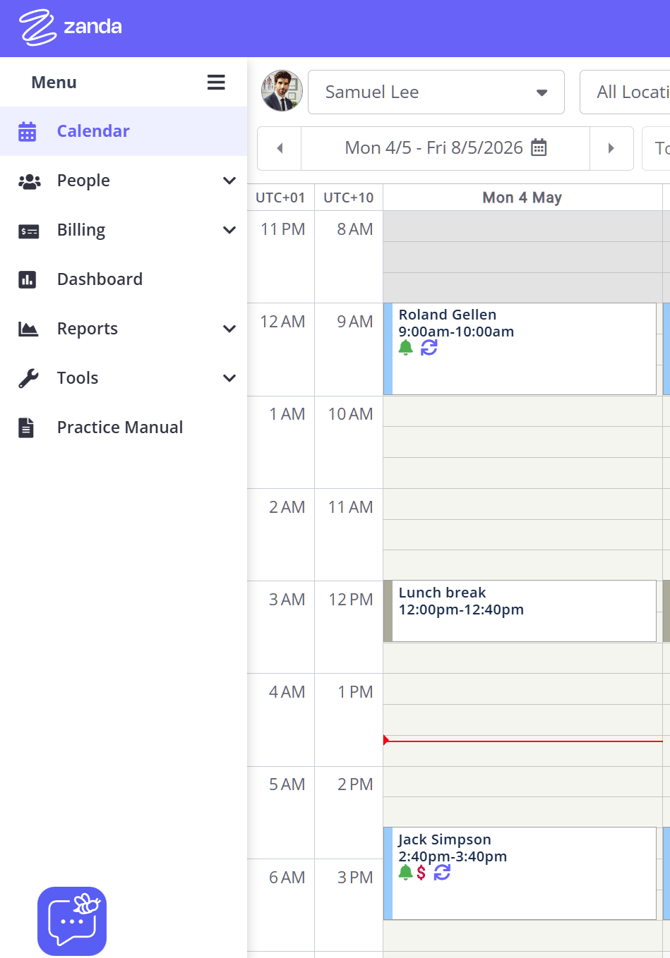
Tip: This removes the need to mentally convert times when booking appointments.
Step 2: Adjust your availability
Availability is always stored in the business timezone, so you’ll need to convert your working hours.
How to calculate your hours
- Decide your working hours in your travel timezone
- Convert them into the business timezone
- Enter those converted hours into an Availability Override
Add an Availability Override
Steps:
- Go to User Menu → Account Settings → Team → Availability
- Select your practitioner profile
- Click Add New Availability Override
- Set your regular work hours in local time zone - Unavailable
- Click Add New Availability Override again
- Availability: Available
- Date range (travel period)
- Hours (in business timezone)
- Add a description (e.g., Working from London — adjusted hours)
- Click Save
Notes:
-
Overrides take priority over your regular schedule and won’t permanently change it.
-
If your hours cross midnight, create two entries—one for each day.
Worked example
Setup:
- Business timezone: AEST (UTC+10)
- Travel timezone: London (BST, UTC+1)
- Desired hours: 9am–5pm London
Converted:
- 9am BST → 6pm AEST
- 5pm BST → 2am AEST (next day)
What to do:
- Set Additional Time Zone to London
- Create Availability Override:
- 6:00pm (day one)–2:00am (next day)
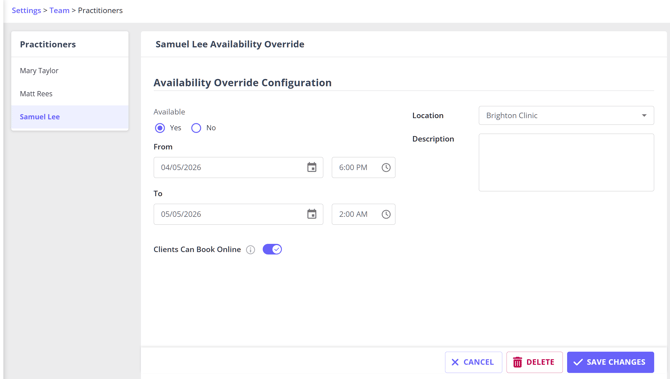
This ensures:
- Your availability matches your real working hours
- Clients book correctly in their timezone
What your clients will see
- Appointment reminders send in the client’s timezone (if set)
- Client Portal shows availability in the client’s local time
- No visible indication of your travel location
The booking experience remains consistent and seamless.
When you return
To restore your normal setup:
- Remove or let your Availability Override expire
- Disable or reset your Additional Time Zone
- Review upcoming appointments for confirmation
Tip: Because everything stayed in the business timezone, your bookings will remain consistent.
Frequently asked questions
Can I change the account timezone temporarily?
No. This can cause:
- Shifted appointments
- Incorrect reminders
- Team confusion
Use Availability Overrides and Additional Time Zone instead.
What about daylight saving changes?
If either timezone changes due to daylight saving:
- The time difference may shift by one hour
- Review and adjust your availability if needed
I’m the only practitioner—does this still apply?
Yes. Your bookings and reminders still rely on the account timezone, so the same approach is recommended.
Will online bookings still work?
Yes. As long as your Availability Override is set correctly:
- Clients will see accurate availability
- Booking times will align with your working hours