%20-%20120%20x%2044.svg)
If your practice is fee-free (for example, an NGO, community health service, or government-funded program), you may need to use Zanda invoicing features for billing. However, Zanda invoicing system is also your most reliable tool for recording and reporting on the services you deliver.
By creating $0 invoices at each appointment, you can use Zanda reporting tools to see exactly which services were provided, to how many clients, by which practitioners, and over any date range — with no financial data involved.
In this article- Why use $0 invoices for service recording
- Setting up your services at $0
- Creating a $0 invoice at each appointment
- Reporting on services delivered
- Finding appointments with no service recorded
- Keeping your team consistent
- Frequently Asked Questions
- Related Articles
Why use $0 invoices for service recording
Report > Financial > Sales Report tracks all invoiced items — including those invoiced at $0. This makes it one of the most practical tools for recording service delivery in a fee-free context.
Without an invoice, an appointment has no service record and will not appear in service-based reports. Creating a $0 invoice is effectively the equivalent of recording that a service was delivered at that appointment.
This approach gives you:
- A full record of which services were delivered and when
- Practitioner-level and location-level breakdowns
- Date-range filtering for funding periods, audits, or internal reviews
- The ability to identify appointments where no service was recorded
💡 Note: If all invoice amounts are set to $0, your reports will not contain meaningful financial data. The Sales Report tracks invoiced services, not payments received.
Setting up your services at $0
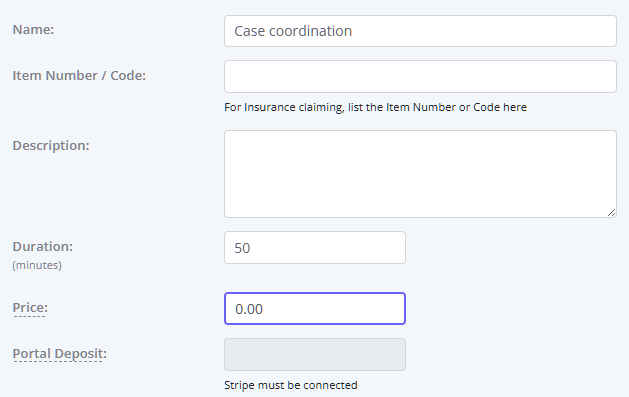
Before creating $0 invoices, make sure your services are configured with a price of $0.
- Go to User Menu > Account Settings > Billing > Services.
- Open an existing service or click + Add Service.
- Fill in all applicable fields, such as name of service, its description and duration.
- Set the Price field to $0.00.
- Click Save.
Repeat this for each service type your practice delivers, such as:
- Individual counselling
- Group sessions
- Intake assessments
- Case coordination
Creating a $0 invoice at each appointment
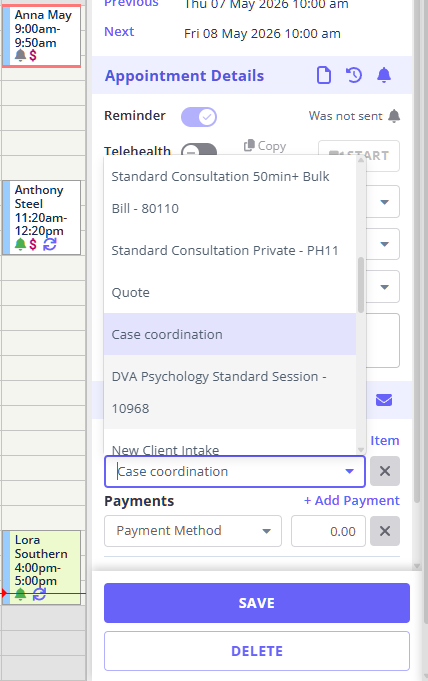
An invoice is created automatically when a service is selected on an appointment. The easiest way to ensure every appointment is recorded correctly is to select the service when booking or completing the appointment.
Option 1: Select the service when booking the appointment
- Open the calendar and click + New Appointment (or open an existing appointment slot).
- In the appointment panel, locate the Service field.
- Select the appropriate service.
- Save the appointment.
A $0 invoice will automatically be created and linked to the appointment.
Option 2: Add the service after the appointment
- Open the appointment from the calendar.
- Locate the Invoice section at the bottom of the appointment panel.
- Click Edit Invoice (or click the invoice amount link).
- Click Add Item and select the relevant service.
- Save the invoice.
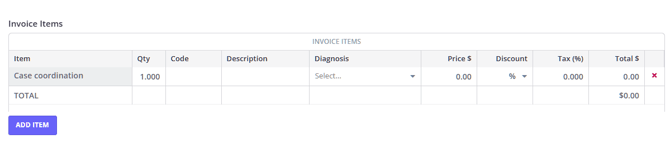
💡 Tip: You can add multiple services to the same invoice if more than one service was delivered during the appointment. Click Add Item again for each additional service.
Reporting on services delivered
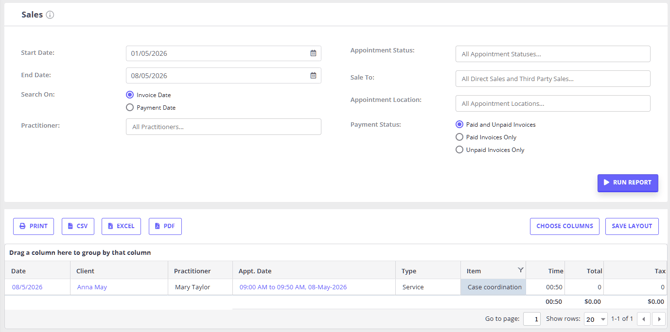
Once invoices are in place, you can use the Sales Report to view services delivered across any date range.
- Go to Reports > Financial > Sales.
- Set the Start Date and End Date.
- Click Run Report.
The report includes:
- Invoice date
- Client name and client number
- Practitioner / calendar
- Location
- Service name
- Quantity and duration
Grouping the report by service type
To summarise how many times each service was delivered:
- Run the Sales Report.
- Drag the Type column heading into the grouping area above the results (marked 'Drag a column here to group by that column '), then drag the Item column heading in as well.
- The report will group results into a summary showing the total quantity of each service delivered during the selected period.
This can be particularly useful for funding reports, audits, or internal program statistics.
💡 Learn more:
Finding appointments with no service recorded
You can regularly check for appointments where no service was selected and no invoice was created.
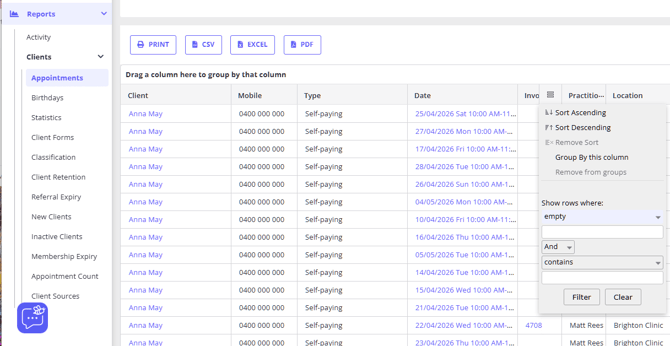
- Go to Reports > Clients > Appointments.
- Select your date range.
- Click Run Report.
- Locate the Invoice Number column.
- Hover over the column heading and click the filter icon.
- Set the filter to Show rows where: empty.
- Click Filter.
This filtered list will show appointments without an attached invoice. You can open those appointments directly and add the missing service.
💡 Tip: Running this check weekly or monthly helps ensure service records remain complete and accurate.
Keeping your team consistent
The most common reason for missing service records is that a service was not selected when the appointment was booked or completed.
To help your team stay consistent:
- Include this process in onboarding so staff understand that selecting a service is still required even when no billing occurs.
- Review the Appointments Report regularly to identify missing invoices.
- Use clear service names such as:
- Individual Counselling — 60 min
- Group Session
- Intake Assessment
Frequently Asked Questions
Will the Sales Report show dollar amounts if all invoices are $0?
Yes. The report will still display the amount columns, but all totals will appear as $0.00.
Can I add multiple services to a single appointment?
Yes. Open the invoice linked to the appointment and click Add Item for each additional service.
Do I need to send or finalise the invoice for it to appear in reports?
No. As long as the invoice is saved with a service selected, it will appear in the Sales Report.
What if an appointment was completed months ago with no service recorded?
You can still open the appointment, add a service to the invoice, and save it. The service will then appear in reporting.
Is there a way to make the service field mandatory when booking?
Not currently. The recommended approach is team training combined with regular checks using the Appointments Report filter described above.
Related Articles
- Financial reports — Overview of financial reports available in Zanda, including the Sales Report.
- Using report filters and layout — Learn how to group, filter, and export report data.
- Creating, editing, printing and emailing invoices — Full guide to working with invoices in Zanda.
- Adding and editing services — How to create and configure services in your account settings.
- User permissions for reception/admin staff — Configure the right permissions for staff creating invoices and reports.