%20-%20120%20x%2044.svg)
When onboarding a new practitioner, you'll want to configure their user permissions to fit their role. This is done in their user profile under User Menu > Account Settings > Team > Users.
Below are common permission levels that can be customized based on your preferences, from limited access to full permissions. These suggestions serve as a guide, and you are free to adjust the permissions to suit your practice.
Important Note: Make sure their user profile is linked to their Default Practitioner Profile, and define their access level (Clinical or Administrative)
In this article:
- Level 2: Client Appointment and Billing Permissions
- Level 3: Reports and Client List Generation
- Level 4: Access to Confidential Client Information
- Level 5: Account Management and Data Permissions
- Allowing Users Access Their Default Practitioner Profiles
- Frequently Asked Questions
Level 1: Clients They Can See and Access
1. Choose the Profile Access setting that suits the role. This is the first decision you make for a new practitioner, and it controls which client, contact, and shared profiles they can find and open. There are three options:
- See only their clients. Access only their clients - The most restricted setting, and the right starting point for most practitioners. The user only sees data for, and has access to, the profiles of clients, contacts, and shared profiles assigned to their default practitioner profile, or where they are listed as a user with access to the profile. They see basic details for contacts associated with those clients and shared profiles. All reports and lists are limited to their default practitioner profile.
- See all clients. Access only their clients - The middle option. The user sees the data in the system for all clients, contacts, and shared profiles, but can only open the profiles assigned to their default practitioner profile, or where they are listed as a user with access. Useful when a practitioner needs to know whether a person is already in your system, without being able to open records that are not theirs.
- See all clients. Access all clients - The user can find and open every client, contact, and shared profile in the account. Suits reception and practice-management roles, and practitioners who cover for each other. On its own this grants no clinical information: see Level 4 below.
2. Deselect all other permissions. Practitioners will still be able to
-
-
use the Calendar Toolbar
-
have access to the Text Messaging Panel to read and send SMS to their Default Clients
-
have access to the Zanda Help menu
- If a user's profile is set to 'Administrative' and the 'Access all Client Communications' permission is turned off, the user will not be able to see any messages in the SMS panel by default. If their role gets set to 'Clinical', then they will get access to message threads of clients where they are set as the primary practitioner.
-
3. Consider enabling the following permissions:
-
Allow Saving Notes in Draft Status: Can save notes in draft status which allows for editing at a later stage. If not granted, can only save notes as completed which locks them from further editing.
-
Allow to Unlock Own Notes: Can unlock completed notes that they created. If not granted, can not unlock any completed notes.
- Allow to Unlock Completed Forms : Can unlock all completed forms they have access to. If not granted, can not unlock any completed forms.
Important: unlocking notes and unlocking forms are two separate permissions
- Notes. Allow to Unlock Own Notes lets a user unlock completed notes they created. It does not let them unlock notes written by anyone else. Without it, only the Master User can unlock a completed note.
- Forms. Allow to Unlock Completed Forms lets a user unlock any completed form in a client profile they have access to, whoever created it. Without it, only the Master User can unlock a completed form.
Granting one has no effect on the other, so a user who needs to reopen both notes and forms needs both permissions.
Level 2: Client Appointment and Billing Permissions
The following functionality may be added to the user permissions so that they can have the extended ability to work with their default clients' appointments and financial information, while still limiting their access to the other clients' confidential information and account management settings:
Scheduling permissions:
- Edit Appointments: Can edit and add new appointments. If not granted, they will have read only access to the calendar and will not see the appointment panel.
- Delete Appointments : Can delete appointments. If not granted, they will only be able to update the appointment status to indicate non-attendance. This one sits under Edit Appointments and stays greyed out until Edit Appointments is enabled.
-
- Edit Invoice Charges: Can see the invoices charge for appointments in the calendar and can edit the invoice. If not granted, will not see the invoice charge nor be able to edit the invoice.
- Access Waitlist: Can access the waitlist to view, add to, or edit waitlisted clients. If not granted, will not have any access to the waitlist.
- Access Client Invoices and Payments: Can view the list of invoices and payments for profiles they can access, including access to the Billing menu for all clients they can see. If not granted cannot view any client’s list of invoices and payments in their profile nor the Billing menu.
- Connect to Own Stripe Account: Can connect their default practitioner profile to Stripe. Must have access to their practitioner profile to configure this.
Level 3: Reports and Client List Generation
To allow the practitioner to generate client lists and reports, enable:
Administrative permissions:
- Advanced Client Search and Export: Can generate a list of profiles using the advanced search filters and export the list for all profiles they can see. Required to export to MailChimp, perform a bulk update, and bulk messaging. If not granted, can only search by name for any profiles they can see.
- Access Client Reports: Can access Client and Practice reports that do not contain financial information.
-
Reports > Clients reports:
-
Appointments
-
Birthdays
-
Statistics
-
Classification
-
Client Retention
-
Referral Expiry
-
New Clients
-
Inactive Clients
-
Membership Expiry
-
Appointment Count
-
-
Reports > Practice reports:
-
Deleted Appointments
-
Recurring Expiry
-
Export Appointments
-
Marketing Logs
-
Inactive Referrers
-
Session Packs
- Email Activity
-
-
- Access Financial Reports: Can access Client, Financial and Practice reports that contain financial data:
-
Reports > Activity
-
Reports > Clients reports:
-
Client Sources
-
-
Reports > Financial reports:
-
Invoices & Payments
-
Sales
-
NDIS Bulk Upload
-
Accounts Receivable
-
Aged Receivables
-
-
Reports > Practice reports:
-
SMS Usage
-
Telehealth Sessions
-
AI Scribe Usage
- Recent Referrals
-
-
'Access Financial Reports' will give access to Tools > Xero Export
-
Level 4: Access to Confidential Client Information
Zanda separates which client profiles a practitioner can open from which clinical information they can see inside those profiles. These are two independent controls, and granting the first does not grant the second.
- Profile Access (Level 1) decides which profiles the practitioner can find and open. Setting it to See all clients. Access all clients lets them open every profile in the account, and nothing more.
- The Clinical permissions below decide what they can see once a profile is open. With all of these turned off, a practitioner set to See all clients. Access all clients can open any client but cannot view that client's clinical notes, forms, file uploads, or communications, unless the client is assigned to them.
So if a practitioner needs to see the client database without seeing clinical records, give them the Profile Access they need and leave the Clinical permissions off.
To give a practitioner access to confidential information and correspondence for every client in the account, set Profile Access to See all clients. Access all clients and enable the Clinical permissions below.
Access level matters here too. A user whose access level is Administrative does not see clinical information even for their own assigned clients, unless you grant the specific Clinical permission below. A user whose access level is Clinical sees clinical records for their assigned clients without any extra permission.
Clinical permissions:
- Access all Client File Uploads: Can view and access the file uploads for all profiles they have access to. If not granted, can only see and upload files for their assigned clients.
- Access all Clinical Notes/Forms: Can view and access clinical notes and forms for all profiles they have access to. If not granted, can only see notes/forms for their assigned clients.
- Access all Client Communications: Can view and send SMS, email, and letters for all profiles they have access to. If not granted, can only see communications for their assigned clients.
- View All Users Notes: Can view clinical notes created by all users in the profiles they have access to. If not granted, can only see notes that they have created.
- It is possible to override user access to notes for specific client profiles. The Override User Access to Notes feature is available in each Client Profile > Admin > Manage settings page. If users do not have access to 'View All Users Notes' to see notes written by other users, use this setting to grant a user access to view all another user's notes in a specific client profile.
- Practitioners can create overrides only for notes they have authored (for example, they can make their own notes viewable to a specific user). They cannot create overrides that allow one practitioner to access another practitioner’s notes. Only a master user can create or manage overrides for other users’ notes.
- View Tasks Assigned to All Users: Can see tasks assigned to all users. If not granted, they will only see tasks assigned to them or to anyone.
Level 5: Account Management and Data Permissions
The following permissions will enable access to the general account settings and data:
Scheduling permissions:
- View all Calendars: Can see all of the practitioner’s calendars. If not granted, they will only see the calendar for their default practitioner.
- Show All Appointment Details : Can see the details for appointment bookings in all calendars. If not granted, can only see the appointment details in their default practitioners' calendar and all others will be shown as grey blocks. This one depends on two other settings: it stays greyed out until View all Calendars is enabled and Profile Access is set to see all clients.
Administrative permissions:
- Change Assigned Practitioners : Can change the primary practitioner, assigned practitioners, and users with access for all clients they have access to. If not granted, can not change these fields for any clients. This is the permission a non-master user needs to do the assigning described under Allowing Users Access Their Default Practitioner Profiles below.
- Manage Note and Form Templates: Can add and edit note and form templates.
- Communication Menu: Can add and edit communication templates, export to Mailchimp, and bulk send communications (if granted access to advanced client search).
- Access all Referrer and Third Party Profiles: Can search for, run a list of, add, and access the profiles for all referrers and third parties. If not granted, can only see referrer or third party details in association with their clients.
- Access Log File: Can access the Log File to view user activity in the account. If no access to see all profiles, they will only see their own users activity.
- Allow Data Export : Can export data via Tools > Data Export. Requires access to all profiles to export all account data, otherwise they can only export data for their assigned clients.
- Setup and Configure Zanda : Can access the Settings menu and configure account settings, including adding and editing users and their permissions. Also allows deleting and merging profiles. This is the permission that lets someone manage the permissions described in this article, so grant it deliberately.
Financial permissions:
- Access Practice Dashboard : Can access the practice dashboard to view statistics for the practice.
Allowing Users Access Their Default Practitioner Profiles
Your practitioners can be allowed to have easy access to their own default practitioner profiles. This will allow them to set their own details, insurer information, sync their Zanda calendar with their google or Outlook calendars, add and edit their availability and services, and connect to their own Stripe account, when permitted.
To manage these user settings, navigate to User Menu > Account Settings > Team > Users > User Settings* and activate them as needed:

✴️ Learn more about account user settings here.
Once your practitioners are allowed to access their practitioner profiles, they will click the user menu at the top right and select Practitioner Profile to jump directly to their profile settings.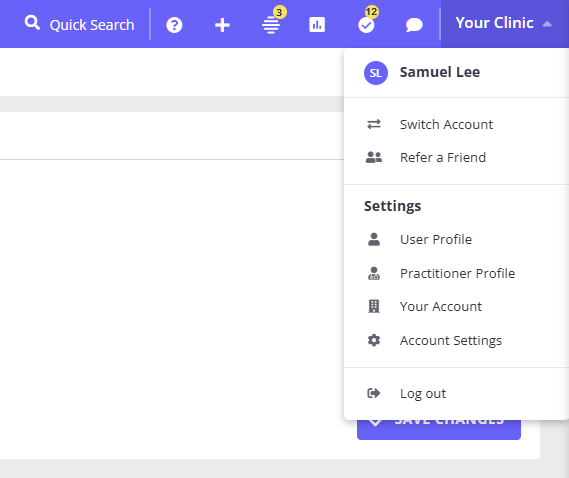
Frequently Asked Questions
Can a practitioner add service items without creating, editing, or deleting appointments?
Yes. Leave Edit Appointments and Delete Appointments disabled, then enable Edit Invoice Charges so they can open and edit invoices. If they need to work from the client profile Billing area or create invoices, also enable Access Client Invoices and Payments.
With Edit Appointments disabled, the practitioner has read-only calendar access and the appointment side panel is not available. They can work with invoice charges from the invoice or Billing workflow instead of changing the appointment booking. If they need to search for clients from the People menu or header search, enable Can Add and Search Clients; this permission also lets them add new client, contact, and shared profiles.
What settings allow practitioners to view Admin Notes?
Use Profile Access to control which client profiles a practitioner can open, including Client Profile > Admin > Admin Notes. To let a practitioner view Admin Notes for every client, set their Profile Access to See all clients. Access all clients. To keep access limited, leave them on See only their clients. Access only their clients and make sure each client is linked to them as the preferred practitioner, an assigned practitioner, or a user with access from Client Profile > Admin > Manage.
The Clinical or Administrative access level controls clinical-record access by default. Admin Notes follow the user's client profile access rather than a separate Admin Notes permission checkbox.
Who is the Default Client for the user?
- To assign a default client to a practitioner
- navigate to this client's Profile > Admin > Manage
- Select the user's practitioner as the Preferred Practitioner, an Assigned Practitioner or as the User With Access.
Can I set up team-based access so practitioners only see their own team's clients?
Zanda doesn't have a built-in team grouping feature, but you can achieve this
using a combination of settings:
1. Set all practitioners to "See only their clients. Access only their clients"
2. For each client, assign all team members who need access using
Client Profile > Admin > Manage > Assigned Practitioners
3. Team members will then see only clients they are explicitly assigned to,
keeping them out of other practitioners' client lists
Note: This requires manually assigning practitioners to each client profile.
For large client lists, use the Tools > Bulk Update feature.
Can a practitioner's login be shared with someone else, like a colleague covering for them?
No. Every person who logs in to Zanda needs their own user profile with a unique login email; logins can't be shared or reused across profiles. If a practitioner doesn't have their own user profile, give a colleague (for example, reception or an administrator) their own login with the right permissions instead: Profile Access set to See all clients. Access all clients, Edit Appointments and View all Calendars to manage the practitioner's calendar, and the Clinical permissions above to work with their notes. Giving each person their own login keeps your activity trail accurate, makes it easy to remove access when someone leaves, and lets you set permissions individually per person.
Can I copy one practitioner's permission setup onto a new practitioner, like a template?
Match a new practitioner's permissions manually to an existing practitioner's, using the permission levels described above - there's no built-in way to clone a permission setup from one user profile to another.
Do a practitioner's User profile settings and Practitioner profile settings ever conflict with each other?
No. They control different things and don't overlap. The User profile controls login access and permissions (what someone can see and do), as described throughout this article. The Practitioner profile controls calendar, clinical, and billing-related details (like availability and integrations). Changing one doesn't affect the other.
Which permission lets a user see who created or completed a client intake form?
There is not a separate permission for a "Completed By" field on client intake forms. To view clinical client forms across profiles, enable Access all Clinical Notes/Forms. To view clinical notes and forms created by other users within profiles the user can access, also enable View All Users Notes.
To review form completion in a report, the user also needs Access Client Reports. They can then go to Reports > Clients > Client Forms, use Search On: Form Completion Date to focus on completed forms, and review the Created By, Status, and Date Completed columns.
Can client files or records be made confidential so only certain users can see them?
Zanda does not have a separate 'confidential' or 'manager-only' file store that hides individual files or records from everyone except full-access users. File and record visibility is controlled through user permissions, not a per-file lock.
Two settings determine who can see a client's files:
- Profile Access — determines which client profiles a user can open at all. A user set to See only their clients. Access only their clients can only reach the profiles assigned to them.
- Access all Client File Uploads (Clinical permission) — when granted, a user can view the file uploads for every profile they have access to; when not granted, they can only see and upload files for their own assigned clients.
To keep a client's files visible to a limited group, turn Access all Client File Uploads off for users who should not see other practitioners' files, and assign only the relevant practitioners to that client profile. Users with See all clients. Access all clients plus Access all Client File Uploads will always be able to see the files.
Note: the Is Admin File toggle only moves a file between the Records > Files and Admin > Admin Files views — it does not restrict who can see the file. The same permissions govern both views.