%20-%20120%20x%2044.svg)
This article covers everything you need to know about preparing your account for online claiming through Zanda. Follow the steps below to configure your insurers, practitioners, services, and client records — then you'll be ready to start submitting claims.
There are no fees for using Medicare (AUS) with Zanda. It is completely free.
In this article
- Getting Ready for Medicare Online Claiming
- Step 1: Register for Medicare Online Claiming
- Step 2: Configure Medicare as an Insurer
- Step 3: Add Provider Numbers to Practitioners
- Step 4: Add Medicare Item Codes as Services
- Step 5: Set Up Client Records for Medicare
- Setting Up a Claimant for a Minor
- Step 6: Add a Referral to a Client
- Setting a Preferred Service on a Client's Appointments
- Data Entry Tips
- Frequently Asked Questions
- Related Articles
Getting Ready for Medicare Online Claiming
You must first complete the HW027 Online Claiming Provider Agreement form and submit it to Medicare.
See Registering for Medicare Online Claiming for full instructions.
Step 1: Register for Medicare Online Claiming
Before you register, find your Zanda Location ID:
- Go to Tools > Medicare.
- If this is your first time opening Medicare in Zanda, click Click here to Apply. Zanda generates your Location ID instantly.
- Copy the Location ID shown on the Medicare page. It uses the format PWD followed by five digits and is also called the Minor ID.
Use this Zanda Location ID when registering for Medicare Online Claiming:
- You can register via your existing PRODA account.
- Alternatively, complete the HW027 form and submit it to Medicare.
If PRODA does not recognise your Zanda Location ID (Minor ID), complete the HW027 form and email it to: provider.forms@servicesaustralia.gov.au
Step 2: Configure Medicare as an Insurer
Zanda automatically adds Medicare Australia as an insurer for Australian accounts. Verify the settings:
- Go to User Menu > Account Settings > Payments > Insurers
- Select Medicare (or add it if missing)
- Ensure Type = Medicare Australia
- Enable Show on Invoice
- Add invoice text (e.g. Medicare Provider Number:)
- Click Save
Step 3: Add Provider Numbers to Practitioners
Each practitioner must have a provider number linked:
- Go to User Menu at the top-right > Account Settings > Team > Practitioners
- Open the practitioner profile
- Go to Insurers > Add Insurer
- Select Medicare (Australia)
- Choose the correct Service Type
- Enter the Provider Number (no spaces)
- Assign location
- Enable 'Default for All Clients' if most of the practitioner's clients use Medicare.
- Click Save
Tip: Add separate entries if a practitioner has different provider numbers per location.
Step 4: Add Medicare Item Codes as Services
Each Medicare item must be set up as a service:
- Go to User Menu at the top-right > Account Settings > Billing > Services
- Click Add Service
- Enter:
- Name
- Item code (in Code field)
- Duration
- Price
- Set Tax = Tax Exempt
- Click Save
Repeat for all item codes.
Step 5: Set Up Client Records for Medicare
Add Medicare Details
- Open client record
- Go to Billing > Insurance
- Click Add Insurance
- Select Medicare Australia
- Enter:
- Medicare number
- IRN
- Click Validate Medicare Data
- Save
Add Bank Details (if required)
- Go to Billing > Billing Setup
- Enter bank details
- Save
Note: Not required if already registered with Medicare.
Setting Up a Claimant for a Minor
- In the client profile, go to Contacts tab
- Add parent/guardian
- Ensure required details, including the contact Medicare details and home address are completed.
- Save.
- Go to client protfile > Billing > Billing Setup and set Bill To as the contact
- Save
Step 6: Add a Referral to a Client
- Open client record
- Go to Profile > Referrals
- Click Add Referral
- Enter referrer details
- Set:
- Start date
- Validity period
- Default toggle
- Save
Setting a Preferred Service on Appointments
- Open client profile
- Go to Billing > Billing Setup
- Select Preferred Service, (such as a Bulk Bill service, or any other service you are registered to provide with your Medicare Provider number)
- Save
This pre-fills services for new appointments.
Data Entry Tips
Accurate data entry ensures successful claims:
- Medicare claimants need a first and last name, date of birth and their Medicare card details.
- Provider numbers must not contain spaces
- Medicare numbers and IRNs must not contain spaces
- Add claimant as a contact if different from patient
- All patients need a Medicare card number and reference number (the expiry is not required for claiming).
- Validate Medicare details after entry
- Services must include item codes
- Add client bank details if needed
- Referrals must be linked before claiming
- To collect Medicare details through an intake form and automatically save them to the client’s profile, add the Insurance Details Linked Profile Field to your form in Tools > Form Designer. This field captures the client’s Medicare number, IRN (reference number), and expiry date, and writes the information directly to the client’s insurance profile when the form is submitted. For full instructions, see: Using the Form Designer
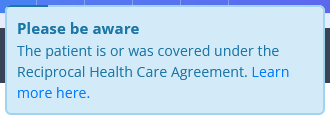
- If a client is covered under Reciprocal Health Care Agreement and you validate their card, you will see this notification message:
Frequently Asked Questions
❓ Can I submit Medicare claims during a free trial?
Yes. During an active free trial, you can prepare and submit Medicare claims after completing the Medicare setup steps in this article. If the trial has expired and account access is suspended, convert the trial first, then continue with the same Medicare setup, patient claim, or Bulk Bill workflow.
How are rebates calculated?
Claims are sent directly to Medicare, which applies the correct rebate based on item code and service date. Zanda does not calculate rebates.
How do I update Zanda when a registered psychologist becomes a clinical psychologist?
The Medicare registration change itself happens with Medicare, not in Zanda. After Medicare confirms the practitioner can claim clinical psychology items, check the practitioner's Medicare setup and billing templates in Zanda:
- Go to User Menu > Account Settings > Team > Practitioners.
- Open the practitioner profile, then go to Insurers.
- Open the practitioner's Medicare insurer entry and confirm the Provider Number, Service Type, and location are correct.
- Go to User Menu > Account Settings > Billing > Services.
- Add or update the services that use the clinical psychology Medicare item codes. Enter the item code in the Code field and set the Price to the fee you charge for that service, including any bulk-billed services.
- If existing clients or appointments should use the new service, update their preferred service or appointment service as needed.
Zanda sends the claim details to Medicare. Medicare determines the rebate from the item code and service date, then Zanda displays the claim outcome returned by Medicare.
Do I need the HW027 form if I already use HICAPS or ECLIPSE?
Yes. The HW027 form is still required before you can submit claims via Zanda.
Do I need to enter bank details if the client already registered them with Medicare?
No. Medicare will automatically pay the rebate.
How do I enter a client who only has one name?
Zanda checks both the client's first name and last name before validating Medicare details or creating a claim. If the client has one legal name, follow the single-name guidance in Troubleshooting Medicare Errors (AUS Only), then click Validate Medicare Data before submitting or resubmitting the claim.
Do I need a PKI Certificate?
No. Zanda manages this on your behalf.
Can I delete invoices or appointments linked to Medicare claims?
To preserve audit history, write off the invoice instead of deleting invoices or appointments linked to Medicare claims.
Related Articles
- Registering for Medicare Online Claiming - Register for Medicare online claiming before submitting claims through Zanda.
- Insurers and Provider Numbers - Add insurer provider numbers and link them to the correct practice locations.
- Troubleshooting Medicare Errors (AUS Only) - Resolve common Medicare claiming errors.