%20-%20120%20x%2044.svg)
Advanced Search is more than a way to find individual profiles. It is also a flexible reporting tool for generating filtered lists of clients, shared profiles, referrers, contacts, and third-party profiles.
You can use Advanced Search to answer practical reporting questions, such as:
- Which clients have had appointments during a specific date range
- Which clients have not booked a future appointment
- Which clients are linked to a specific practitioner
- Which clients belong to a particular classification
- Which clients match demographic fields such as sex, gender identity, date of birth range, client status, client type, or referrer
- Which referrers, contacts, or third parties match selected criteria
This makes Advanced Search useful for client activity reports, practitioner-specific reports, re-engagement lists, marketing lists, and other detailed reporting needs. After generating a filtered list, you can refine the displayed columns and export the results to PDF or Excel.
Note: Users need the Allow Client List Generation And Export permission to use this feature.
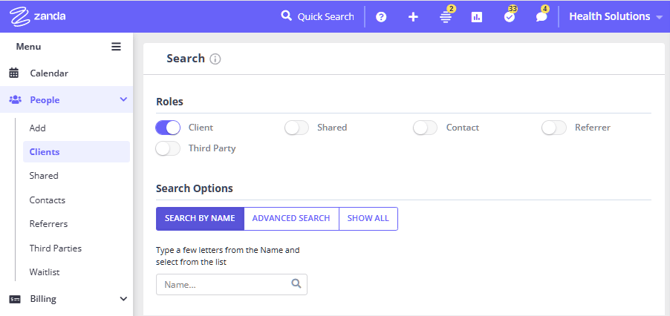
Advanced Search can be accessed via People > Clients / Shared Profiles / Contacts / Referrers / Third Parties > Advanced Search.
In this article:
- Understanding the filters
- Exporting and refining results
- Frequently asked questions
- Related Articles
Understanding the filters
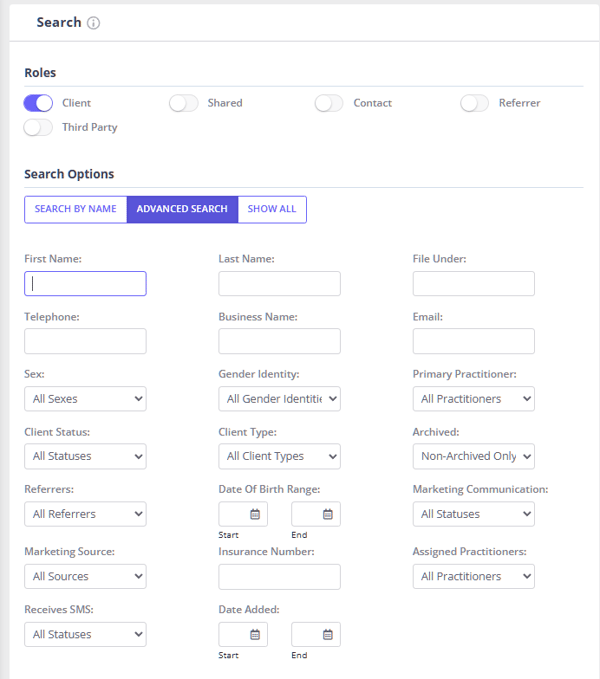
While a majority of the filters and fields on the advanced search are fairly straightforward (first name, last name, telephone, email, sex, gender identity, date of birth range, date added to a Zanda account, etc.), some might not be as immediately obvious.
💡 Tip: The same filtering options are also available on:
-
The Bulk Send page: Allow you to quickly send bulk emails or SMS messages to your generated client list with just one click.
-
Mailchimp integration page: Through the Mailchimp integration, you can seamlessly export your selected clients to your Mailchimp account for email marketing campaigns.
Filtering by Practitioner Type
You can use Advanced Search to generate a filtered list of clients based on their relationship to practitioners. This allows you to quickly identify clients who are linked to specific practitioners in different ways and export the results to PDF or Excel if needed.
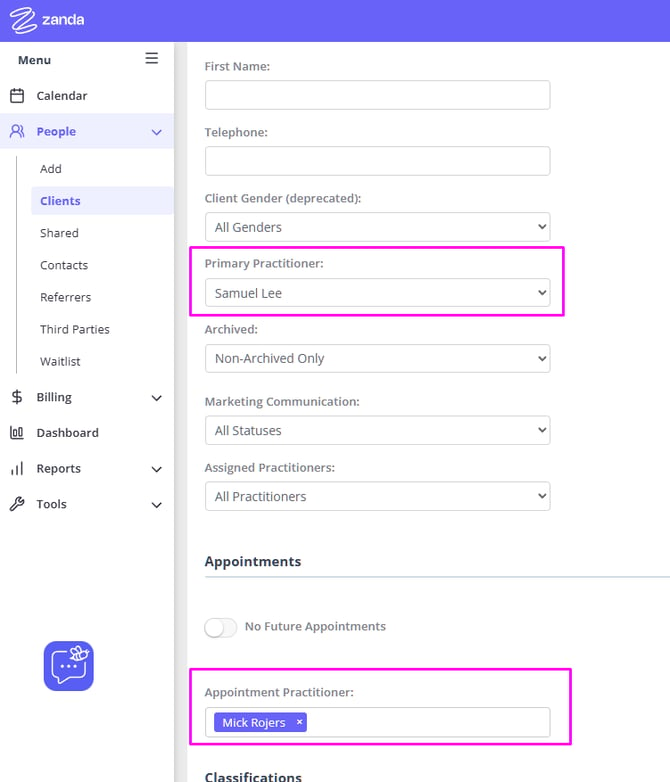
- Primary Practitioner: Get a report of clients who have the selected practitioner set as their Primary Practitioner in the client profile > Admin > Manage page.
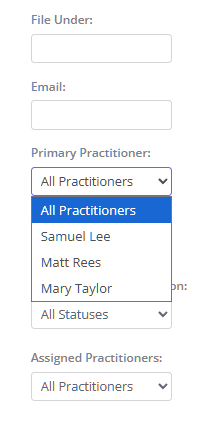
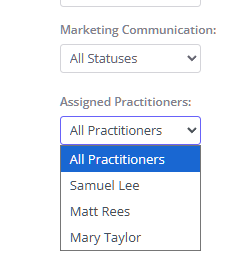
- Assigned Practitioners: Get a report of clients who have the selected practitioner added as an Assigned Practitioner in the client profile > Admin > Manage page.
- Appointment Practitioner: Get a report of clients who have had appointments with the selected practitioner.
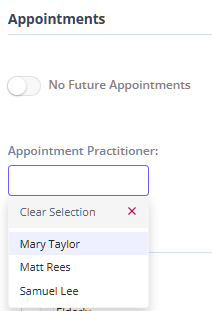
These filters can be useful for generating practitioner-specific reports, reviewing client allocation, identifying which clients a practitioner has seen, or finding clients connected to a practitioner through their profile settings or appointment history.
Had an Appointment Between and No Appointments Between
These two filters can be extremely powerful when running reports on client activity within your business.
- For example, you might want to find a list of all clients who have had an appointment this year but don't have an appointment booked for the future.
- To do this you would simply set the 'Had an Appointment Between Dates' to the 01/01/THIS YEAR to today's date
- Use the No Appointments Between filter for additional accuracy of the report
- Toggle the 'No Future Appointments Slider'
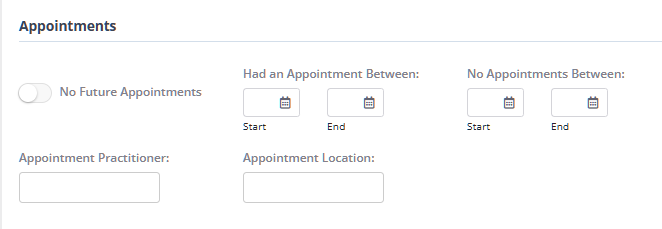
This makes Advanced Search particularly useful for running re-engagement reports or identifying clients who may need follow-up.
Using Multiple Filters to Refine Search Results
You are able to use all of these filters in conjunction with each other. This means that you can refine the results of the search down to look only at what you're after.
For example, you might want to run the above search but only look at data relevant to a specific practitioner and clients with a particular classification applied. In this case, you would set the above filters up and then simply select the relevant classification (or classifications) and the calendar/practitioner that you're wanting to report on.
💡 Filtering Logic Tip:
-
Classification toggles use OR logic (not AND).
-
Selecting multiple classifications finds clients with any of them.
-
Also, if you select no toggles, the search defaults to all clients (not just those with no classifications).
Exporting and refining the results
Once you have tweaked the various filters to your liking you can generate the list of clients (or referrers, third parties or contacts) you can click 'Show Filtered List' to generate the list.
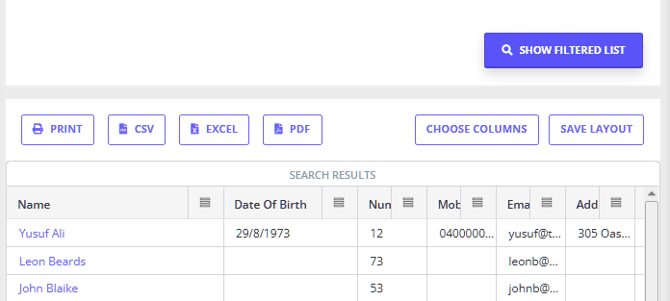
- Once the list has been generated you can further refine the results:
- Choose columns to include in the report:
- Name
- Date of Birth
- Number
- Mobile
- Role
- Gender
- Address
- Status
- Practitioner
- Archived
- Save Layout
- Choose columns to include in the report:
- Export it to either PDF, Excel or print it.
Frequently Asked Questions
❓ How can I find people who registered through the Client Portal but have not booked an appointment?
For portal registrations, use Advanced Search as a follow-up workflow rather than an automatic portal-registration filter. Go to People > Clients > Advanced Search, then use Date Added to focus on the registration period you want to review.
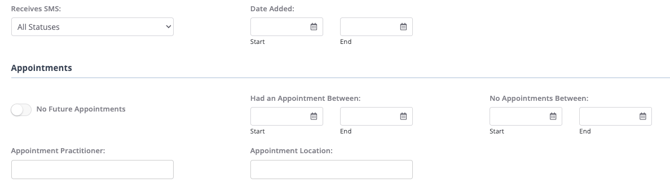
In the Appointments section, use the filters that match your follow-up goal:
- Turn on No Future Appointments to find clients without an upcoming appointment.
- Use No Appointments Between to find clients who had no appointments during a specific date range.
- Use Appointment Practitioner or Appointment Location if you want the appointment filters to apply to a specific practitioner or location.
- Select any relevant Classifications, Client Status, or Marketing Source filters if your practice uses those fields to organize new inquiries.
- Click Show Filtered List, choose the contact columns you need, then export the list to Excel or PDF.
💡 Marketing Source is different from portal registration. Marketing Source is a client profile field for client marketing sources, so use it only when your practice records portal inquiries with a matching source.
If you need to review appointments that were booked through the Client Portal, use Reports > Clients > Appointments and include the Source column. Portal-booked appointments appear with Source set to Portal.
❓ How can I find clients who are seeing a practitioner other than their primary (or assigned) practitioner?
Advanced Search doesn't have a single report that compares a client's Primary Practitioner against the practitioner on their appointments, but you can answer the same question by combining two of the practitioner filters. Because all Advanced Search filters work together (AND), you can cross-reference who a client belongs to against who they have actually been booked with.
To review one practitioner's clients:
- Go to People > Clients > Advanced Search.
- Set Primary Practitioner (or Assigned Practitioners) to the practitioner the clients belong to.
- Set Appointment Practitioner to the practitioner (or practitioners) whose appointments you want to check against.
- Click Show Filtered List. The results are the clients whose primary or assigned practitioner is the first person but who have had appointments with the second—in other words, clients being seen by someone other than their own practitioner.
- Choose the columns you need and export the list to Excel or PDF.
💡 Tip: Run this one practitioner at a time—change the Primary Practitioner to each practitioner in turn—to review your whole practice, or leave Appointment Practitioner set to a specific covering or locum practitioner to see every client they have seen, regardless of who those clients belong to.
If you would rather prevent this at the booking stage, you can restrict Client Portal online bookings so clients can only book with their own practitioner. See Assigning Multiple Practitioners to a Client Profile and the Clients Can Book With Any Practitioner setting.
❓ Can I search or filter my client list by which private health fund (insurer) each client is with?
No, Advanced Search and Bulk Send don't have a filter for private health fund or insurer, so you can't generate a client list or message a subgroup based on which health fund a client is with.
If you want to message a specific group of clients about something health-fund-related (for example, letting them know a fund's provider numbers have changed), the closest way to do this in Zanda is with Client Classifications:
- Create a classification for the group you want to message (for example, one named after the health fund).
- Add that classification to each relevant client's profile under Profile > Classifications.
- Go to People > Clients > Advanced Search (or Bulk Send to email or SMS the group directly), select that classification in the filters, and generate or message the list.
See Setting Up and Using Client Classifications for how to create and assign classifications.
This does mean classifying clients manually. Zanda doesn't currently treat a client's recorded insurer as a searchable or filterable field, only as billing and invoicing information on their profile.
Related Articles
- Client Reports - Review the client reports available in Zanda, including the Appointments report.
- Setting Up Online Bookings on Client Portal - Configure online booking settings and client access for the Client Portal.
- Archiving, Deleting, Unarchiving and Restoring Clients - Find an archived client by their Zanda/client number using the Number column, and other steps for archiving, deleting, and restoring client profiles.